

Create Hierarchy with Nested Pages
A parent-child page relationship is a hierarchical structure where a more general parent page acts as a hub for related, more detailed child pages. Establishing parent-child page hierarchy on your site can improve navigation, enhance user experience, and build logical content frameworks that make information more accessible.
The order, hierarchy, and settings that you can configure in the All Pages tree impact the Nested Pages menu. Typically the Nested Pages menu serves as the primary navigation menu at the top of your site.
Toggling the Page Tree
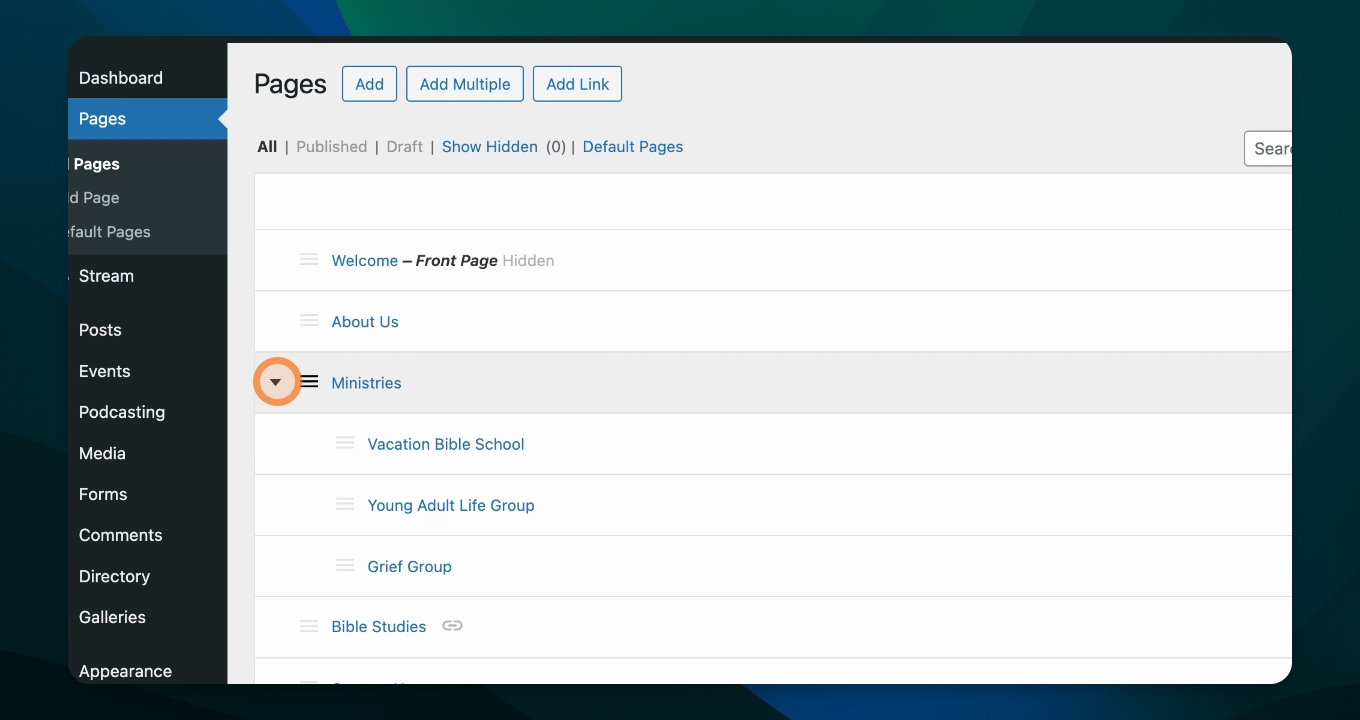
Pages are nested underneath parent pages. If a page has one or more children, a toggle arrow appears to the left of the name. To toggle the child pages in and out of view, click this arrow.
Child pages are indented under their parent page.
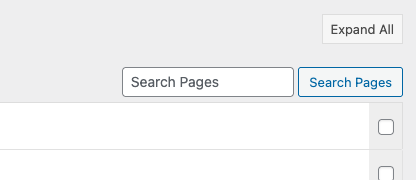
To quickly expand and collapse all pages, click the Expand All button in the upper right corner of the All Pages screen. This will quickly display a tree-like structure of your entire site.
Reorder Pages
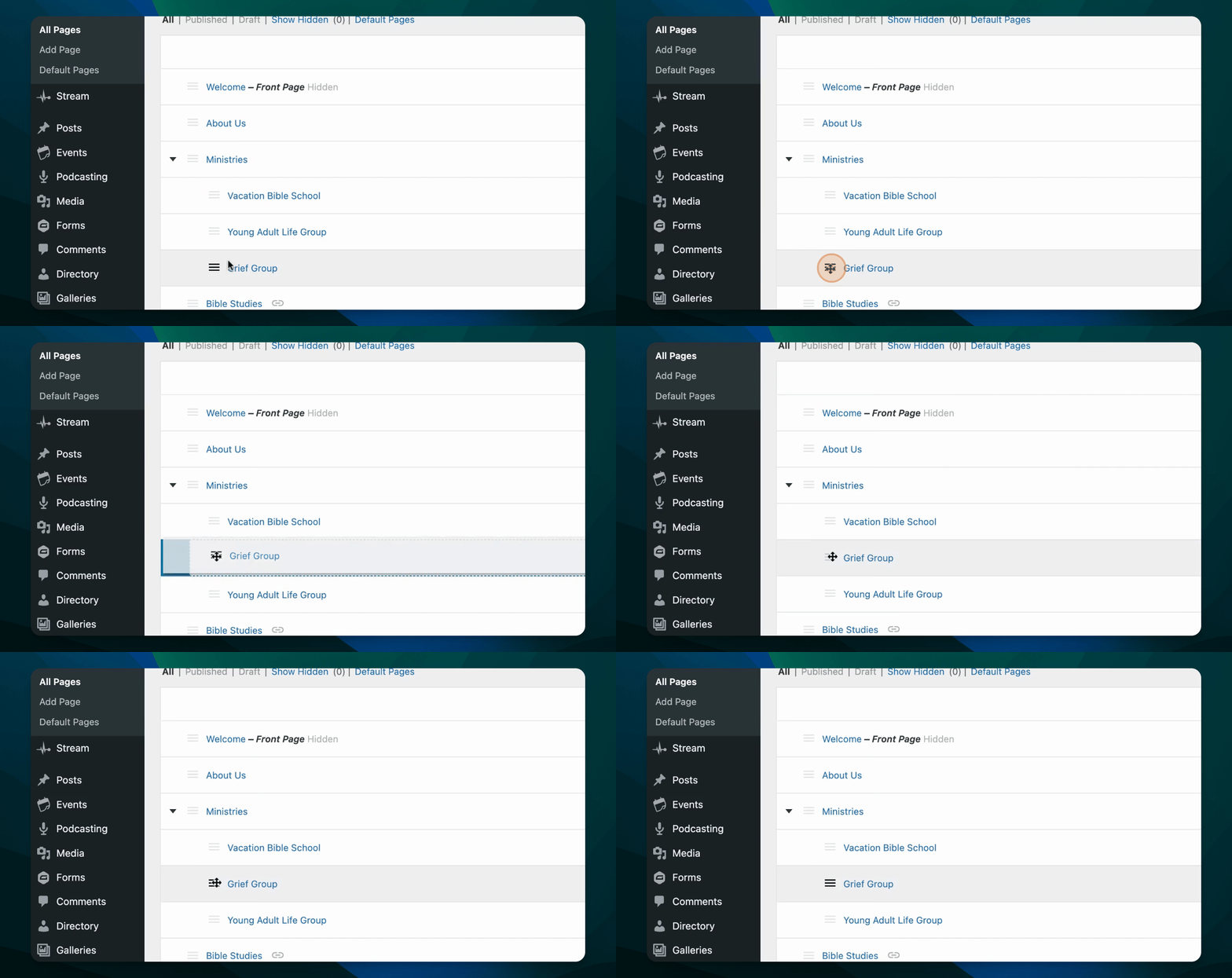
To reorder pages, hover over the page row. A menu icon (three lines) will appear. Click and drag this icon to reorder within the menu. To drag a page underneath another, drag the page to the right and underneath the target parent.
Visual indication that a page has become the child to another page is provided with an indentation.
Adding Child Pages
To add a child page, hover over the parent page's row, and click the button titled "Add Child". This item links to the new page form, with the parent relationship already set.
Hiding Pages from the Tree View
One-off pages like disclaimers and landing pages can be hidden from the All Pages list. This keeps the interface clean and clutter-free.
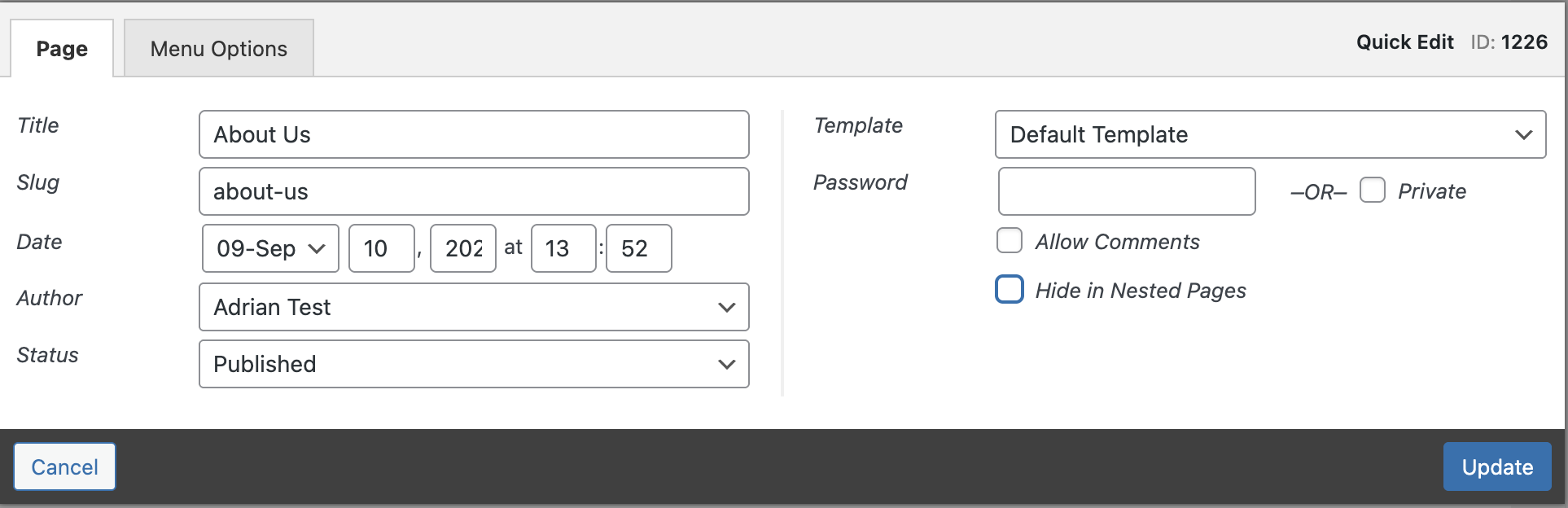
To hide a page from the All Pages list, open the quick edit form by clicking the "Quick Edit" button for the page. Select the option to "Hide in Nested Pages" and click Update to save the change. Pages hidden from the list view are not shown by default.
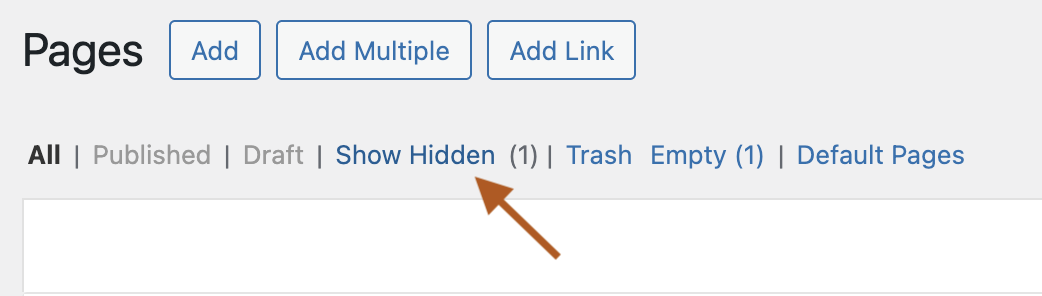
To toggle the page back into view, click the "Show Hidden Pages" link at the top of the screen. The hidden pages are now visible, and can be re-edited to not be hidden.
Hiding Pages in the Menu
To hide a page from the menu, click "Quick Edit" on its row, select "Hide in Nav Menu", and click "update". Hidden pages are marked "(Hidden)". If a page with child pages is hidden from the menu, all of its child pages will also be hidden.
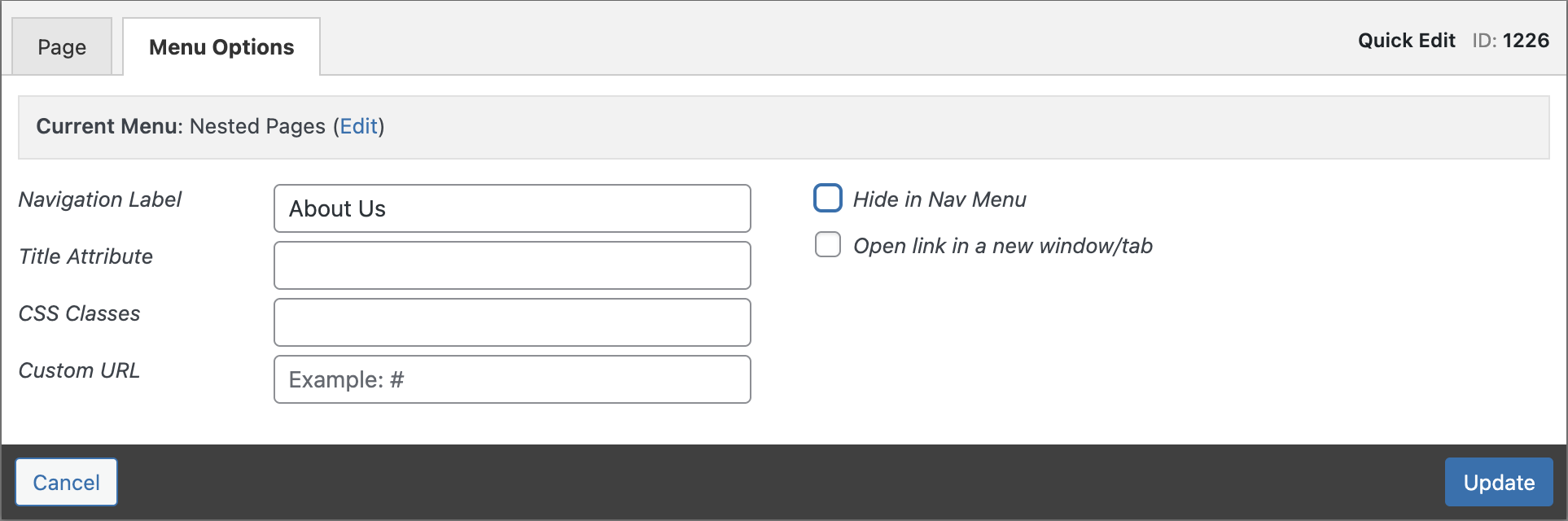
Hiding pages from the menu means that visitors to your site will not be able to find it from the main navigation menu. However they will still be able to see the page in search results or from links to it.
A hidden page will also not appear in any sub-navigation menus, like the one that appears in the Page w/Subnav template.
Hiding a page from the main menu does not make it private. Learn more in our article on making password-protected content.