

The Page w/Subnav template is a page layout template that automatically generates a contextual side menu based on your site's page hierarchy. It's a helpful tool for organizing multi-level content, allowing visitors to move easily between related pages.
To learn more about creating structure by establishing parent-child relationships among your pages, see Understanding Posts vs. Pages and Creating Structure.
How It Works
When the Sub Menu template is applied to a page, it displays a navigation menu on the right-hand side of the page as well as breadcrumbs in the header.
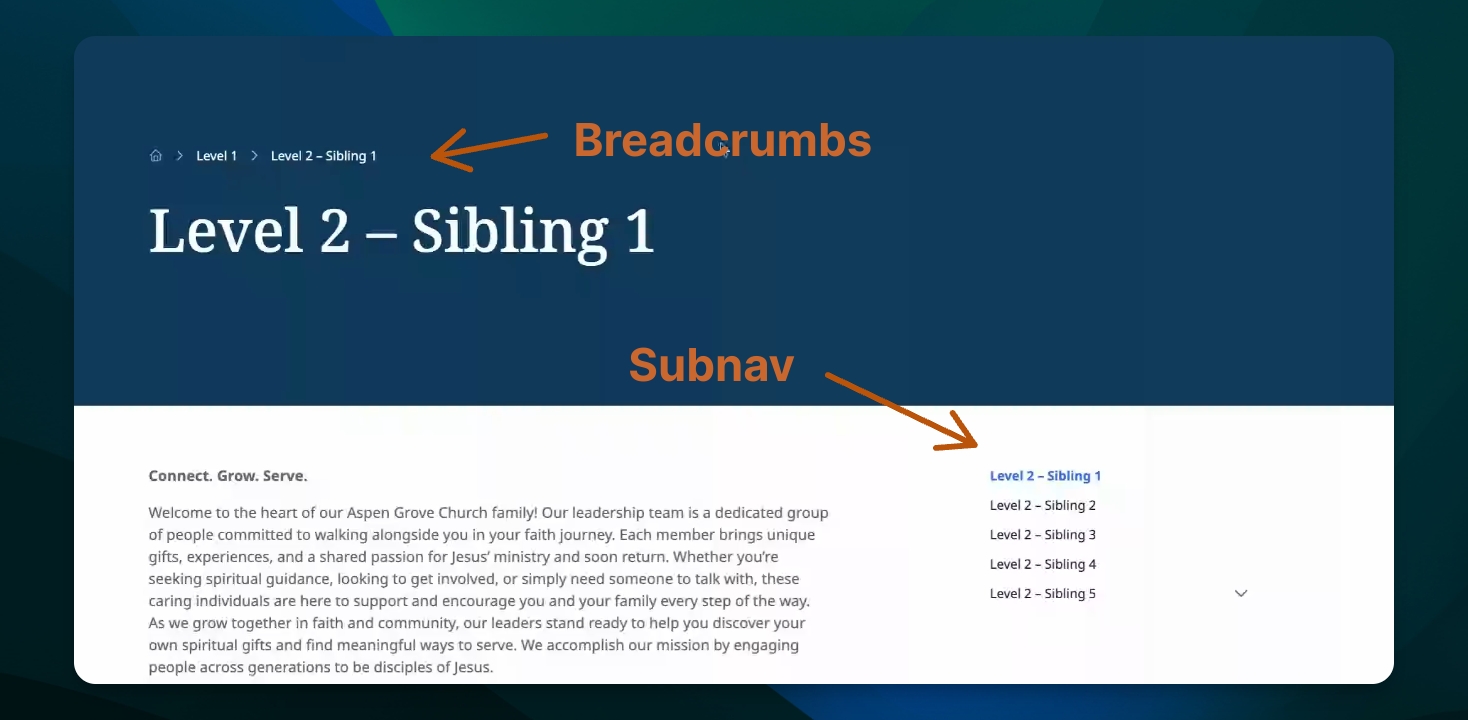
Subnav
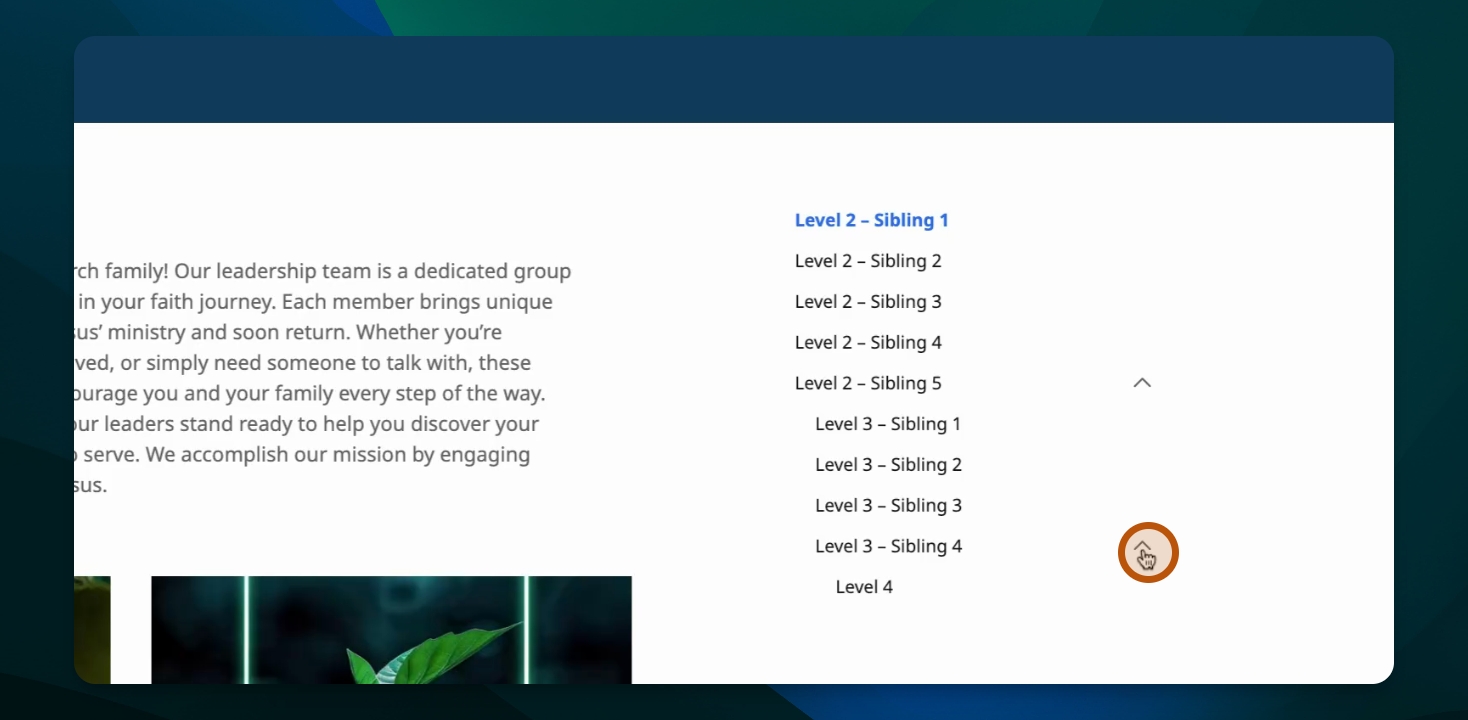
This menu will show other pages based on where that page sits in your site's hierarchy. On the right side, the template displays both sibling pages (other pages at the same level) and any child pages nested beneath the current page or its siblings.
The subnav menu will only show three levels down of child pages. Users can click the arrows to expand or collapse the list of child pages.
Breadcrumbs
Users can see the path to the current page in the breadcrumb menu in the header. Another way to think of this is as a list of the current pages parent pages.
The template's menu will adapt to the current page automatically. Any edits to your site's page order or page names will automatically be reflected in the subnav menu.
Applying the Template
There are two ways to apply the Sub Menu template to a page.
Use the Quick Edit feature
Log into your site to access the dashboard
Locate the page you wish to apply the template to under All Pages
Click Quick Edit
In the Template dropdown, select Page w/Subnav
Click Update to save your changes

Use the Page Editor settings
Log into your site to access the dashboard
Locate the page you wish to apply the template to under All Pages and click to edit
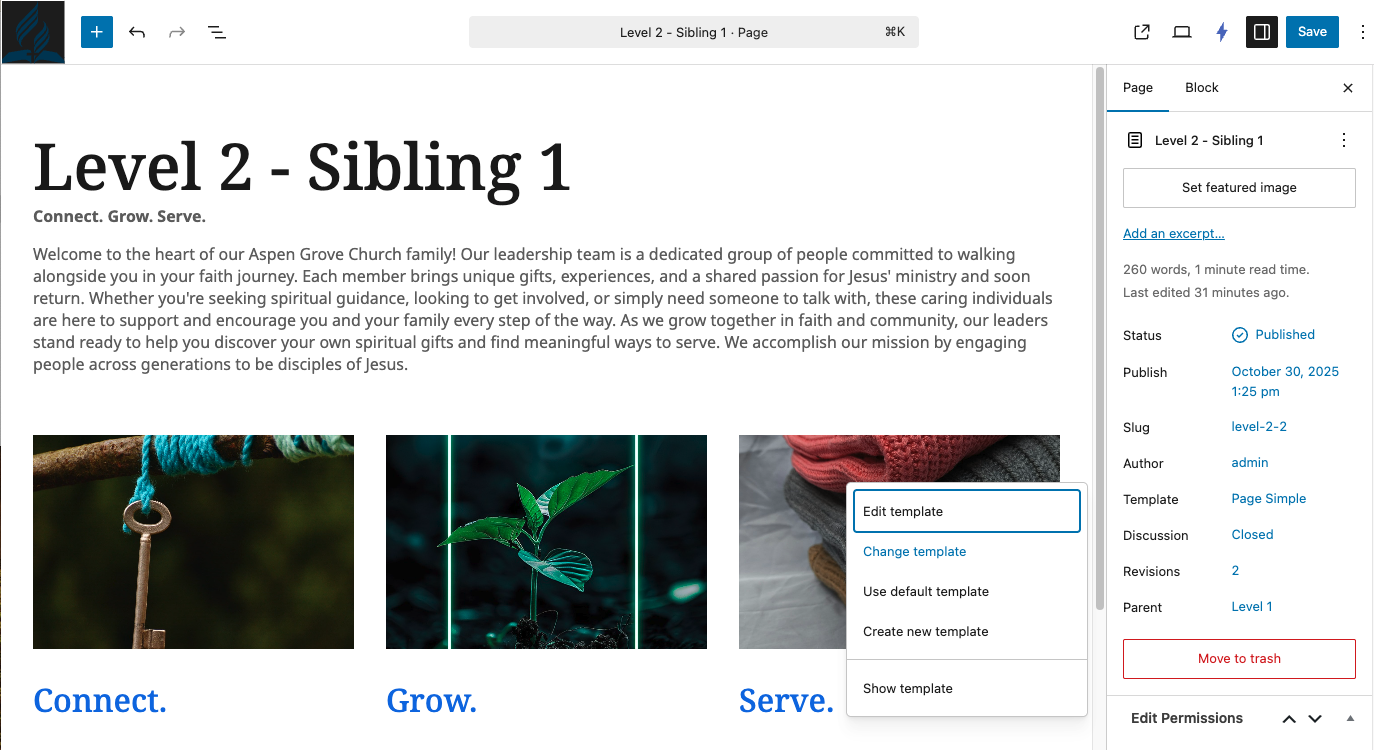
In the Page settings, click on Template
Choose Change Template
Select Page w/Subnav from the options
Click Save to save your changes
Individual pages can be excluded from the sub menu navigation without being deleted or unpublished. To hide a page from the sub navigation, use the Quick Edit option from the All Pages list and uncheck the option to show the page in navigation. This is useful for pages that exist within your hierarchy but aren't meant to be browsed directly, such as specialty landing pages.
Limitations
There are a few things to keep in mind when using the Sub Menu template. The template displays a maximum of three levels of subpages. Content nested deeper than three levels will not appear in the sub navigation, to allow users to focus on the information most closely related to what they are viewing.