

Menus allow users to easily navigate your site and find important information about your ministry.
Understand the Menus
The main menu, or Primary Nav, is the primary way users navigate your site. For ease, it should be set to automatically update as you add, delete, reorder, and rename pages.
If your primary nav is not updating as you make changes, check your navigation settings. The primary nav should show the Nested Pages menu.
The Secondary Menu appears above the main menu, alongside the call to action button. This is great for quick links or member-related pages.
The Footer Menu appears at the bottom of every page. It often contains links to policies, contact information, or additional resources.
Choose Navigation Settings
First, set your navigation settings to dictate which menu should display where on the site. You can learn about these options in the Navigation Settings article.
Edit Secondary and Footer Menus
Follow these steps to change what links appear in the Secondary and Footer Menus.
Step 1: Access the Navigation Editor
Log in to your dashboard.
Click Appearance and then choose Editor.
Select Navigation.
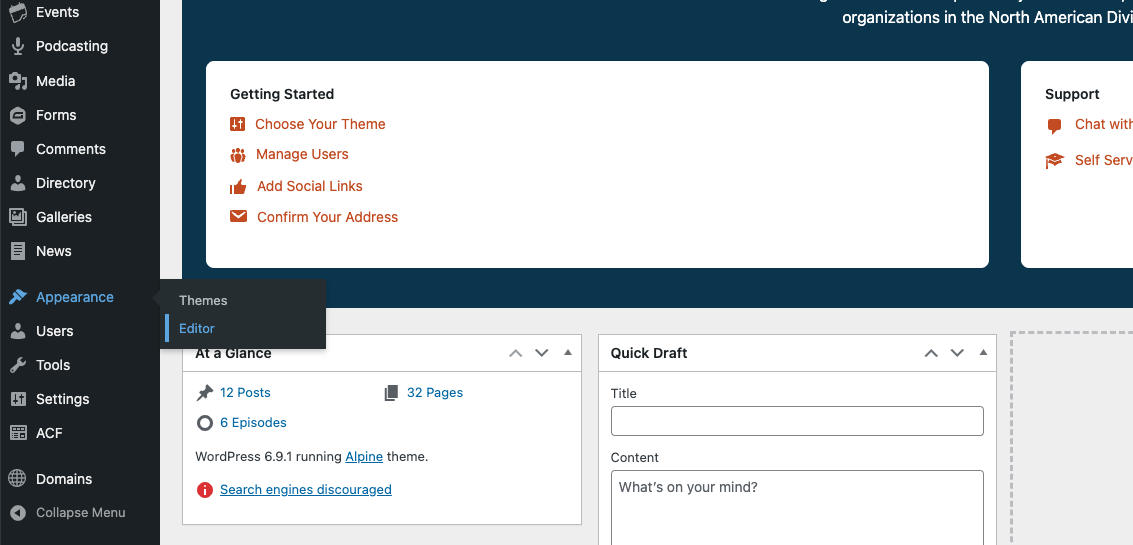
Step 2: Select a Navigation Menu
Find the menu you wish to edit from the list and select it.
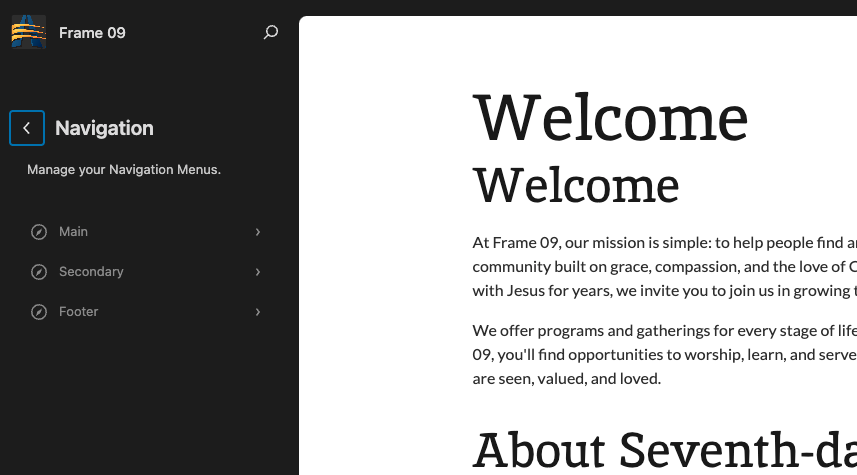
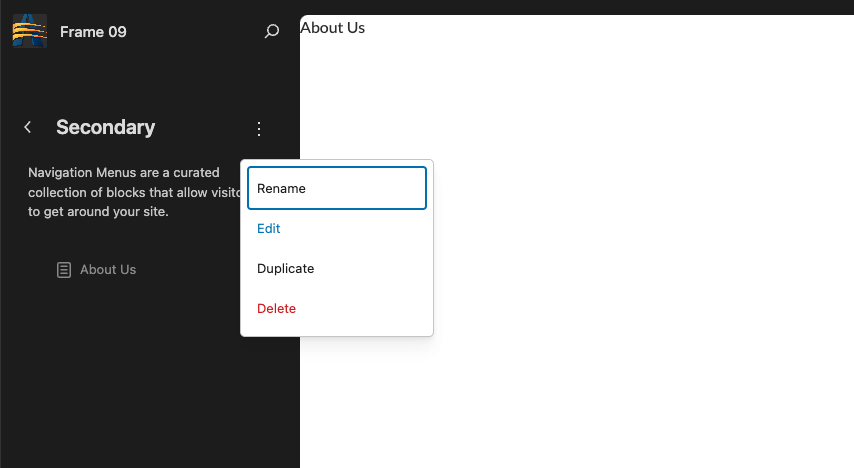
Step 3: Edit the Menu
Next to the name of the menu, click the options button
 (three vertical dots).
Choose Edit.
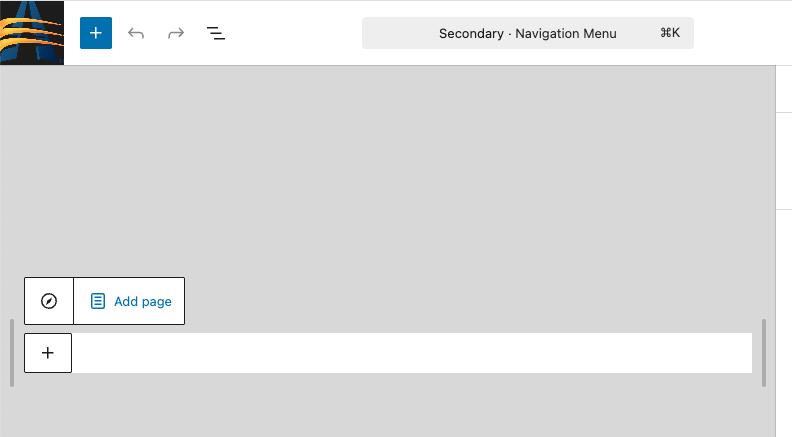
Step 4: Add Links to Pages
Click on the menu that appears, and choose Add Page.
Add the pages you wish to display in the menu.
Step 5: Reorder Pages in Menu
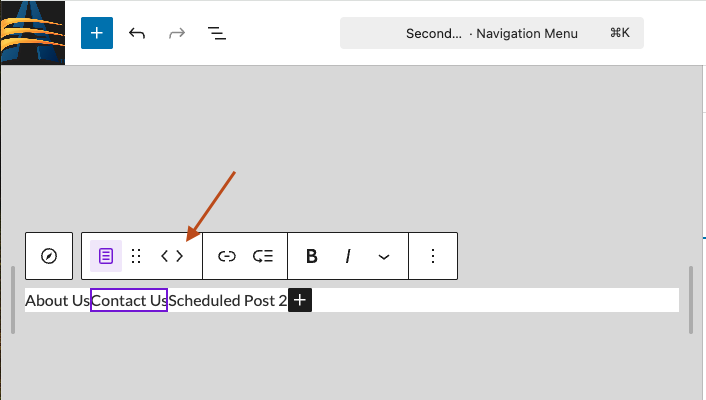
Use the arrow buttons to move a page in the menu order.
Step 6: Save Your Menu
Be sure to click Save to display your new menu.
FAQs
How do I change the menu order on the main menu?
The Primary Navigation should function differently than secondary menus. To reorder the pages, click and drag the pages in All Pages.
I added a secondary menu but I don't see it by the call to action button.
Check your Navigation Settings to ensure the secondary menu is set to display.
How to I change what links show in the footer?
Go to Appearance > Editor > Navigation > Footer to edit the links that display in the footer menu. Make sure the navigation settings are set to show the footer menu in the footer.