

The Events Calendar automatically creates a calendar page of all public events on your site, however this page does not automatically appear in the list of pages or main menu. Follow the steps below to easily add the Events Archive page to your site and change its name in the menu.
TL;DR
Log in to your dashboard and go to the All Pages list.
Select the option to add a new page link.
Under Events, select the Events (Archive) option to add it.
Step 1: Go to Pages
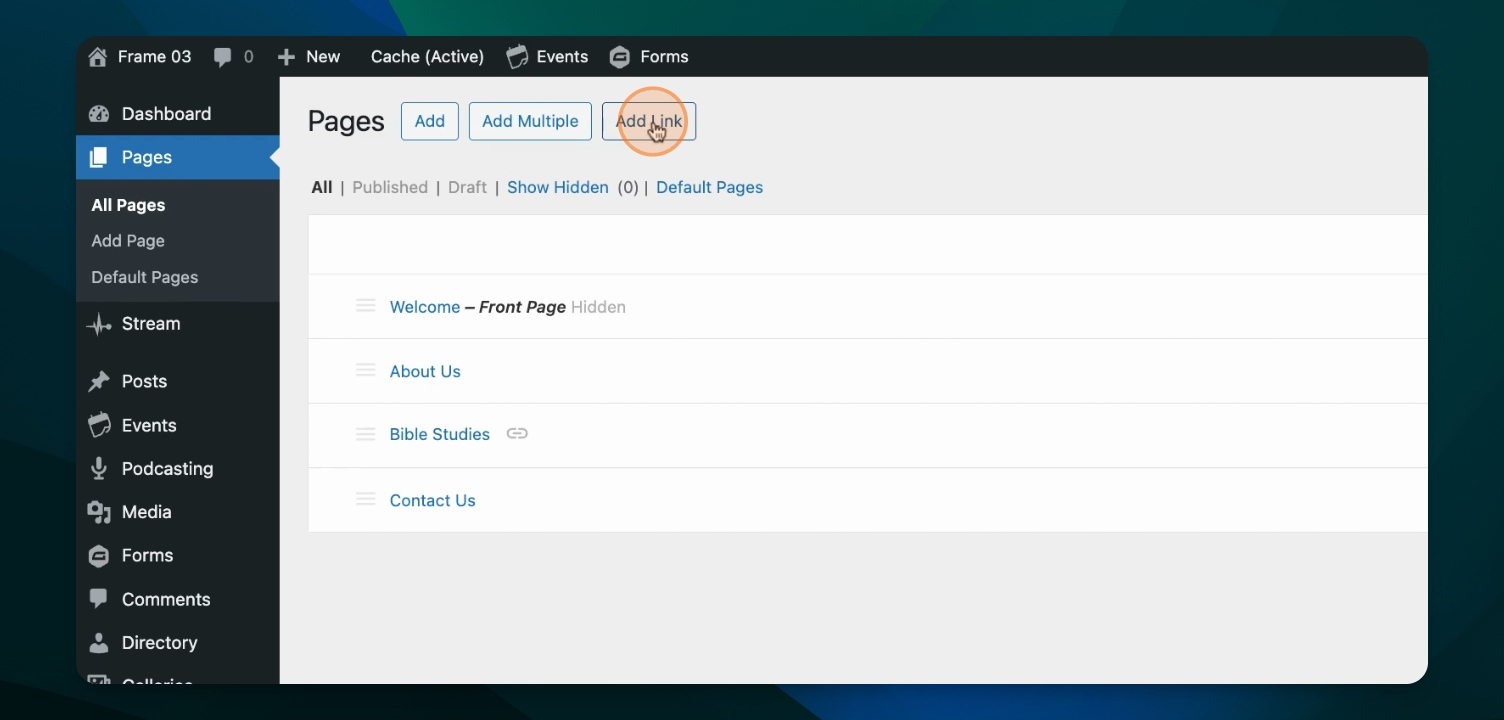
Log in to your dashboard, then go to Pages, then choose Add Link.
Step 2: Add Link to Events
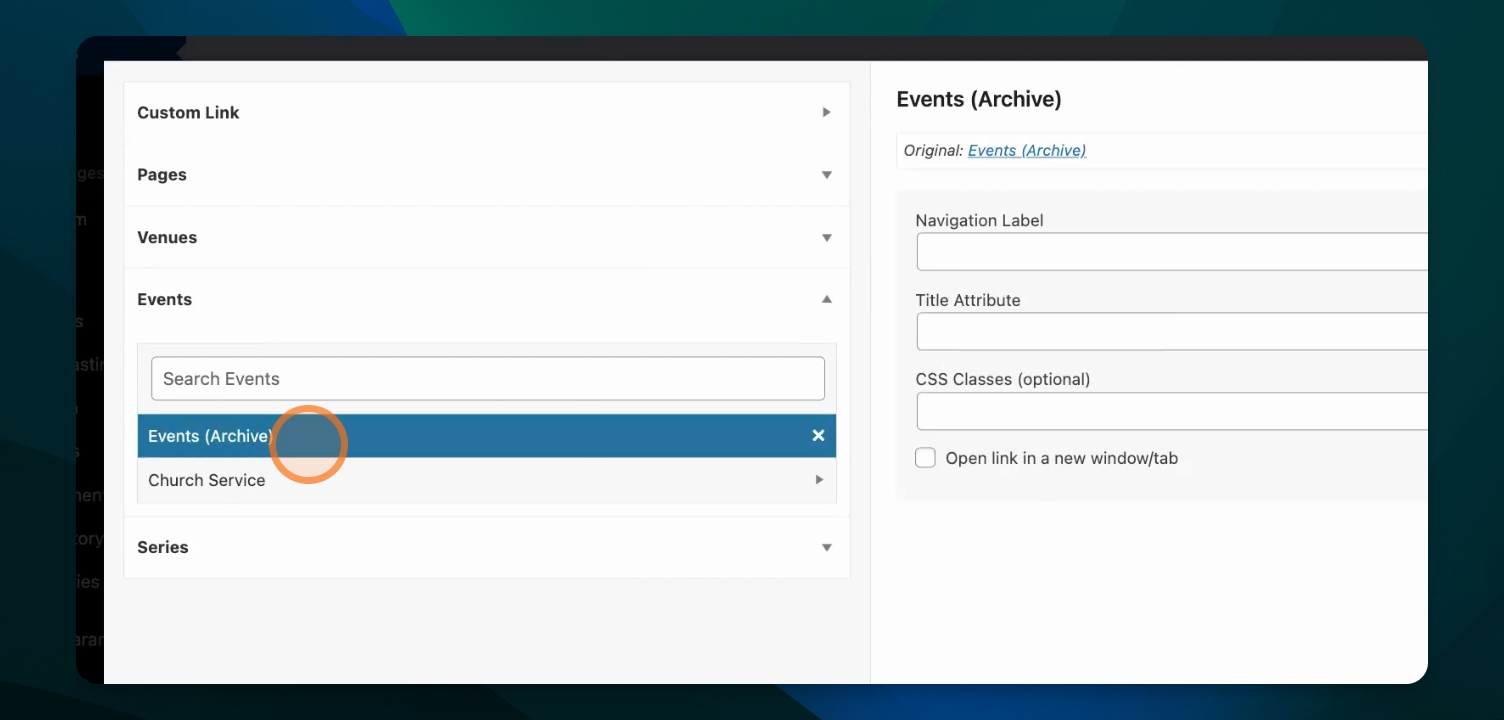
Under Events, select the Events (Archive) option to add a link to the events page automatically generated by the Events Calendar plugin. You can choose what you want to call this page in the menu, using the Navigation Label field.
Step 3: Organize Menu Order
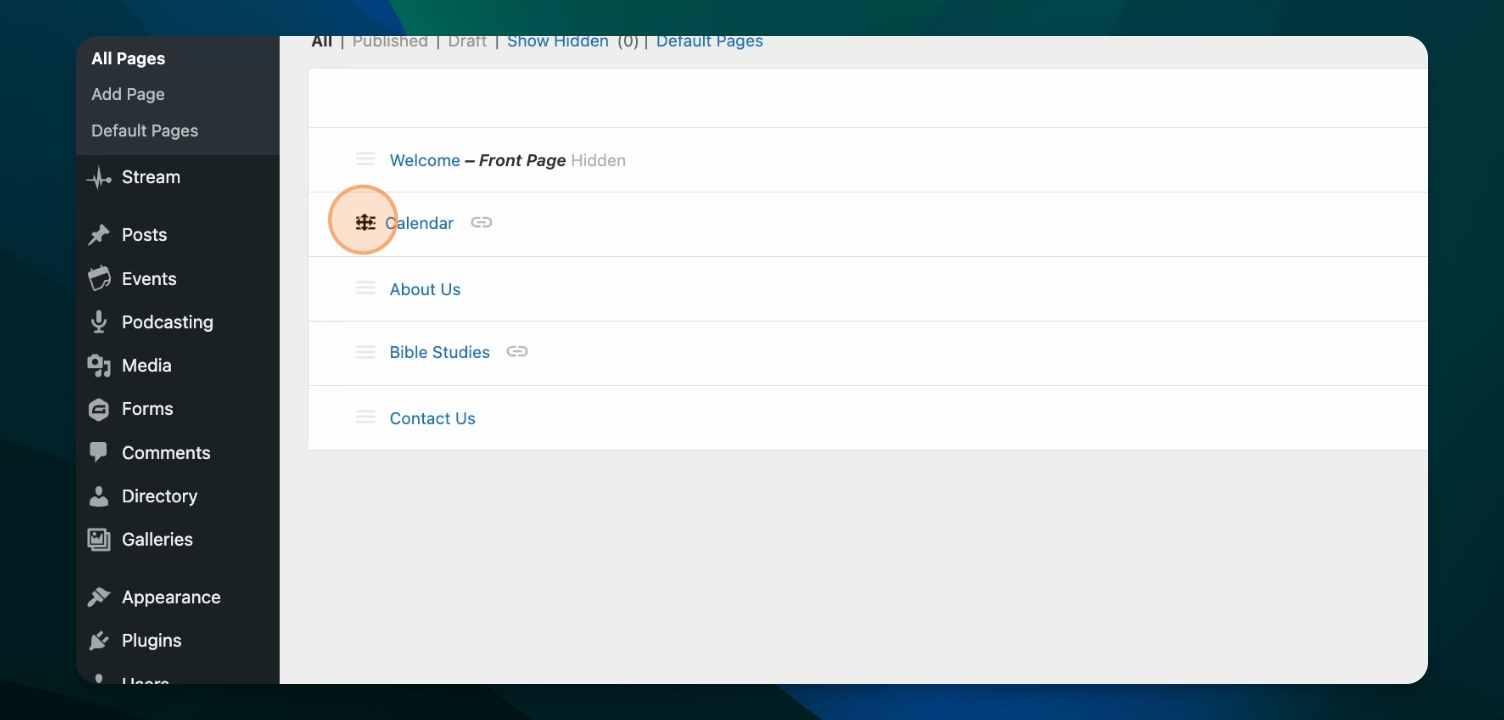
Drag the new menu item to appear in the order that you would like.
Because the Events Archive page is automatically generated by the Events Calendar plugin, it isn't edited using the usual editor. Instead it is configured using various settings. Learn more about these options in this article: