

Overview
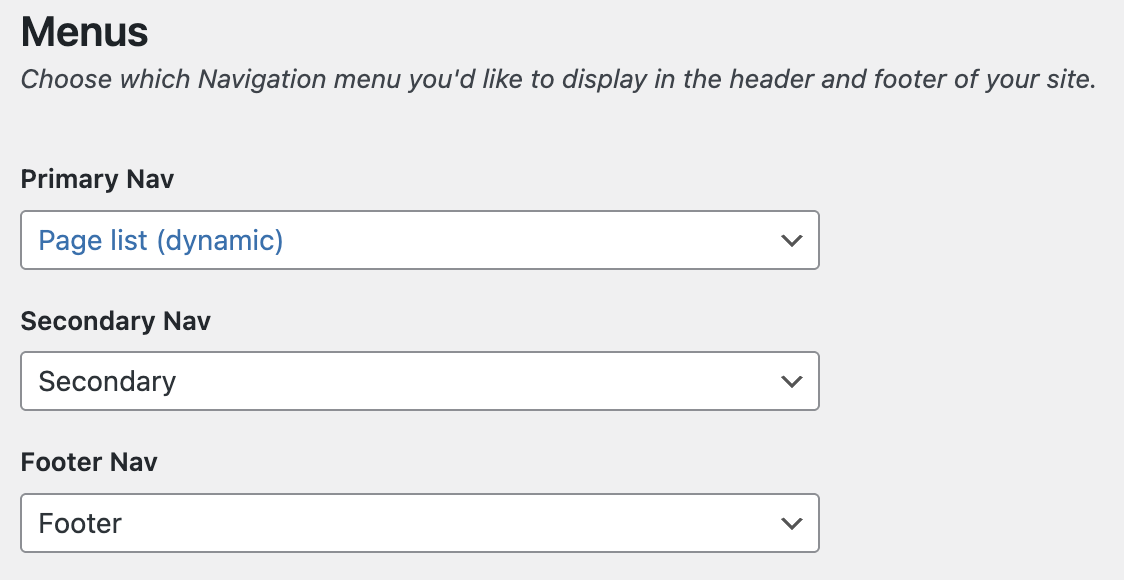
The Navigation Settings section in Frame allows you to configure how navigation menus appear in different areas of your site. These settings help visitors find their way around your site and access important information. This section is divided into four main navigation areas:
Primary Nav
Secondary Nav
Footer Nav
Each of these sections provides five configuration options:
None – Disables the navigation menu for this section.
Navigation – Uses the standard menu defined under Appearance → Editor → Navigation.
Main – Uses the main menu defined under Appearance → Editor → Navigation.
Secondary – Uses the secondary menu defined under Appearance → Editor → Navigation.
Footer - Uses the footer menu defined under Appearance → Editor → Navigation.
Page List (Dynamic) – Generates a dynamic list of all published pages, automatically updating when pages are added or removed. This is the easiest, best option for your primary menu.
Navigation Sections and Their Purpose
1. Primary Navigation (Primary Nav)
This is the main site menu, typically located at the top of the website.
Choosing Page List (Dynamic) will automatically generate a list of published pages.
This menu is often the most visible and frequently used by visitors.
2. Secondary Navigation (Secondary Nav)
A backup or complementary menu, usually placed above the primary menu or in the sidebar.
Can be useful for quick links, account-related menus, or additional navigation options.
3. Footer Navigation (Footer Nav)
A navigation menu displayed in the footer section of the website.
Often contains links to policies, contact information, or additional resources.
Call to Action
Customize the call to action button that appears by your site's primary navigation menu. Select the Label, URL to point to, and Icon to display.
After selecting your preferred navigation settings, click Save Changes to apply them to your site.