

This guide covers the Block Toolbar options available when editing blocks in the editor. The available options will vary depending on which block you have selected. Let's look at the steps:
Step 1: Select a Block
Choose the block you want to work with, such as a heading or paragraph, image block. The Block Toolbar will display options specific to the selected block.
Step 2: Open the Options Menu
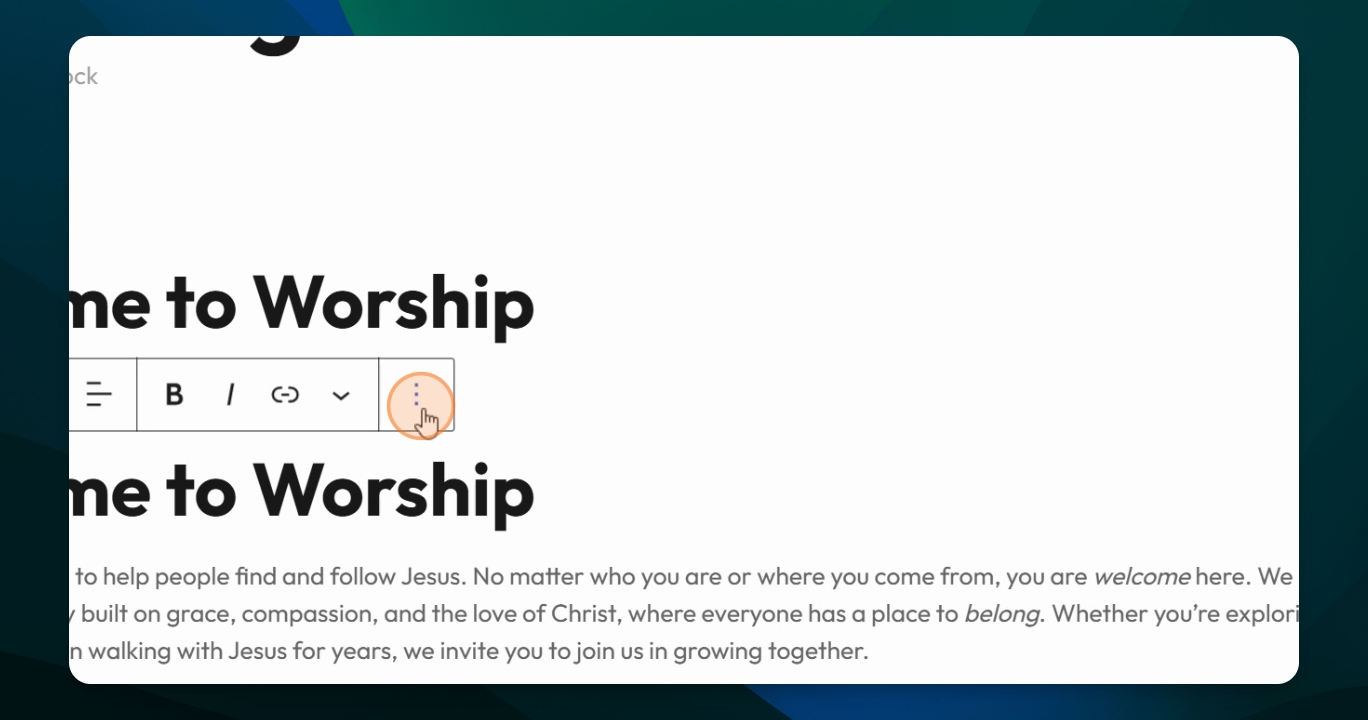
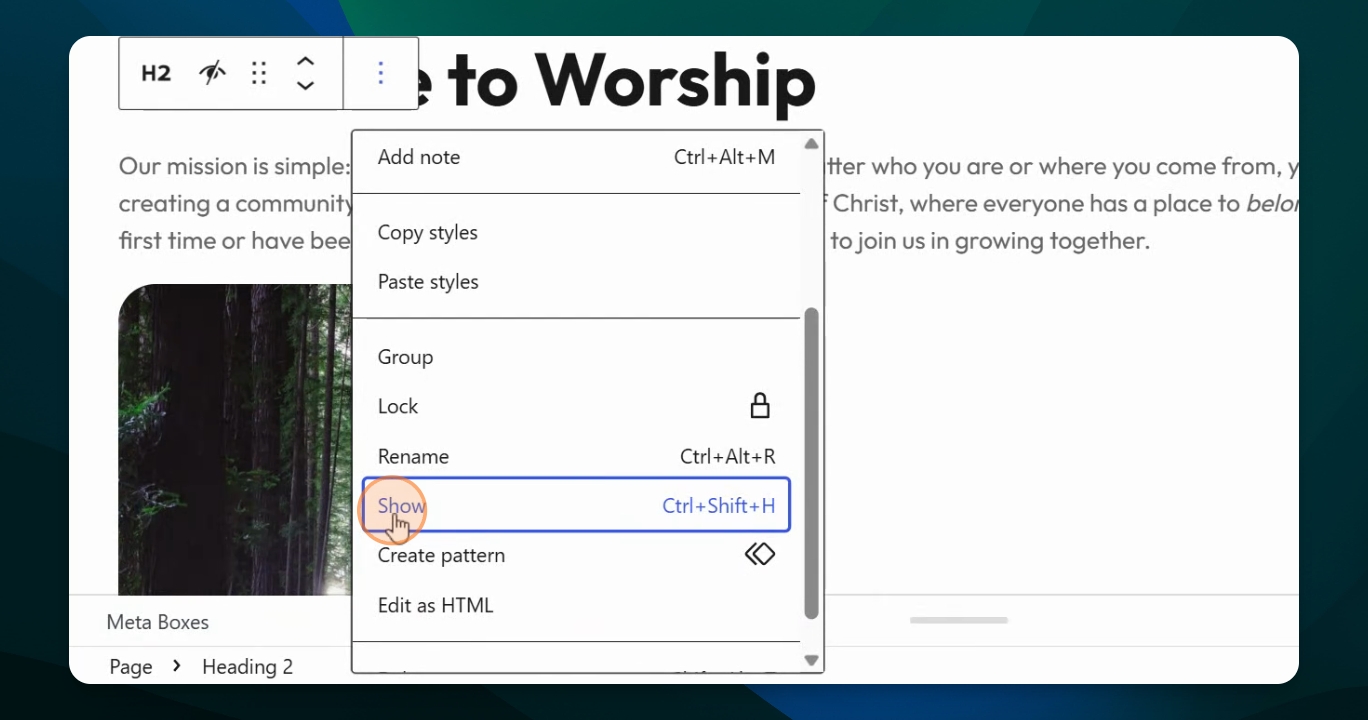
To find all menu options, click the three dots on the far right of the Block Toolbar.
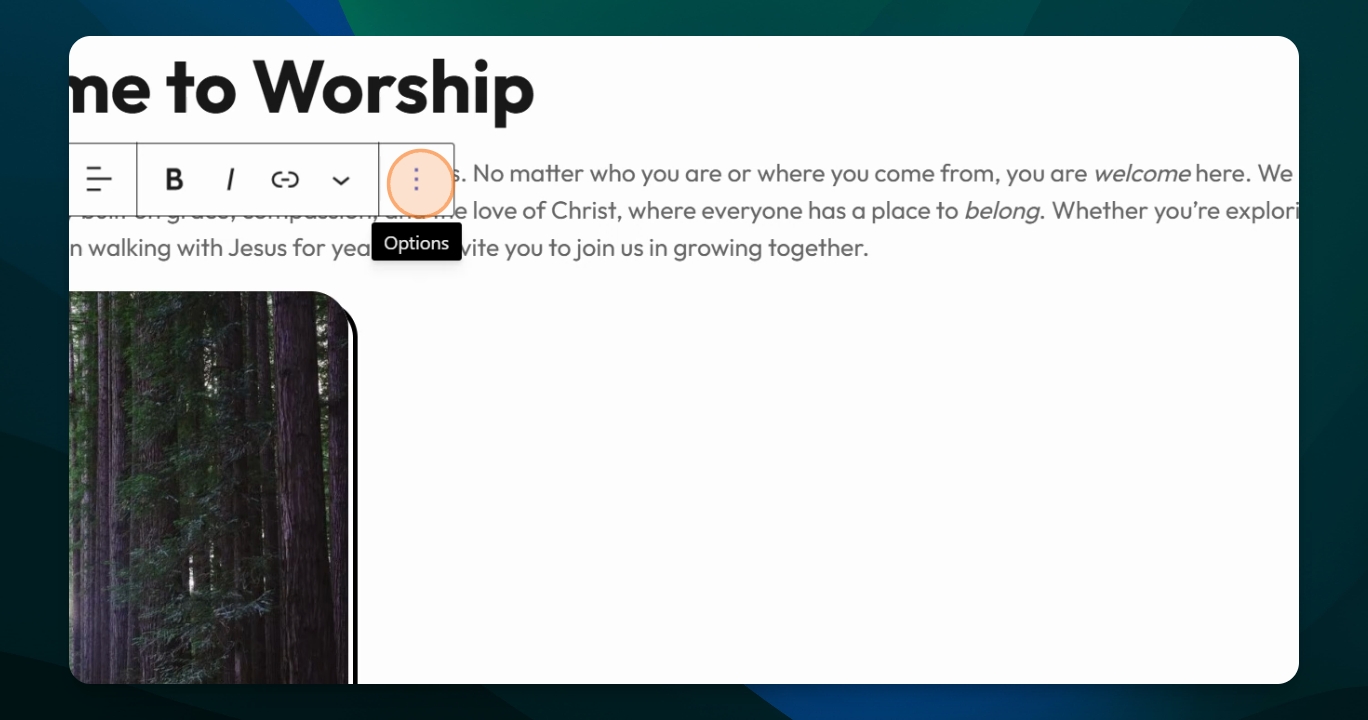
You will notice that some Options have keyboard shortcuts listed on the right, these are timesavers to remember or note for frequently used actions.
Common Options
Copy, Cut, or Duplicate Blocks
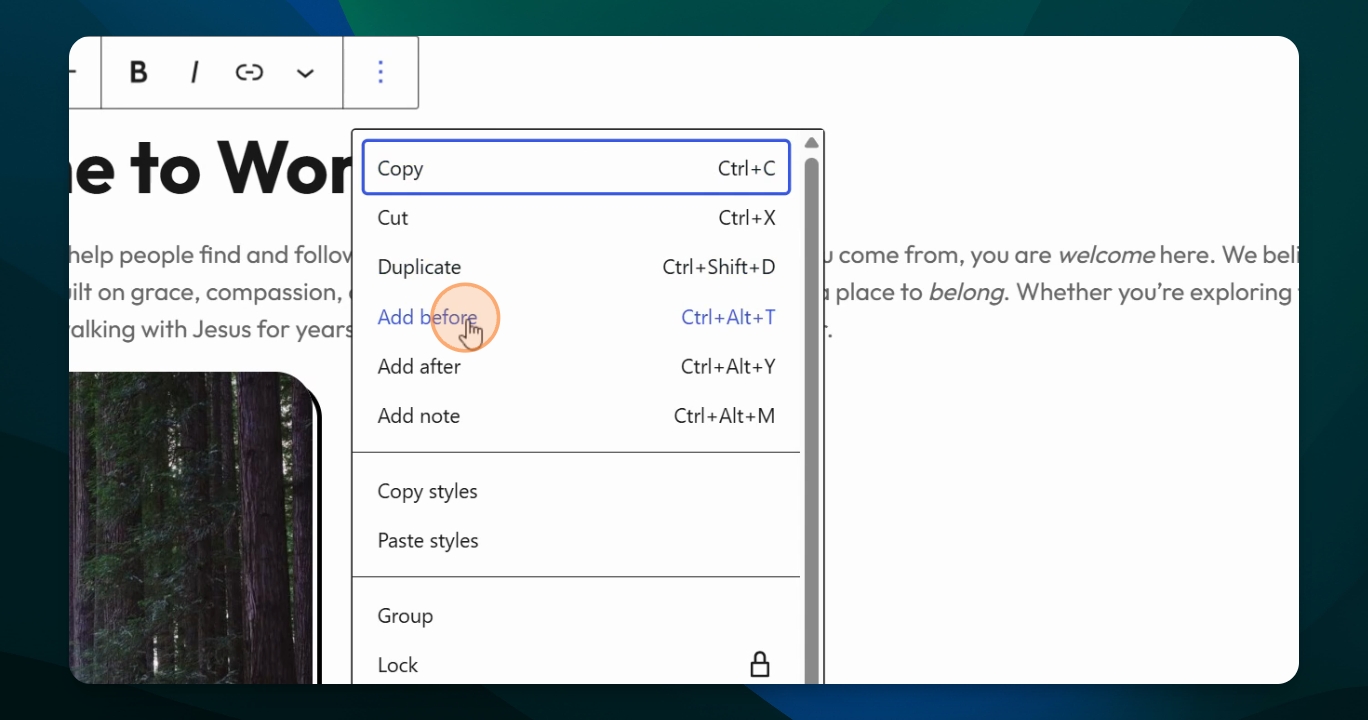
Use the Copy option to copy a block for use elsewhere, Cut to remove it, or Duplicate to create a copy on the same page.
Add Blocks Before or After
Add new blocks before or after the selected block using the respective options. After adding, choose the type of block you want to insert from the menu that appears.
Add Notes to Blocks
Use the Add note option to leave notes for collaborators about the block or page, to ask questions, descriptions and comments.
Group Blocks Together
Select multiple blocks and use the Group option to combine them. This is useful for managing related content as a single unit.
Lock or Rename Blocks
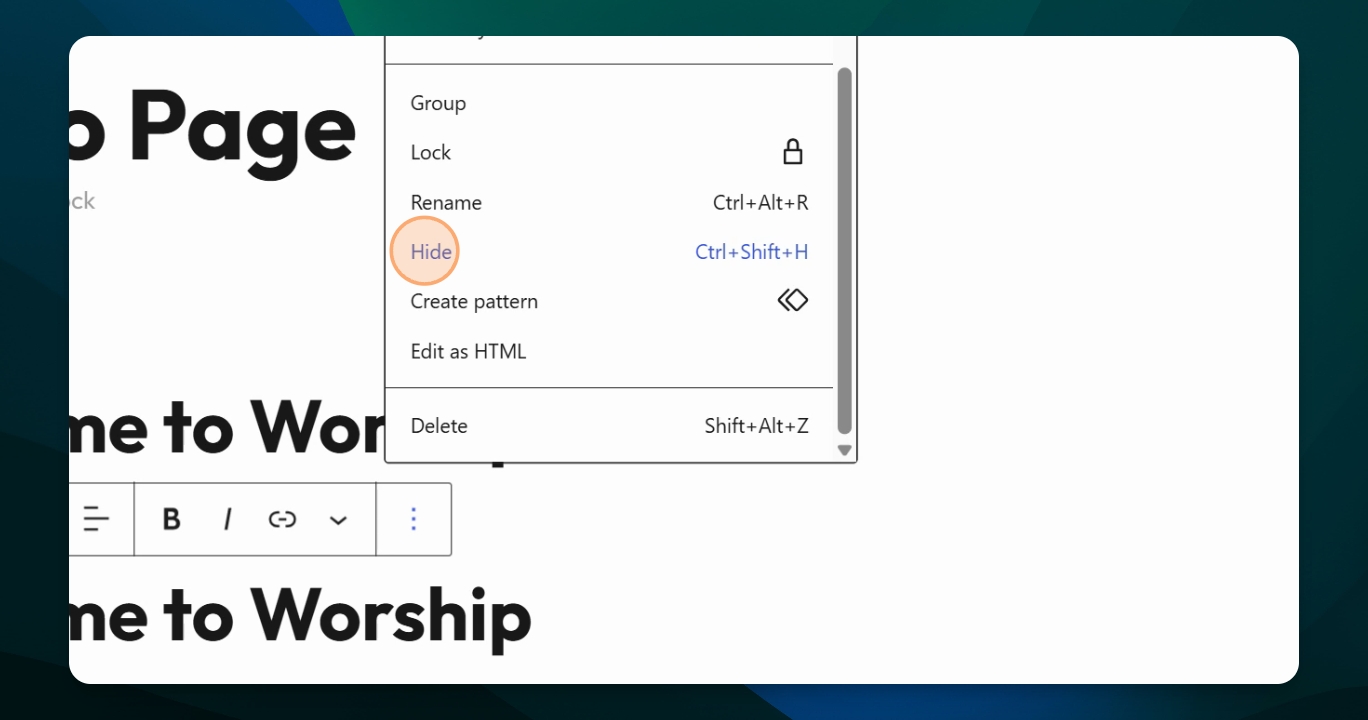
The Lock option is to prevent a block from being moved. The Rename option allows you add specific titles to blocks or Groups for easier identification and organization of your page. These custom labels will appear in the Document Overview list.
Hide Blocks on Devices
In Hide option blocks on desktop, tablet, or mobile can be hidden by selecting the appropriate option. Use Omit from published content to hide the block on all devices, then click Apply.
Show Hidden Blocks
To show a hidden block, uncheck the hide option and apply the changes. The block will reappear on your page.
Create Patterns from Blocks
If you have a group of blocks and want to create a pattern to reuse on other layouts across your website, choose the Create Pattern option.
Edit as HTML
You can have a block that you can edit as HTML, but this is not recommended, since there are many options already built into the editor.
Delete Blocks
Delete blocks using the delete option in the toolbar. This will delete the whole selected block and not just the content.
Copy and Paste Styles
For images and text blocks, like headings or paragraphs, you can use Copy style and Paste style to duplicate style settings, like rounded corners, drop shadows, or font size.
These are some of the key options for managing your content with the Block Toolbar in editor. You can build out your page by adding new blocks, using patterns, copying changes, and deleting or duplicating items as needed.
These Options are also available thru the Document Overview Panel in Editor.
Takeaways
These options can help edit, build and organize a page and it's content.
The visible options vary depending on the type of block you are working with.
You can access them from either the Block Toolbox Menu or from the Document Overview Panel.