

The Settings Sidebar lets you control options for your page and individual blocks. It's located on the right side of you screen when in Editor.
The Settings Sidebar will vary in the type of options to choose from depending on either the Page view or Block view. In the Block option they also vary depending on the type of block or group of blocks that is selected.
To Open the Settings Sidebar
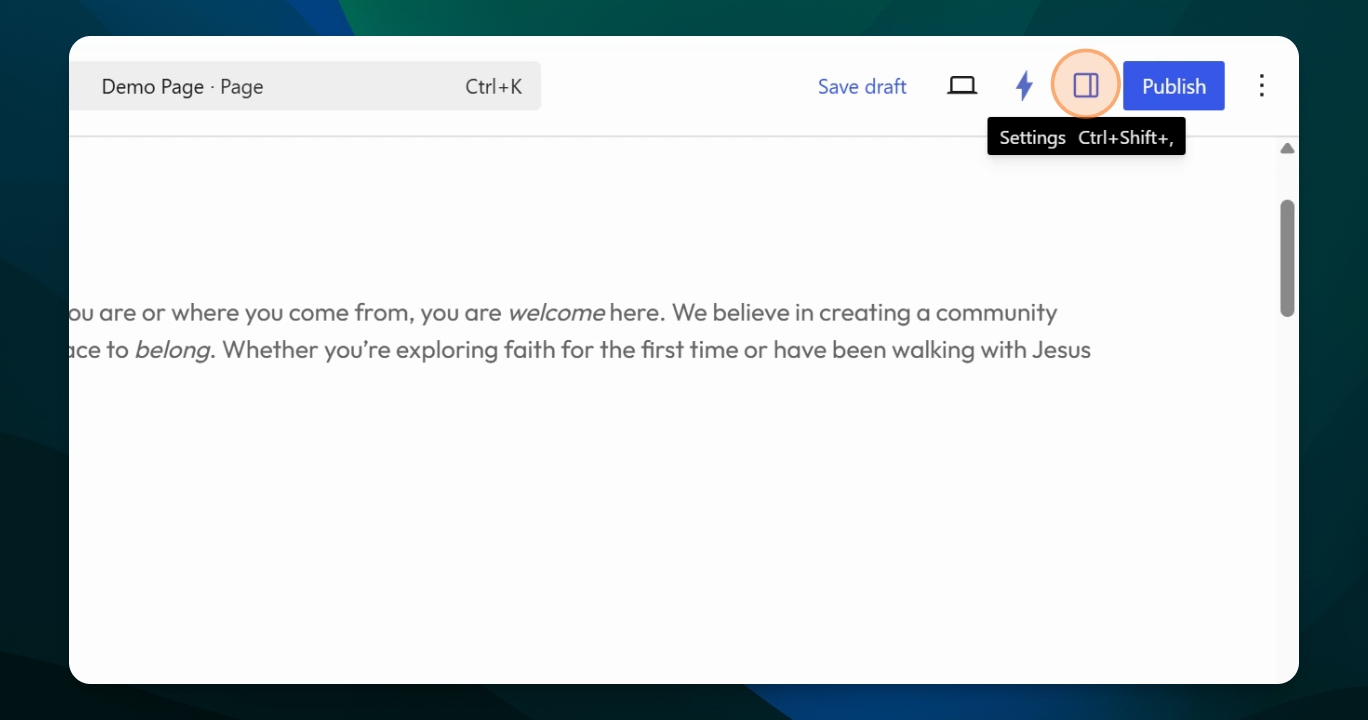
Click the page icon on the right side of the page to open the Settings Sidebar. If you hover over the icon, it will display a tooltip labeled Settings.
For some actions and blocks the Settings Sidebar will open automatically for to begin making adjustments.
View and Edit Page Settings
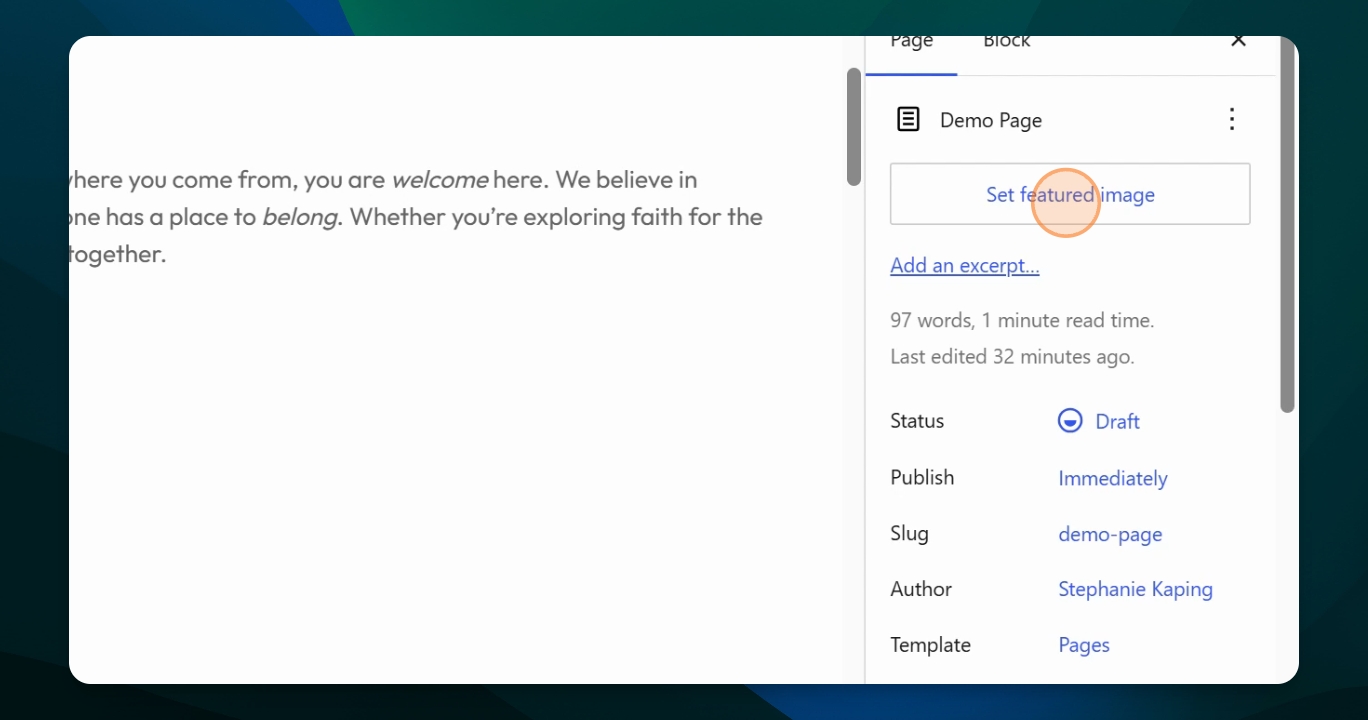
When you select the Page option you can set the Featured Image, which appears in the hero section of the page when viewing the website. After setting an image, a thumbnail preview appears. You can replace or remove the image as needed. The sidebar also shows page status, slug, author, template, and the number of revisions of that specific page.
Access Block Settings
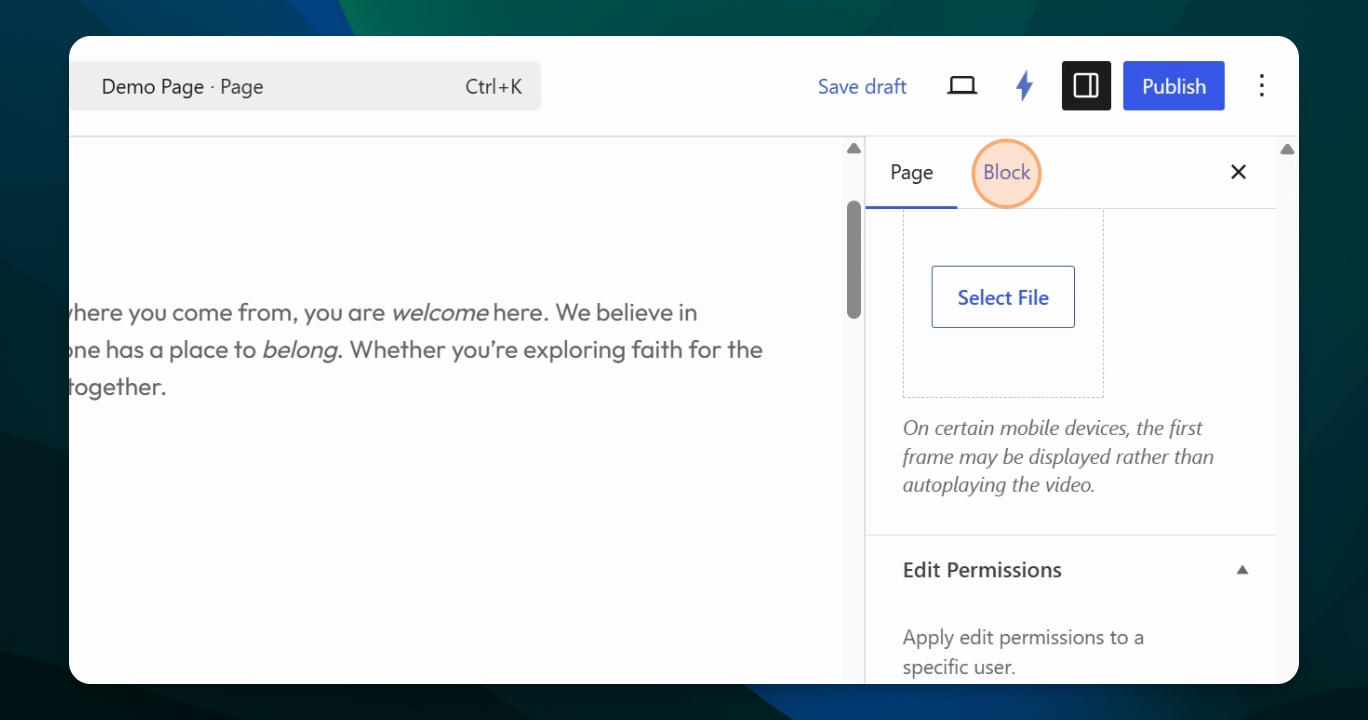
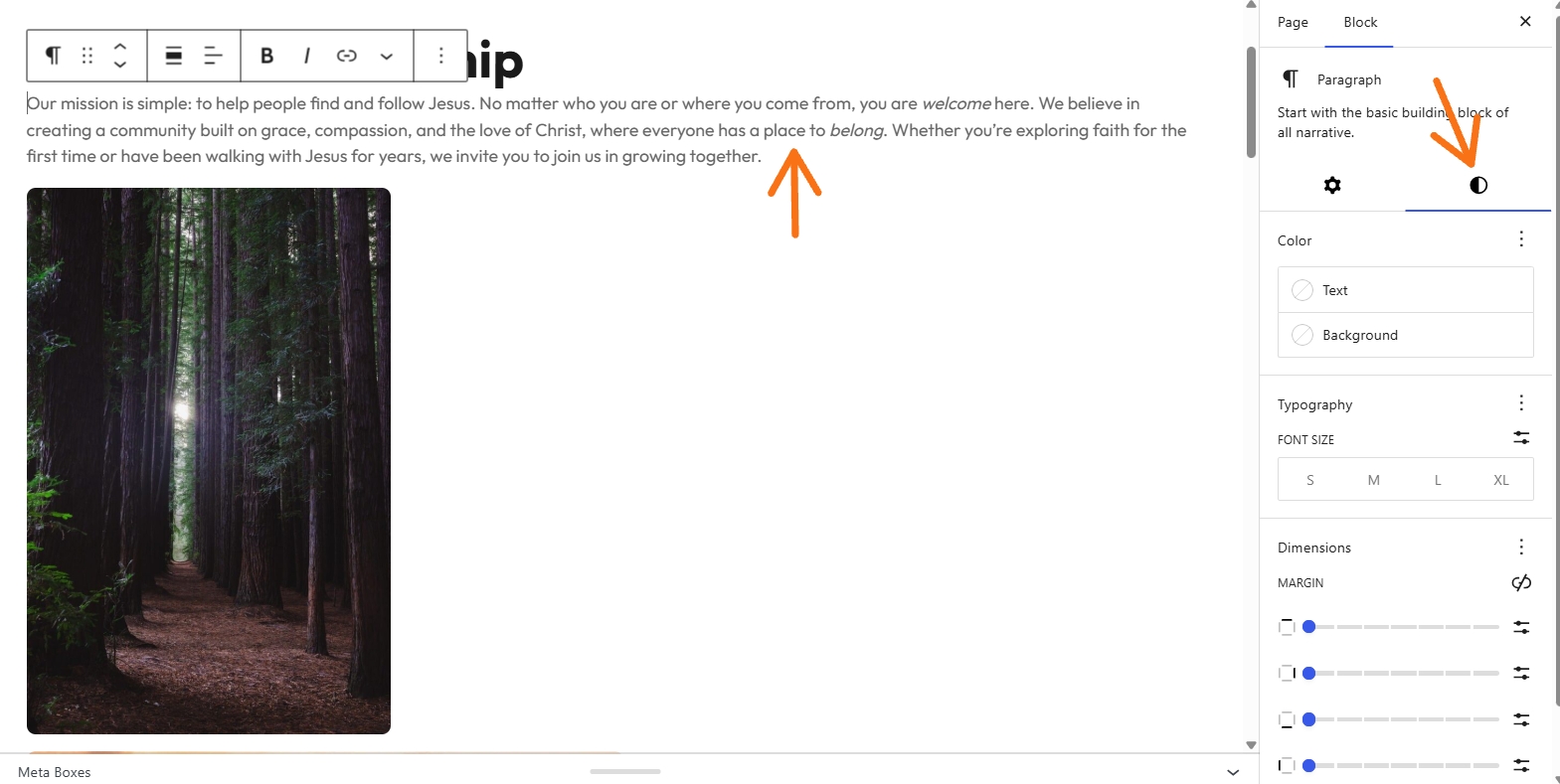
When you select a block, the sidebar updates to show block-specific options. For example, selecting a paragraph block reveals settings like attributes and advanced options. You can add HTML classes or styles, though this is usually not necessary. The styles icon provides more detailed styling controls for the block.
Adjust Text Block Styles
For text blocks, you can change text color, background color, and typography (small, medium, large, extra large). Use the slider icon to set a specific font size. Under dimensions, adjust padding (space inside the block) and margins (space outside the block). Click the link icons to adjust spacing for each side individually.
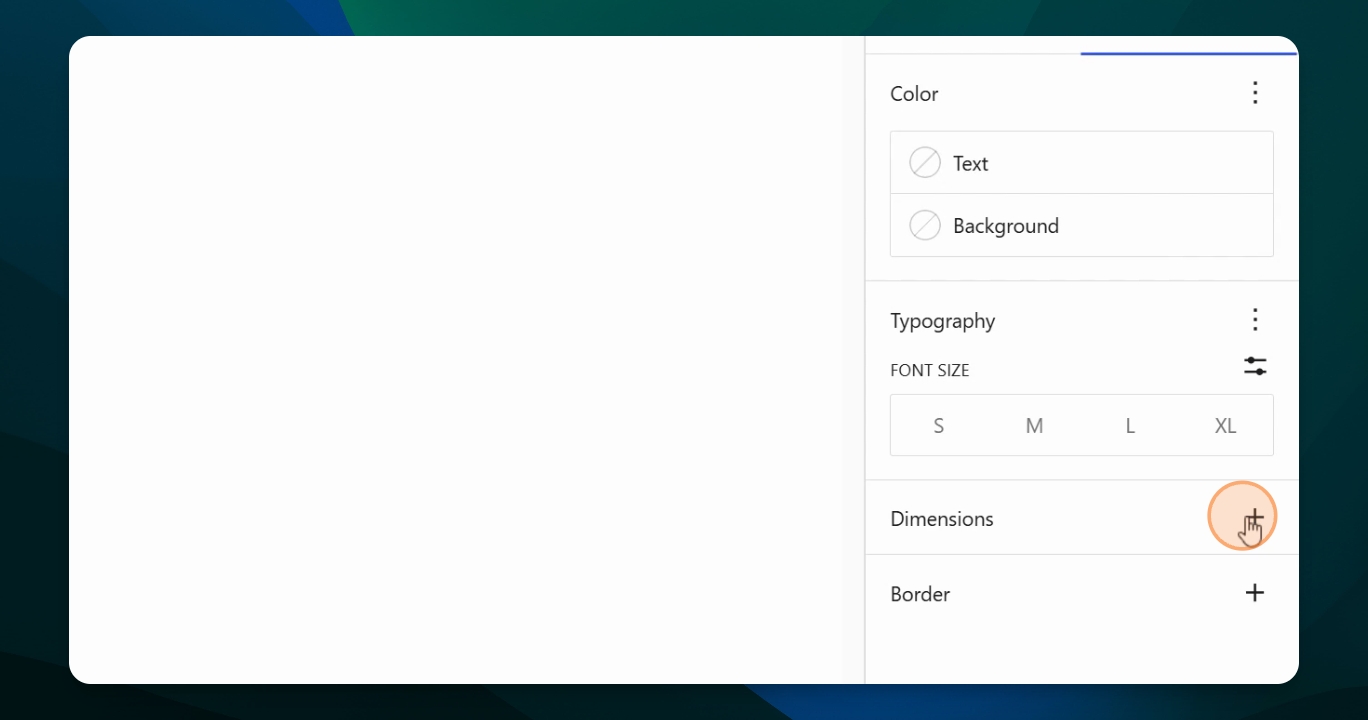
Edit Photo Block Options
Selecting a photo block displays image-specific settings. You can add content, alternate text, set resolution, and add a caption. In the styles tab, you can adjust margins, aspect ratio, height, width, and scale. Note that padding is not available for photo blocks.
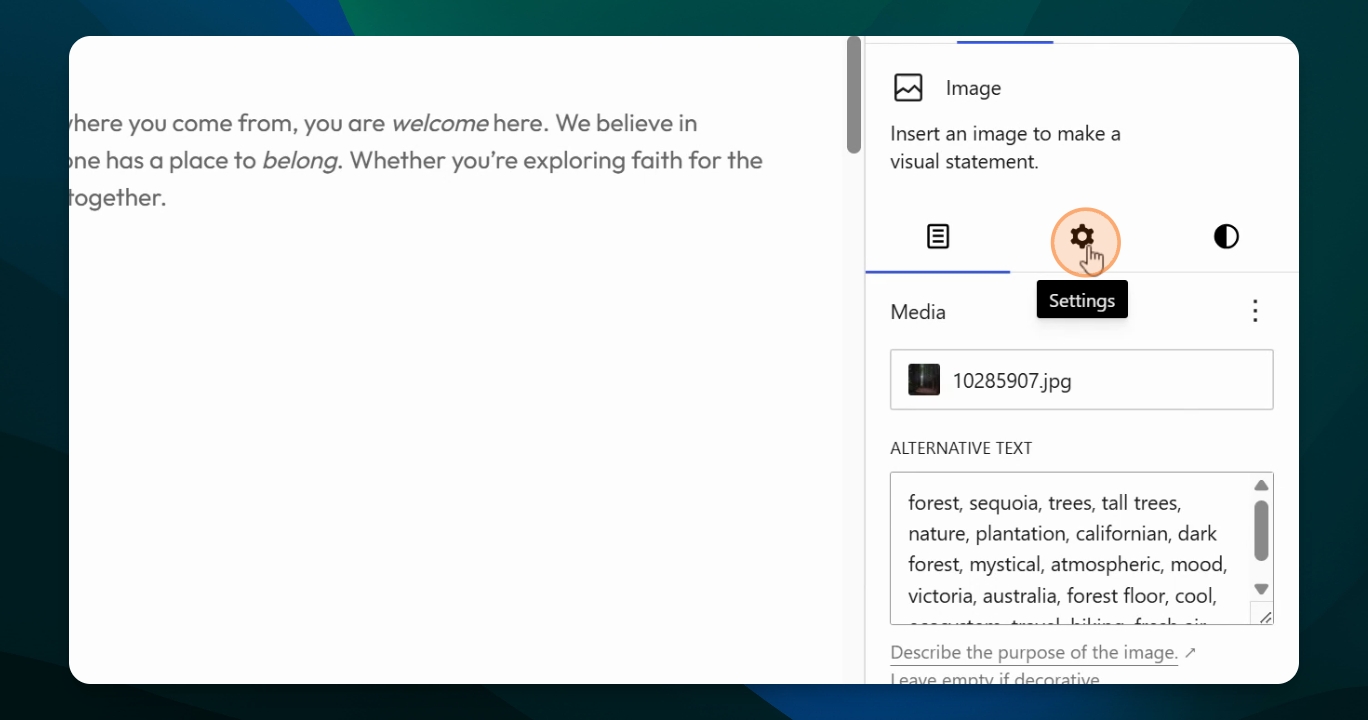
Work with Grouped Blocks
For group blocks like cover sliders, you can access group settings and styles. Use the document overview to select the parent group and adjust its options. In styles, choose between default and slim slides. For collages and grids, you can show thumbnails, change background, and style individual blocks within the group. Adjust border, radius (rounded corners), and gallery slideshow options as needed.
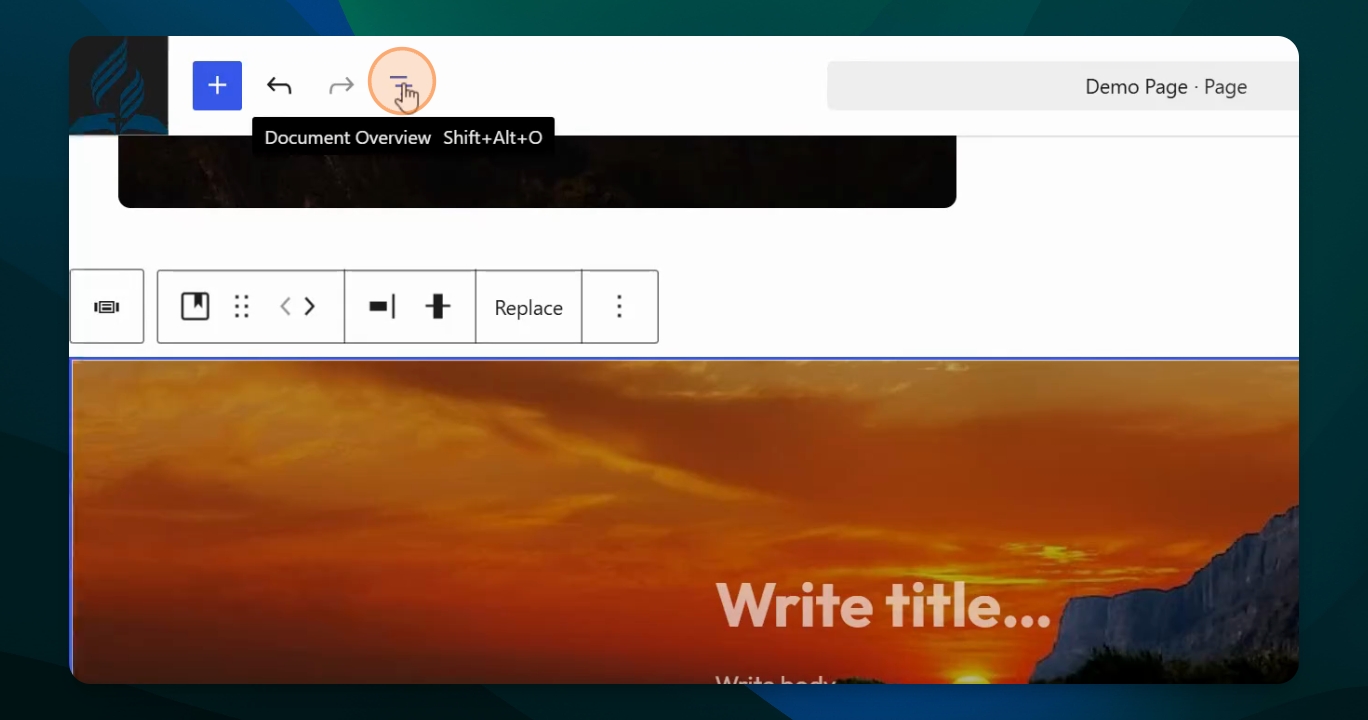
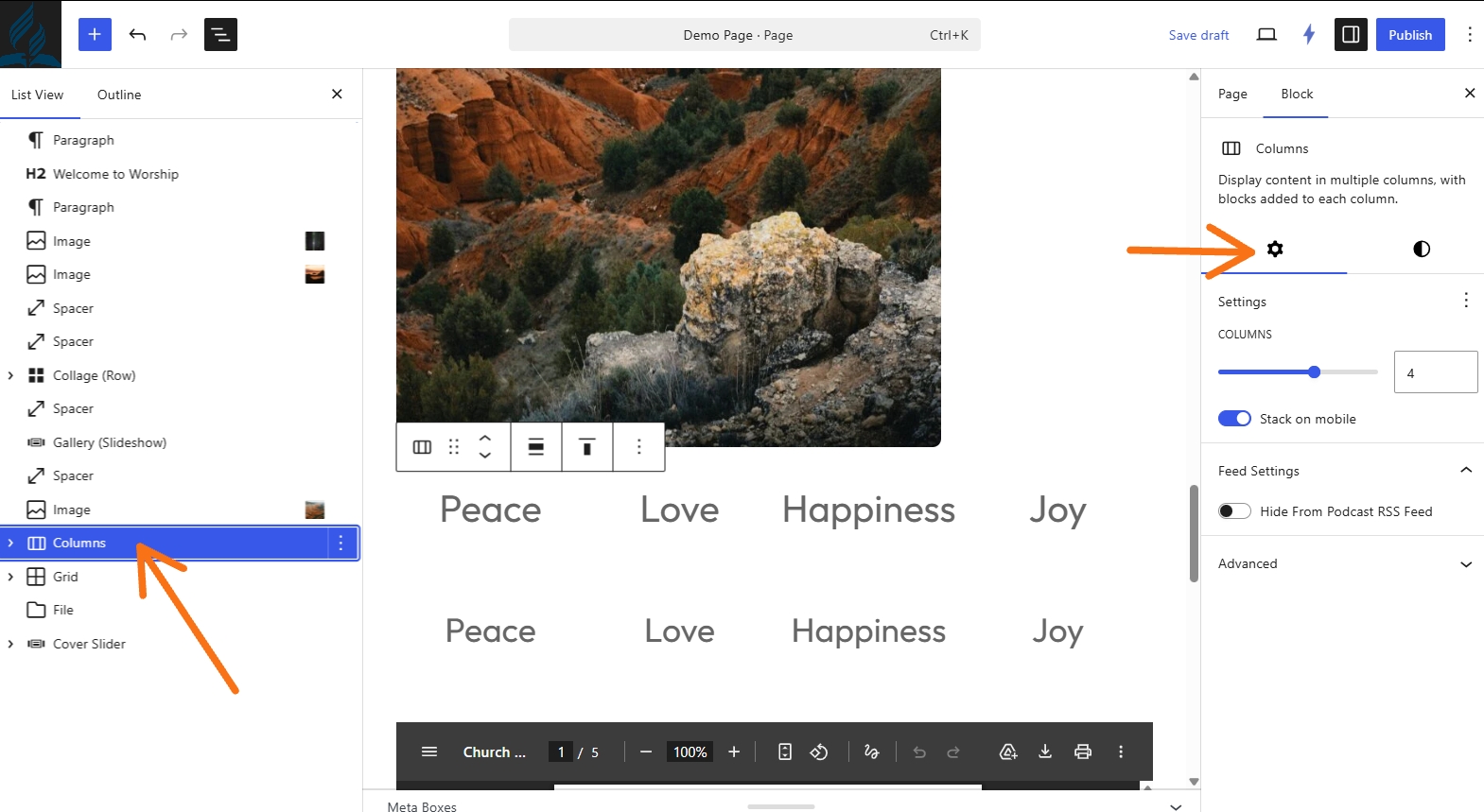
Configure Columns and Grids
For columns and grids, select the parent group label to change the number of columns and feed settings. In the styles tab, adjust spacing and padding between columns or grid items. You can also add borders and set the radius for rounded corners.
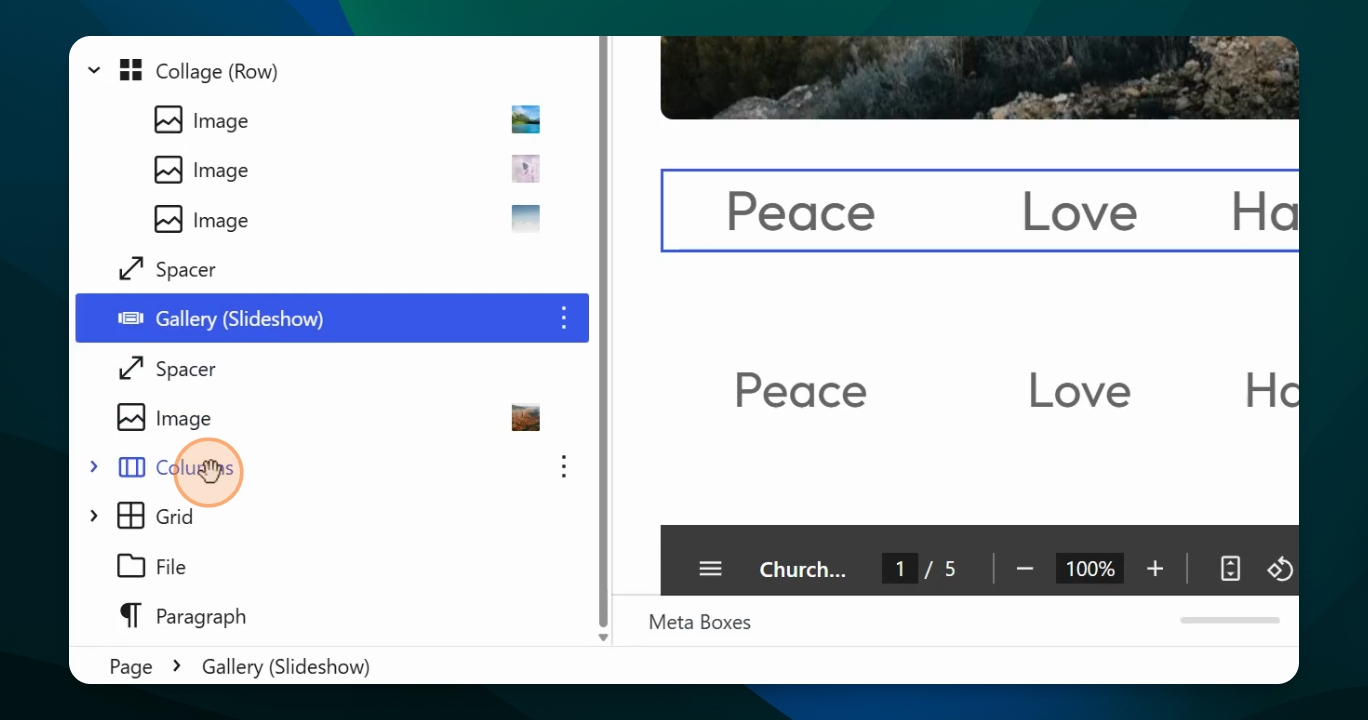
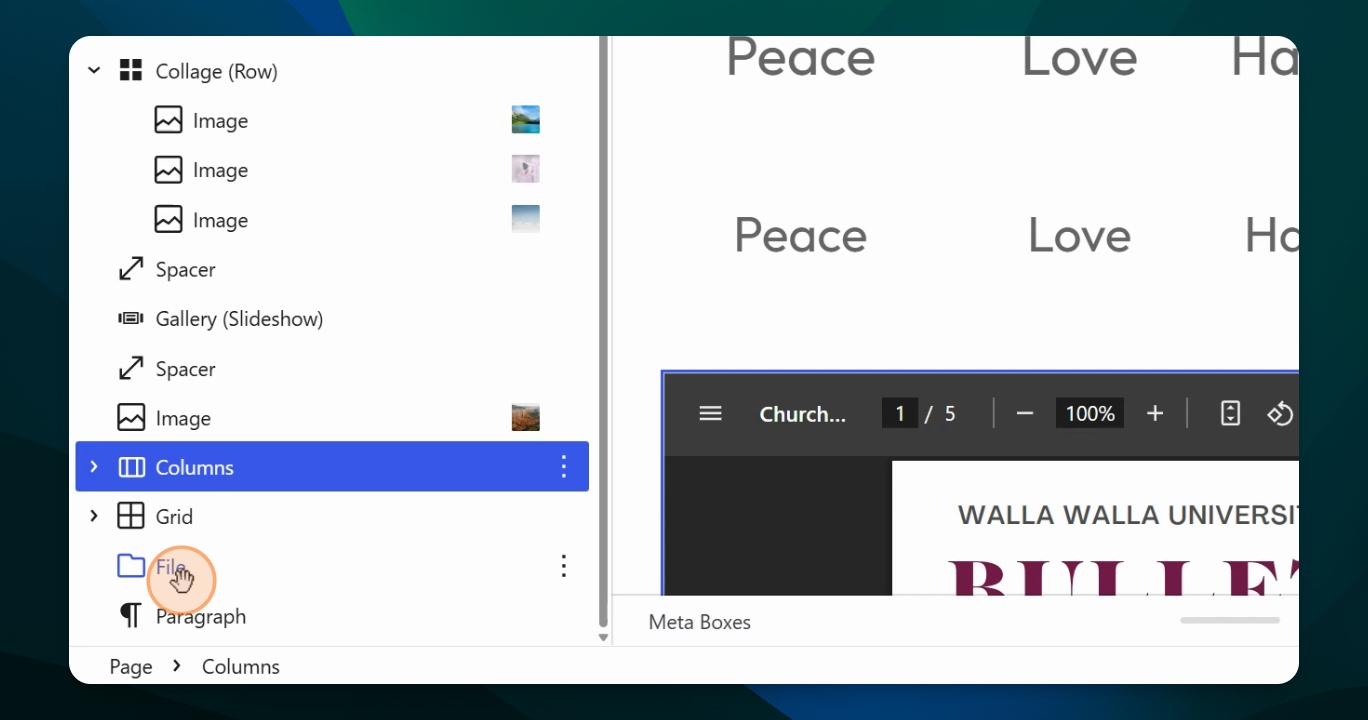
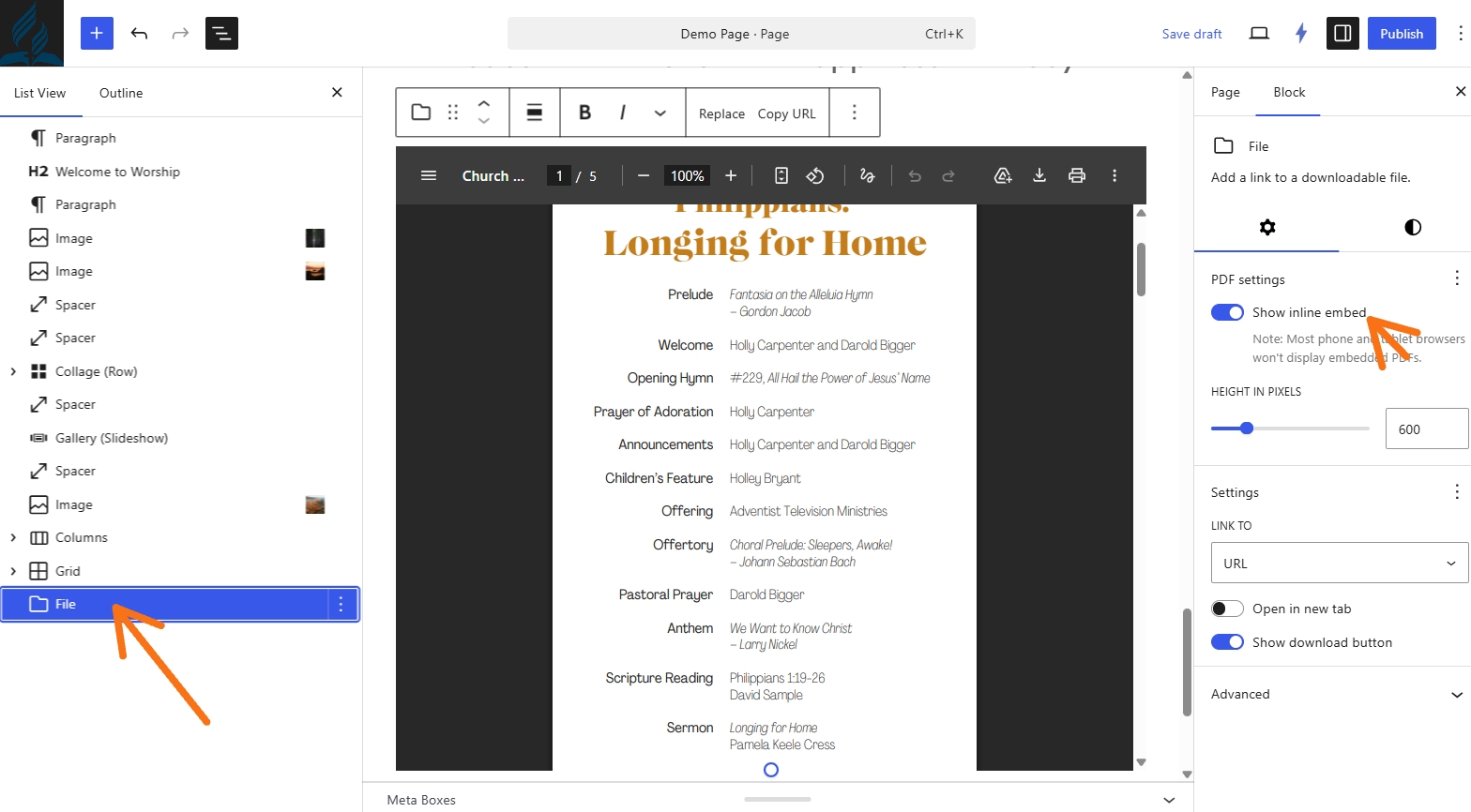
Adjust File Block Settings
For file blocks, after uploading a file (such as a PDF), use the settings to toggle between a text listing and a bulletin view. You can also adjust the height, padding, and margins to ensure proper spacing on the page.
The Settings Sidebar gives you quick access to the tools you need to build and style your site. We recommend to keep it open while working in the Editor to make building and styling as smooth as possible.
Takeaways
To access the Settings Sidebar you must be in Editor for a specific page.
The Settings Sidebar will vary in the type of options to choose from depending on either the Page view or Block view. In the Block option they also vary depending on the type of block or group of blocks that is selected.
For some actions and blocks the Settings Sidebar will open automatically for to begin making adjustments.
The Settings Sidebar is also where you manage the Featured Image for the hero section of the page.