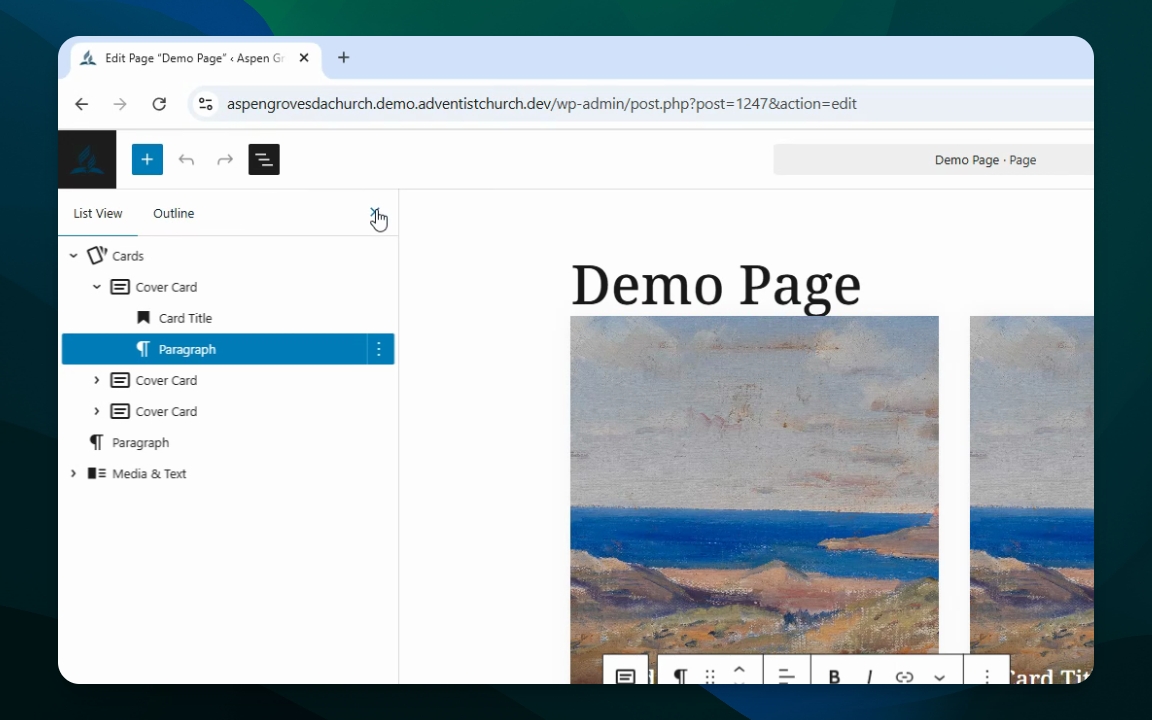
What is the Document Overview?
The Document Overview menu lets you see all the blocks in a page, post, or directory item in an ordered list. This is an easy way to select the correct element in a group, choose multiple elements, or reorder elements.
As you select elements in the in Document Overview, you will see them highlighted by a blue outline on the page. Selecting an item on the page will highlight the item in the overview list.
How to Access the Document Overview
Access your dashboard and edit the desired page or post.
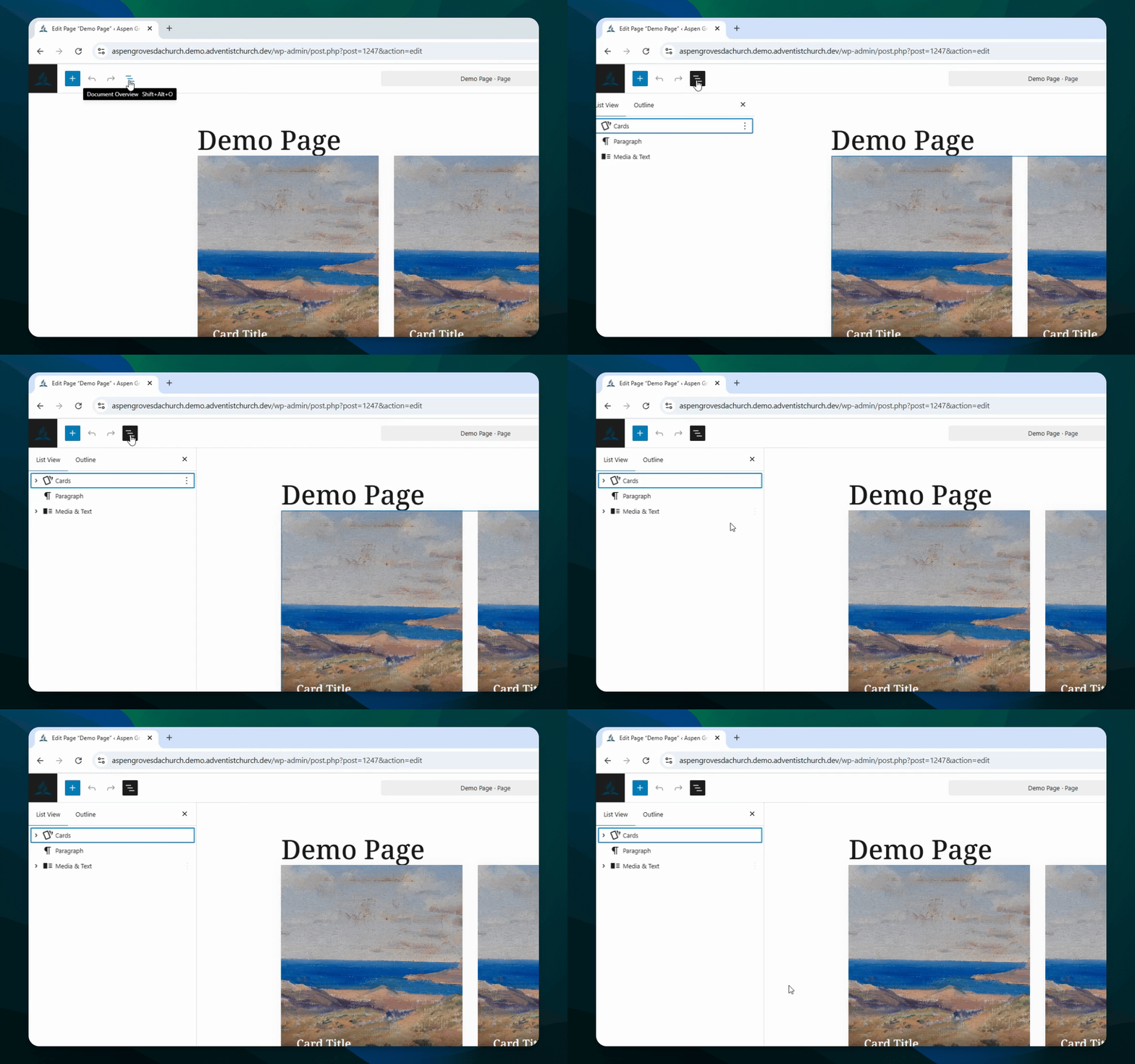
In the top left corner, select Document Overview (three horizontal lines icon).
Let's Do It Together!
Step 1: Access Your Dashboard
Go to your Dashboard.
Find the page or post you wish to edit. Click into the editor.
Step 2: Open Document Overview
In the page editor, find the Document Overview menu.
Look for the three horizontal line icon.
Click on it to view all elements and block types on your page.
Step 3: Explore Block Elements
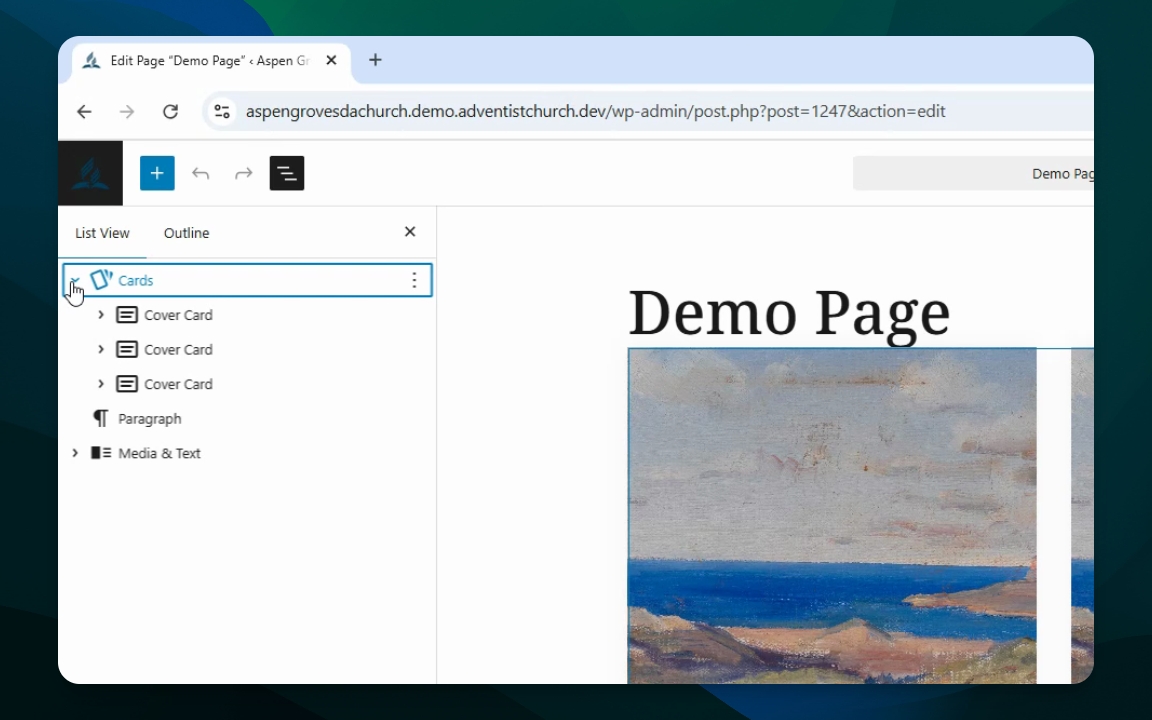
Toggle down by clicking the arrow to see the elements within each block.
You can toggle each element further to highlight specific areas, such as paragraphs.
Step 4: Exit Document Overview
When finished, click the X to close the overview menu.