This guide explains how to reuse blocks and patterns for editing the current page or another page on your website, while maintaining your custom layouts. Let's look at the steps:
Step 1: Duplicate a Block
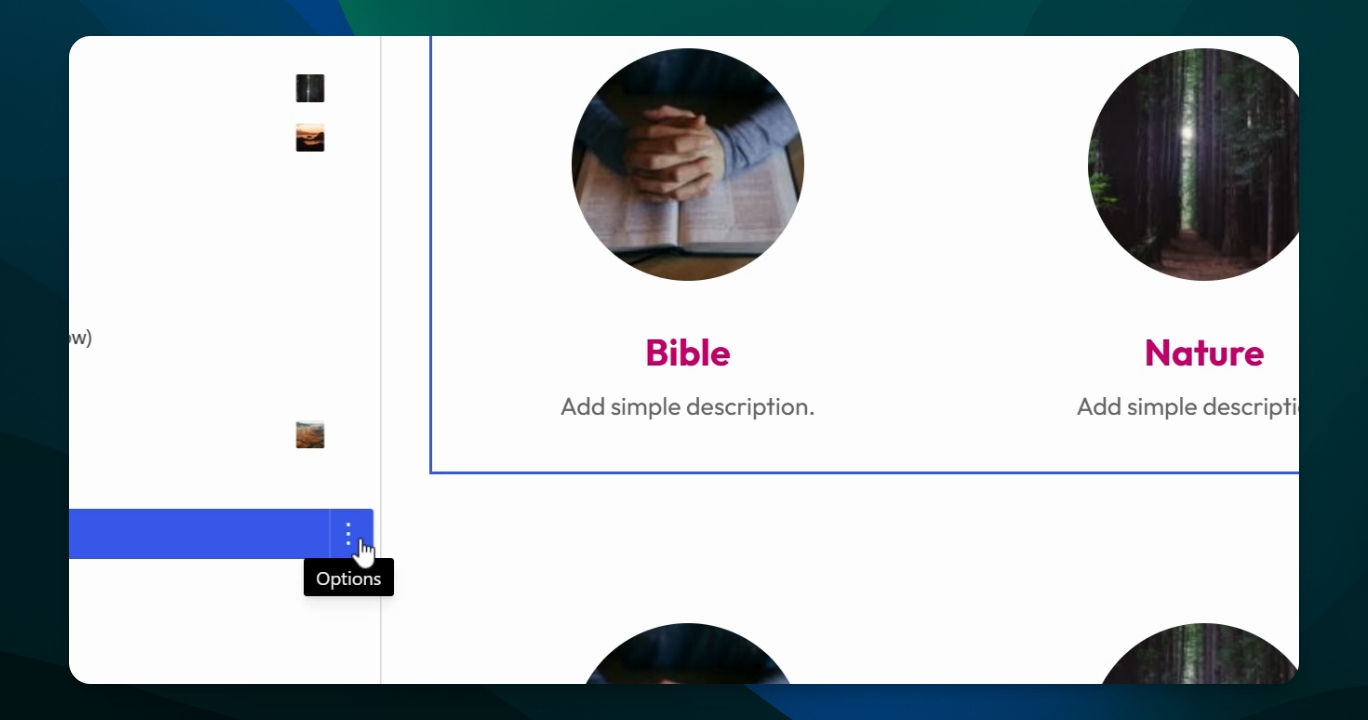
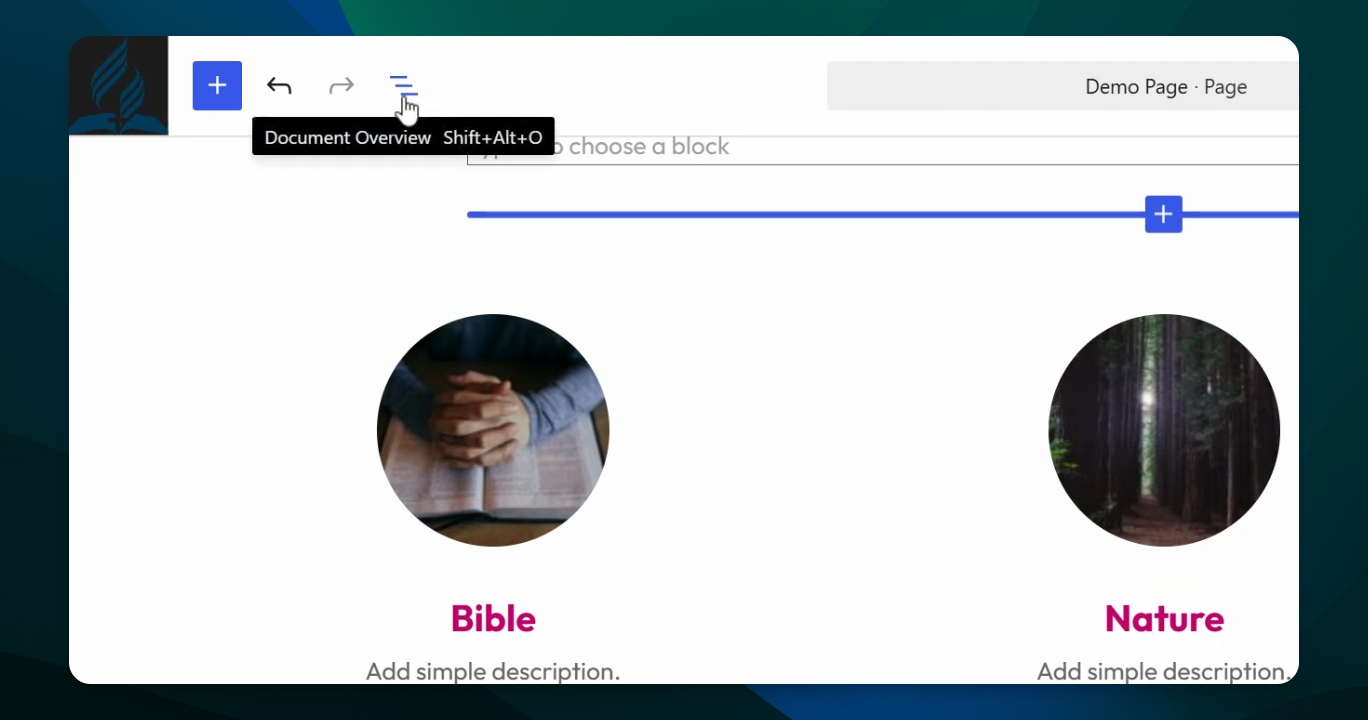
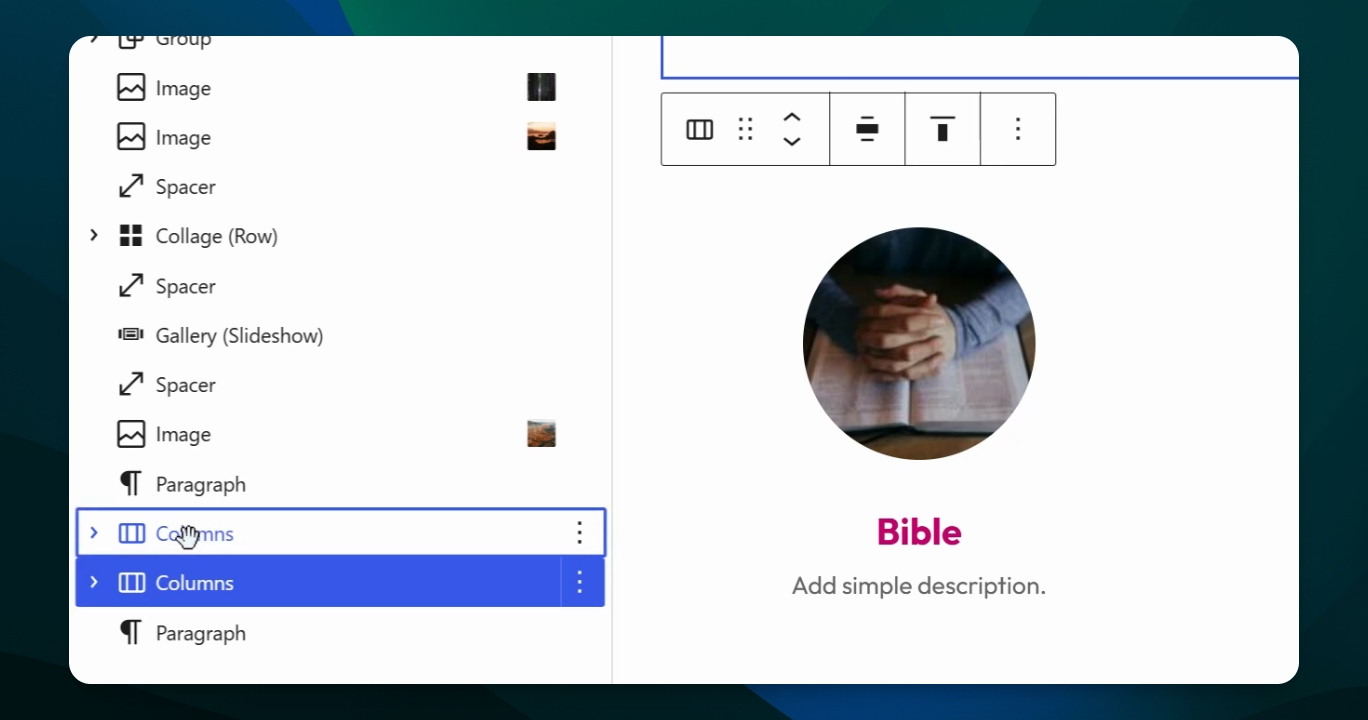
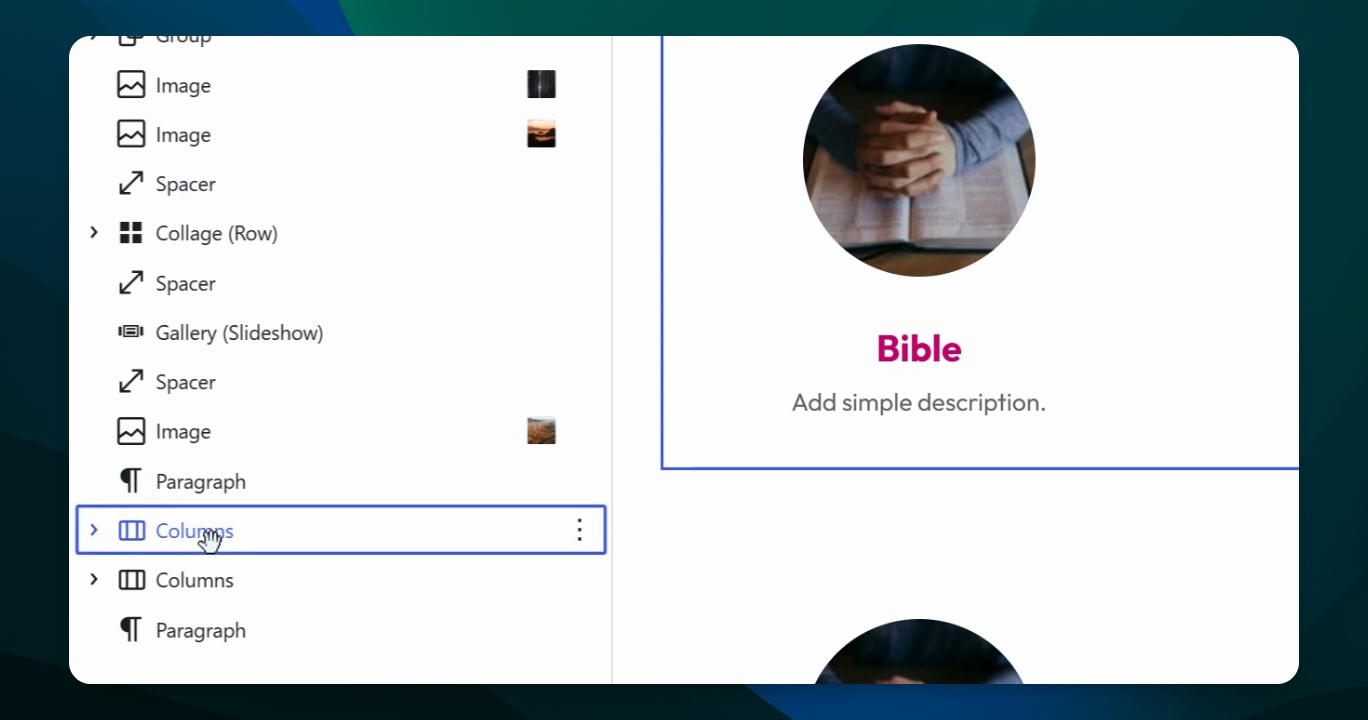
Open the document overview menu, select Columns, then click the three-dot options menu. Choose Duplicate to create a copy of your block. You can repeat this as many times as needed on the same page.
Step 2: Copy and Paste Blocks
Click the three-dot options menu again and select Copy. You can also use Ctrl+C (PC) or Command+C (Mac). After copying, paste the block on the same page or another page using Ctrl+V (PC) or Command+V (Mac). The block will appear in the new location while remaining in the original spot.
Step 3: Create a Pattern from Blocks
Select the customized group of blocks, open the three-dot options menu, and choose Create pattern. Name your pattern and select or create a category. You can type to search for categories or add new ones. Decide whether to turn Sync on or off. Turning sync off allows you to edit the pattern after inserting it.
Step 4: Use and Edit Patterns
Once saved, your pattern will appear with a three-circle icon. You can insert, edit, or detach the pattern to customize its content further. This makes it easy to recreate custom layouts across your pages.