

1. Clear Browser Cache
Your browser may be showing you an old version of the page.
To fix this:
Go to your browser settings (Chrome, Edge, etc.).
Find “Clear browsing data” or “Clear cache and cookies.”
Select your website and clear the data.
Then go back and reload your site.
2. Hard Refresh Your Browser
You can also do a quick “hard refresh” to force your browser to load the latest version:
Windows/Linux: Press Ctrl + F5
Mac: Press Command + Shift + R
3. Try a Private (Incognito) Window
Open your site in a private or incognito window — this ignores any saved data and shows the newest version.
If it looks updated there, that means your normal browser cache just needs to be cleared.
Deeper Troubleshooting
If the problem still isn’t fixed, try these additional steps:
4. Clear WordPress Cache
If your site isn’t showing your latest updates, it may be because the cache is still storing an older version of your page.
Clearing the cache helps your site refresh and show the newest content.
To clear the cache:
Log in to your Frame Dashboard.
In the black bar at the top, hover over “Cache (Active)”.
Click “Purge Cache.”
Wait a few seconds, then refresh your page to see your changes.
Advanced: You can read more about how the cache works here.
5. Check Permissions
Make sure the user account you’re using has permission to view the page.
If a post or page is set to Private or Draft, only logged-in users with the right permissions will see it.
6. Review Homepage Settings
If the page not showing edits is your homepage, check your reading settings to ensure the page is set to be viewed. Sometimes it can be misconfigured to show a feed of posts instead. Use the following steps to reset your homepage.
From the dashboard, click Settings.
Select Reading from the settings options.
Ensure the homepage is set to a Static Page.
Select the correct page name to serve as the homepage.
Save your settings, and review the changes.
7. Check for Overriding Template
Make sure there isn't an archive page set to use the slug for the page you are editing. If a media catalog archive or event calendar is set to use the same slug as the page you are editing, the template will override whatever you have built in the page editor.
Catalog Archive error
If the error is happening with a media page, go to Media > Settings, and check what your slug is set to. This is the slug that the media archive template is using.
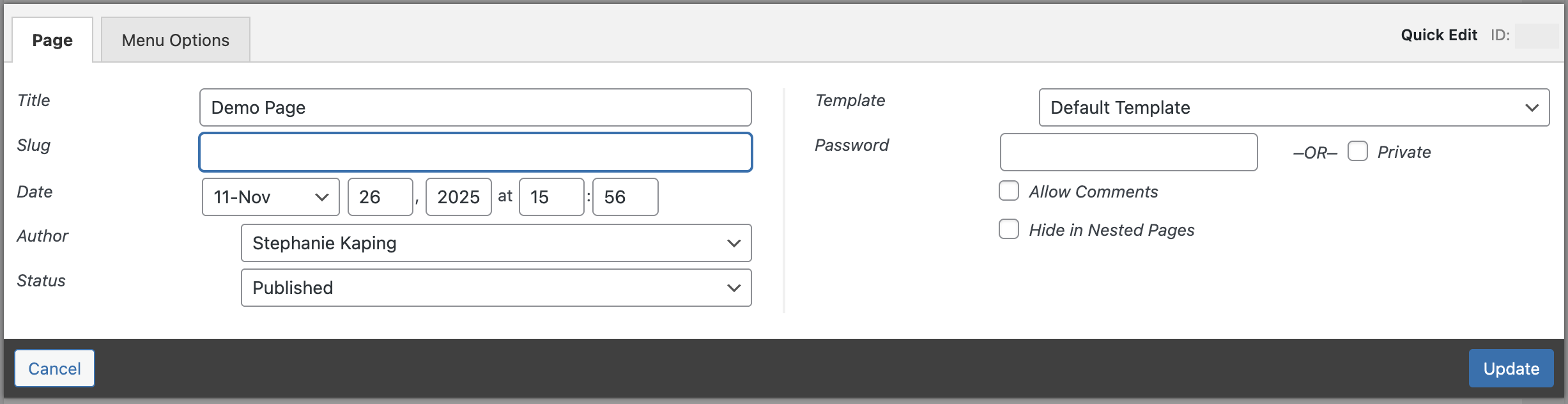
Check that the page you are editing does NOT use this slug. You can view and edit a page slug by going to Pages > All Pages > hover over the page name, and choose Quick Edit.
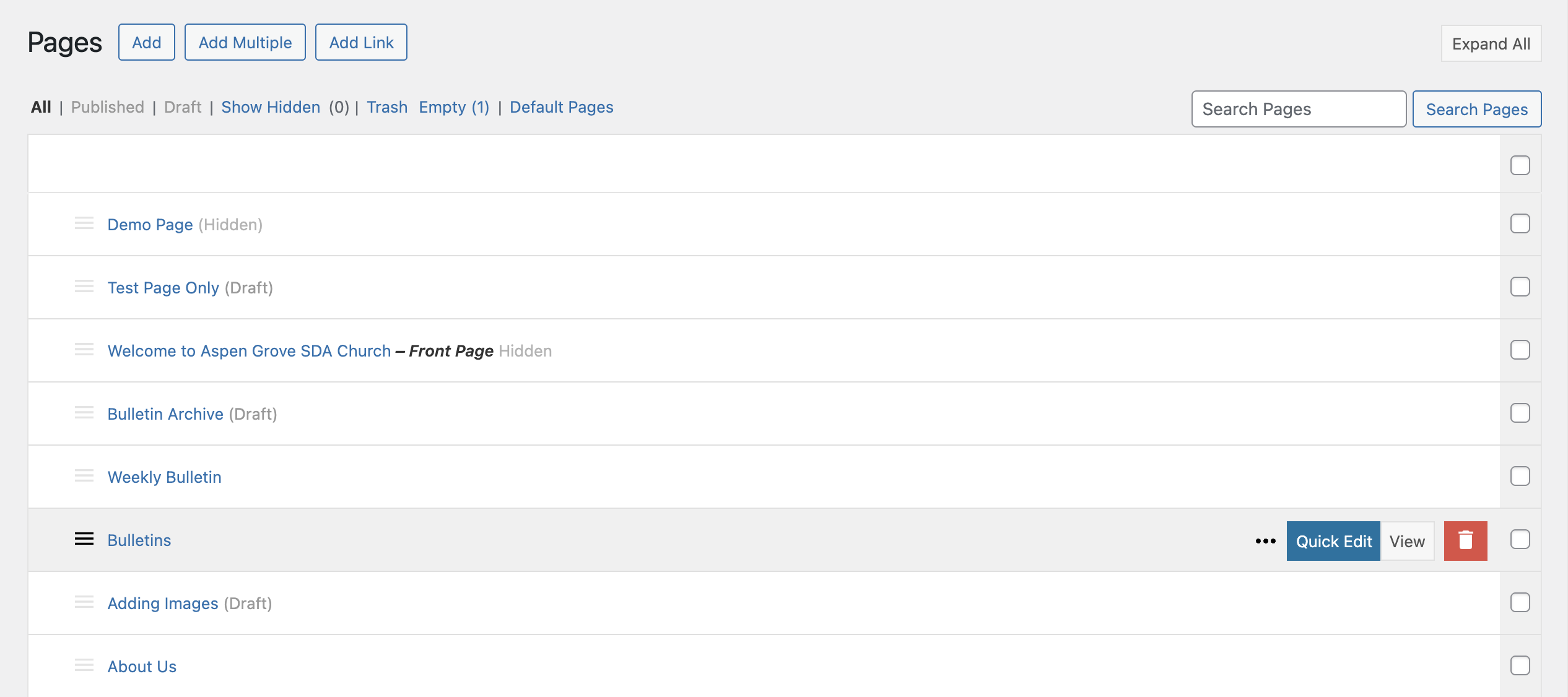
Change the slug of your page to a unique value in the Quick Edit menu.
Event Archive error
If the error exists on an event or calendar page, go to Events > Settings, and check what your slug is set to. This is the slug that the event archive template is using. You may see this warning:
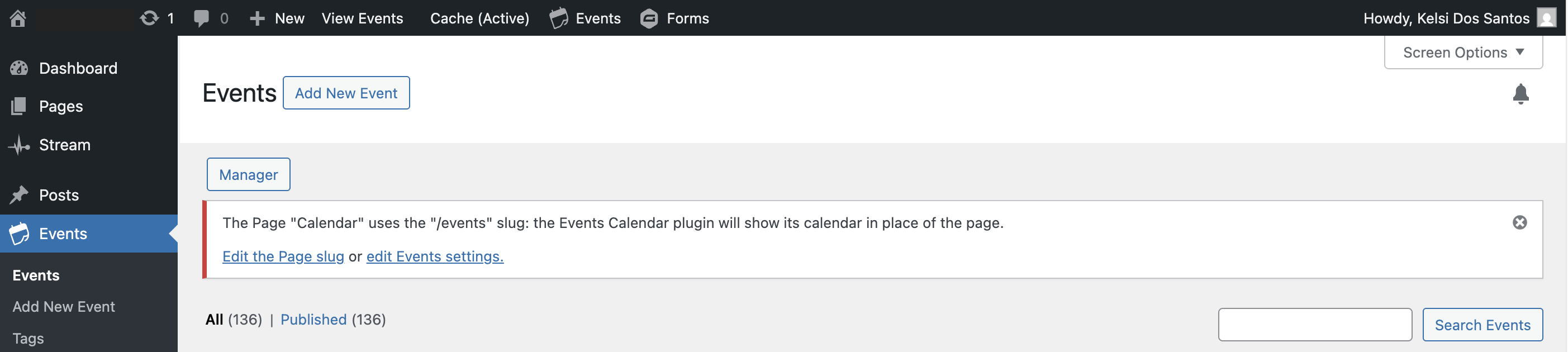
Select Edit the Page slug or edit Events settings to change the slug for either the page or the template archive.