

Let's explore some of the configuration options for the events calendar, including:
setting a featured image
renaming the page title in the header
adjusting default views for desktop and mobile
filtering options
Set a Featured Image
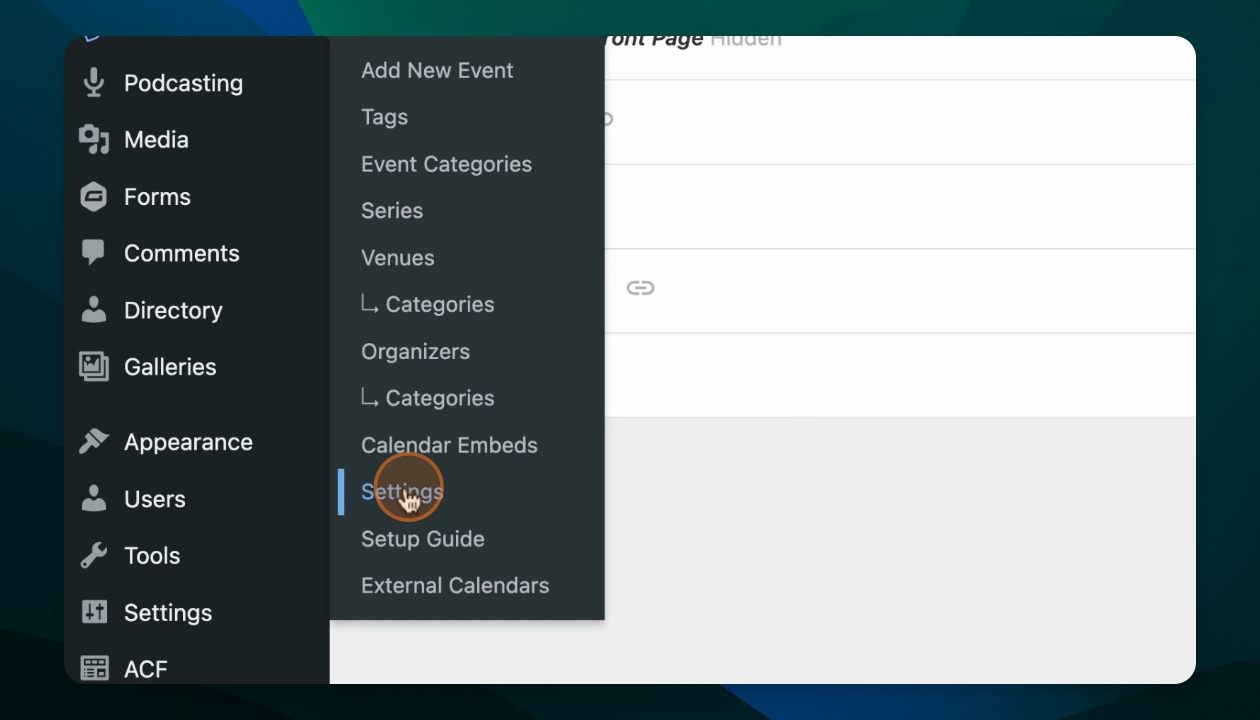
Step 1: Go to Event Settings
Navigate to the Events Settings section from the dashboard.
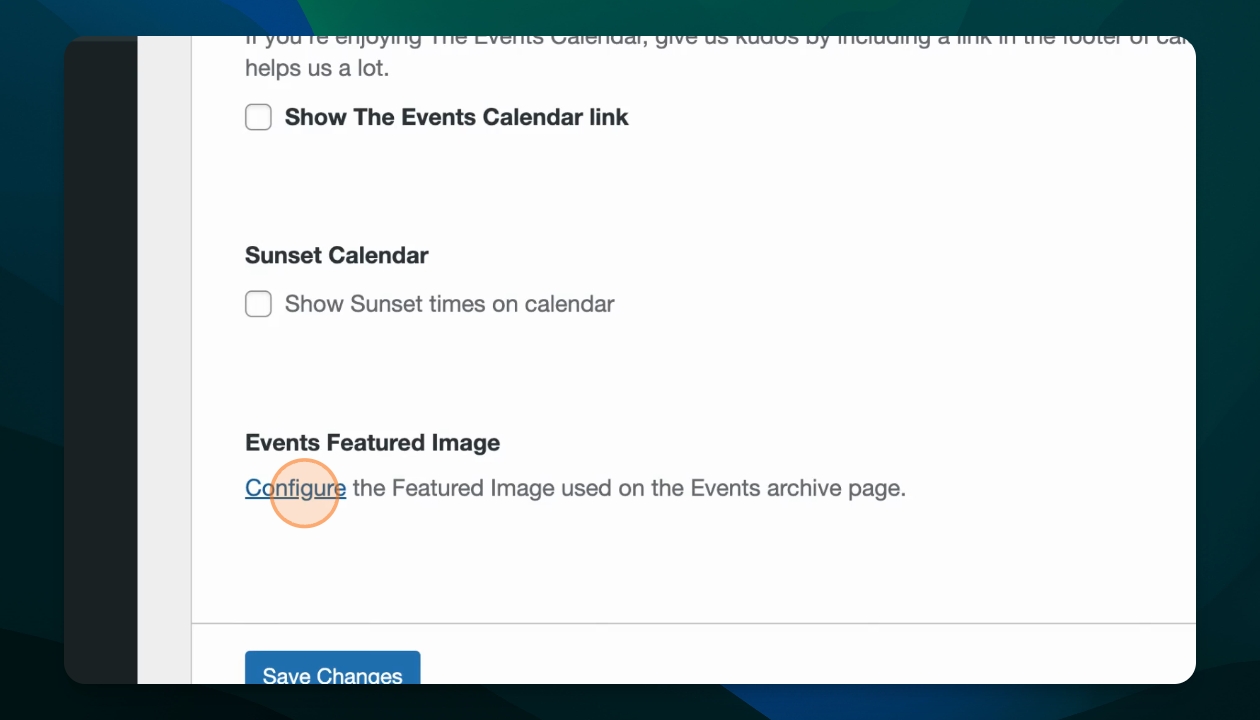
Step 2: Set Featured Image
In the General tab, scroll down and use the link to set the featured image.
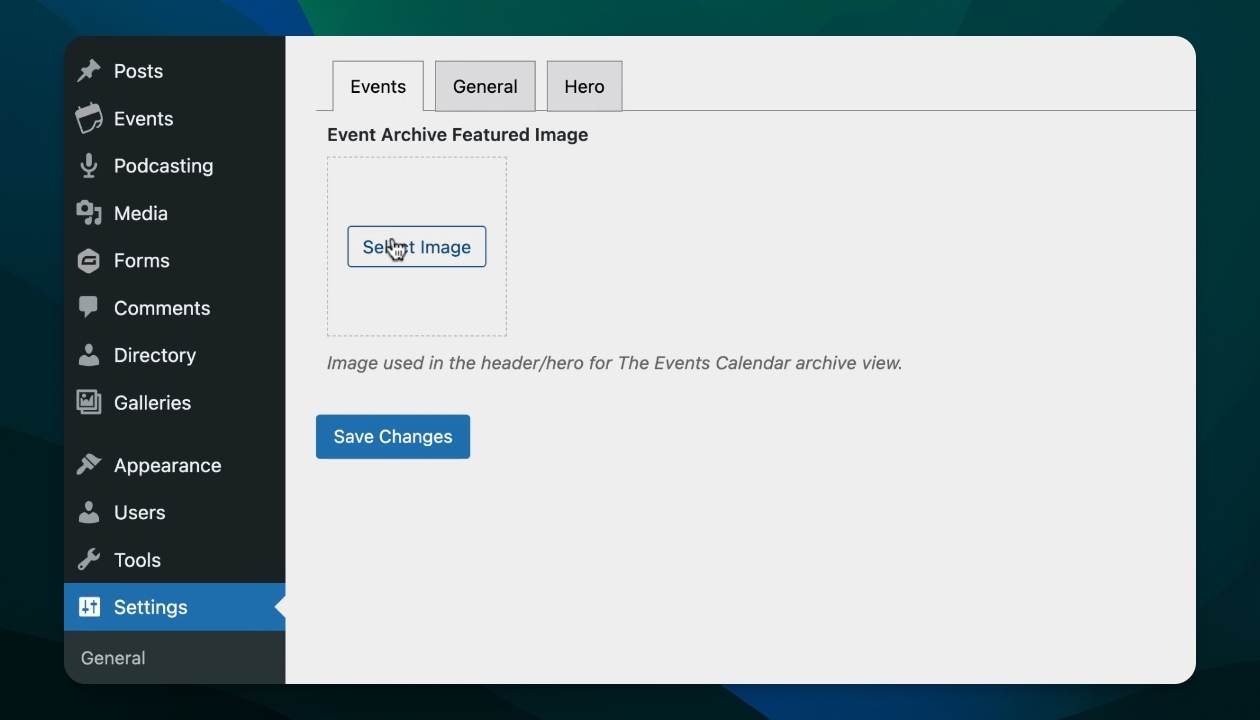
Step 3: Choose an Image
Select an image for the header from your Media Library or upload from your device. Save your edits.
Change Page Title
Step 1: Navigate to Display Tab
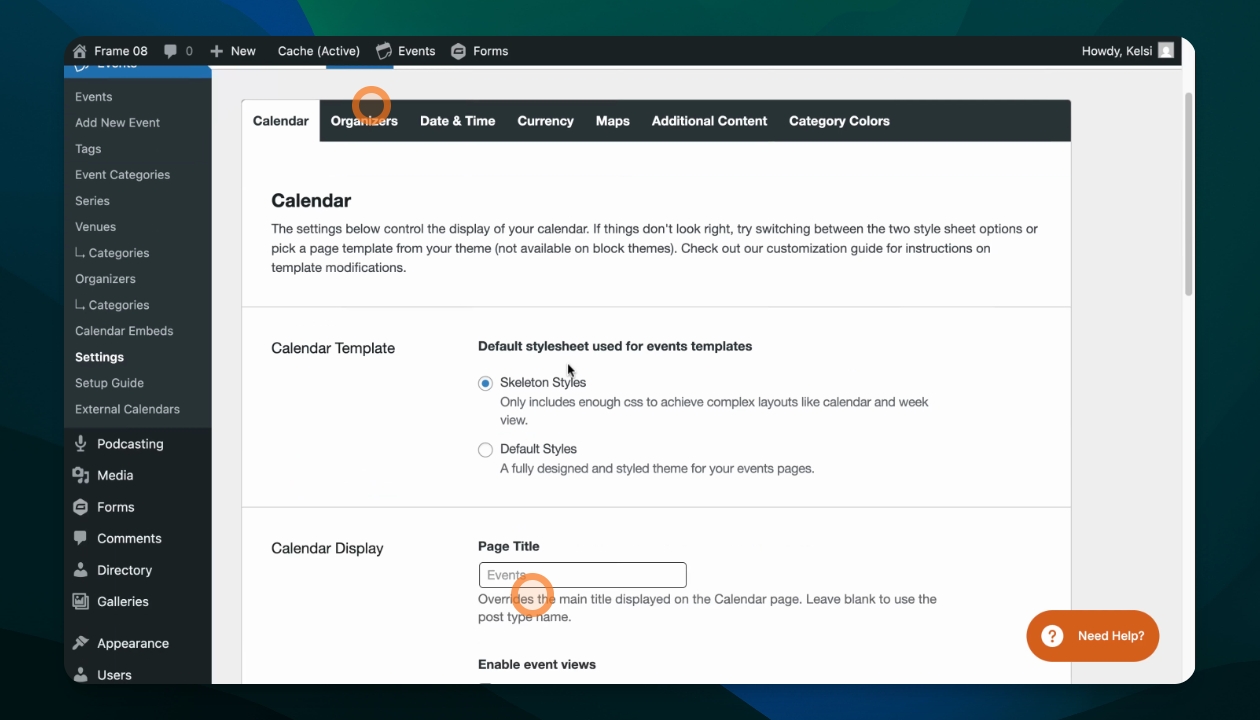
In Event Settings, go to the Display tab.
Step 2: Set New Title
In the Page Title section, change the page title that displays in the page header. Save your edits.
Change Default View
Step 1: Change Default View
In Event Settings, go to the Display tab. Adjust the Default View. Choose from list, month, or day.
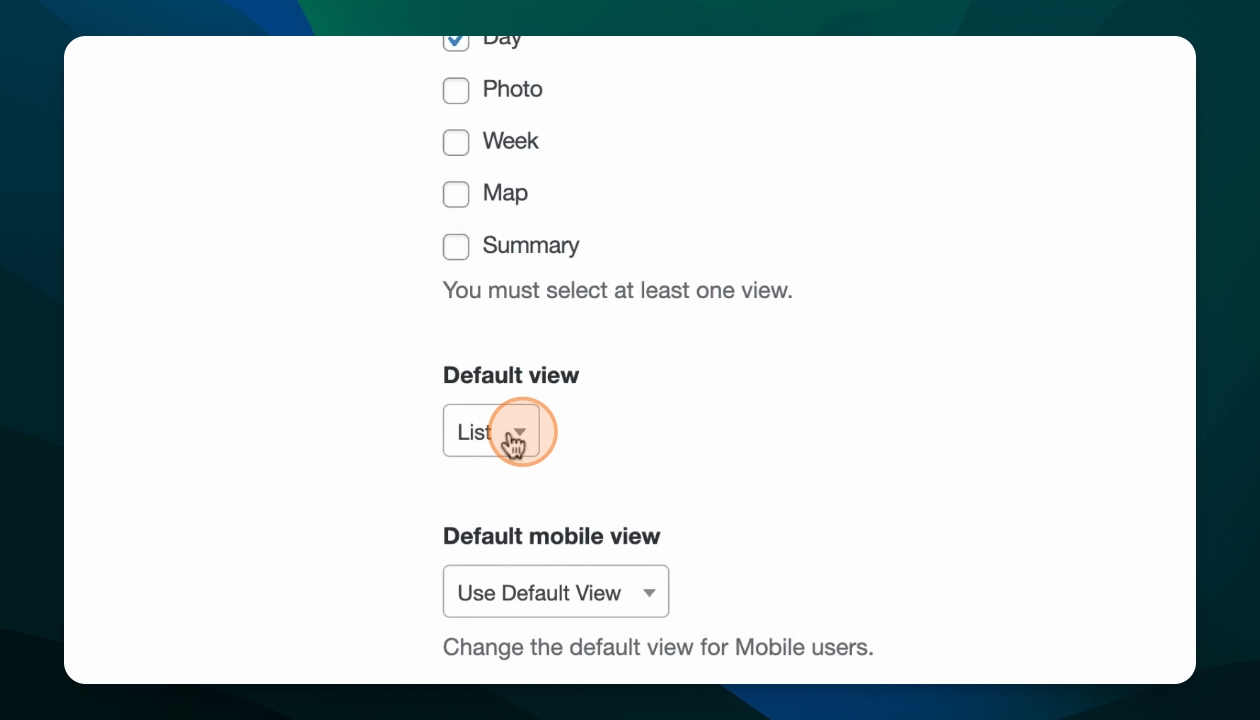
Step 2: Configure Default Mobile View
Decide whether to show the same default on mobile, or select a different default view for mobile devices.
Adjust Search and Filter Options
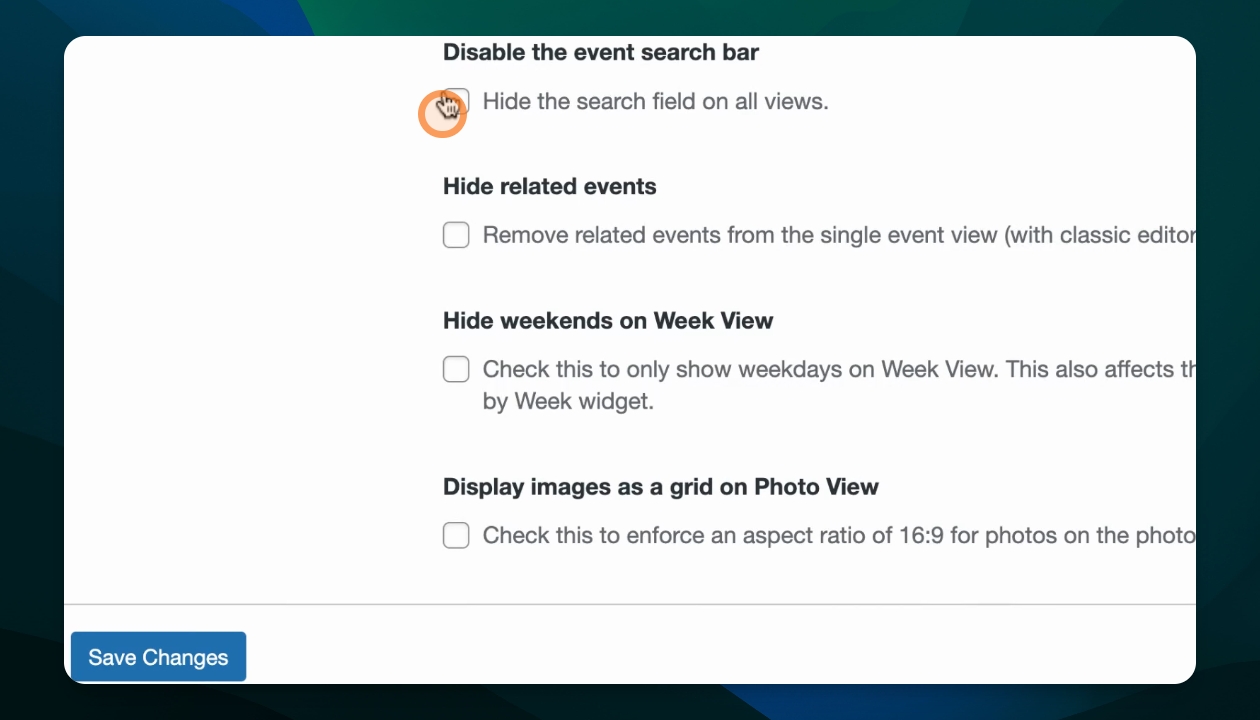
Step 1: Configure Search Bar
From the Display tab, you can disable the search bar by selecting the option hide it.
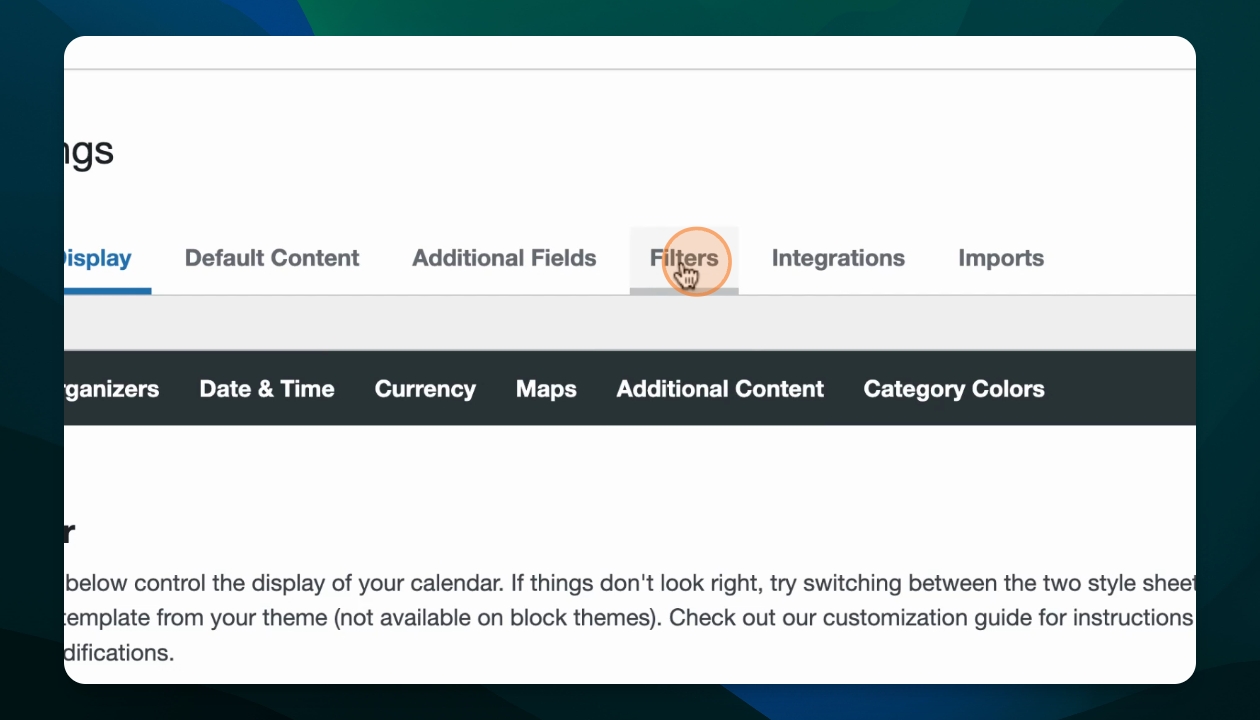
Step 2: Remove Filter Bar
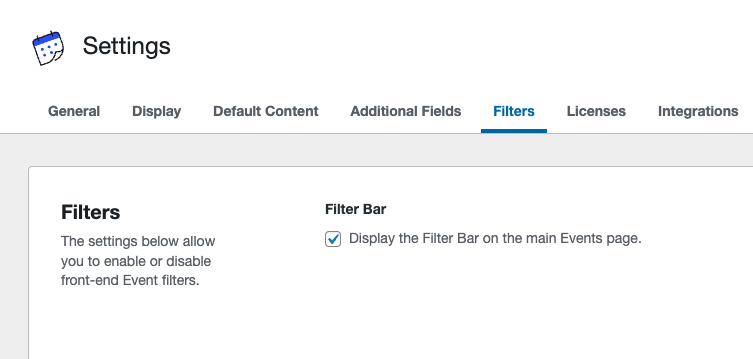
Navigate to the Filters tab.
Uncheck the filters you don't want to display and reorder the filtering options so the most used filters appear first. Alternatively, deselect the display option to remove the filter bar entirely.
Don't forget to save your changes.