

What Is a Block?
When you edit a page or post on your Frame site, everything you add to that page is a block. A block is a single piece of content — a paragraph of text, a photo, a heading, a video, a button, or even a contact form. Think of blocks like building with LEGOs: each piece is its own unit, and you stack and arrange them to build the page you want.
This approach makes it easy to create rich, organized content without any coding or design experience. Whether you're sharing a sermon, adding a bulletin, announcing an upcoming event, or welcoming visitors to your church's homepage, blocks give you the tools to do it simply and beautifully.
Choosing the Right Block
With so many blocks available, it can feel overwhelming at first — but don't worry. Most of the time, the right block is pretty intuitive.
First ask yourself: What am I trying to add to this page?
A sentence or paragraph of text? Use the Paragraph block.
A title or section header? Use the Heading block.
A weekly bulletin? Use the File block.
A photo? Use the Image block.
Multiple photos together? Use the Gallery block.
A YouTube or Vimeo video? Use the YouTube or Video embed block.
A list of items? Use the List block.
A call-to-action link? Use the Buttons block.
Side-by-side content? Use the Columns block.
A photo and text? Use a Grid block
If you're not sure which block to use, try searching for what you're trying to do. The block names are straightforward, and hovering over any block in the inserter shows a short description and preview.
When working in the editor you can move the blocks around the page and change the order of them. You can't click and drag external content onto the page, it must be inserted with the correct corresponding block.
For example you can copy and paste text from another site in a paragraph block that is already set on your page or a heading.
TL;DR Using Blocks
Click the plus button or type / followed by the name of the block.
Use the block toolbar or block setting menu for formatting options.
For a comprehensive list view of blocks on a page.
Let's Do It Together!
Step 1: Add a Block
There are two basic ways to add blocks of content to your page.
1. Use the Block Inserter +
Position your cursor where you want to add a block.
Click the black plus button to add a block.
Alternatively, use the blue Block Inserter button in the upper left corner.
Now you can see the available blocks listed or search for a specific one.

2. Use the Slash Commands
Type / followed by the block type you want to add.
For example, type /file to add a file block.
Common commands include
/headingfor headings,/imagefor images, and/buttonfor buttons.
This allows for faster block insertion without navigating menus.

Step 2: Drag and Drop Blocks
To rearrange blocks, click and hold the drag button.
Drag the block to your desired location on the page.
As you drag the element around the page, you will see a blue line indicating where the block would land if you placed it there. This provides an easy way to organize your content layout.
Use the down arrow to shift a block down, or the up arrow to move it up.

Step 3: Customize Blocks
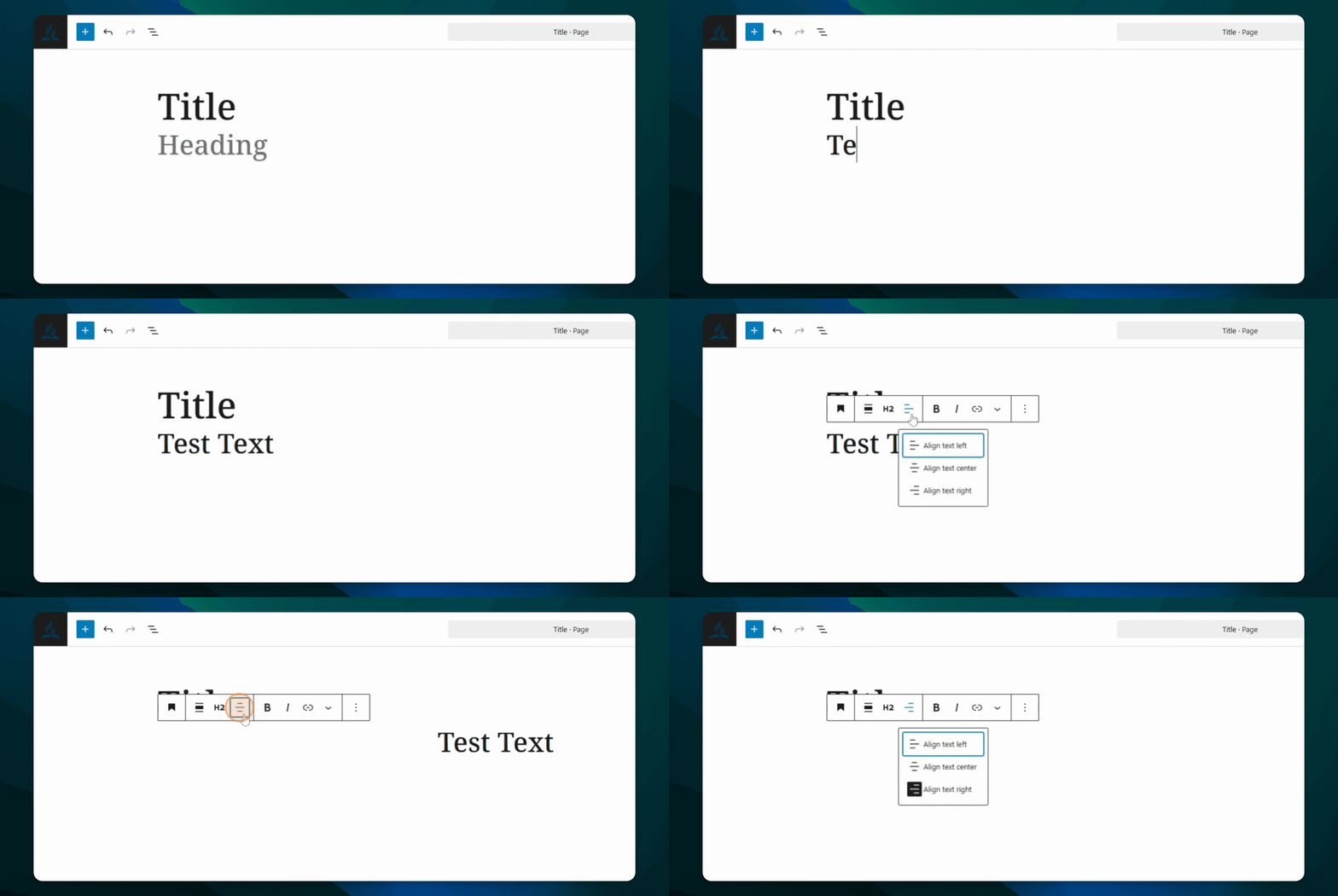
Adjust headings and text by selecting them and using formatting options.
Use the Block Settings menu on the right for further editing options for all blocks.
Now your blocks are customized to fit your design needs.
Step 5: Access Document Overview
Press Shift + Alt + O to access the Document Overview.
This provides a comprehensive view of all blocks.
You can move blocks directly from this overview by clicking and dragging them. You can also delete blocks from by selecting them, opening the more options menu (three dots to the right of the block name, and clicking Delete.

Step 7: Create Links
Highlight the text you want to turn into a link.
Click on the link button to add your URL.
Your text is now a clickable link for your audience.

Important Notes
In Frame to build out your page is like building with LEGOs to layout and organize your content.
First ask yourself, what are you wanting to add to the page?
In the editor you can't click and drag copy, images, or forms directly onto the page. They have to be place in their corresponding block.
The block inserter is intuitive when searching for the right block to use.