

TL;DR
Let's Do It Together!
Step 1: Create Current Bulletin
Set the Page title, if it's a new page.
Type in the date for the next week's bulletin that will be at the top.
Add a File Block and select the PDF.
You can upload a new PDF from your computer.
Or select a PDF from the media library.
Your current bulletin is now set up with the title and file.
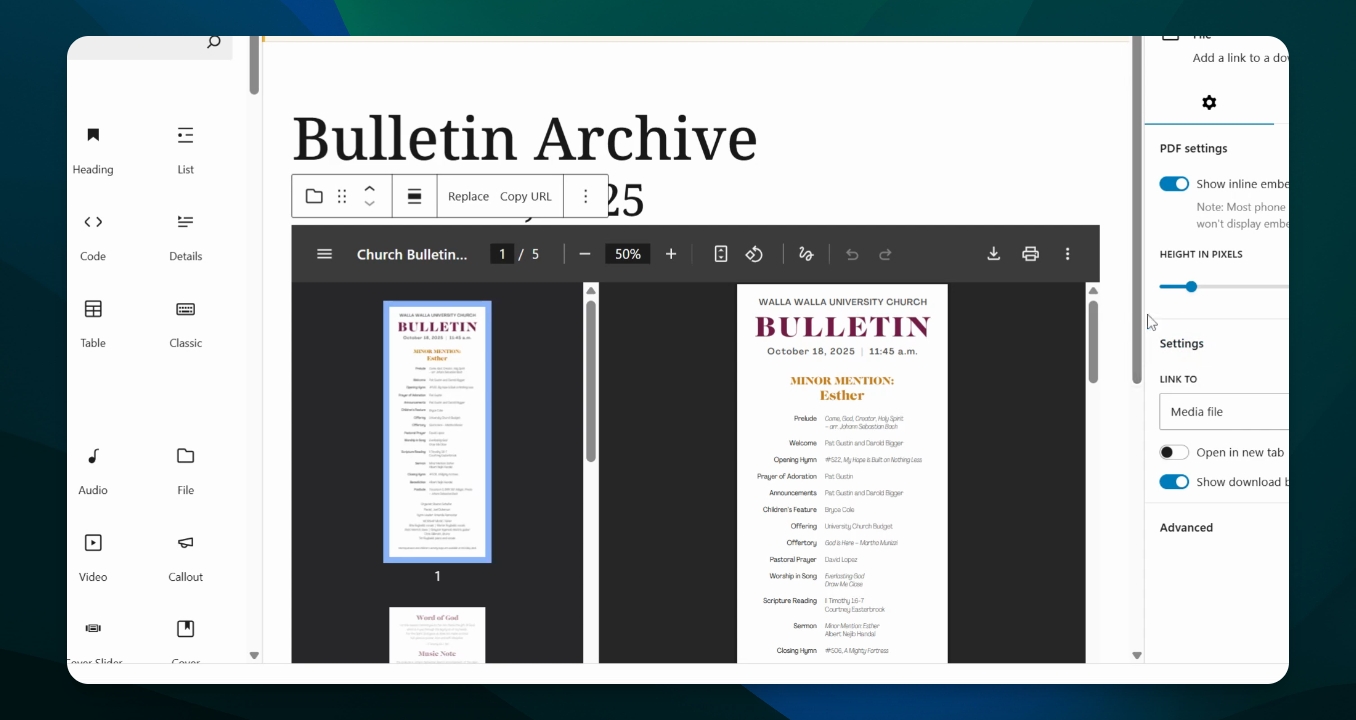
Step 2: Set Up Archive for Previous Bulletins
Add a heading for the archive section.
Adjust dimensions and margins for separation.
Select an older bulletin from your media library or from your local computer.
Disable Show inline in PDF settings. This gives you a link to download the PDF. Follow this step if you just want a list on your page. Each item needs to be in a separate File block.
The archive is now set up with a link to download older bulletins.
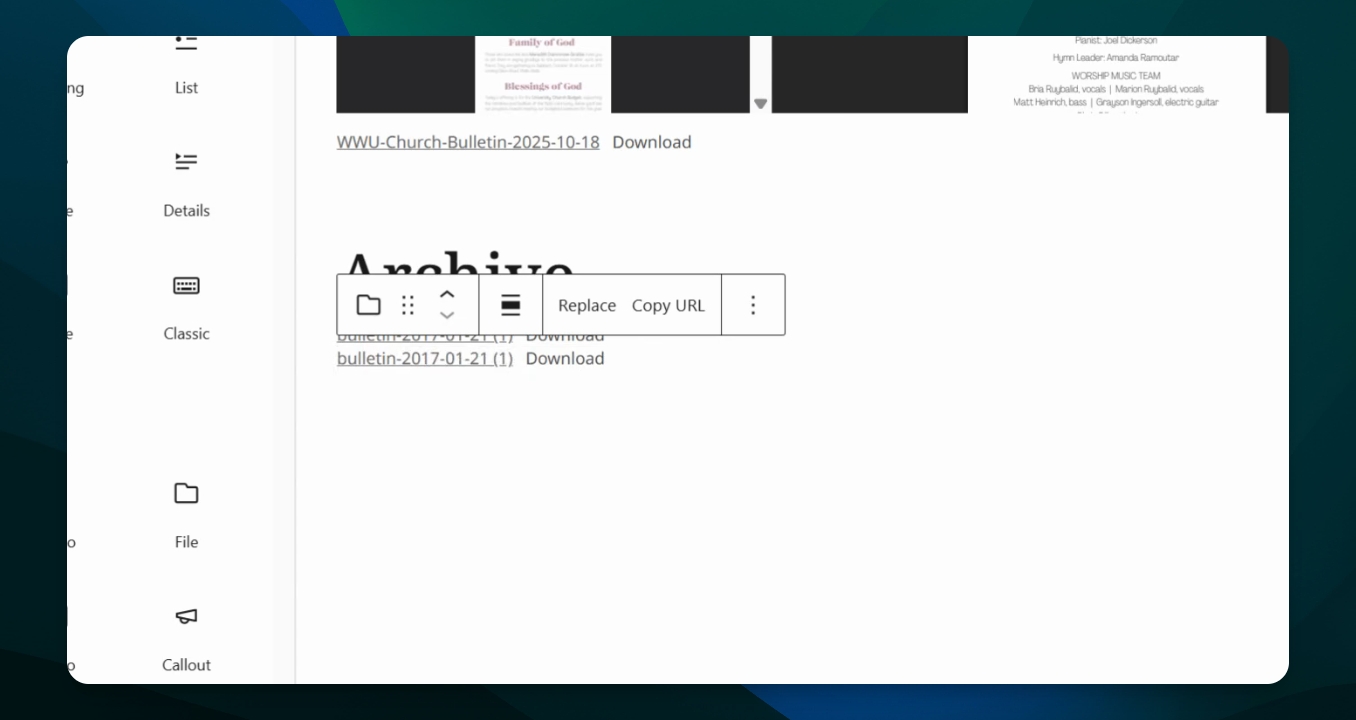
Step 3: Add Additional Bulletins to Archive
To add another bulletin, repeat the previous steps.
Select the file from the media library again.
Adjust the settings to embed or link to the bulletin.
Option: Add Button to Download File
Edit Bulletin Page
Go to "Document Overview" Menu
Click "File" block
Go to Settings Menu > Block > Settings (gear icon)
Advanced > scroll down to "Additional CSS class(es)"
Type in "button" (this make the pdf title a button instead of just small text)