

This guide explains how to use the ACF single field block to display a custom field from a custom post type. Let's look at the steps:
Step 1: Set Up Custom Post Type
Start by iterating over a custom post type. For this example, use a post feed and set the post type to churches, which is a custom post type defined in the setup.

Step 2: Add ACF Single Field Block
Add the ACF single field block inside the post feed. Use the document overview to locate the block and rearrange it to your desired position, such as below the title.
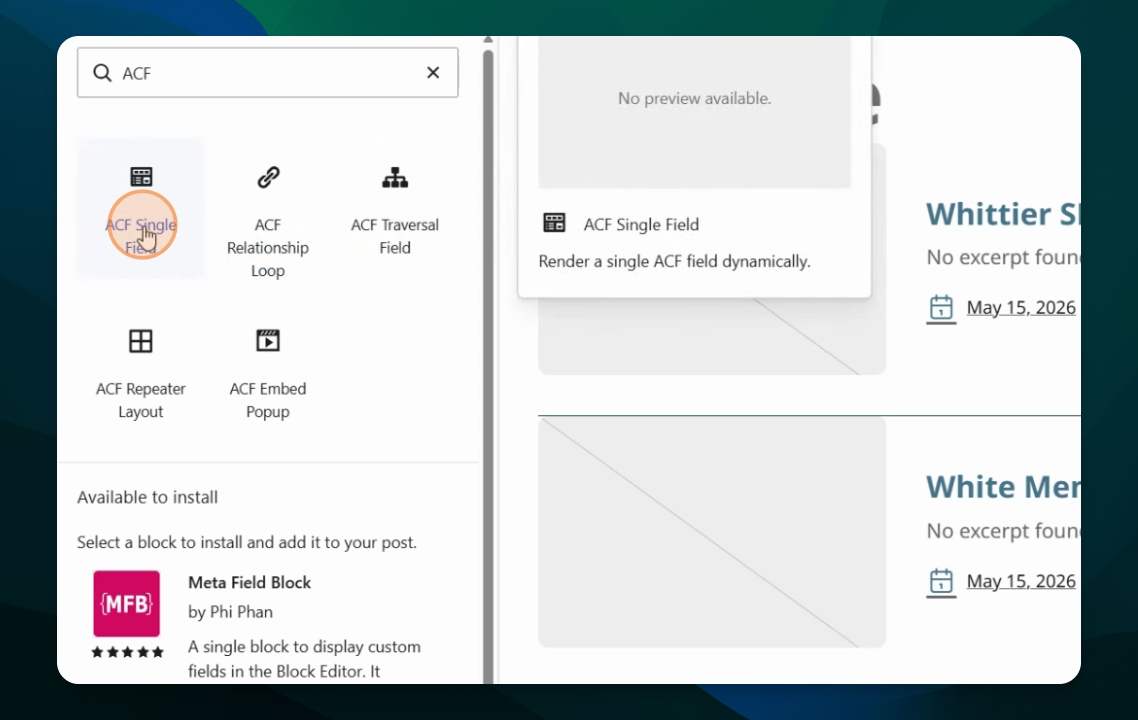
Step 3: Configure Field Display
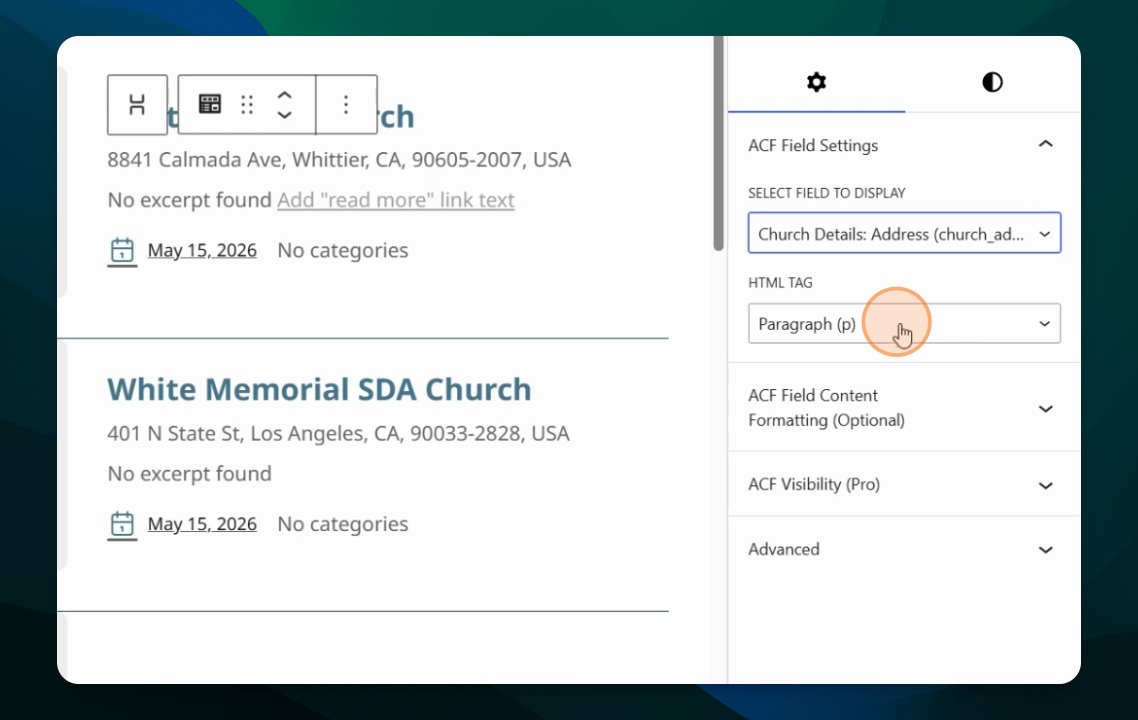
In the block settings, select the field to display. The available options will include all field groups defined via the ACF plugin for the churches post type, such as organization ID, organization code, address, phone number, and email. Choose the field you want to render, for example, the church address. The field will be populated automatically in the block.
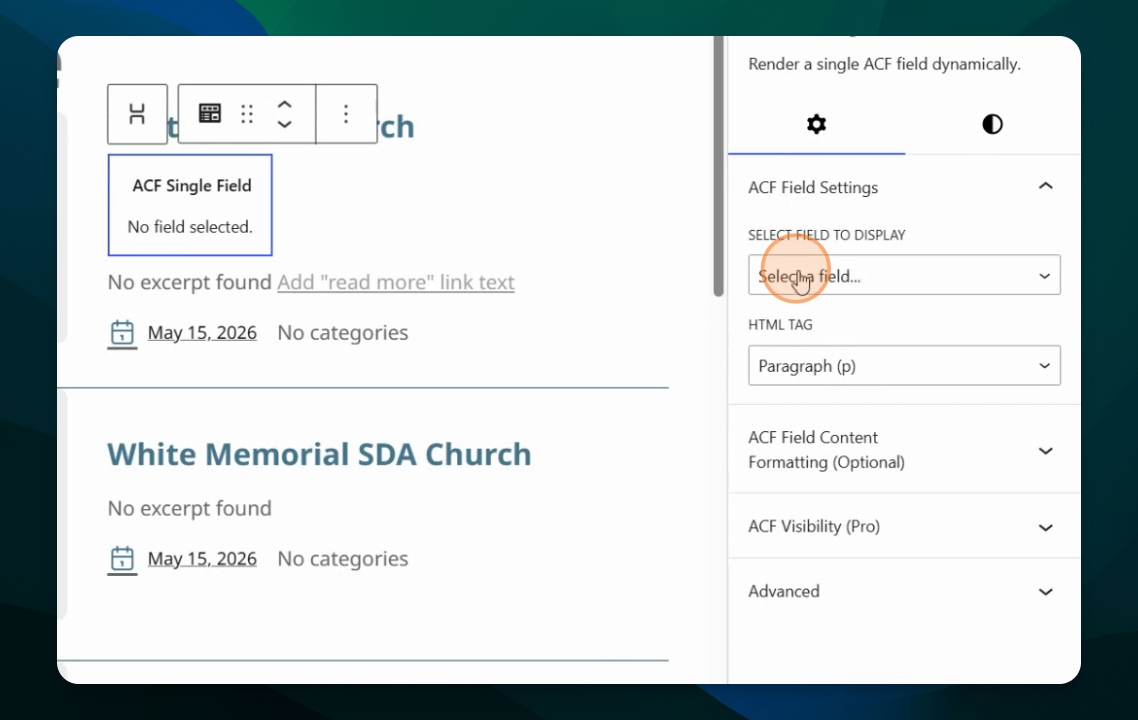
Step 4: Adjust HTML Tag and Styles
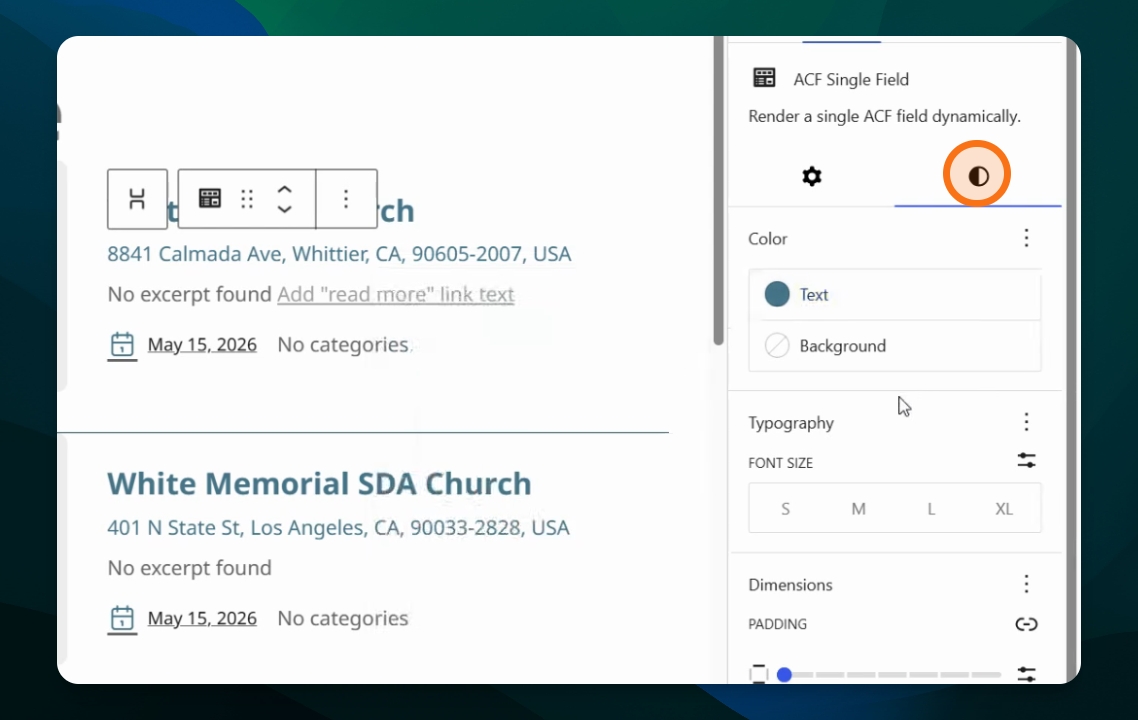
You can change the HTML tag used for the field and further customize the appearance by adjusting color, background, and other style settings in the block's style options.
In the next video, you will learn about the advanced custom field relationship loop block.