

Gravity Forms allows you to quickly resend multiple submitted entries from a form to one or multiple people. This feature can be used to notify new employees about previously submitted forms, to send a single test notification from a form, or any time data from existing form submissions is needed to be sent.
Step 1: Access Form Entries
First, access your entries by clicking on Forms on the left side navigation menu, hover over the form that you want to view the entries of, and click on Entries.
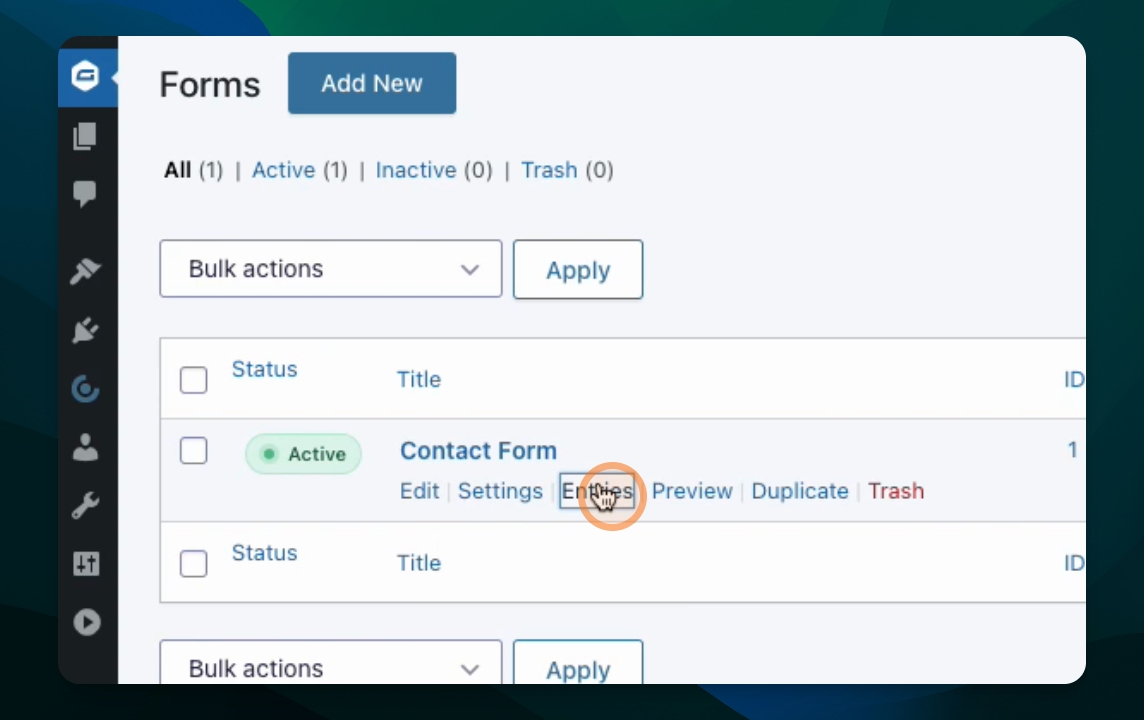
Step 2: Select Entries to Send
You should now see a listing of all entries submitted through your form. Select the checkbox to the left of each entry you wish to send a notification for.
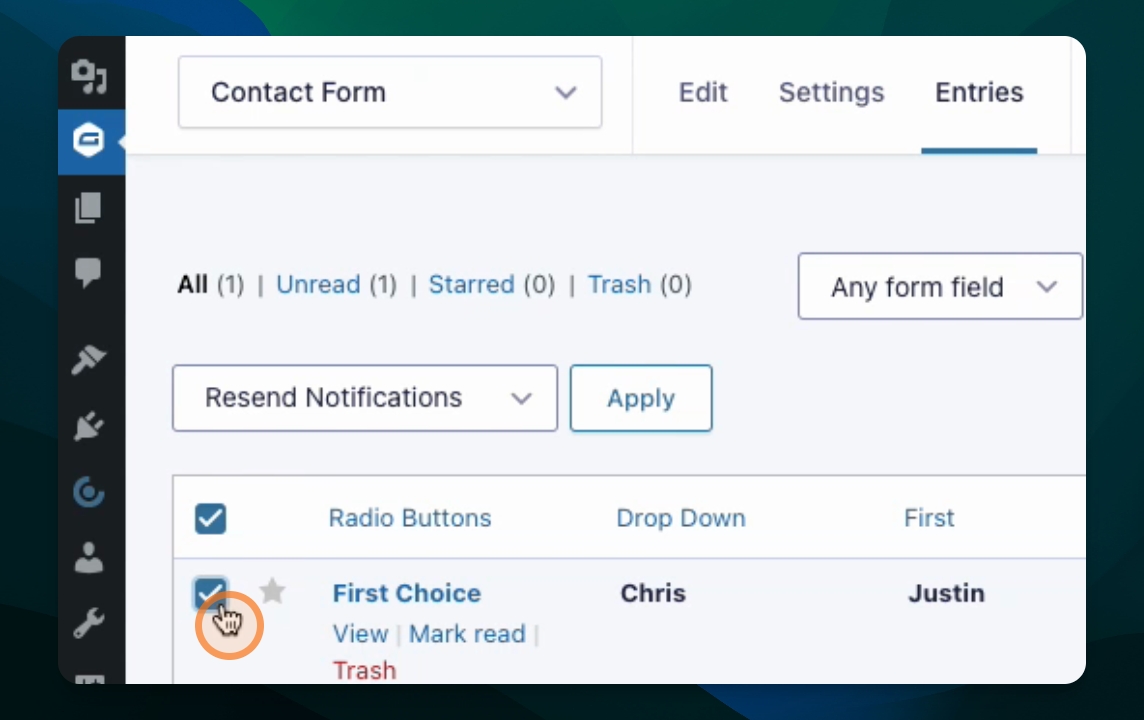
Step 3: Resend Notifications
Use the dropdown menu of action items to select Resend Notifications, then click the Apply button.
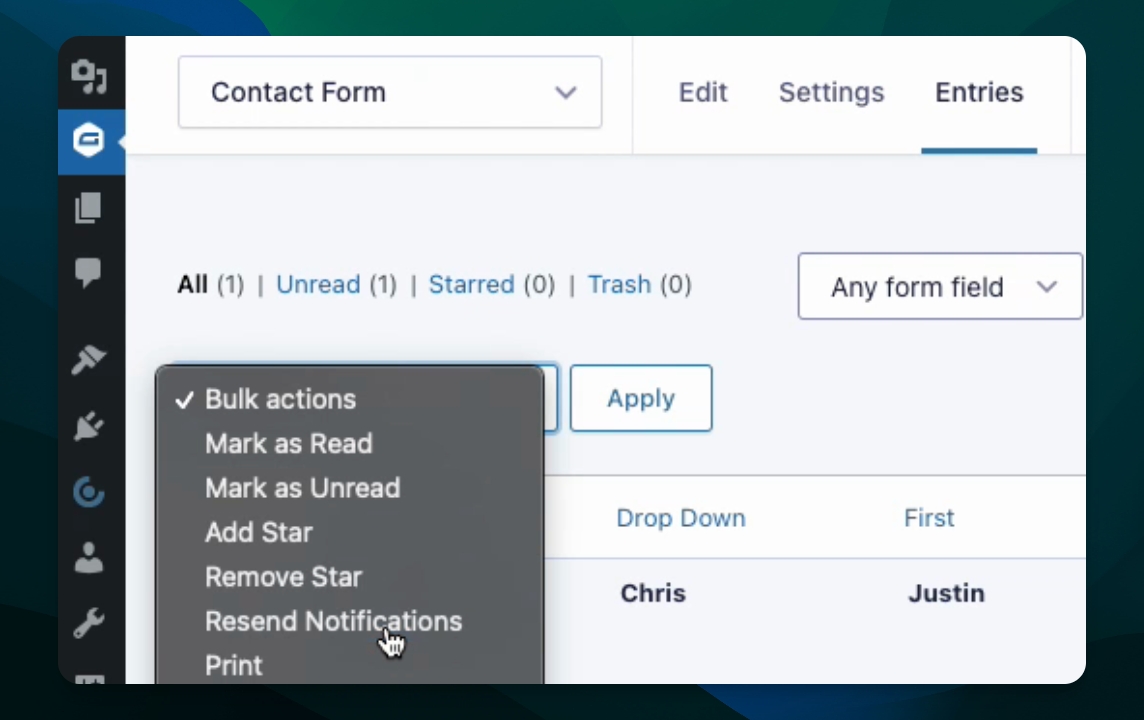
Step 4: Choose Notifications
A window will now appear with notification options listed. Any notification that you have previously configured will appear here. Use these checkboxes select the notification type that you would like to send.
Once your notification type is selected, an additional field will appear, allowing you to optionally override the email addresses within your selected notification type. If you would like to override the notification with different email addresses, simply place them within the Send To field in a comma-separated list.
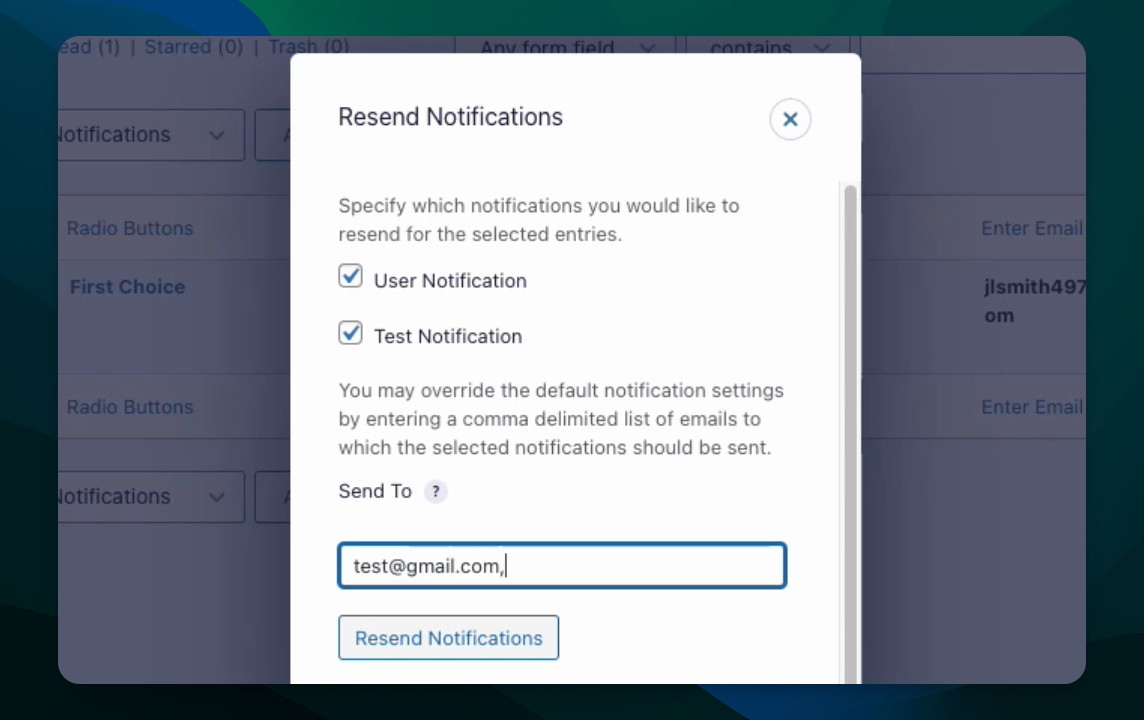
Once everything is set, click the Resend Notifications button.