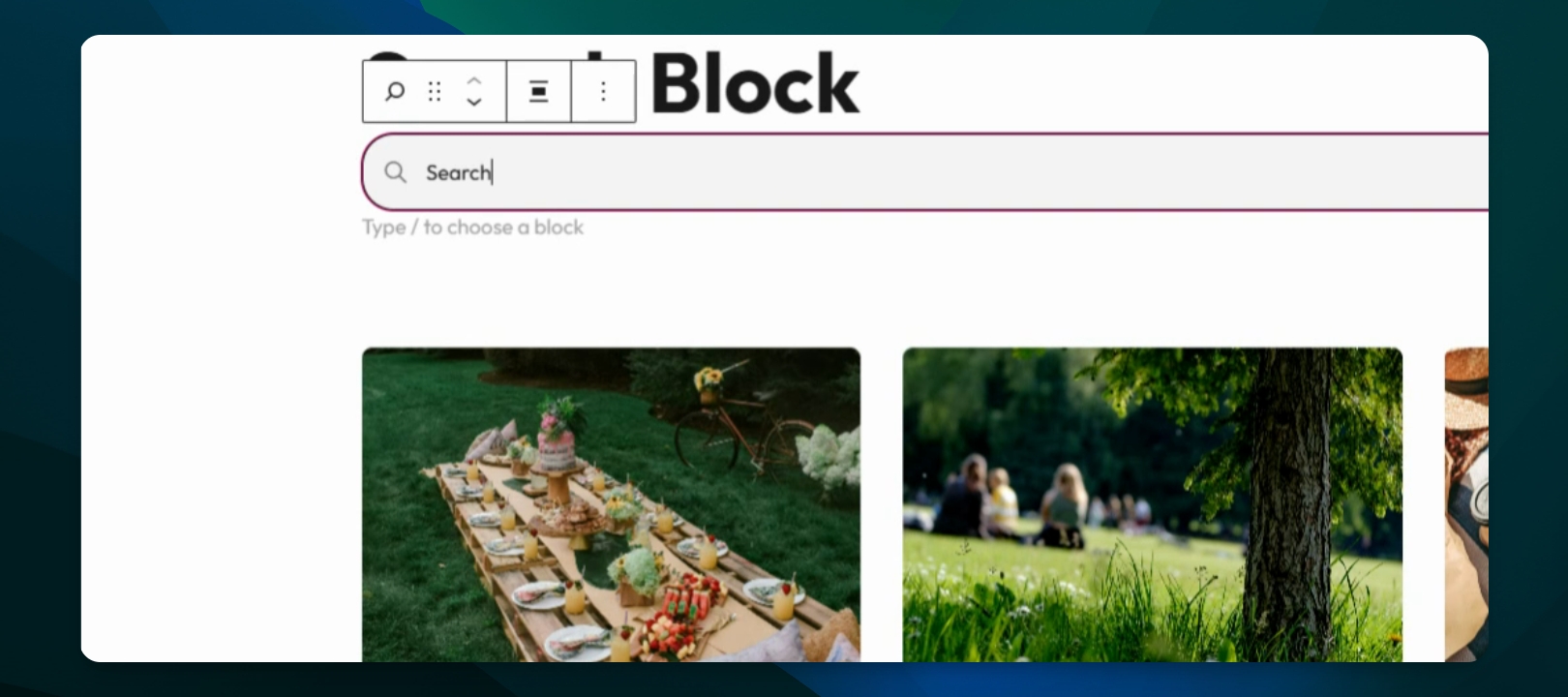
This guide will show you how to add and customize the search block on your WordPress site. Let's look at the steps:
Step 1: Add the Search Block
Type search in the block inserter and press Enter to add the search block to your page or post.

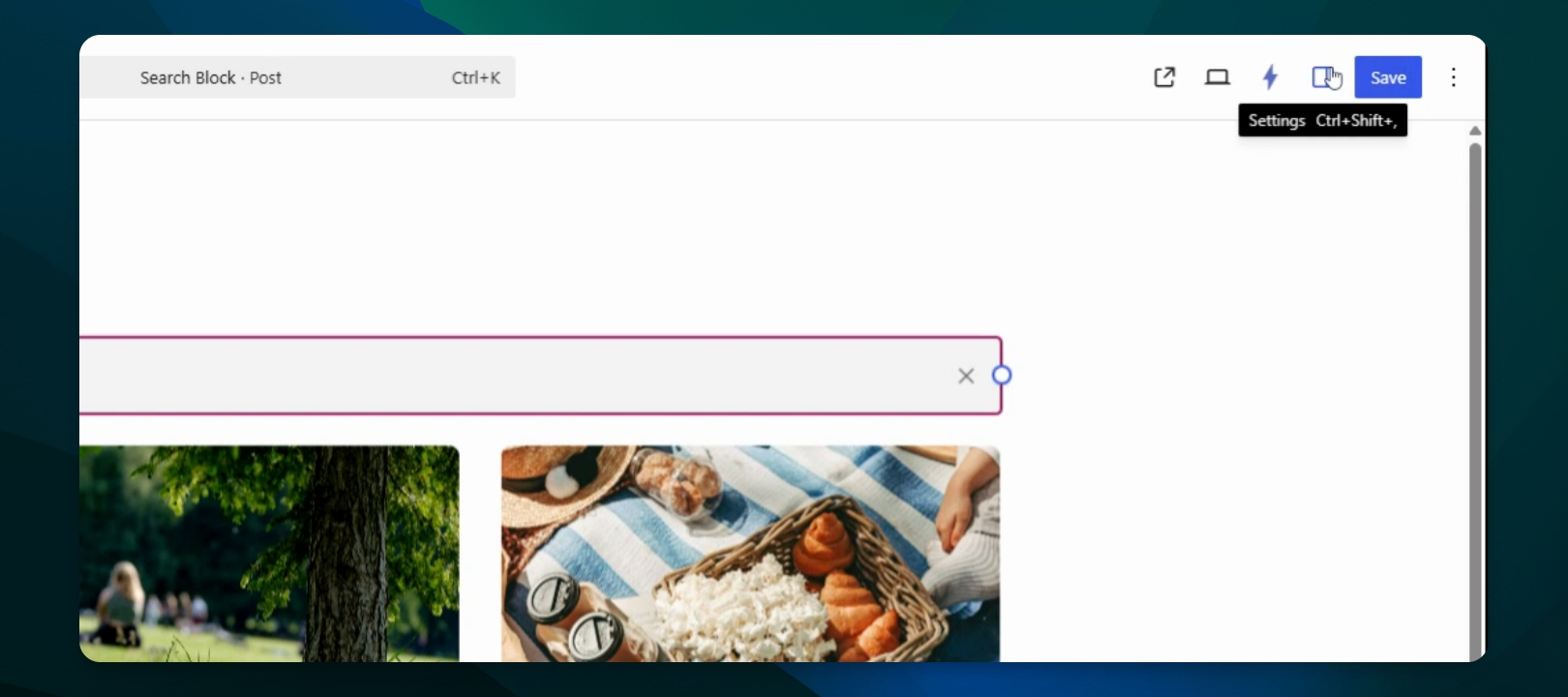
Step 2: Open Block Settings
Open the Settings tab for the search block to access customization options.
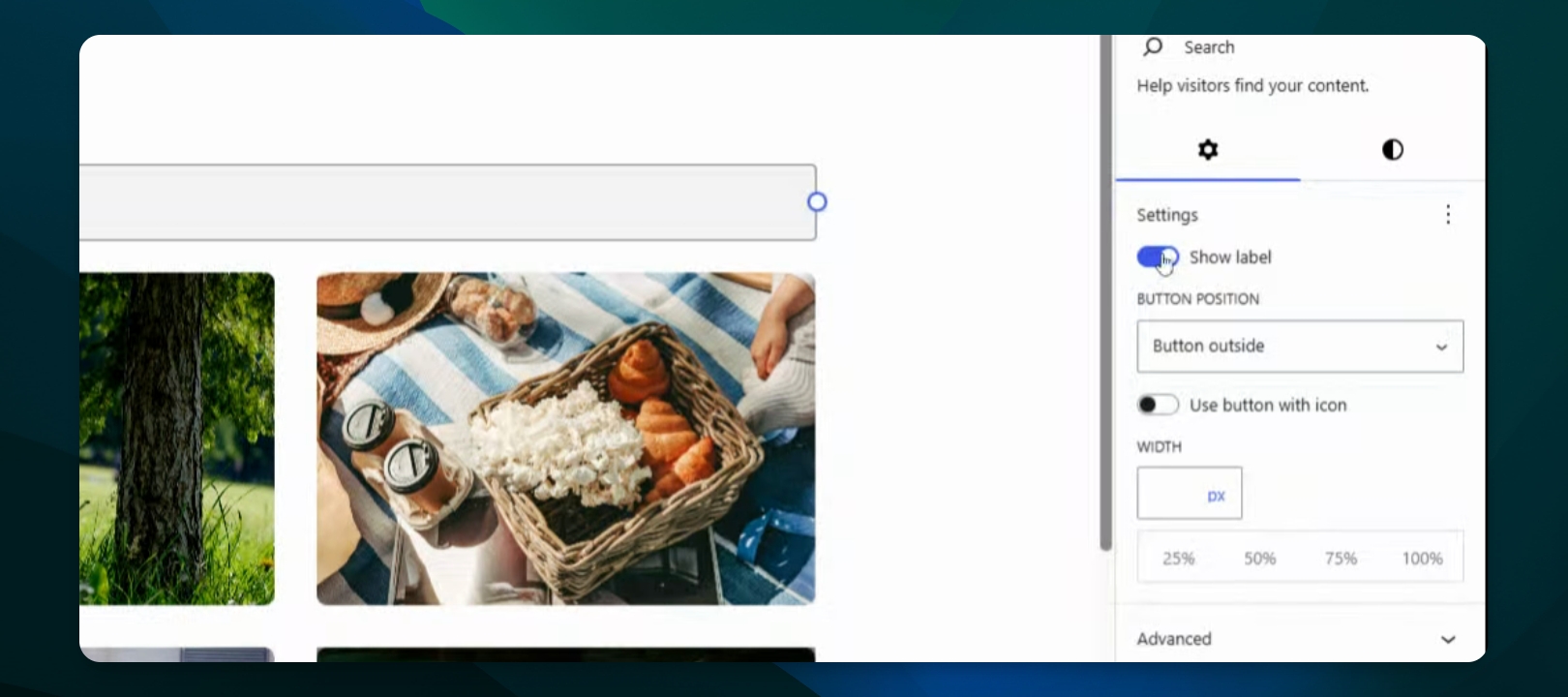
Step 3: Adjust Label and Button Options
You can remove the label, change button positioning, or adjust the block width from the settings menu.
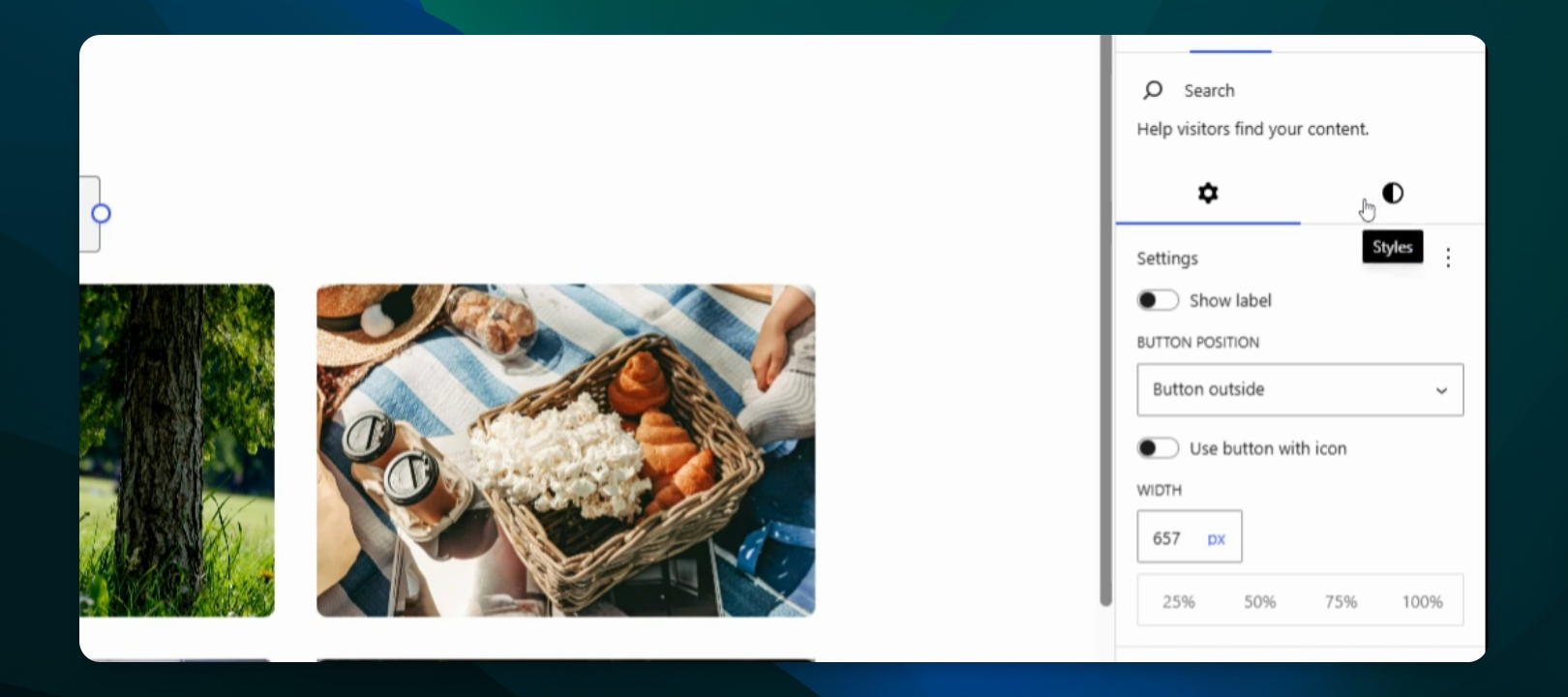
Step 4: Resize the Block Manually
Drag the circle icon to manually resize the search block as needed.
Step 5: Customize Styles
Under Styles, adjust margins, font size, and border settings to match your design preferences.
Step 6: Set Border Value
Enter a value for the border to apply a border around the search block.
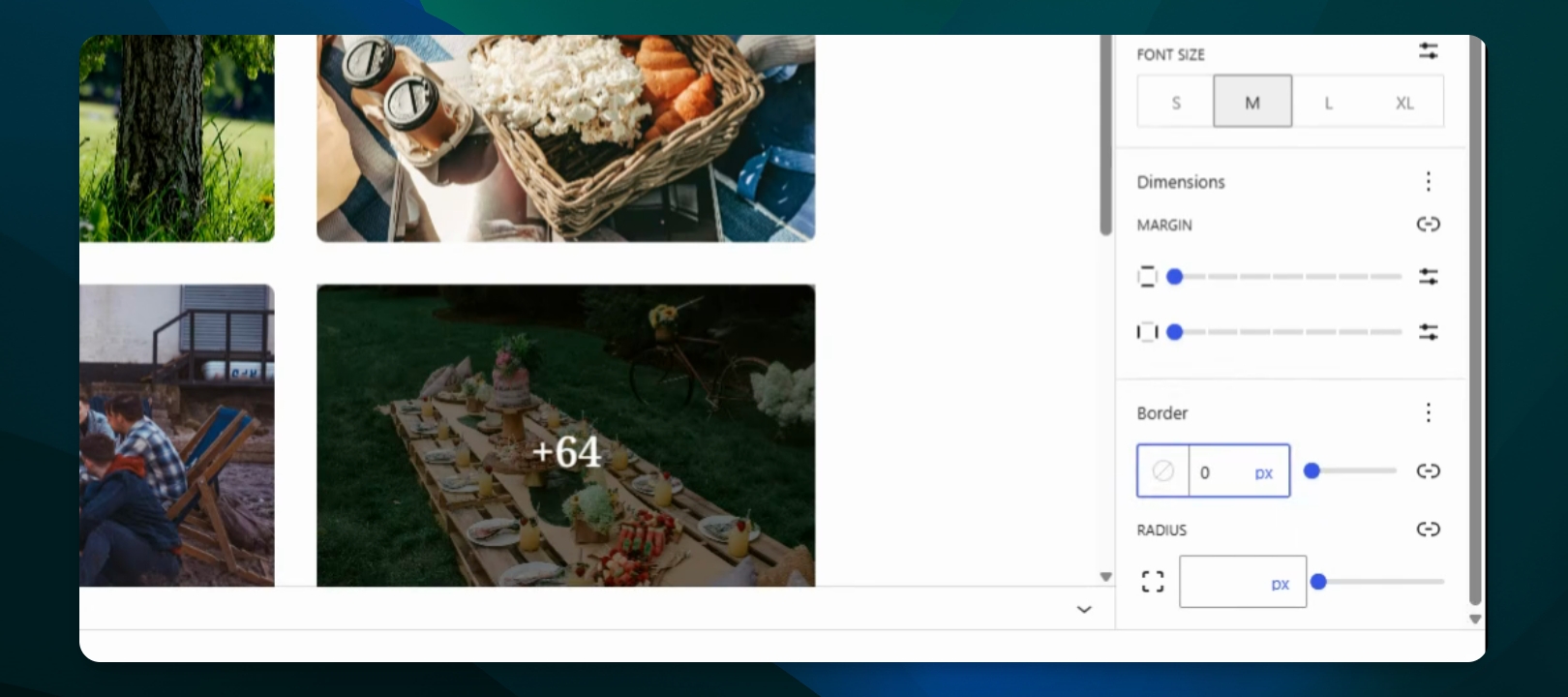
Step 7: Adjust Border Radius
Set a border radius to round the edges of the search block.
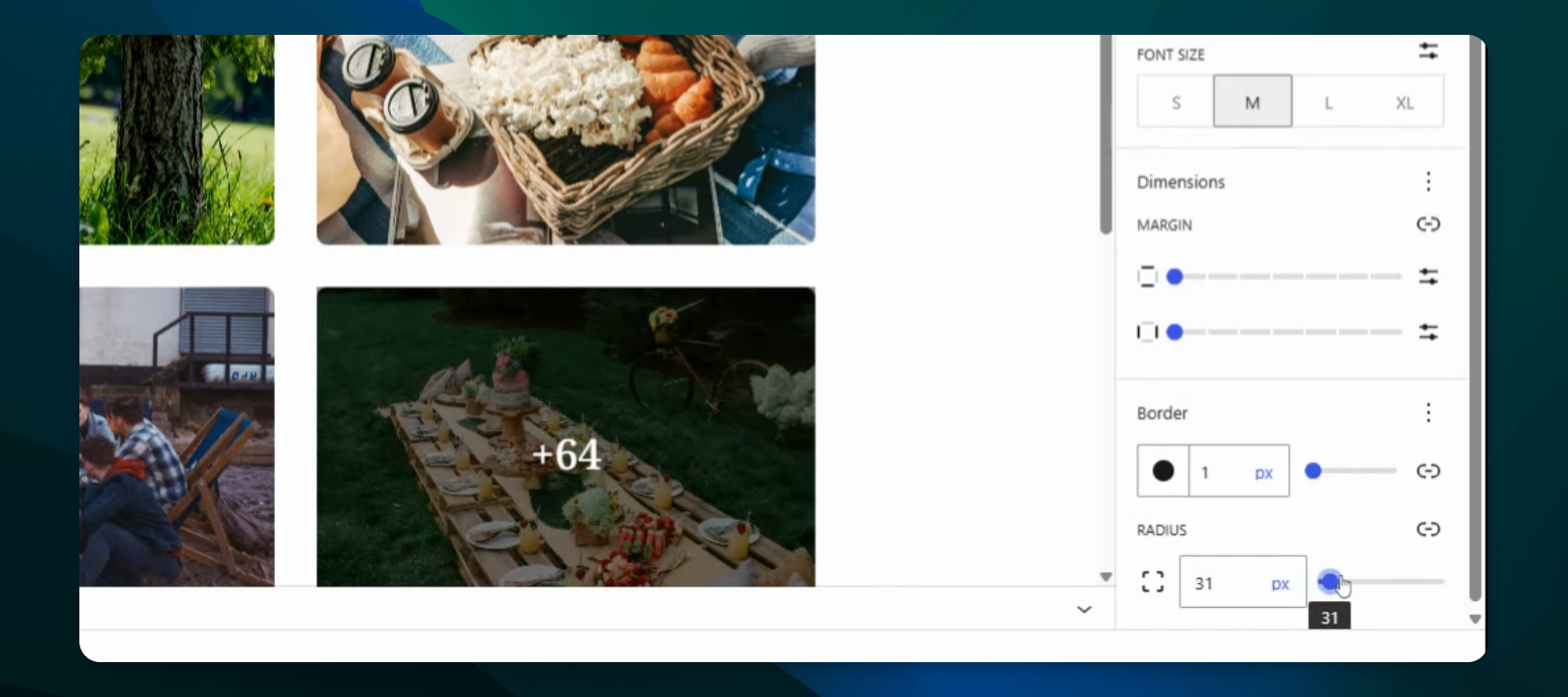
Step 8: Align the Search Block
Use the Align option to align the search block left, center, or right.
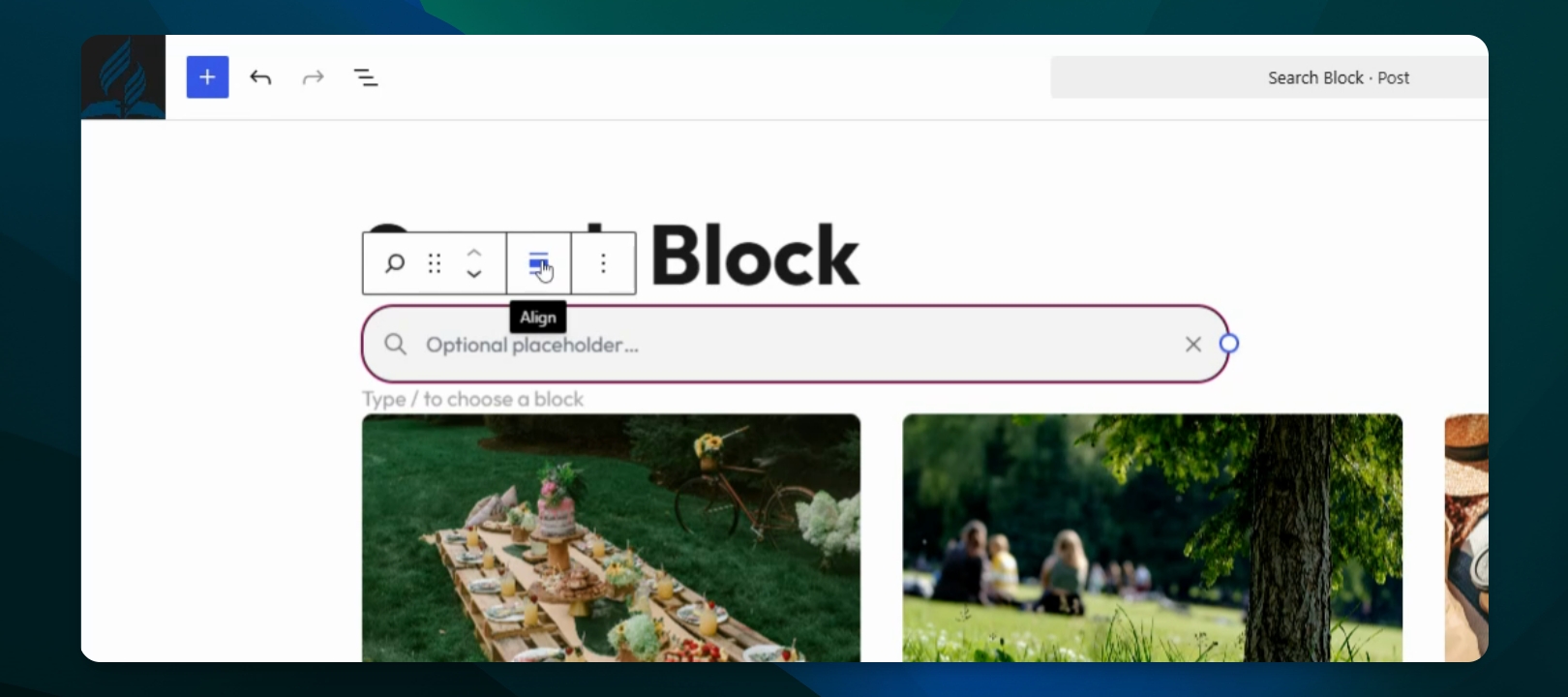
Step 9: Adjust Margin for Spacing
If the search block is too close to other elements, increase the margin to add space.
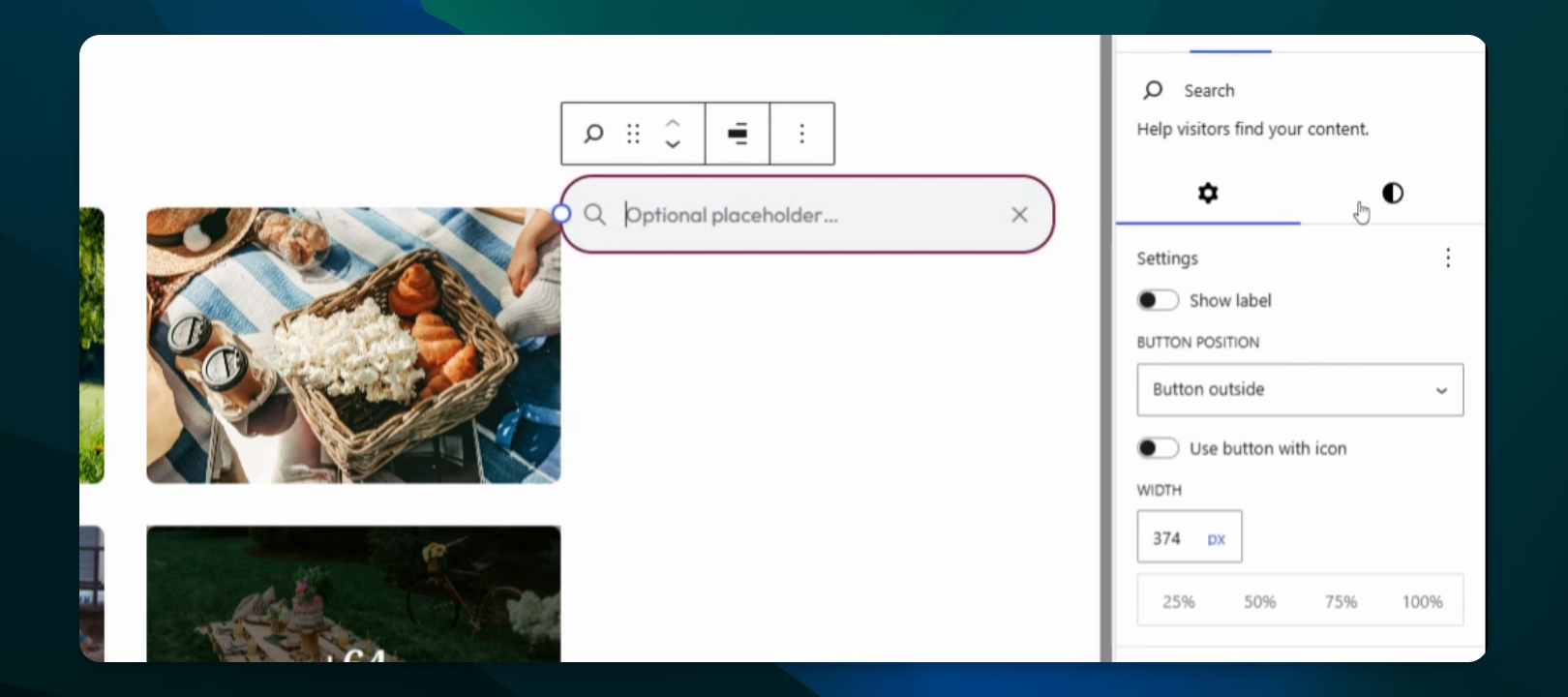
Step 10: Reposition or Realign
You can drag the search block or use the alignment options to reposition it as needed.
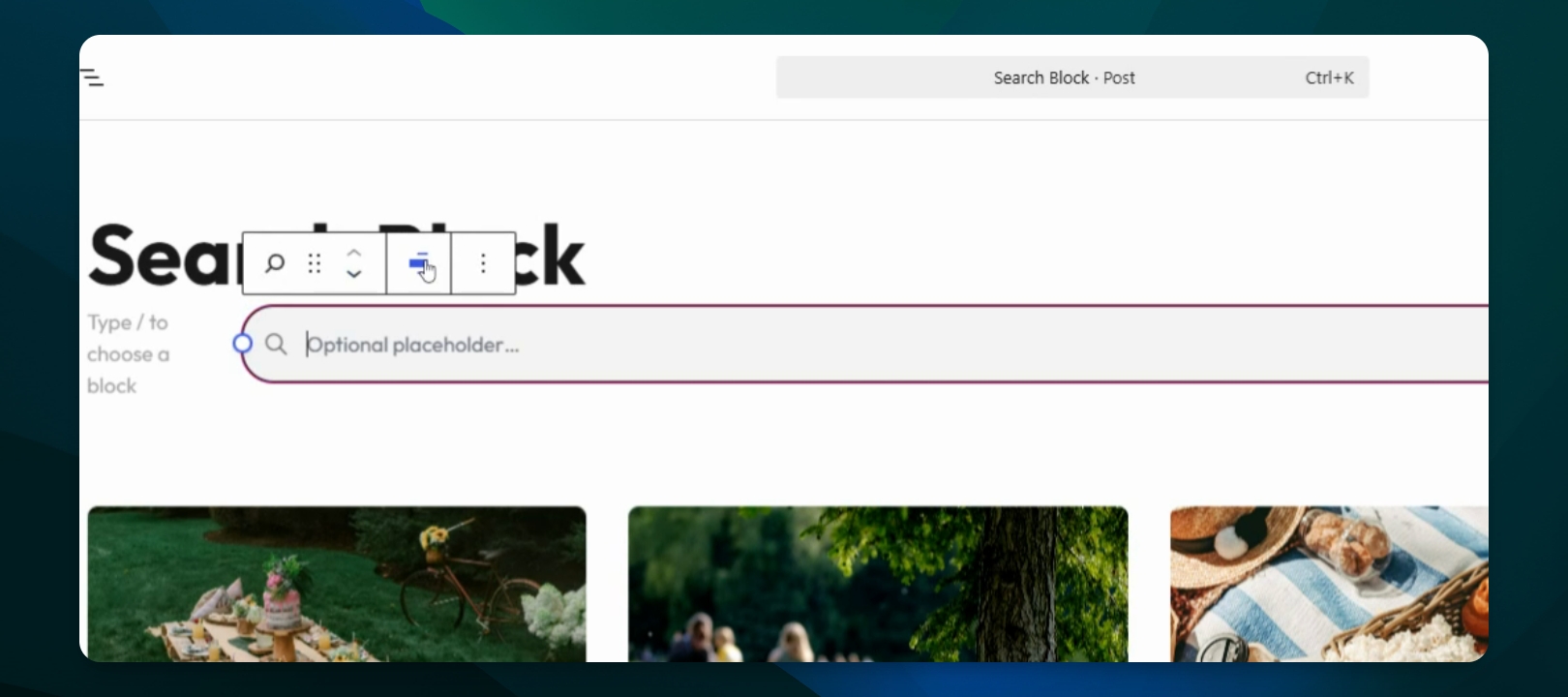
Step 11: Customize Placeholder Text
Edit the placeholder text (e.g., type search) so users know what to enter. This helps guide visitors when searching your site.