TL;DR
Let's Do It Together!
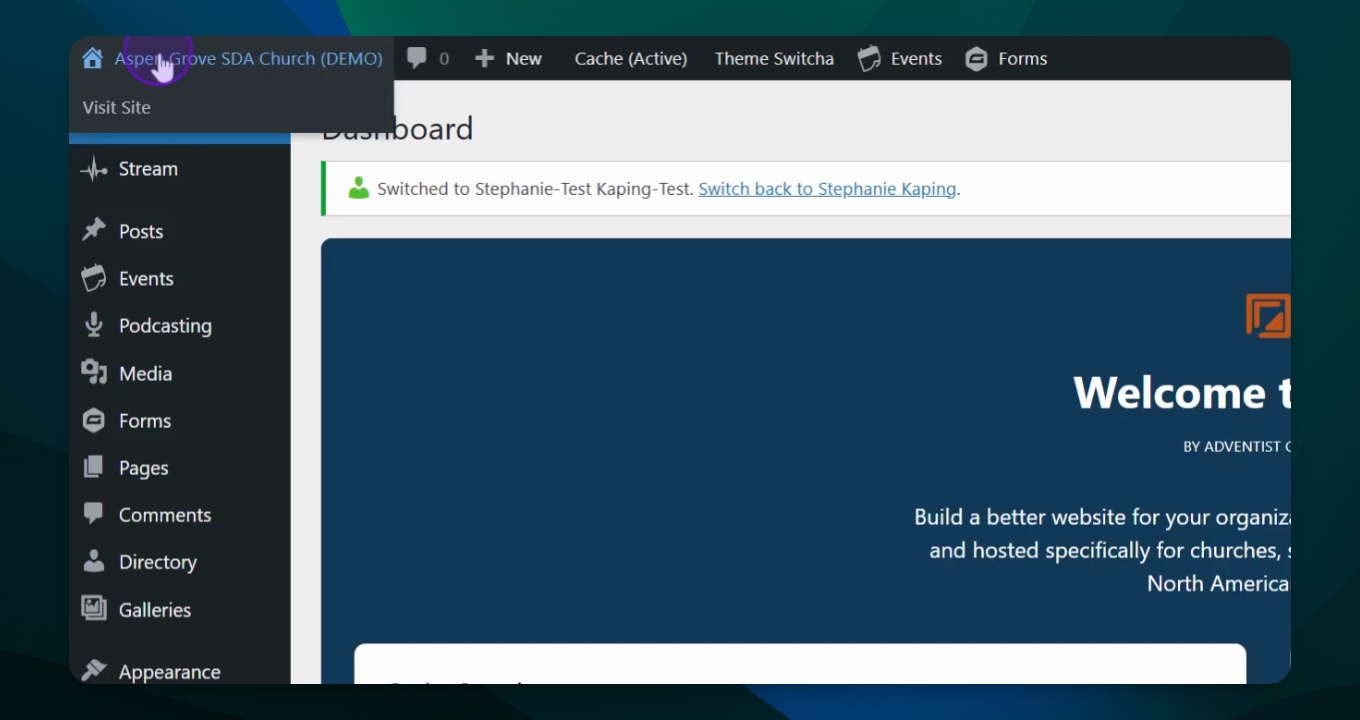
Step 1: Log into Your Site
Log into your site to access the dashboard.
Step 2: Locate Admin Menu
Find the admin menu in the upper left corner with your name.
Step 3: Access New Options
Under New, see options for Post, Media, Page, and Gallery.
Step 4: Manage Cache
If experiencing issues, activate your cache and consider clearing it.
Step 5: Control Themes and Forms
Manage themes and forms from the admin menu.
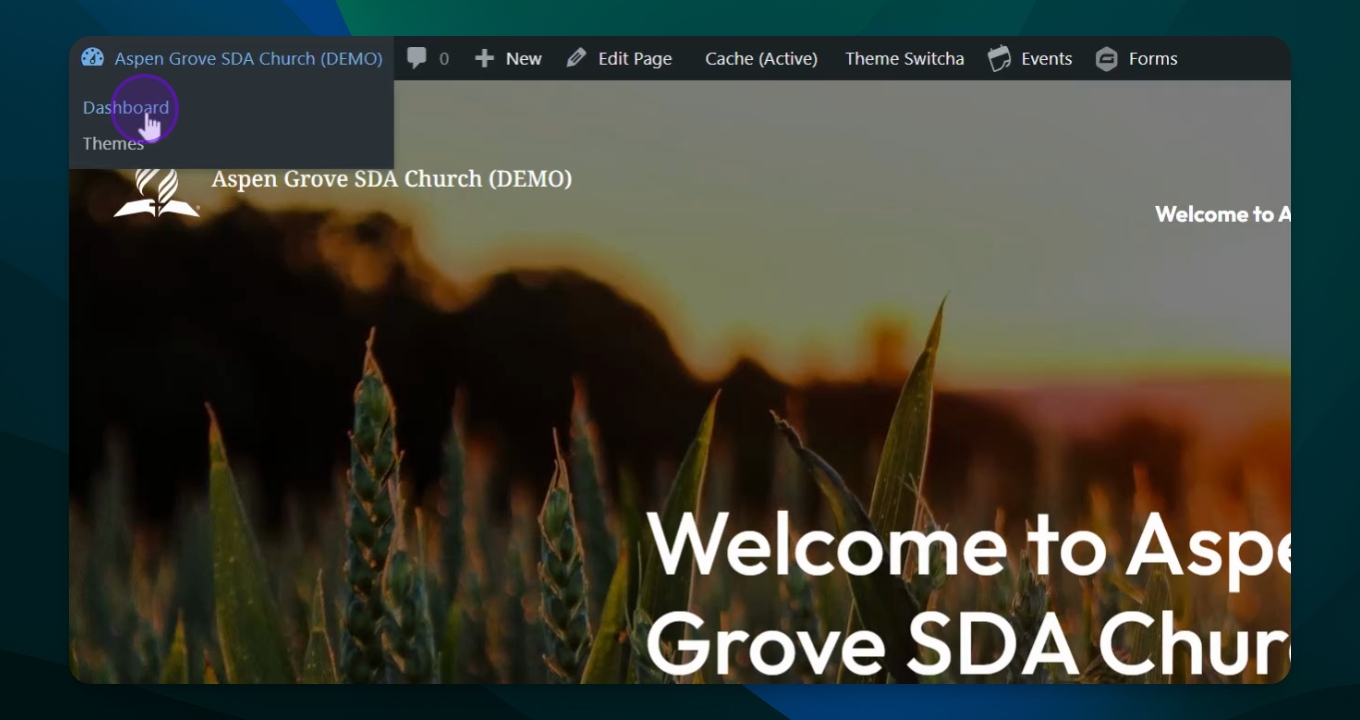
Step 6: Edit Pages
Click on your site name to view your site and then edit a page directly.
Step 7: Return to Dashboard
Hover over your name and click on Dashboard to return.
Step 8: Use Side Menu
Utilize the left-hand side menu for similar options available at the top, but also view and manage domain settings.
Step 10: Get Started Section
Use the Get Started section to choose or change your theme, manage users, configure social links, and confirm your address.
Step 11: Access Support
Contact support via chat or access the self-service knowledge base for help. You can click the orange Need Help button at any time to ask a question.
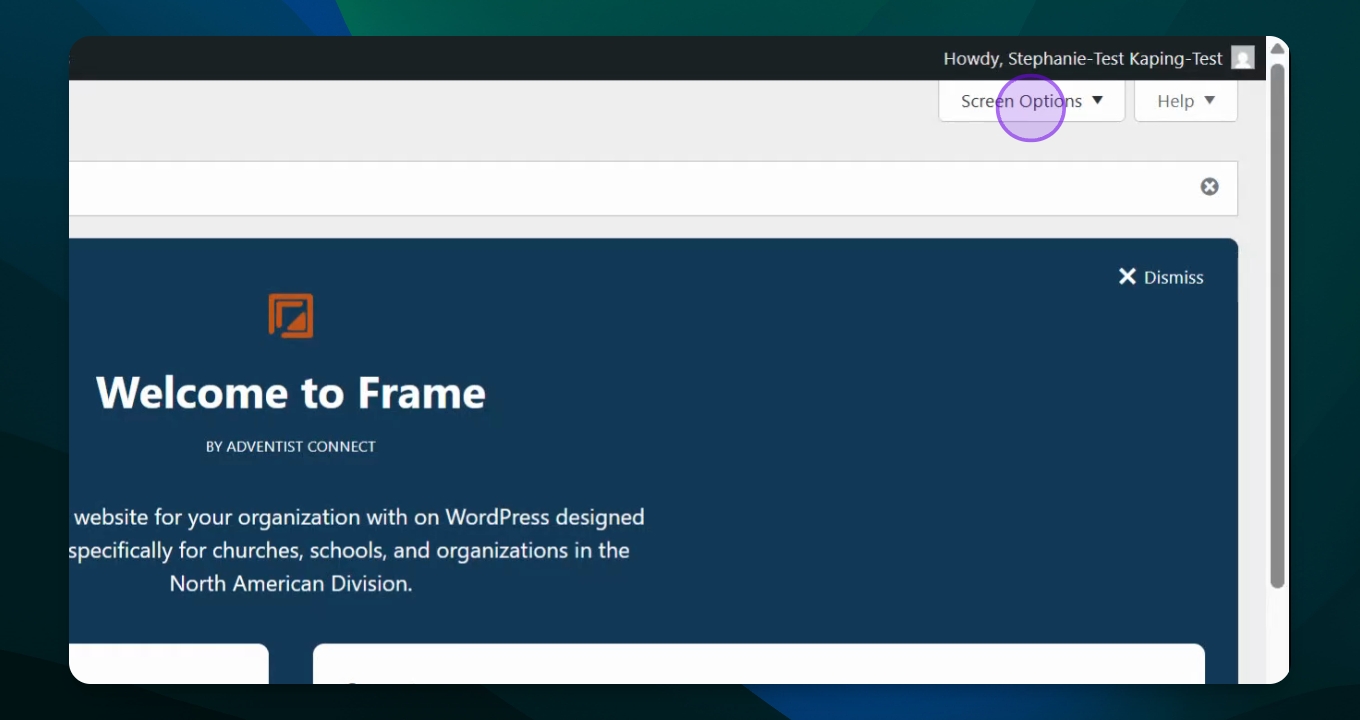
Step 12: Adjust Screen Options
Click on Screen Options to show and reorder admin menu elements.