

TL;DR
1
Access login page
Go to yourchurch.babistchurch.org/login or click the login icon.
2
Enter credentials
Input username or email and password.
3
Click Log In
Press the Log In button to access your page.
Let's Do It Together!
Step 1: Access the Login Page
Type yourchurch.babistchurch.org/login in the browser to access the login page.
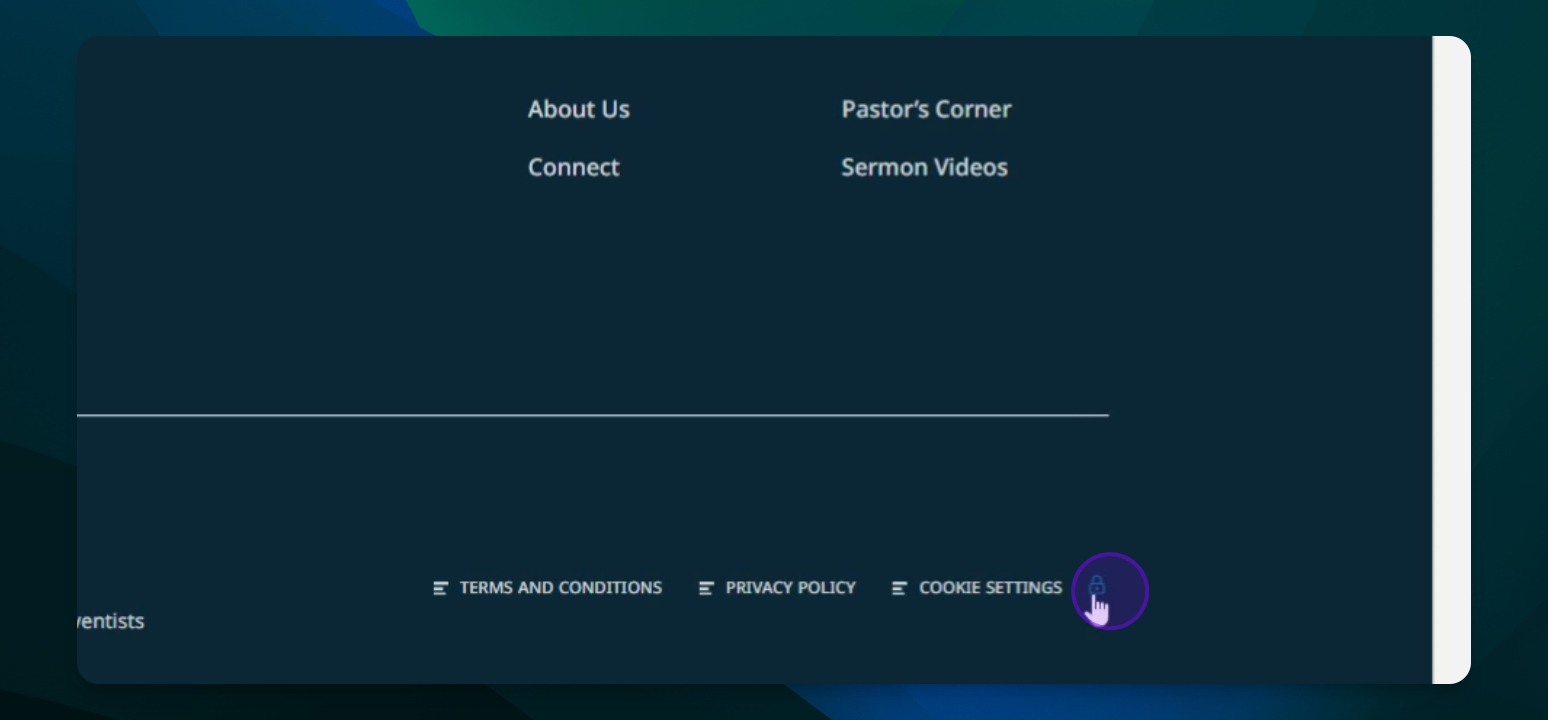
Alternatively, scroll to the bottom of the church's page and click the login icon.
This will direct you to the login interface.
Step 2: Log In
Enter your username or email address in the provided field.
Type your password in the password field.
Click Log In to access your site.
Recommended Security Practices
In today's digital landscape, protecting your online resources is paramount.
Always use strong, unique passwords
Never share your credentials with others
Update your password regularly
Troubleshooting
Can't access login page
Check the URL for typos or try a different browser.
Login credentials not accepted
Ensure your username/email and password are correct.
FAQ
What if I forgot my password?
Use the 'Forgot Password' link to reset it.
Can I change my username?
Contact support to change your username.
Can I add a login link on my website?
For security reasons, the login link to your website is not publicly visible. We also recommend avoiding manually adding a login link anywhere on your site, as this helps protect against unauthorized access. To log in, you can bookmark `[Site URL]/login` for quick access, or simply click the lock icon 🔒 located in the footer of any page. This provides a secure and convenient way for administrators to access the dashboard without exposing login paths to the public.