

When you first see your site, you may see a solid colored box at the top of the page, which is part of the overall Theme and is a placeholder. This also occurs when you add a new page to your website.
Each colored box holds the name of that specific page and is meant to have a photo placed inside to add interest and color. When you have placed the chosen photo it will appear slightly darkened for readability for the title overlay in the box.
Let's learn how to add an image under the page title. This is called a Featured Image.
Step 1: Log into Dashboard
Log into your dashboard and go to the Pages section.
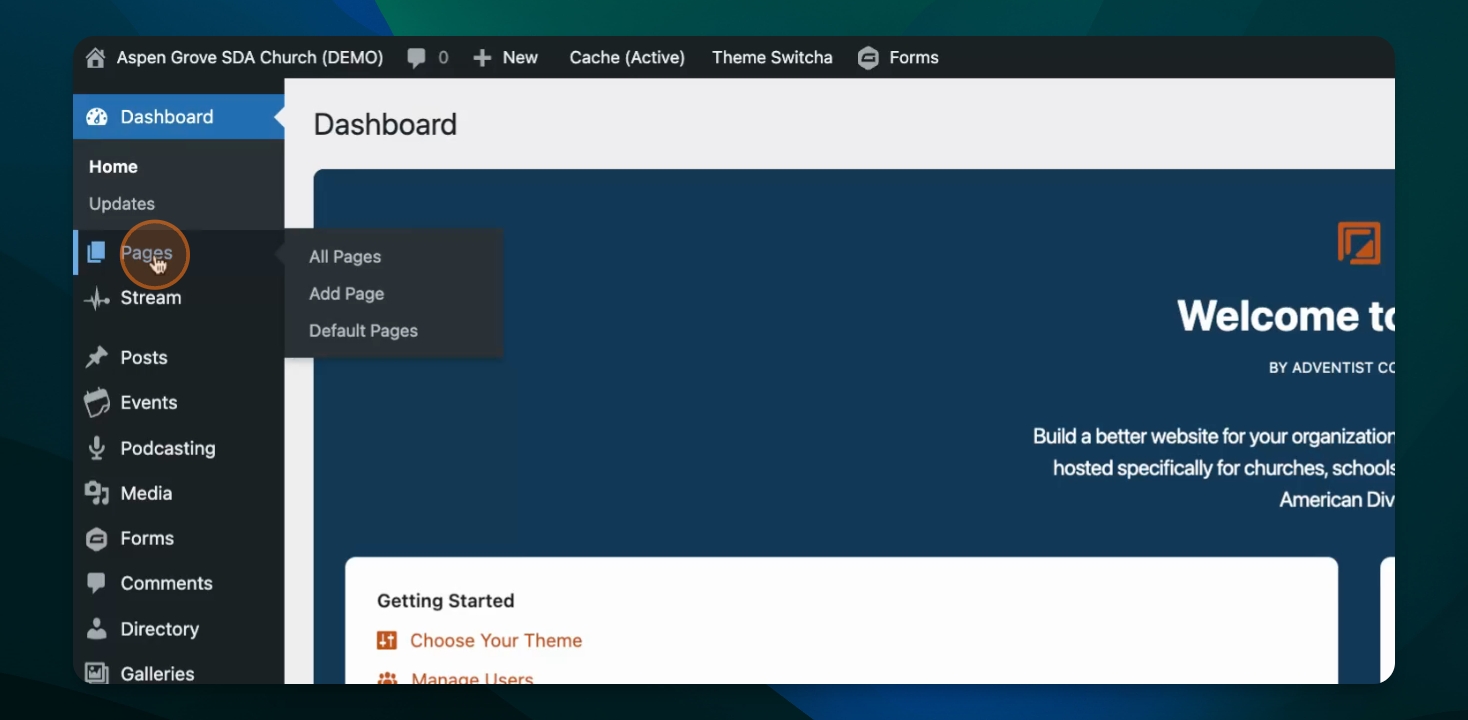
Step 2: Edit Page
Click on the name of the page you want to edit, or select Add New Page.
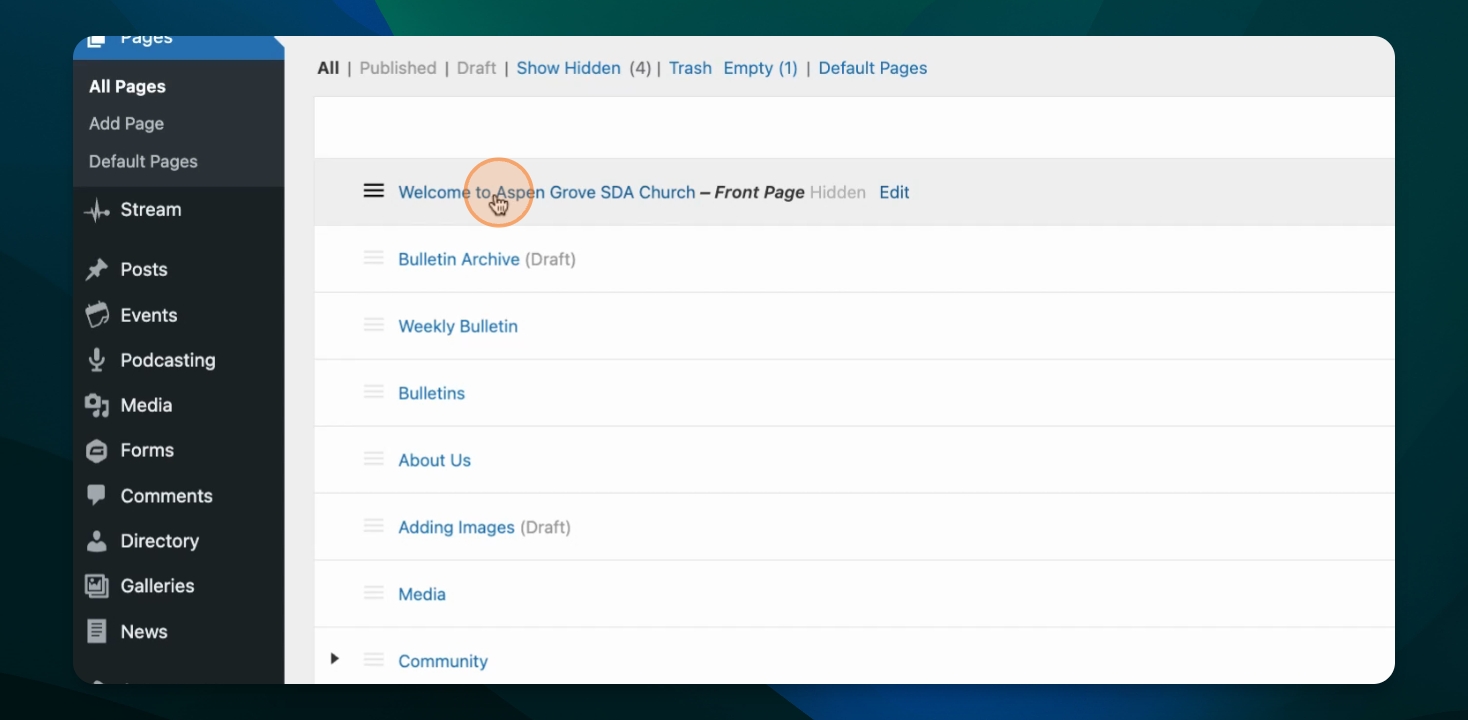
Step 3: Open Styles Menu
Open the Styles menu by clicking in the top right corner.
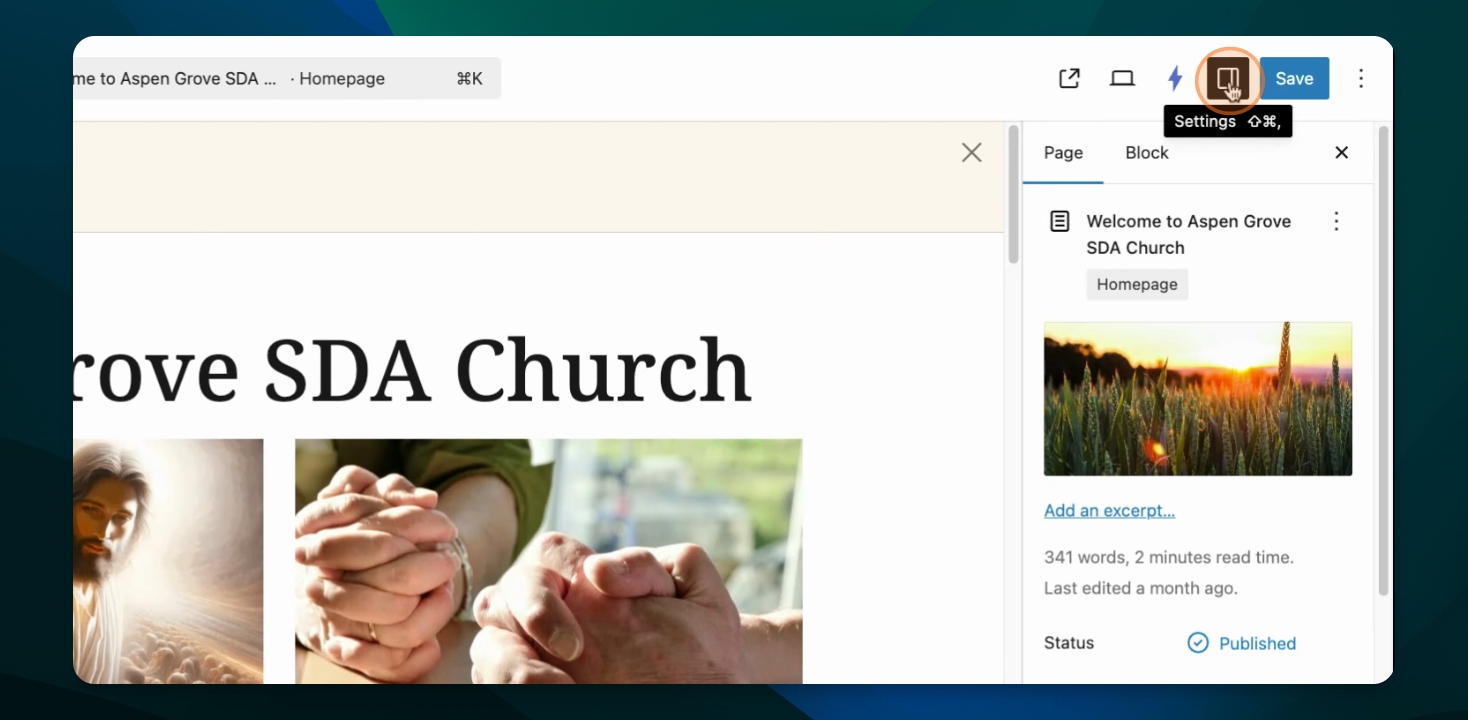
Step 4: Manage Featured Image
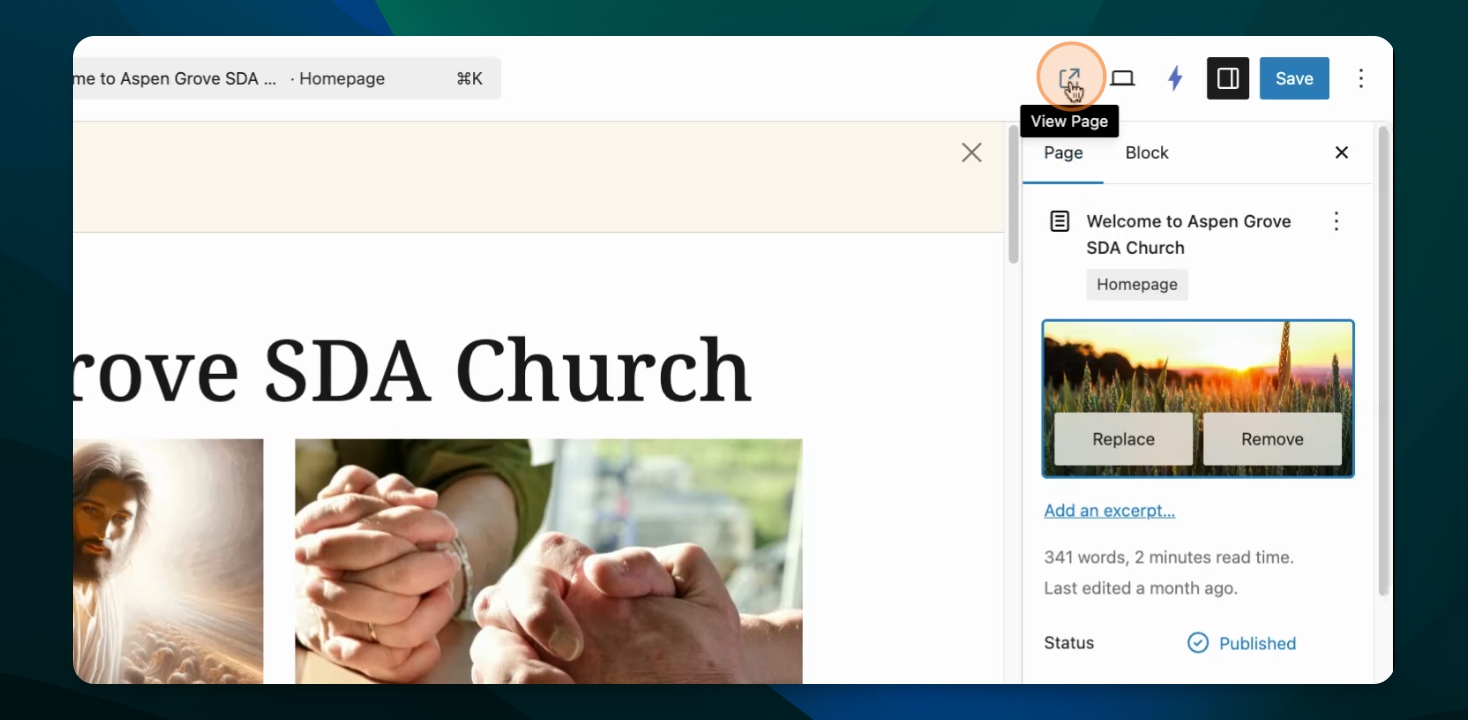
Under the Page tab, find the Featured Image section. Click Set Featured Image to open your media library.
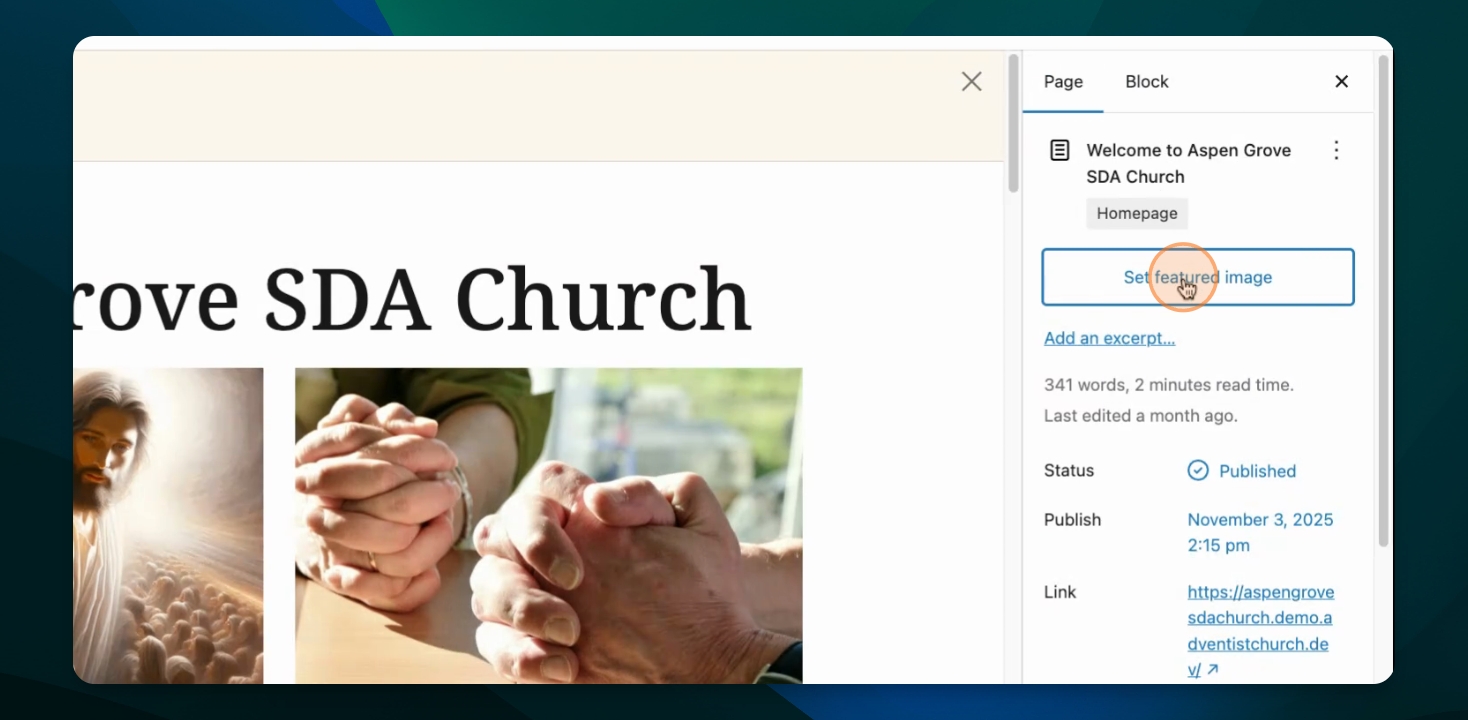
If an featured image is already set, you can either replace or remove the existing image.
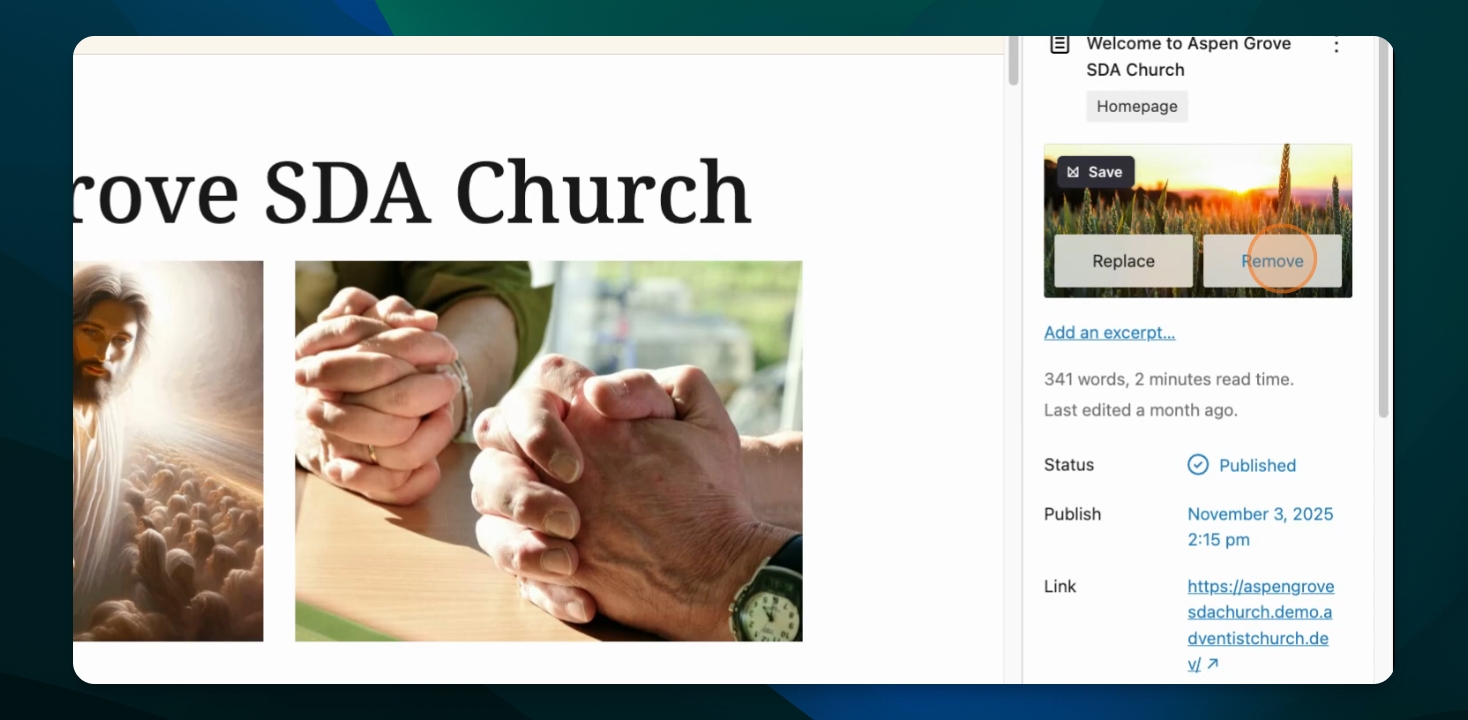
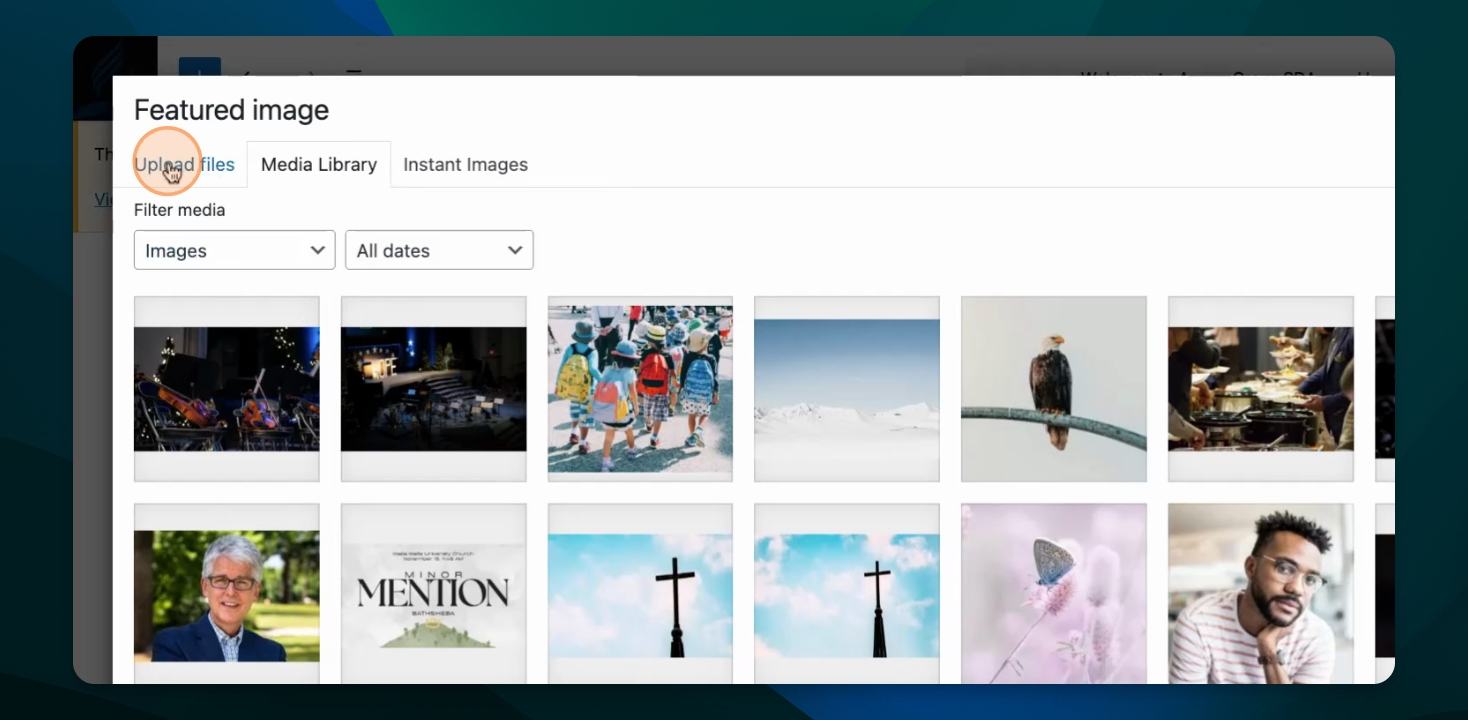
Step 5: Select Image
Select an existing image, upload a new file, or choose Instant Images to find a stock photo.
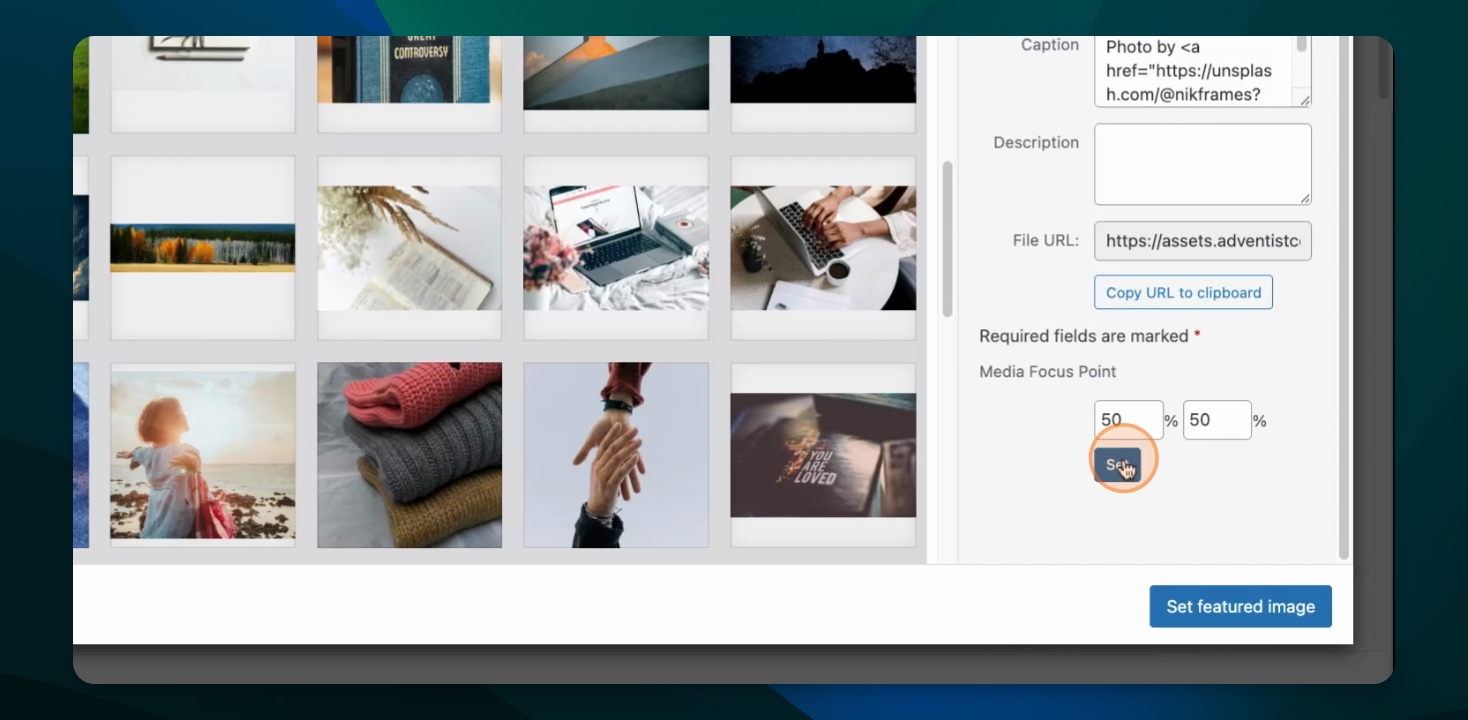
Step 7: Use Media Focus Point
Select which part of the image should display using the media focus point.
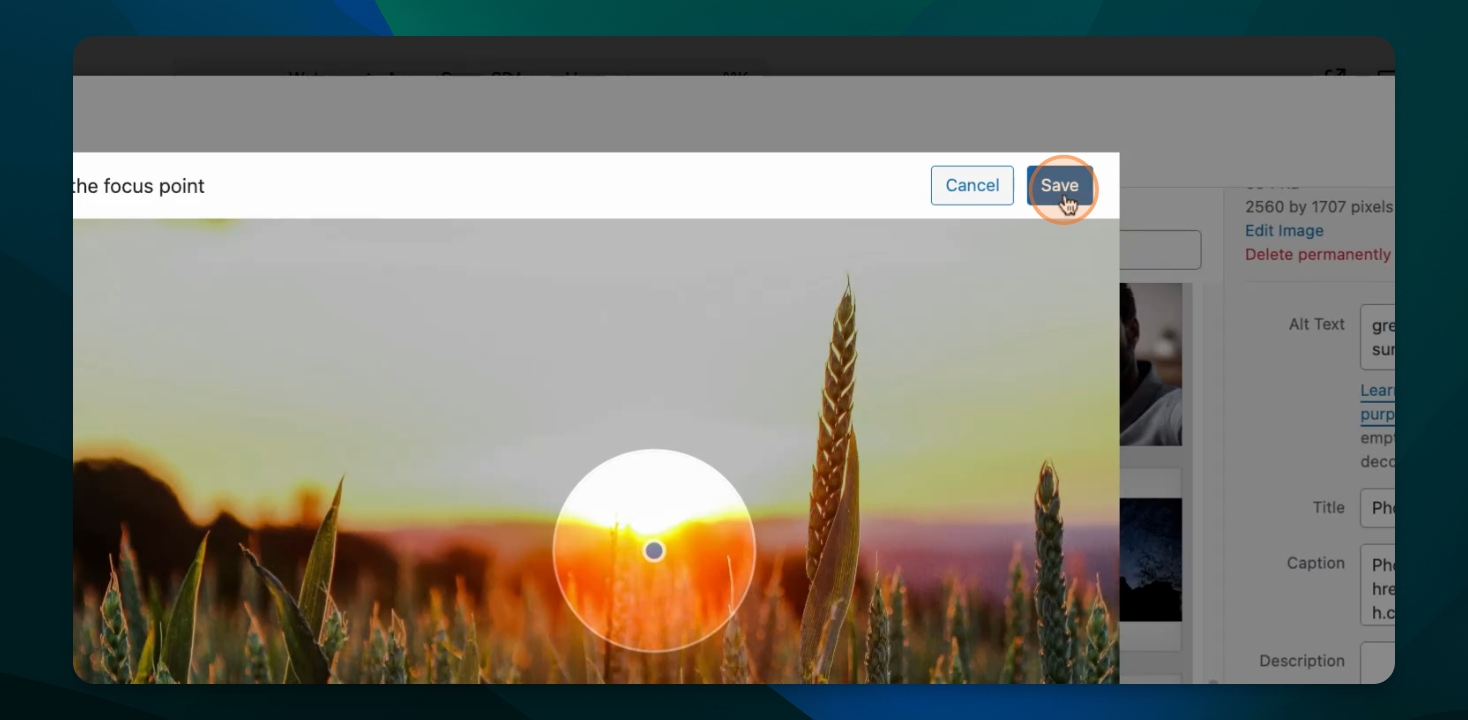
Step 8: Save Changes
Click Save and then Set Featured Image.
Step 9: View Changes
View the page to see the new featured image displayed in the header.
Design Tip
When looking or uploading photos for the featured photo space, keep in mind the box size and shape which is a fixed width and height, depending on the theme you are using.
Horizontal or landscape will work better than vertical or portrait for the feature image.
Troubleshooting
Image not appearing
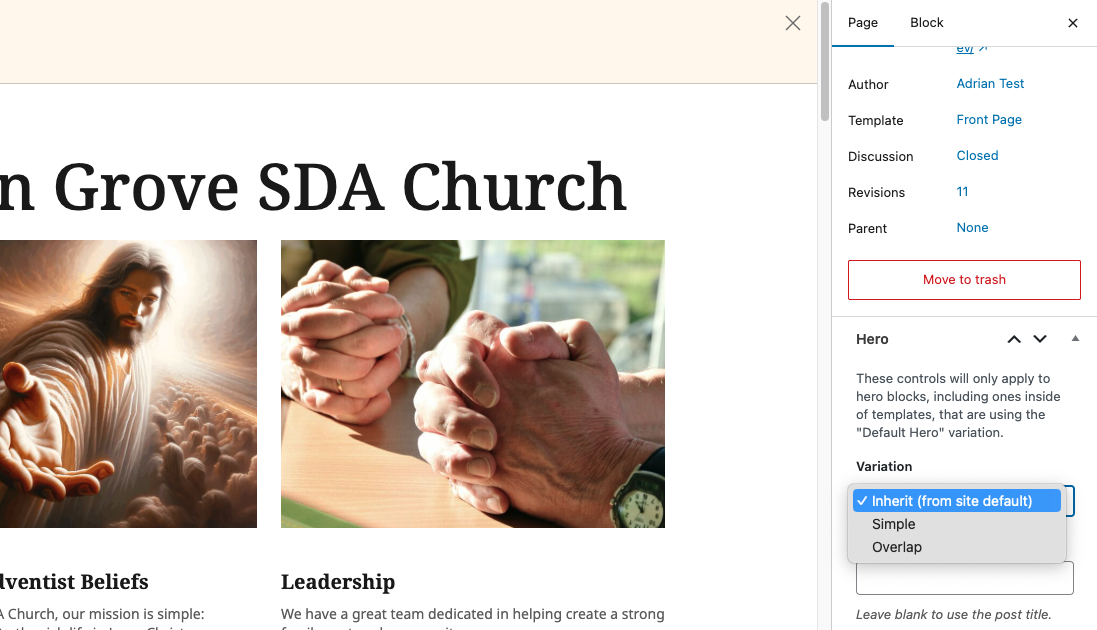
If you have placed an image and it is not appearing when you view your site, first select the "Page" option at the top of the settings menu. Scroll to the Hero section. You will see several options of what to display. Select the Inherit Site Default, which includes the image. Save the page and then view page or site again. This should fix the issue.
Page I want to edit not in list
Trying to add a featured image to a page that doesn't appear in the All Pages list?
Some specialty pages like event or blog archive pages must be edited from their settings. See the related article below for helpful information.