

Automatically, the Post Feed block displays as attractive list with images and a variety of information like a title, category and date displayed. However, the feed block is highly customizable so you can adjust it to best meet your site visitors needs.
In this article, we'll learn some of the options and techniques for customizing the look and feel of the post feed block.
To learn about settings for what posts display in the feed and other feed settings, go to Understand the Post Feed.
Best Practices
When adjusting the layout of your Post Feed, there are several best practices to keep in mind.
Ensure there is adequate spacing between elements
Keep high contrast between text and backgrounds to ensure content is readable
Minimize clutter in a feed by only showing information readers need. Any extras can and make it more difficult to see the important elements.
If placing feeds on multiple pages, use a pattern to easily maintain consistency among your customized Post Feeds
Block Presets
The Post Feed is made up of several other blocks. Open the Document Overview to see and select the inner blocks.
Initially, you will see the post template, pagination, and a block for no results in the post template. Each of these elements can be adjusted and customized.
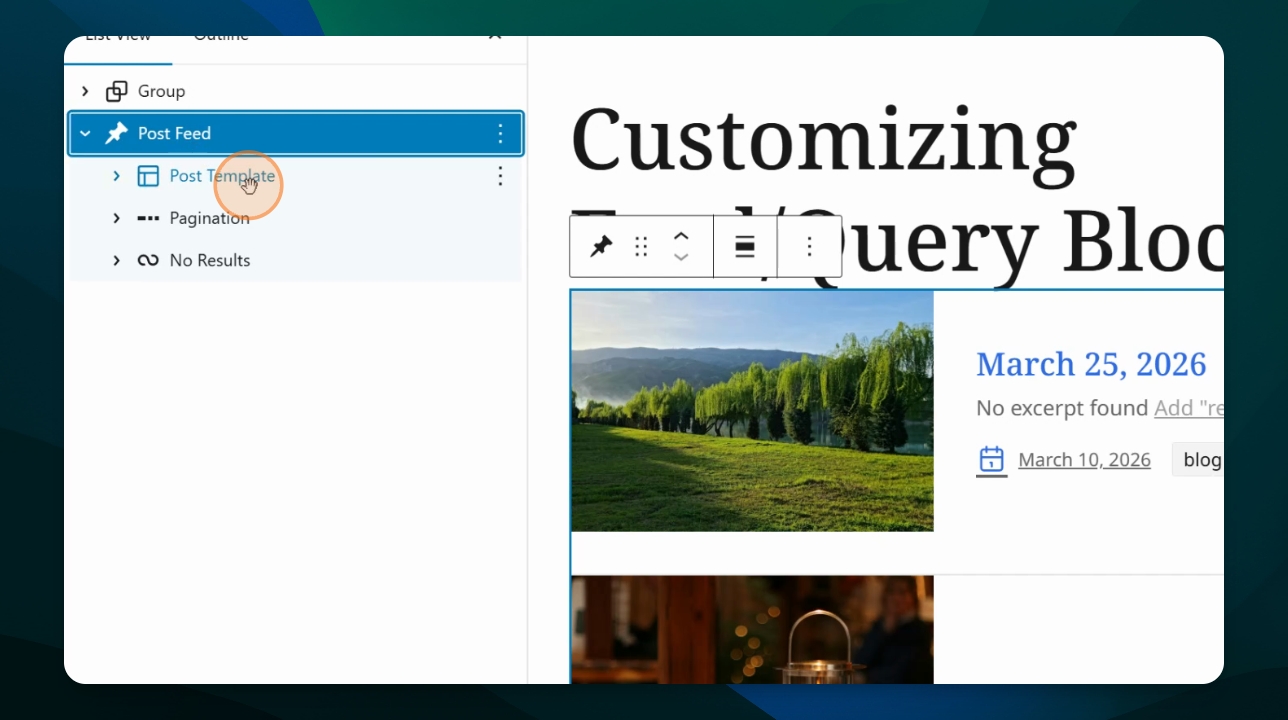
Post Template
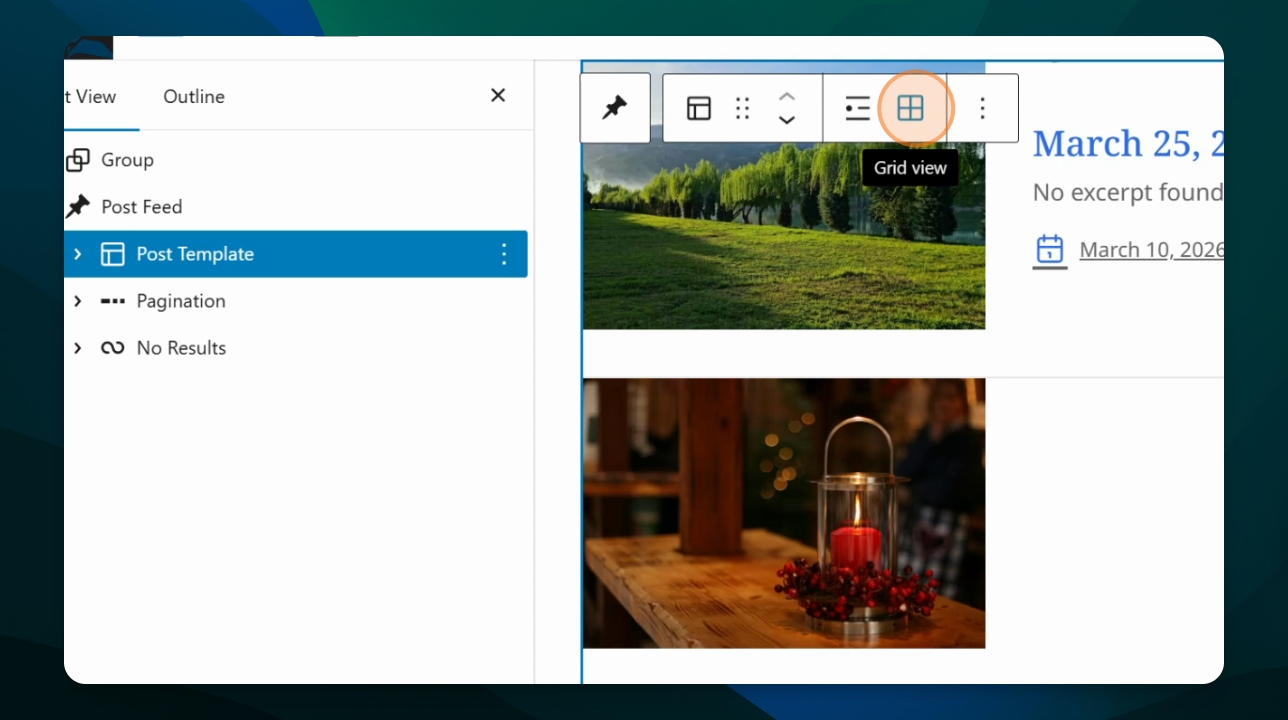
Choose List or Grid View
Ensuring the Post Template is selected, change to Grid View or List View using the Block Toolbar.
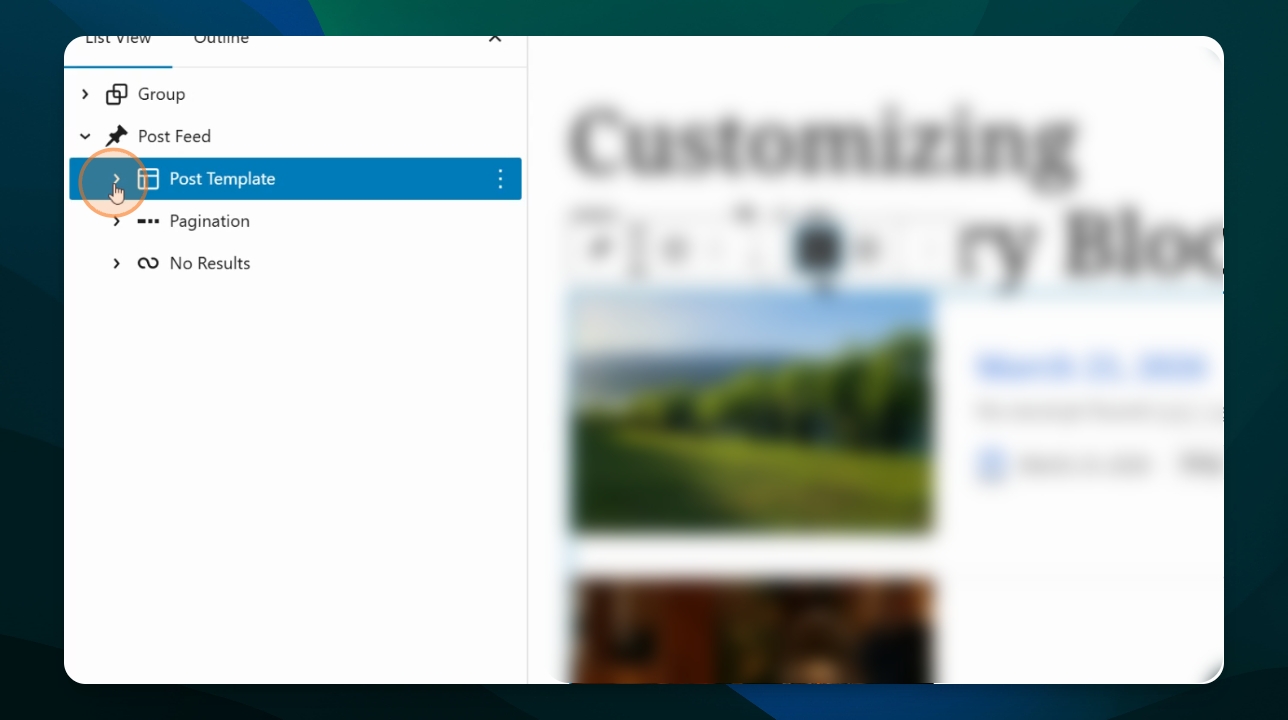
Adjust Featured Image
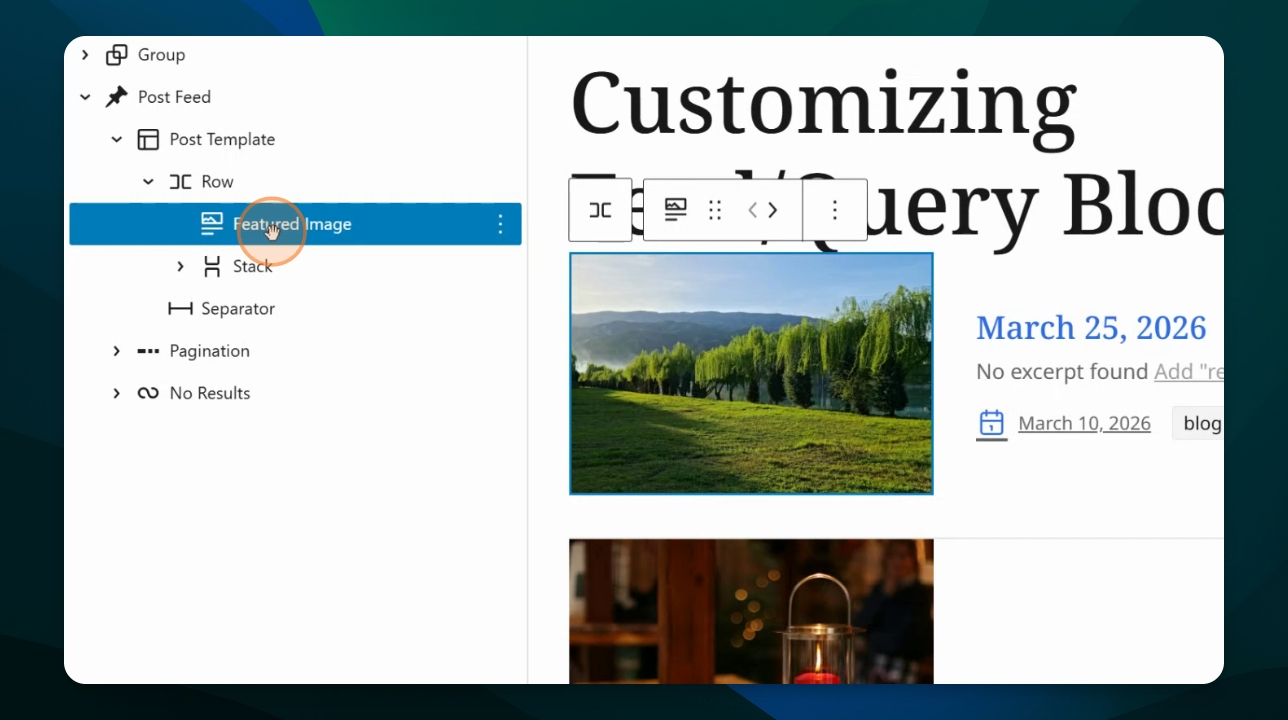
Expand the post template in the document overview to see its structure, including the featured image.
Select the Featured Image block
Adjust block style settings using the right hand menu
Featured Image Style Settings
All these settings are found under the Styles tab of the Block Settings.
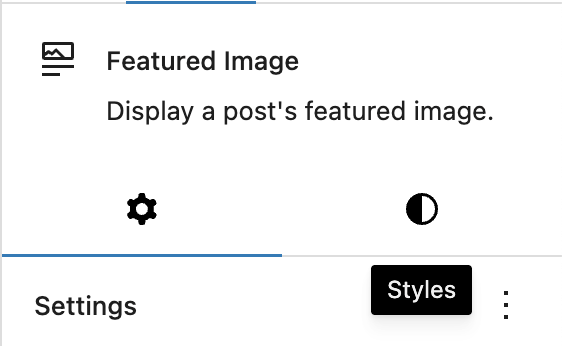
Overlay color and opacity (to add a colored shade over the image)
Padding
Margin
Fixed width
Aspect ratio (square, rectangle, portrait or horizontal)
Scale (how image displays inside the designated space)
Border
Shadow
Adjust Separator
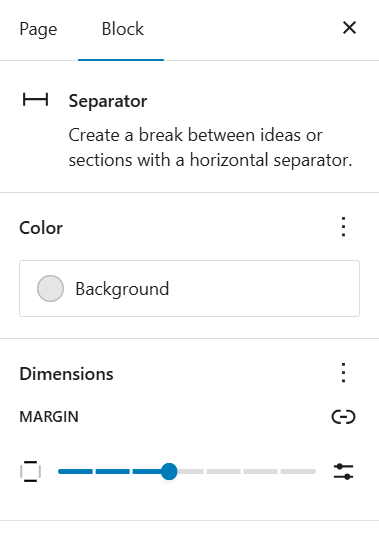
Select the separator to adjust its margin and color. This is the line that appears between posts in the feed.
Adjust Elements
Use Stacks and Rows
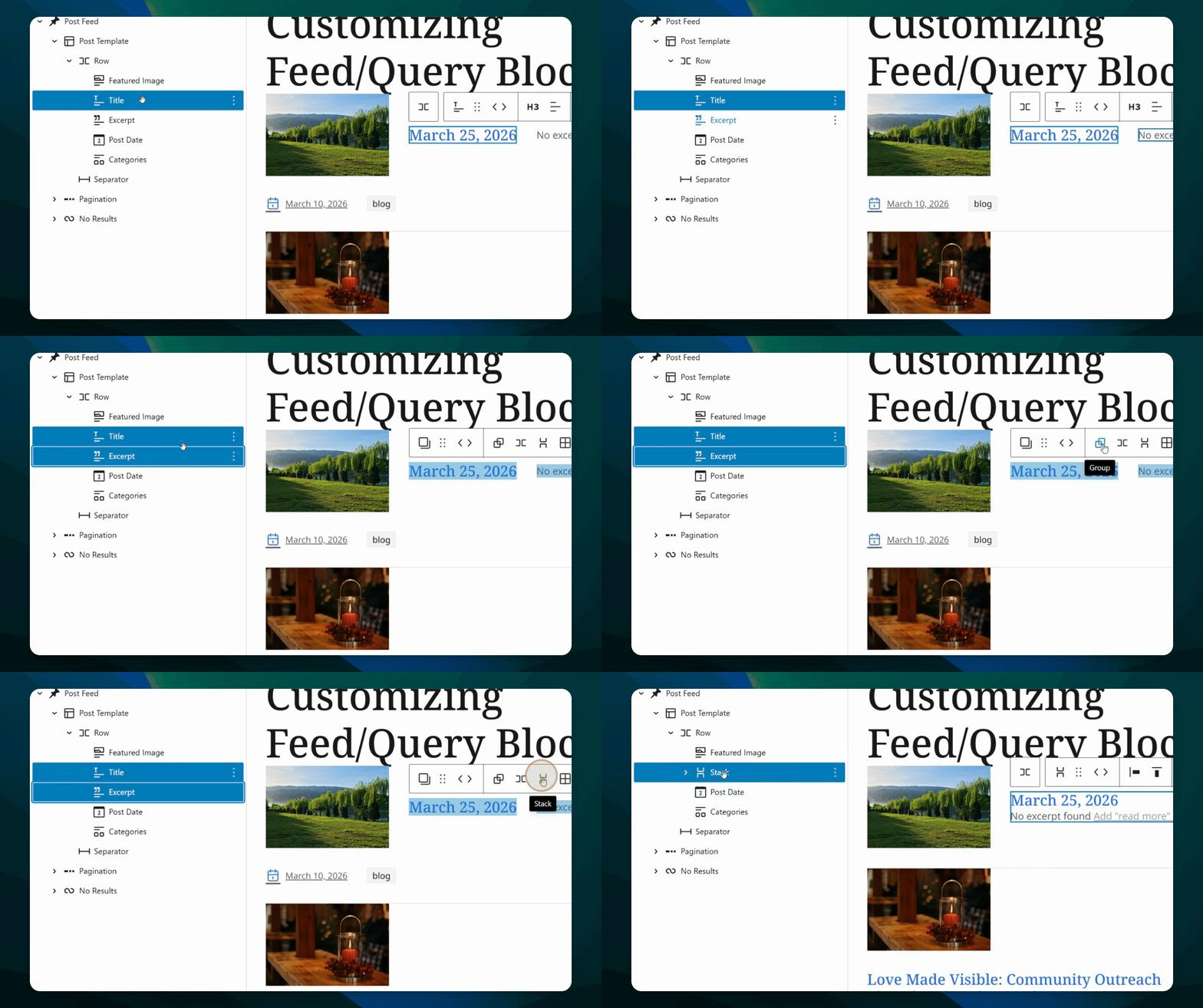
Expand the elements that make up the Post Template. You can regroup them in different stacks or rows to change the layout of the posts.
Use the Shift and Control keys to select multiple items, then group them in a row or stack.
Adjust Spacing
Click the stack or row, go to its settings, and adjust the block spacing to add space between elements.
If you have multiple stacks/rows selected, this will add space between the stack/row. If you have multiple blocks selected (or only one stack or row), this will add space between the blocks.
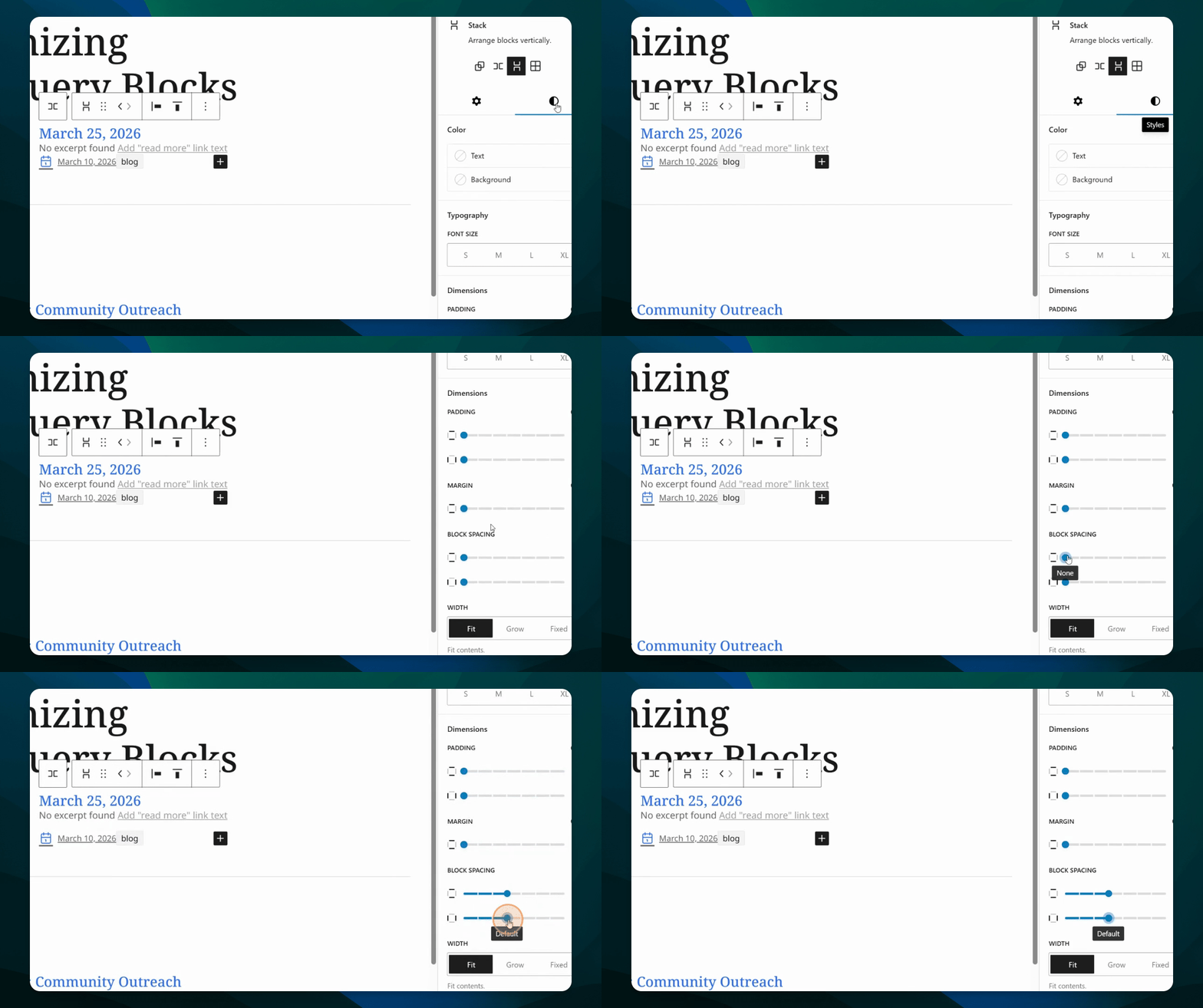
Good spacing between elements is really important to make your content readable.
Add or Remove Elements
You can remove elements, such as the feature image or category tag, if you wish. Simply click and delete.
To add elements, right click an existing element, and choose "add after" or "add before". Then, click the plus button  in the content area and search for the block you wish to add.
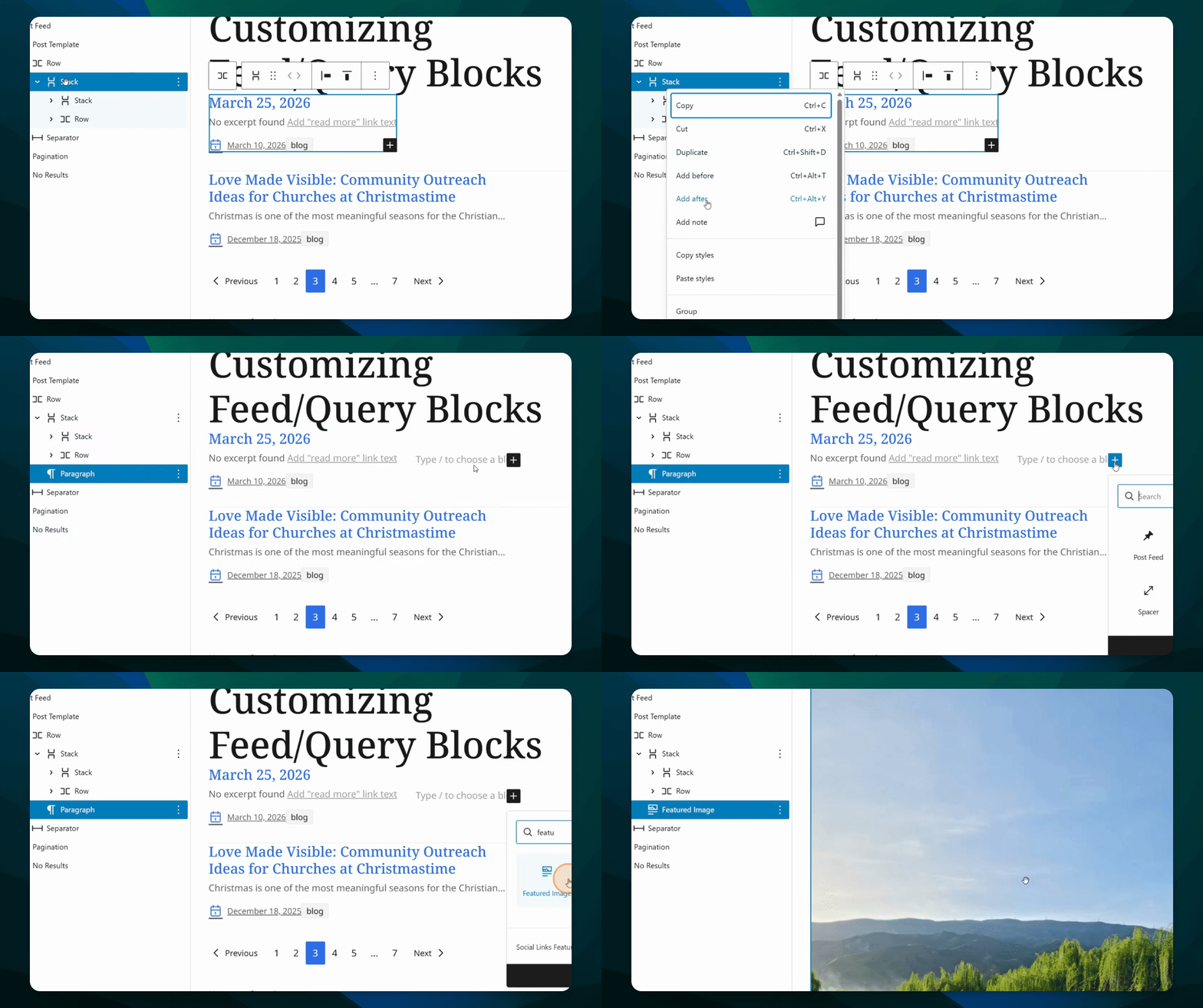
Common Blocks to Consider
Title
Excerpt
Featured Image
Author (includes name, avatar, and bio)
Author Name
Post Date
Modified Date
Categories
Tags
Series
Podcasts
Time to Read
Read More link
Transform Elements
Some blocks in the Post Template can be transformed into a similar block using the Block Settings. This is a handy way to avoid deleting and re-adding blocks.
Use the transform option on date, category, tag, and author blocks.
There are two ways to do this:
Using the Block Settings
Select the block you wish to transform
Check in the Block Settings for the Transform to Variation dropdown
Select the variation you want
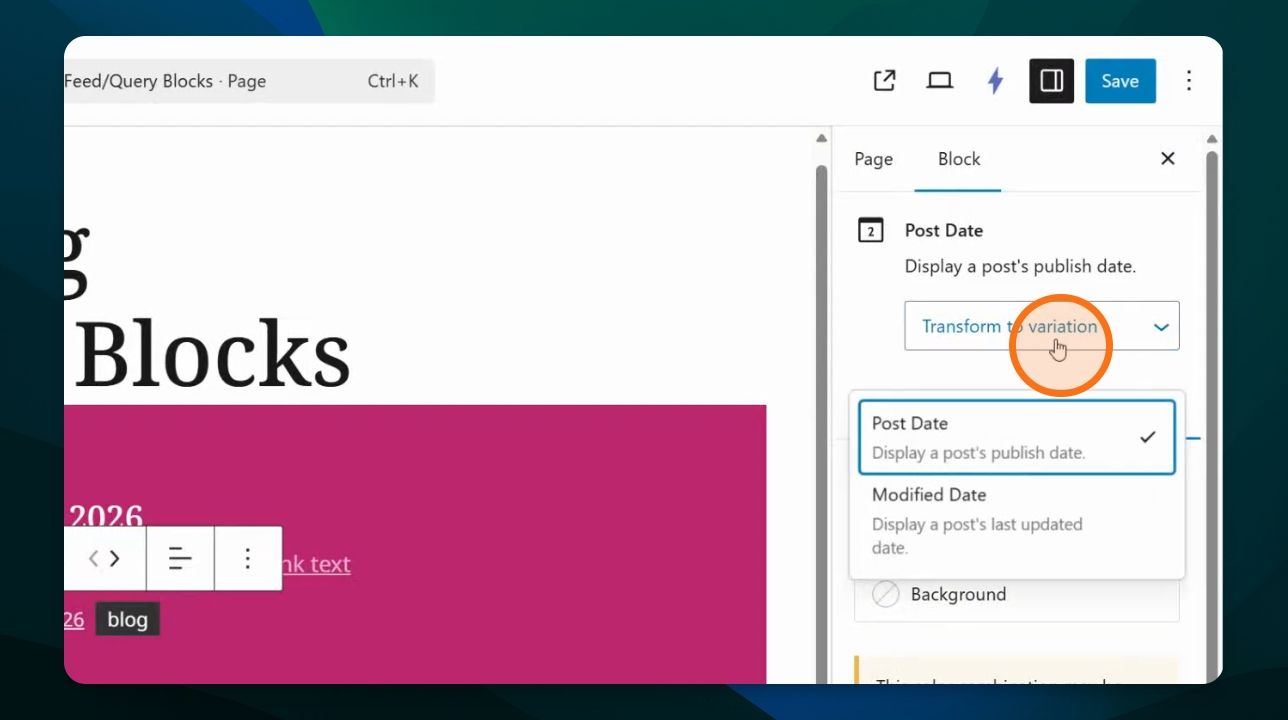
Using the Block Toolbar
Select the block you wish to transform
In the Block Toolbar, click the Transform option in the Block Toolbar. It should match the icon of the block you have selected.
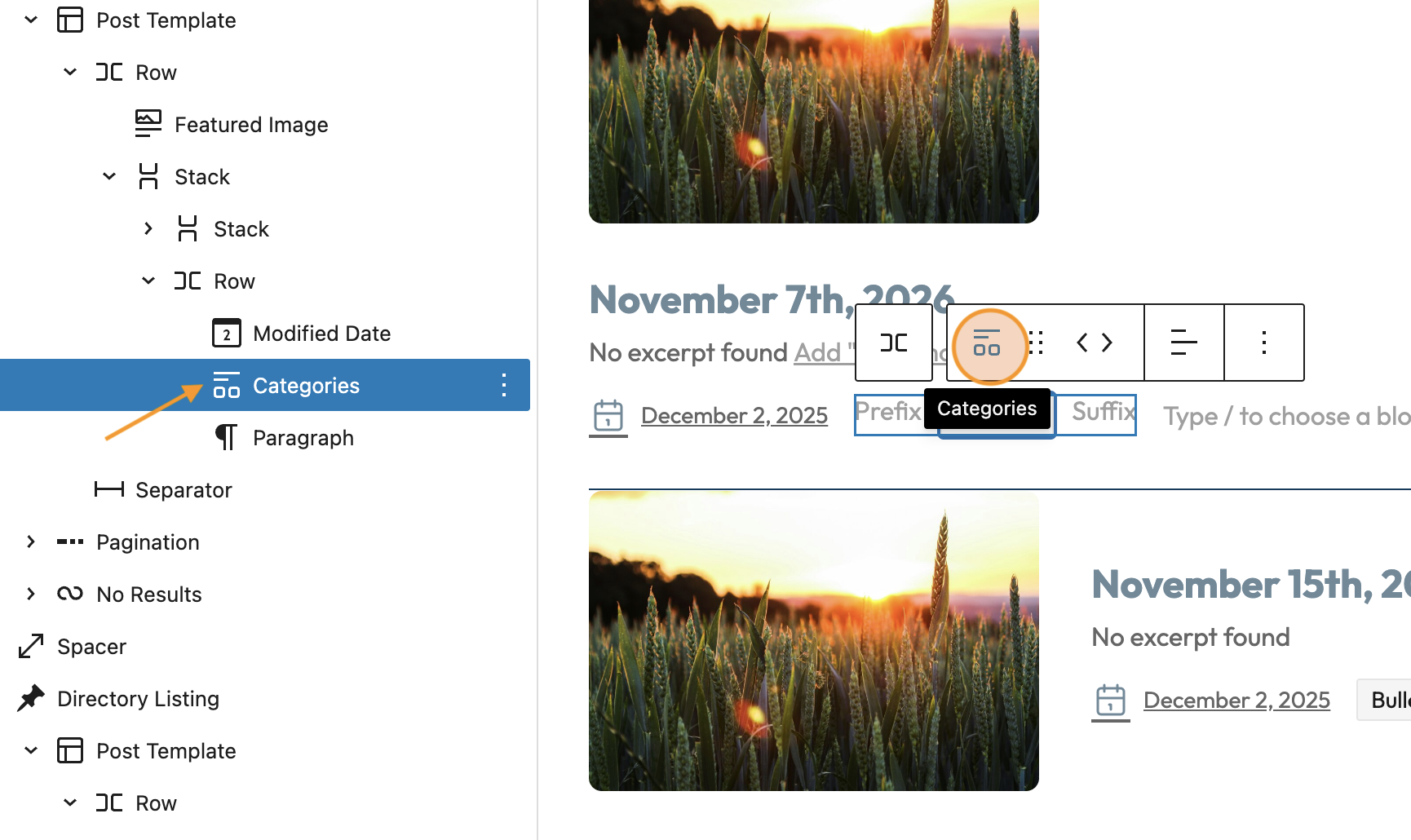
Select the variation you want
Pagination
Click on pagination to see different settings, such as content alignment and text color adjustments.
Pagination allows users to navigate to more posts in the feed. If you delete this block, users won't be able to see more posts than those in the initial list or grid.
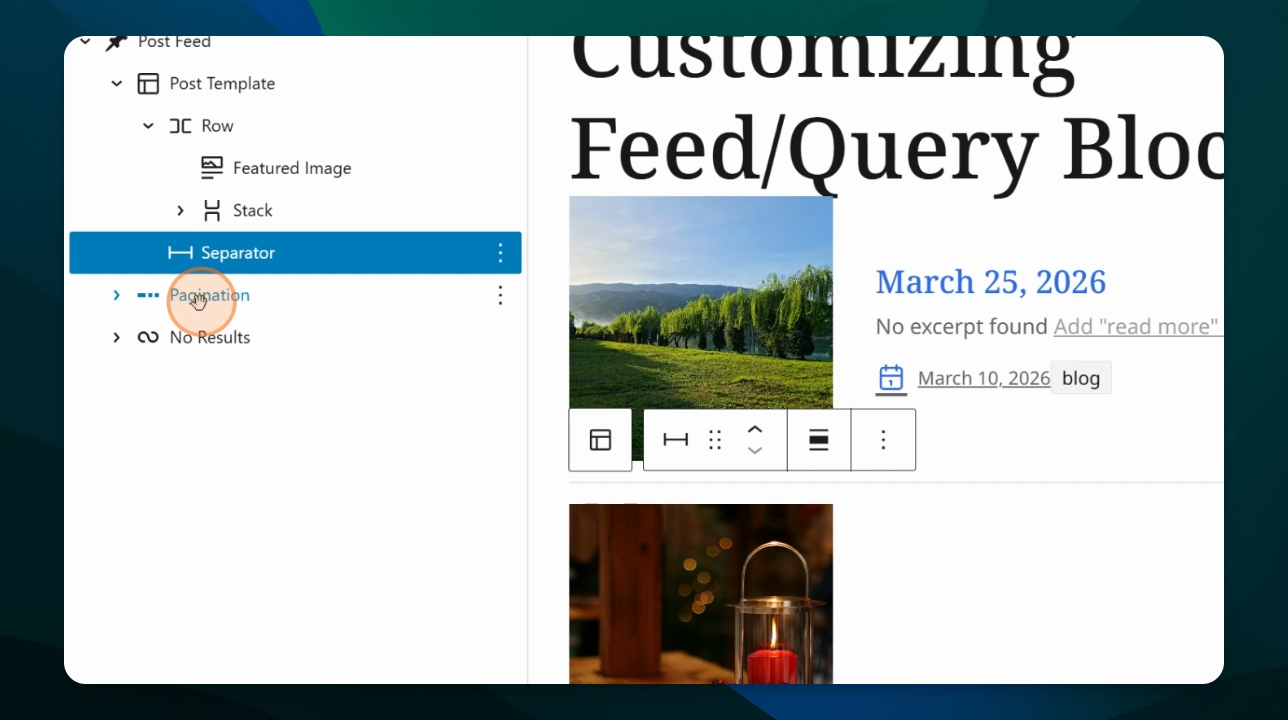
No Results
Click the No Results block to see setting options like text color and margins. This block will only display if there are no posts that meet the criteria selected in the Post Feed settings.
There is much more to explore in customizing a Post Feed. Continue clicking and moving your blocks to find the best display for your ministry!