

The Post Feed block allow you to share a collection or list of posts with site visitors. By using filters, you can display posts on a certain topic, by a specific author, or based on other criteria. The Query block works similarly on other content types.
Post feeds could be a great way to share devotionals, organizational news, or pastor's blogs.
The Post Feed can be set to display other content. It differs from the Query Feed only in that it starts with an attractive pre-formatted post layout specifically designed for displaying blog posts.
In short, Post Feeds are the same as Query Feeds but with out-of-the-box styling.
Add a Post Feed block
There are two ways to add a Post Feed block:
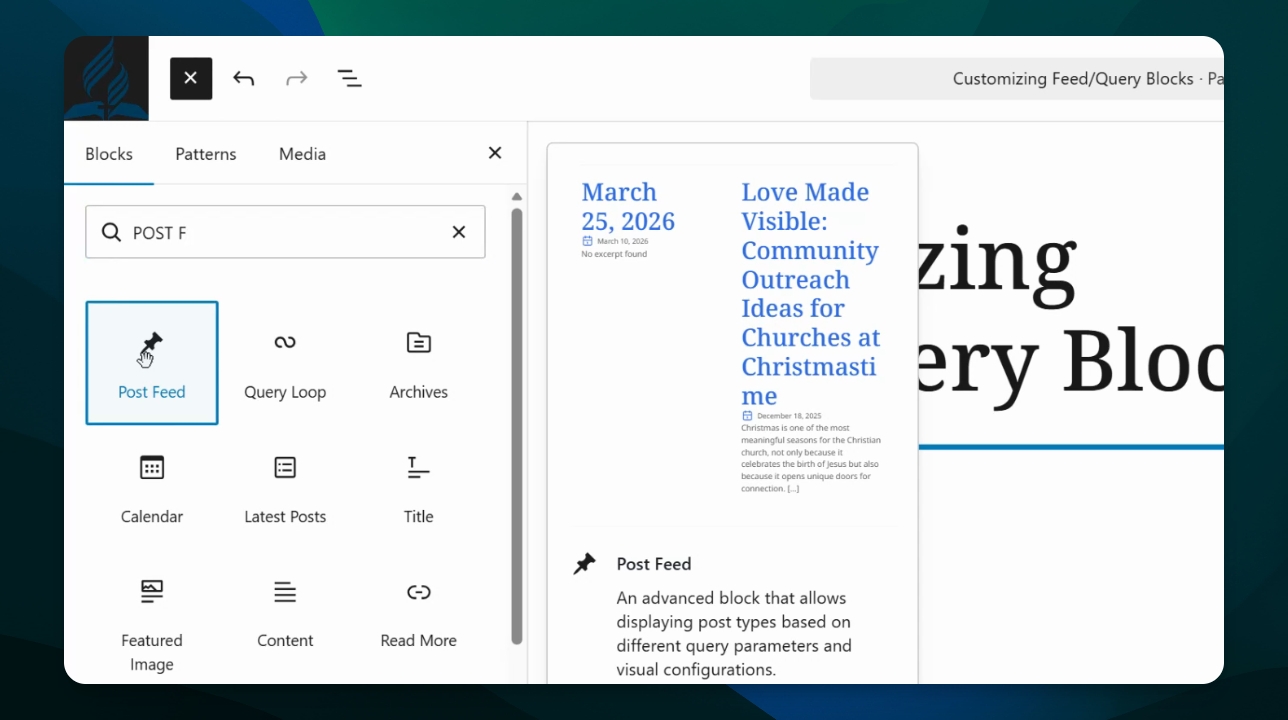
Simply click the Block Inserter (+) button to find the block,
or start typing
/postfeedin an empty paragraph and hit enter to quickly insert a Post Feed Block into your page.
Best Practices
Display a limited number of items so users can quickly browse the list
Use filters and settings to provide a tailored collection of posts so users can easily find what they're looking for.
Once inserted, the feed will render posts in descending order by default. Adjust as needed.
Block Pieces
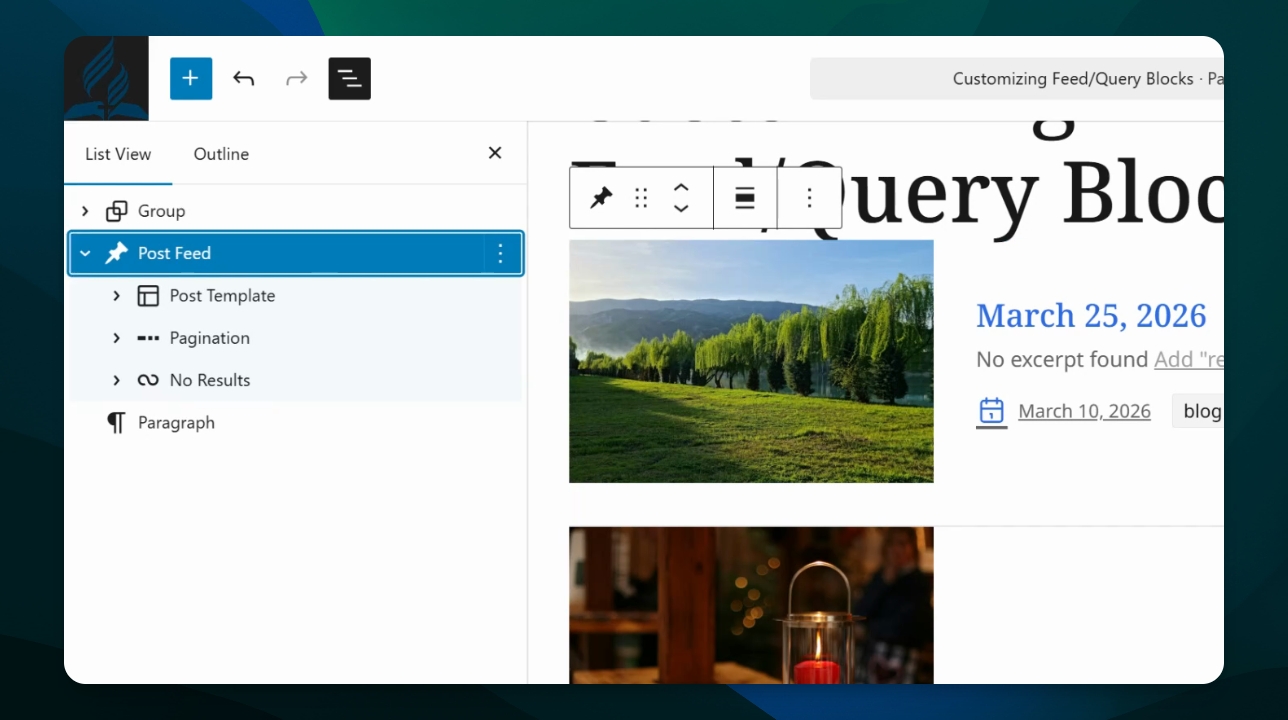
Click on the document overview to see the post feed and the blocks contained within it.
The Post Feed is a block made of a post template and several navigation blocks (pagination, no results, etc.). The post template dictates which pieces of content from each post are displayed in the feed and how they are laid out. Each post shown in the feed with follow this template.
Block Settings
Each block has settings that help you shape your message. To find these options for your Post Feed Block, click the Settings button  in the top-right corner of your editor.
Post Type
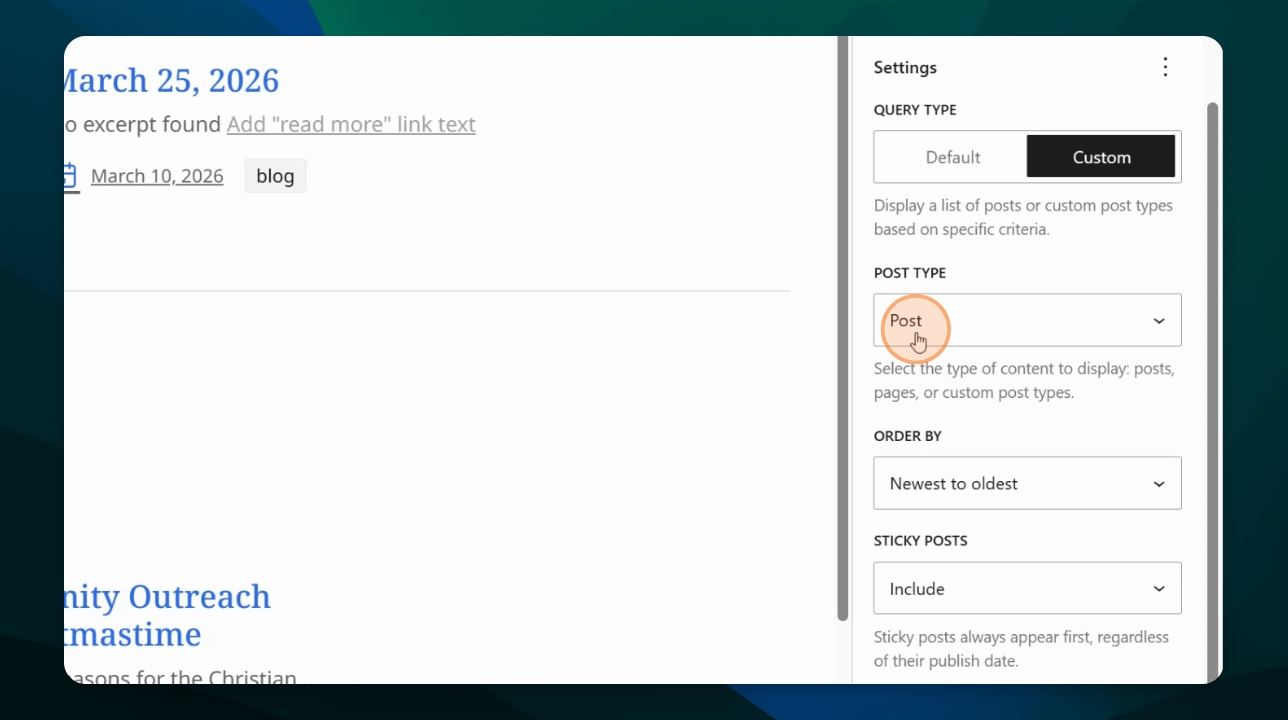
Post Feeds can display any post type on your site. Most often this will be posts or catalogs. You can learn more about different post types. Select the post type you want to display in the block settings.
Order By
Set the order of posts by creation date or the title. The options for order will change depending on which post type you are displaying in the feed.
Sticky Posts
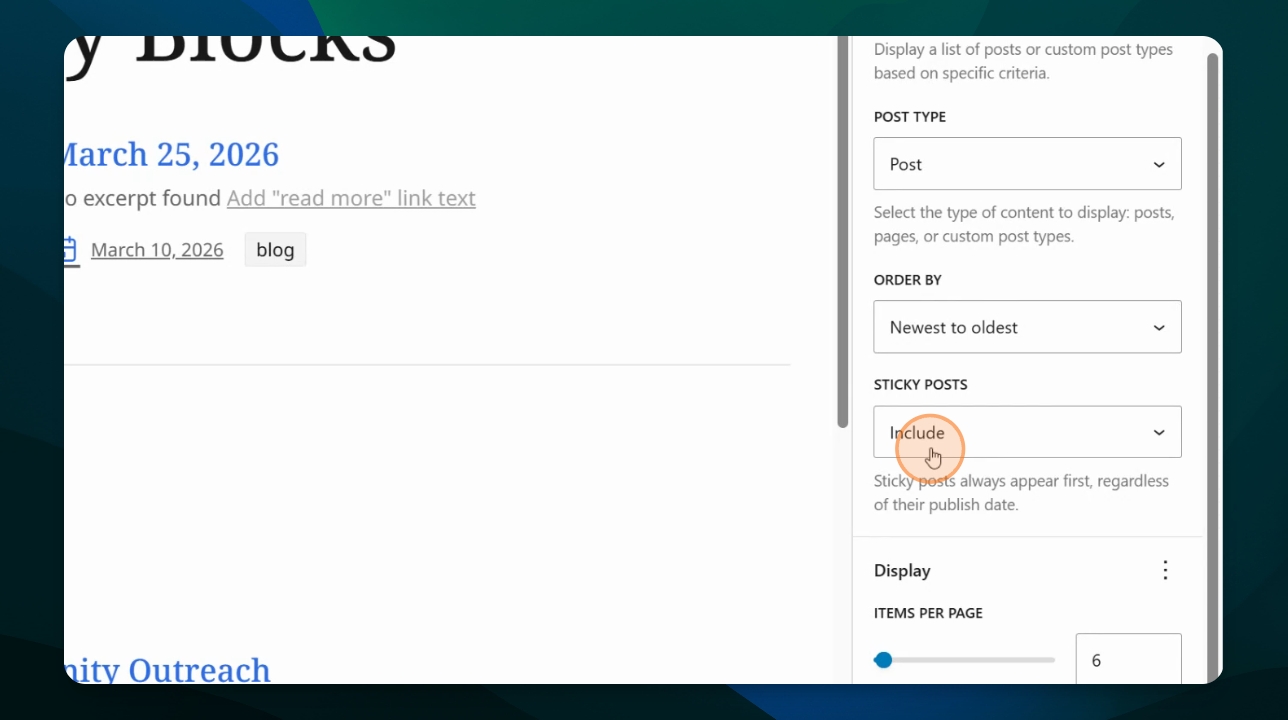
Sticky posts can be included, ignored, excluded, or the only posts shown. Sticky posts, if included, always appear first, regardless of their order. If ignored, they will appear but based on their standard order (date created or title).
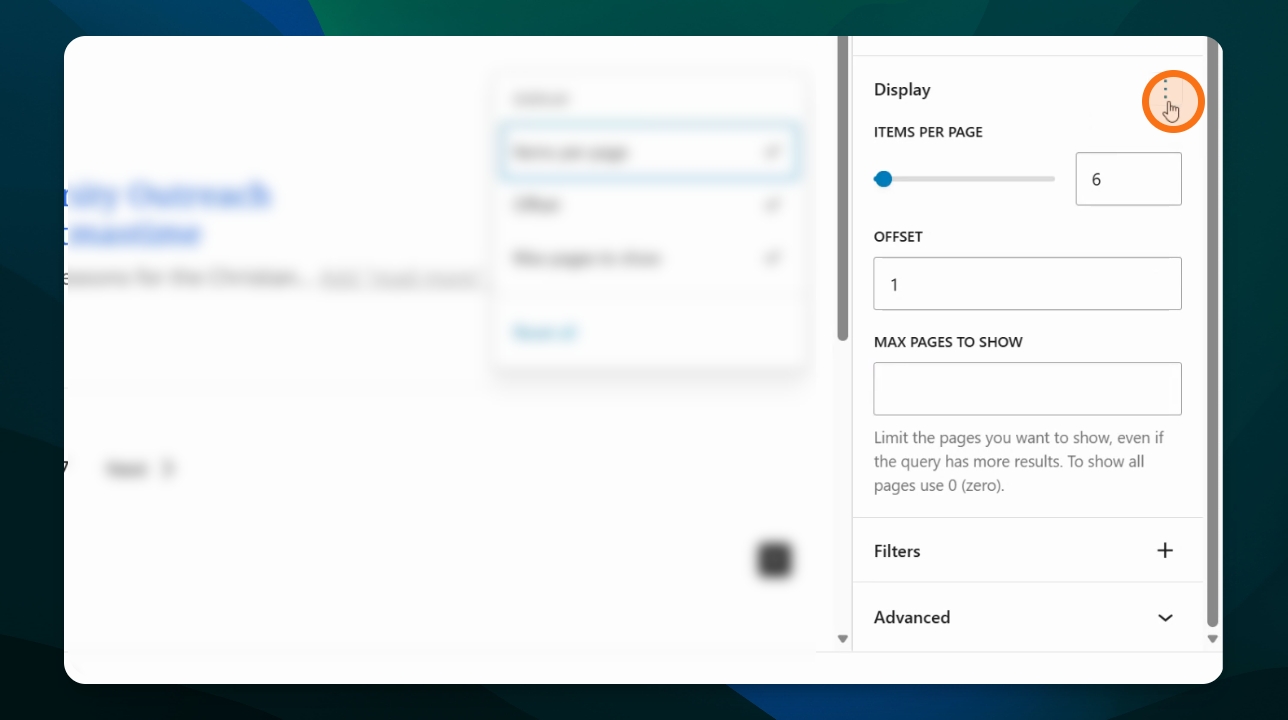
Items Per Page
Change the number of items per page to display, with a default of six.
Offset
Offset lets you skip a specified number of items. For example, enter 1 to skip the first two items and they won’t appear. This can be helpful if you create a different feed to display the first several items larger or with a different layout to bring attention to them.
Max Pages
Change the number of items to show, even if the parameters you set have more results. To show all items, set max pages to 0.
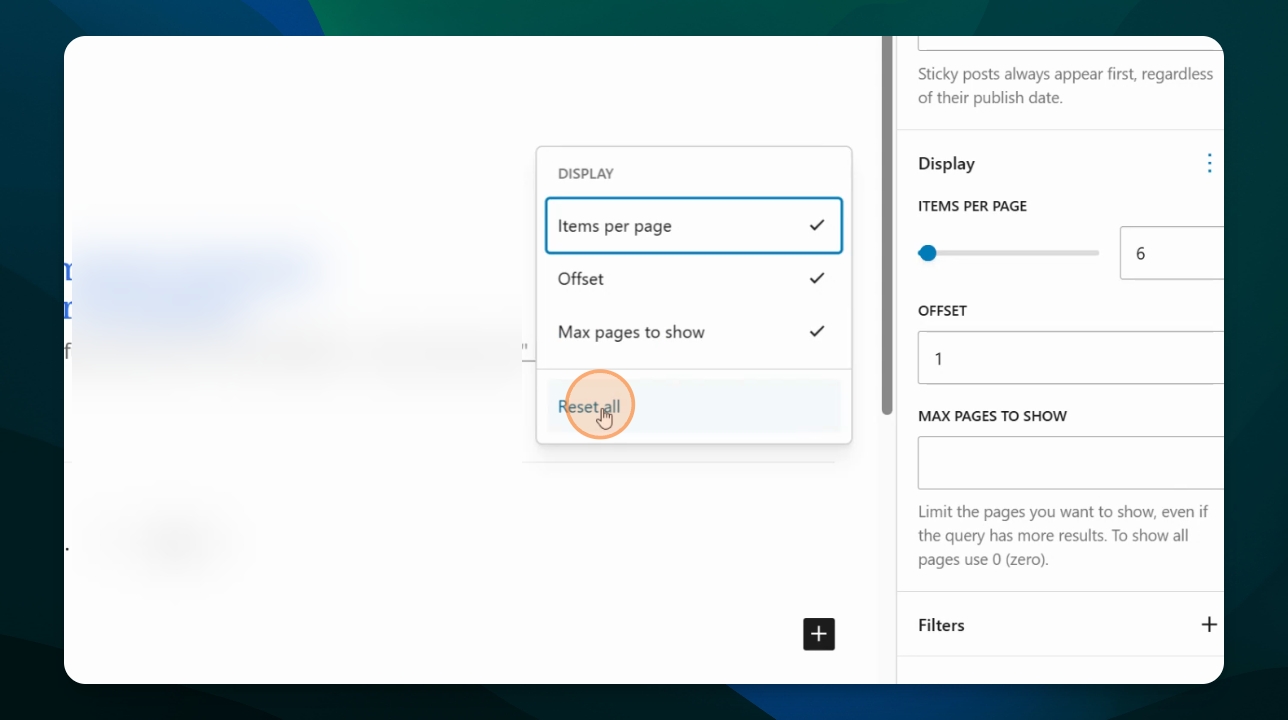
To access Offset and Max Pages options, click the three-dot menu next to Display.
In the additional options, you can also reset the settings by clicking Reset all.
Filtering Settings
Use filters to filter posts by taxonomies, authors, or keywords. To access these settings, click the three-dot button next to Filters and select those you would like to configure.
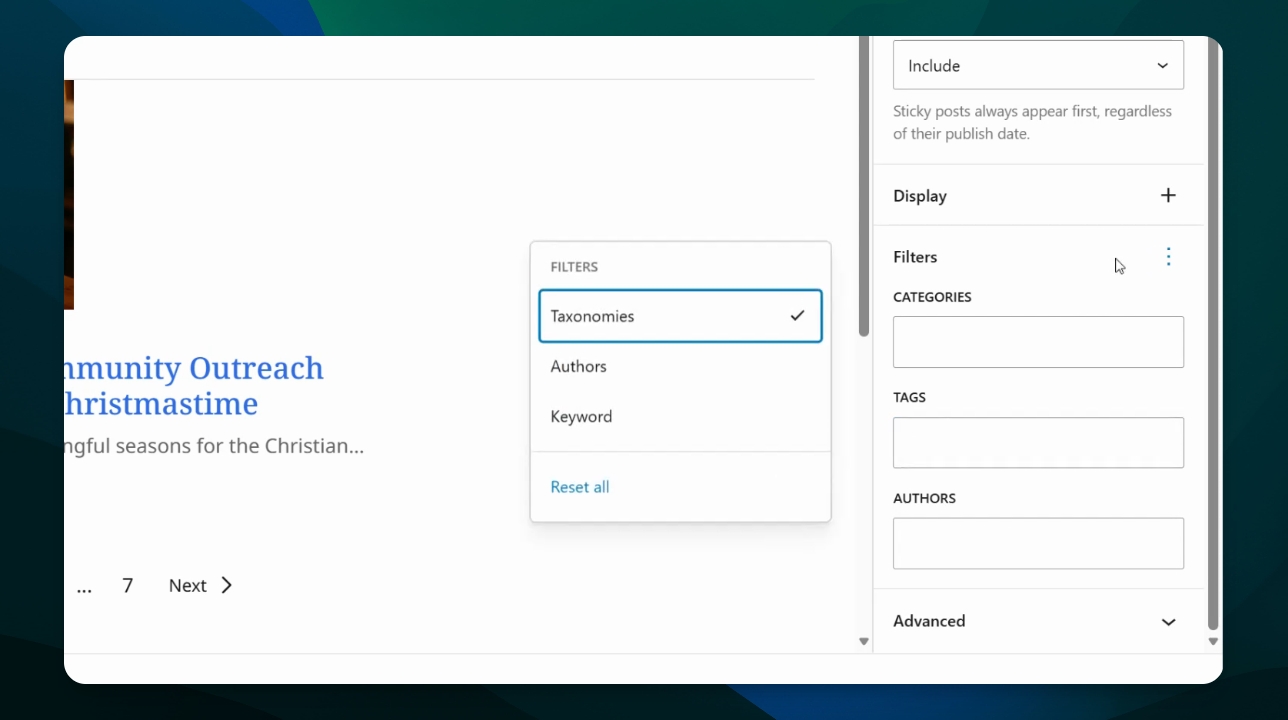
Taxonomies
Taxonomies allow you to filter by post categories, tags and/or authors. Start typing and select the desired category, tag or author.
Authors
This allows you to filter by site user who created the content. This is different from the taxonomy author which is a field of data entered in the post type.
Keyword
The keyword filter searches the content within each post type. For example, let’s use the keyword "Christmas." The post feed will display only the posts that contain that term.
These are the basic setting options for the Post Feed. To learn how to customize the layout of the Post Feed items, go to the Customize Post Feed Block article.