

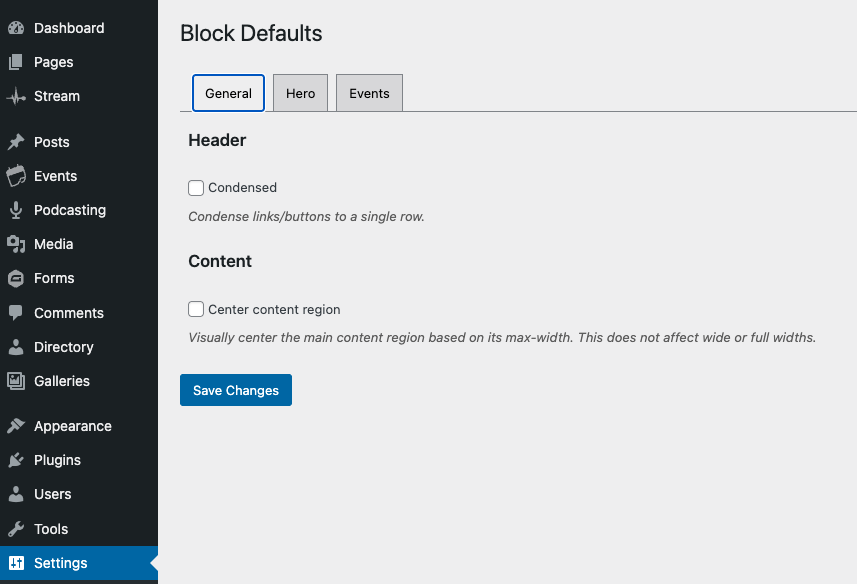
General Section
Header — Check to condense menu links and buttons to a single row, rather than having the Call to Action button and secondary menu above the main menu.
Content — Check to center main content based on its max-width, rather than left aligned. This does not affect content with wide or full widths.
Hero Section
The Hero section appears at the top of your pages and can be configured with these default settings:
Style - Choose between:
Overlap - Creates a layered effect with content partially overlapping the header
Simple - Displays a clean, straightforward header layout
Options - Select any combination of:
Full-width - Extends the hero section to span the entire width of the browser
Use featured image - Automatically displays the page's featured image in the hero section
Show breadcrumbs - Displays navigation breadcrumbs to show page hierarchy
Header - Includes the page title in the hero section. This is an advanced feature and should be left checked in most cases.
Front page variation - Adjusts the look of the homepage hero section depending what theme is selected. Choose between:
Inherit (from site default) - This will set the front page design to the default view.
Simple - Change to a simpler layout.
Overlap - Change to an overlapping layout.
Show contact information - Show or hide contact information under the homepage hero.
Events Section
Configure how your site's calendar archive page appears:
Select a Featured Image to display on the archive view of the Events Calendar.
Remember to click Save Changes to apply your selected defaults to your site.