

TL;DR
Let's Do It Together!
Before you begin:
Make sure your calendar uses a valid ICS (iCal) URL - this is required for syncing.
Each external calendar must be assigned to an Event Category for proper sorting and display.
Calendars with under 200 events sync right away. Larger ones will sync in the background to prevent timeouts.
Step 1: Access Admin Dashboard
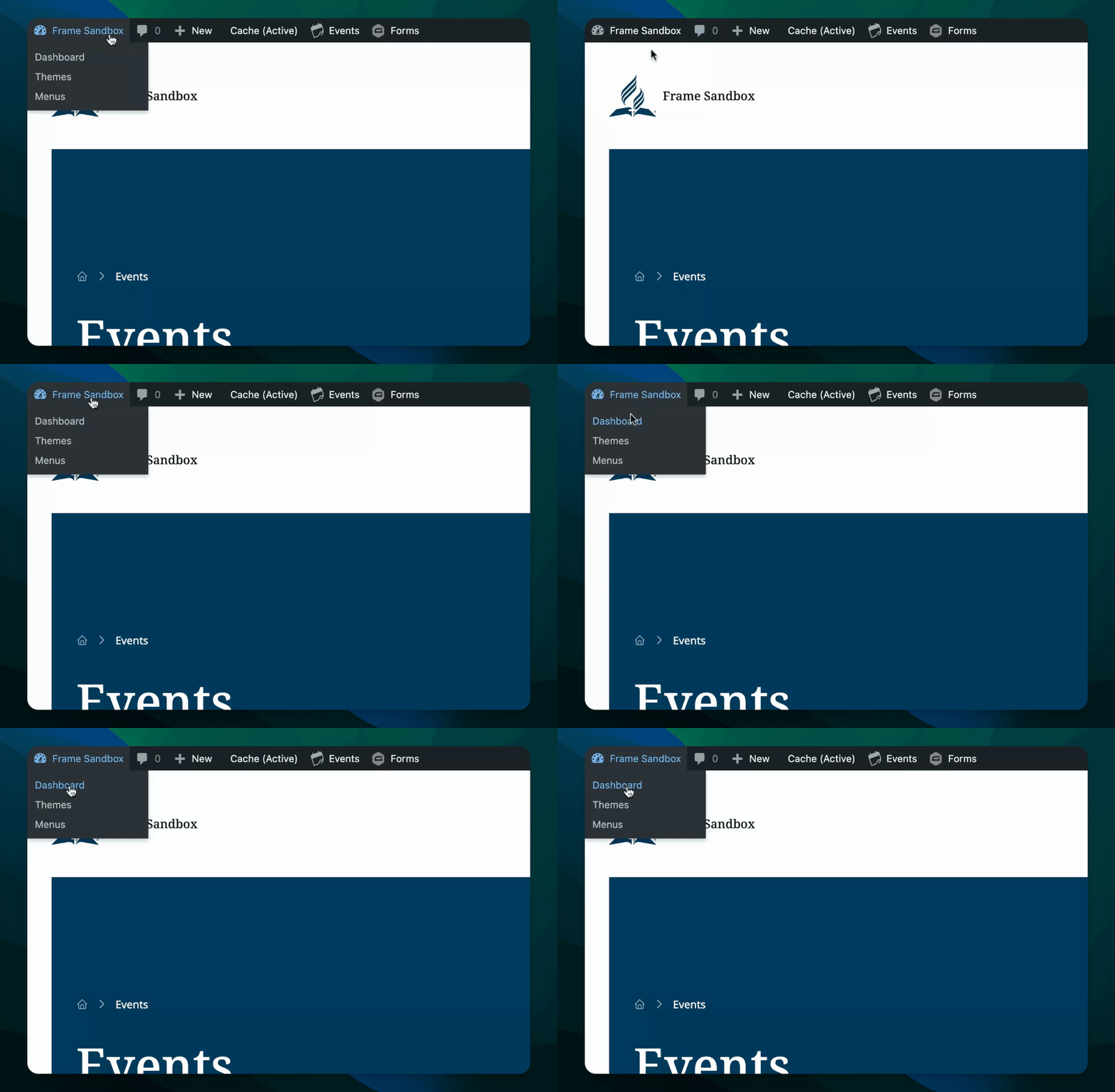
Go to the Dashboard of your Frame website.
Navigate to Events → External Calendars.
Step 2: Add External Calendar
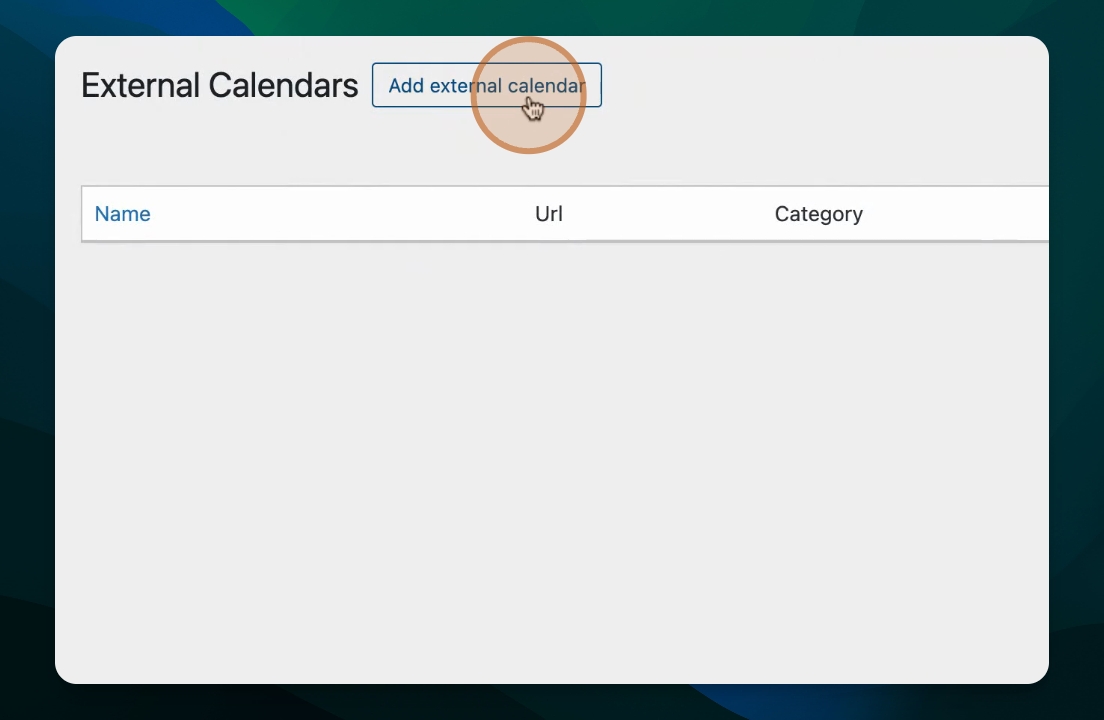
Click Add External Calendar.
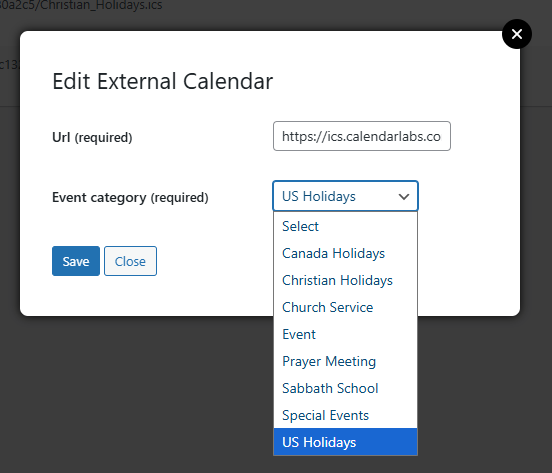
Enter the URL of the external calendar you want to subscribe to.
For example, use a US Holidays calendar and click Save.
Step 3: View Events
Wait for up to 30 minutes for the first refresh to occur.
Your events will start showing up automatically on the calendar.
Events from the external calendar update approximately every 30 minutes.
Step 4: Check Calendar
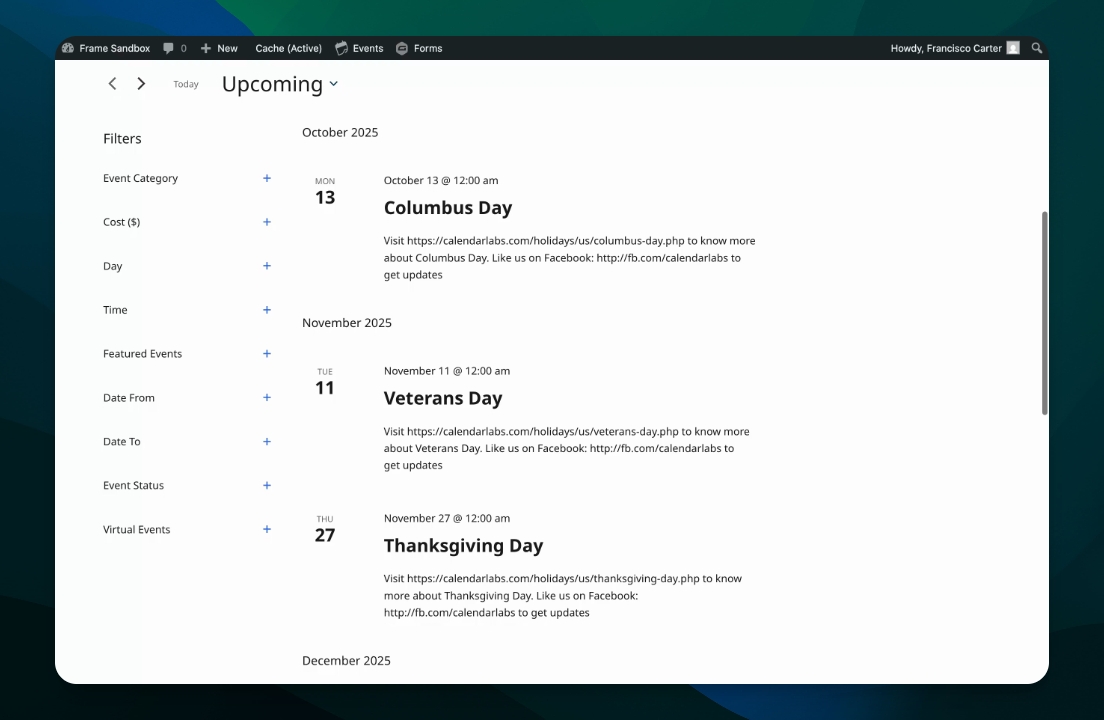
Return to the front end of your site to see the calendar.
Events from the external calendar will display side by side with your other events.
Keep your calendar updated as events sync from outside the system.
Managing or Removing Calendars
To edit an existing external calendar, go to Events → External Calendars, click Edit, and update the URL or category.

To remove a calendar, hover over the the calendar and click Trash
This will remove all events that were imported from that calendar.