

TL;DR
Let's Do It Together!
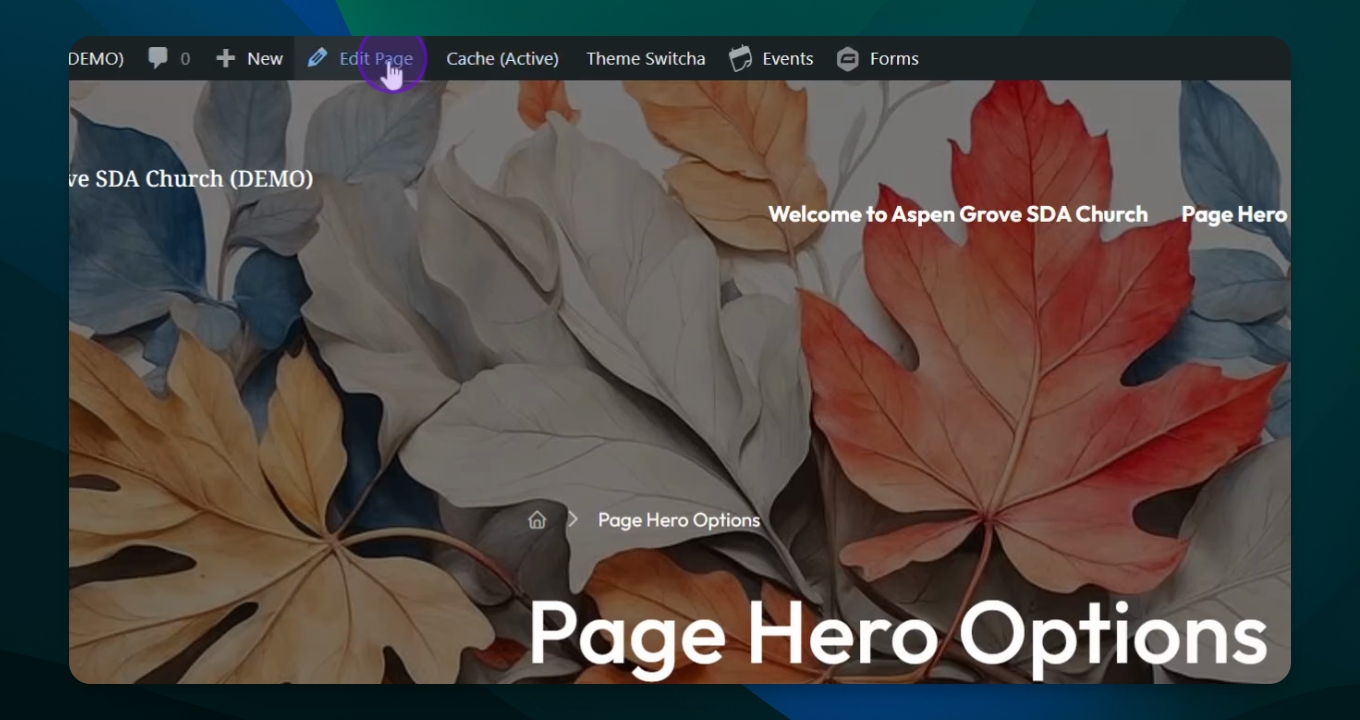
Step 1: Access Edit Page
Navigate to your edit page to begin editing the Hero section.
The edit mode opens for your page.
Step 2: Find Hero Section
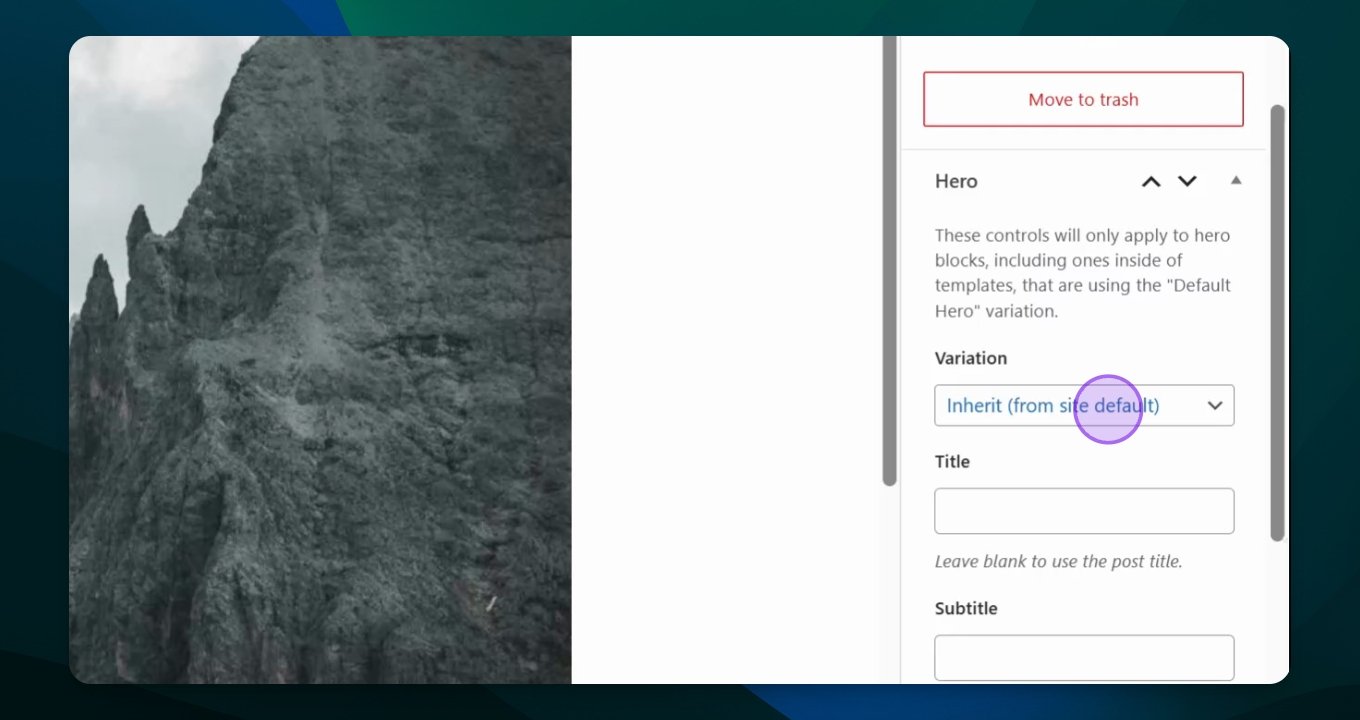
Scroll down to locate the Hero section in the settings menu.
You can now see the Hero section settings.
Step 3: Change Featured Photo Image
In the variation settings, choose how tall you want your photo.
You can adjust the photo height as desired.
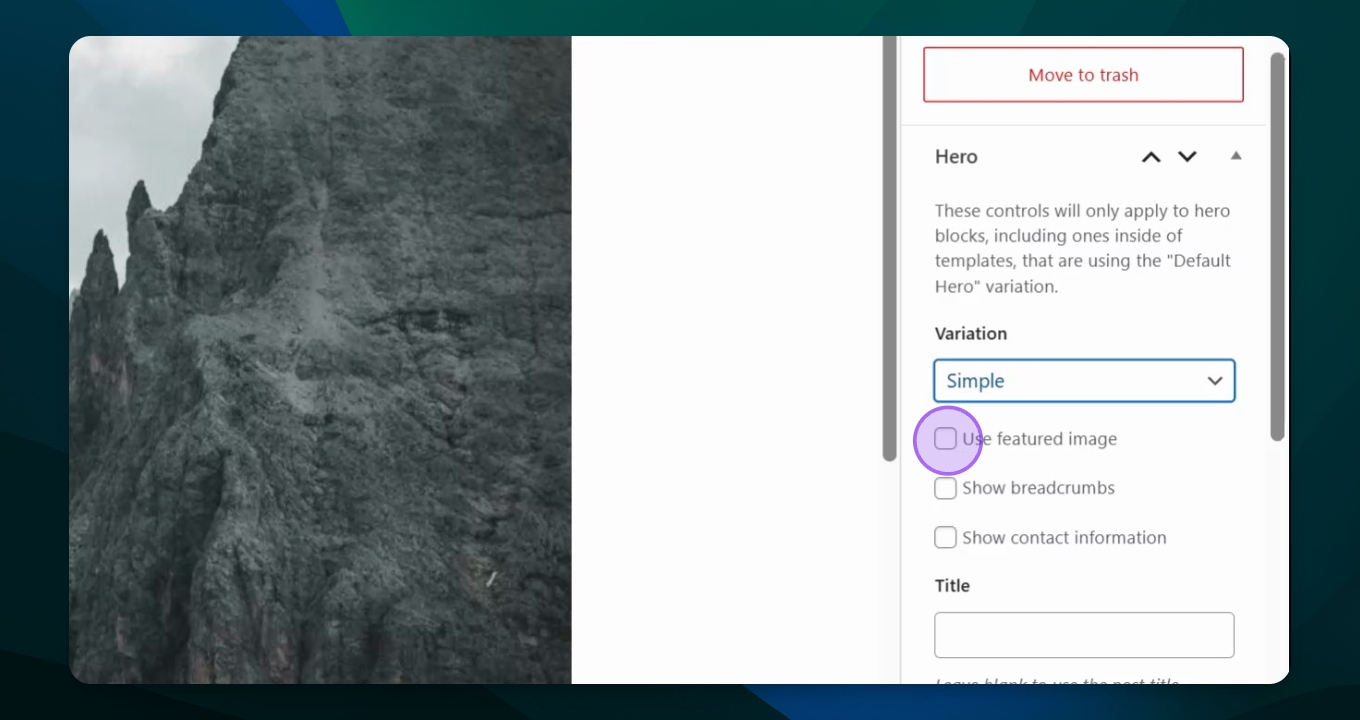
Step 4: Use Featured Image
Select Use a featured image option for your Hero section.
The featured image will be applied to the Hero section.
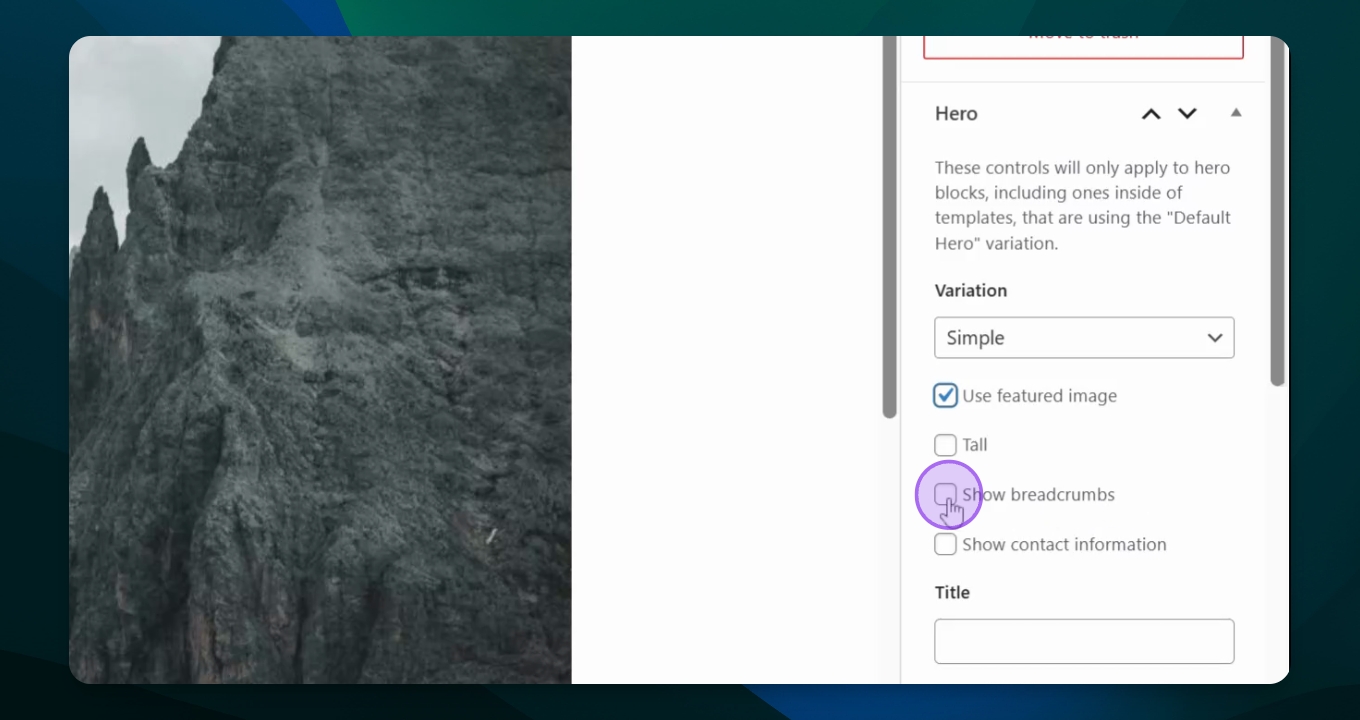
Step 5: Show or Hide Breadcrumb
Choose whether to show the breadcrumb by using the checkbox.
The breadcrumb visibility is adjusted based on your selection.
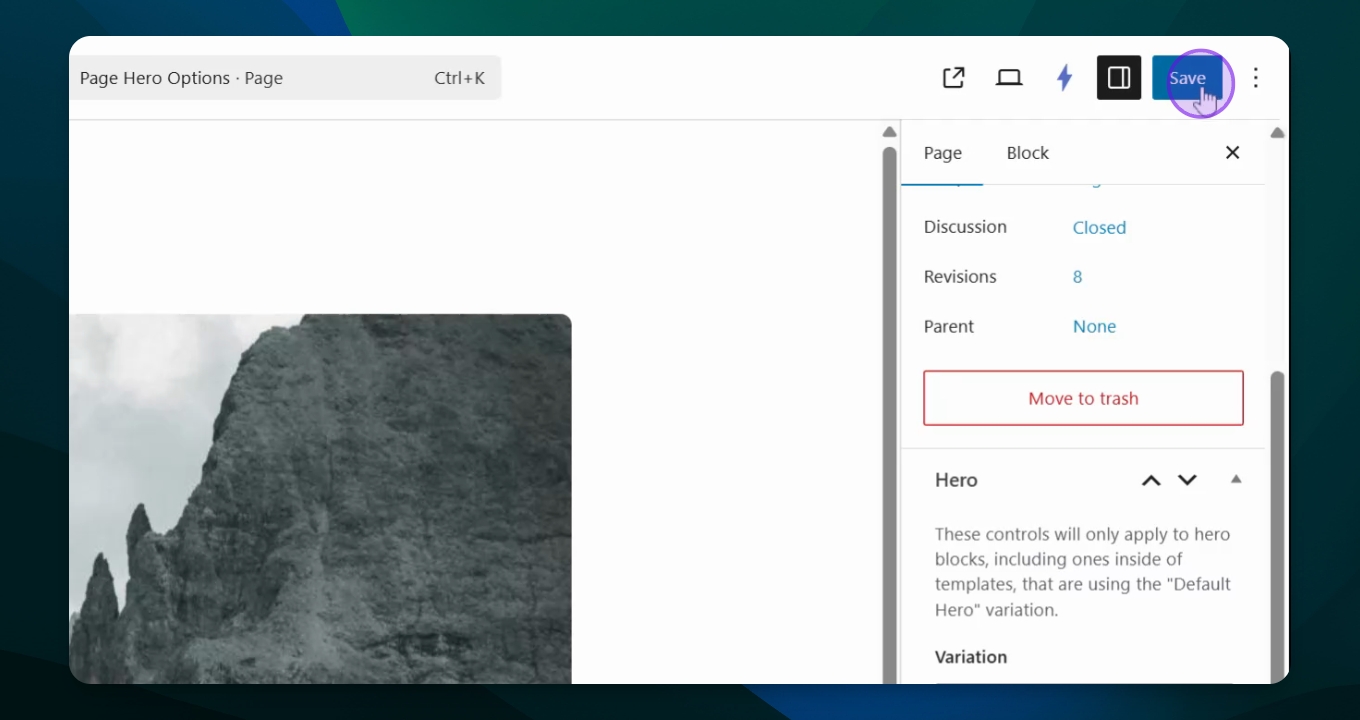
Step 6: Save Settings
Click save to apply the changes you made.
Your settings are now updated and saved.
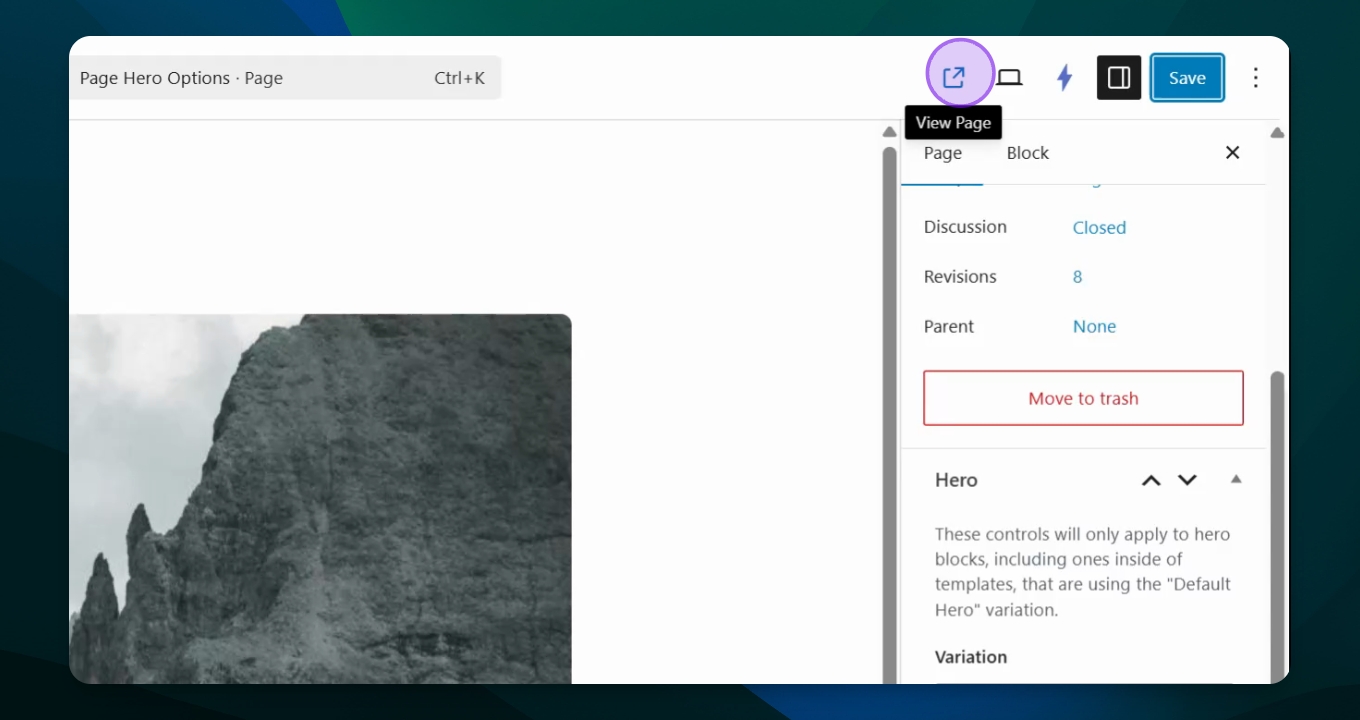
Step 7: View Page Changes
Click view page to see the updated Hero section on your site.
The page displays the changes you made to the Hero section.
This will give you a different look for your site or give each page a different look from the Welcome page.