

The Media feature in your dashboard makes it easy to set up and maintain a library of videos that can be searched by topic, presenter, series or date by visitors on your site. Frame supports both YouTube and Vimeo channels, using the steps below.
Part 1: Create Media items
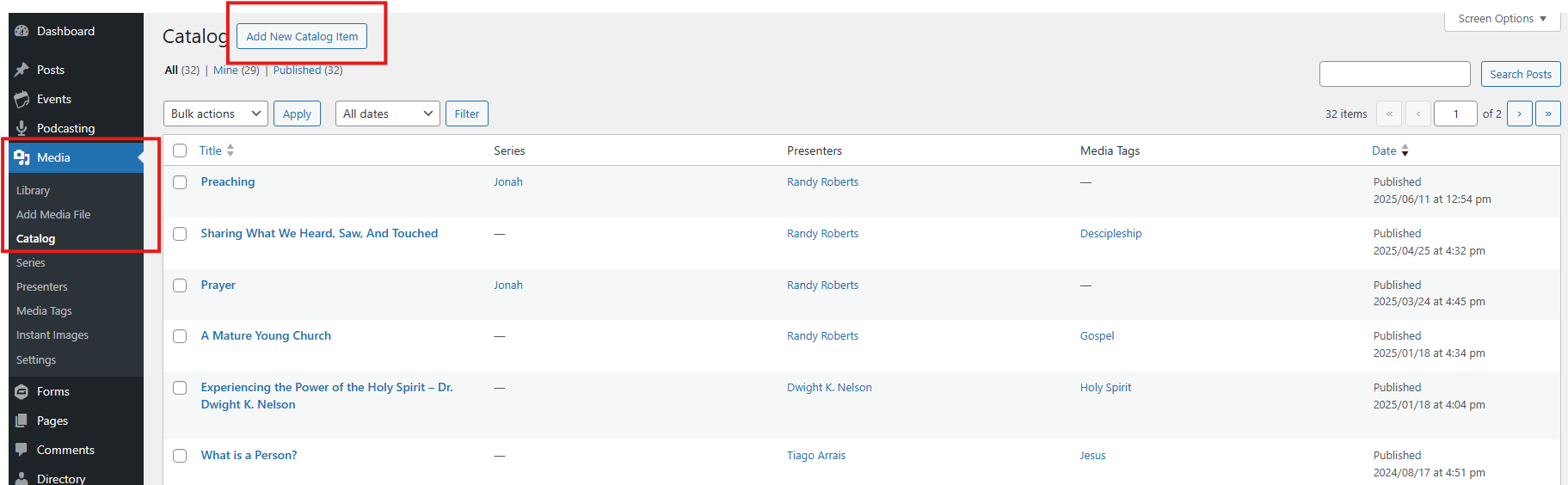
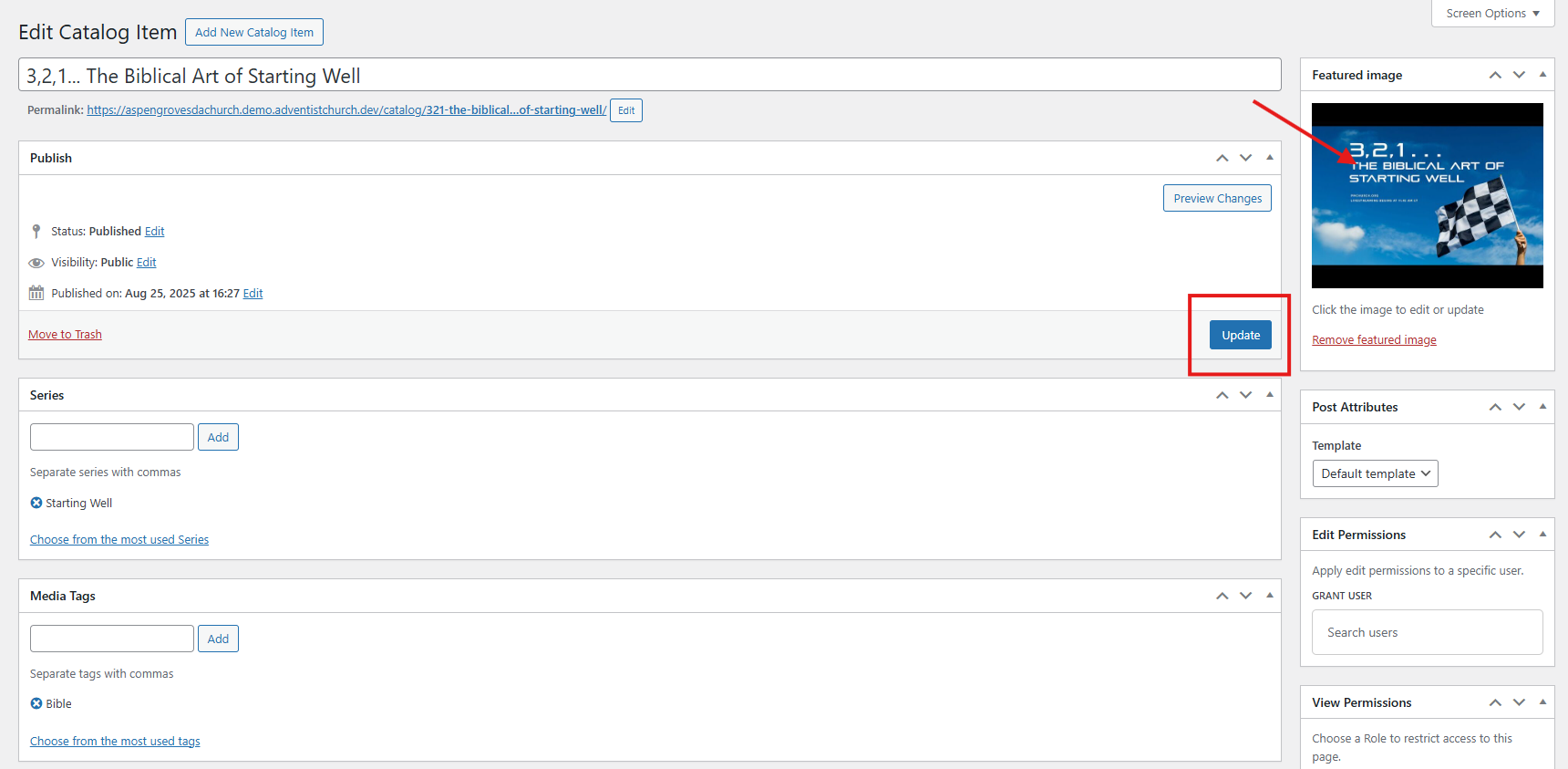
1. Start by creating a entry for each video you want to add as a catalog. Go to Dashboard > Media > Catalog > Add New Catalog Item. You can also come back and edit an entry by hovering over the title, you will be given options to edit, view or delete entry.
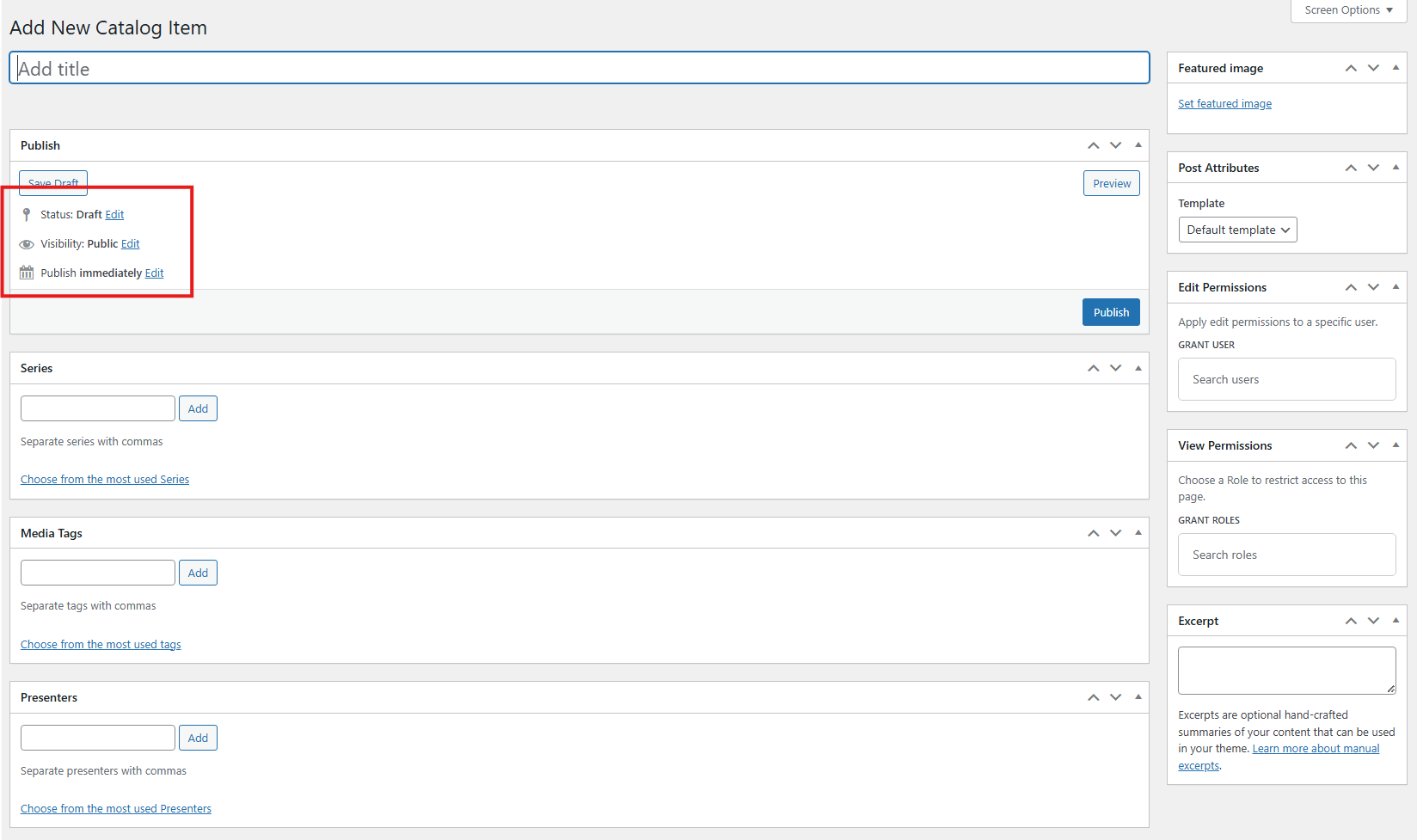
2. Start entering information about the new catalog item (Title, description, presenter, key word tag, media tag, series tag, etc.). You can also set a publish date or if it is an older item you can set it to a past date as well. It will show status & you can set visibility options as well.
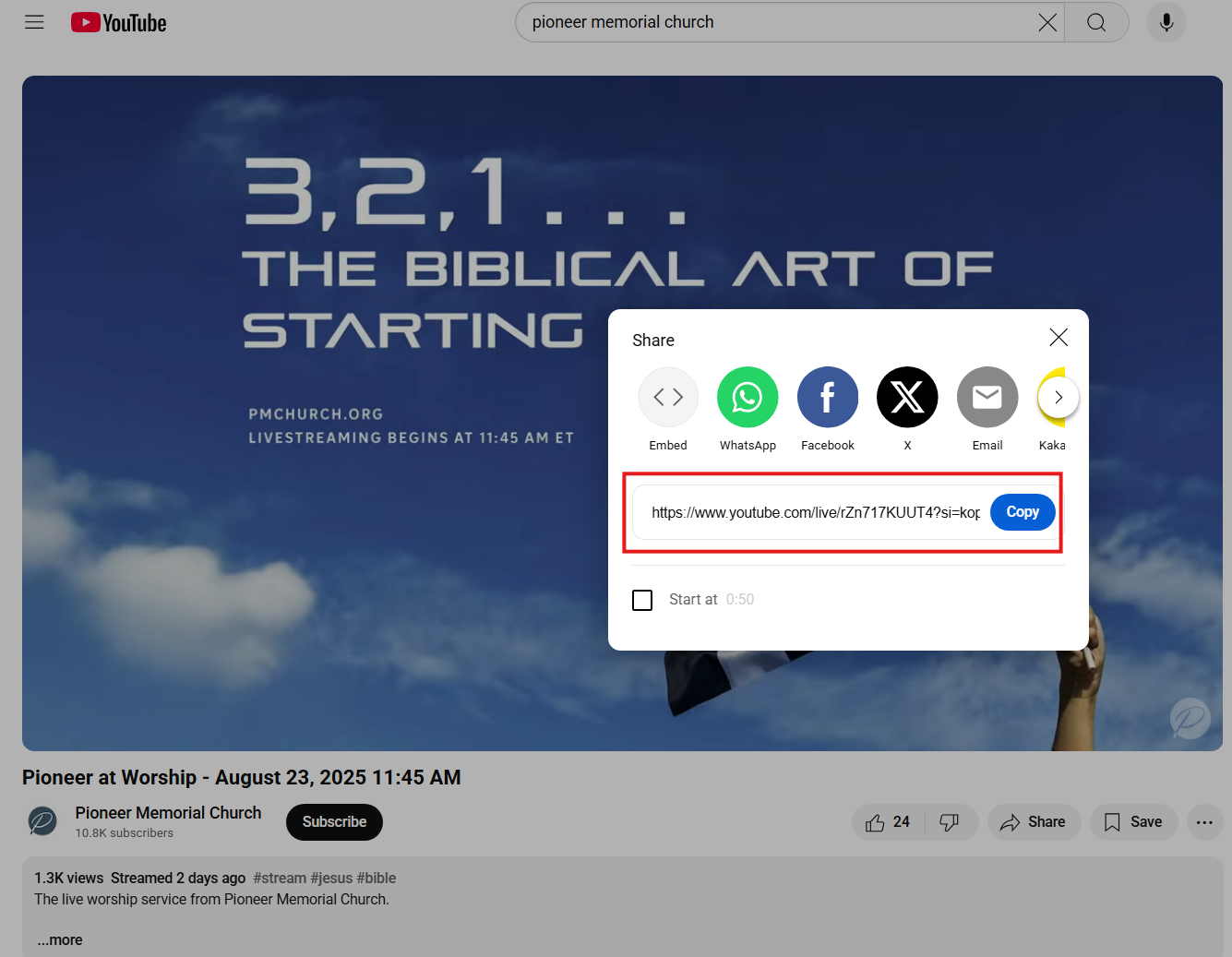
3. Enter the source of video (YouTube or Vemeo) and then you will need to add the URL for that video.


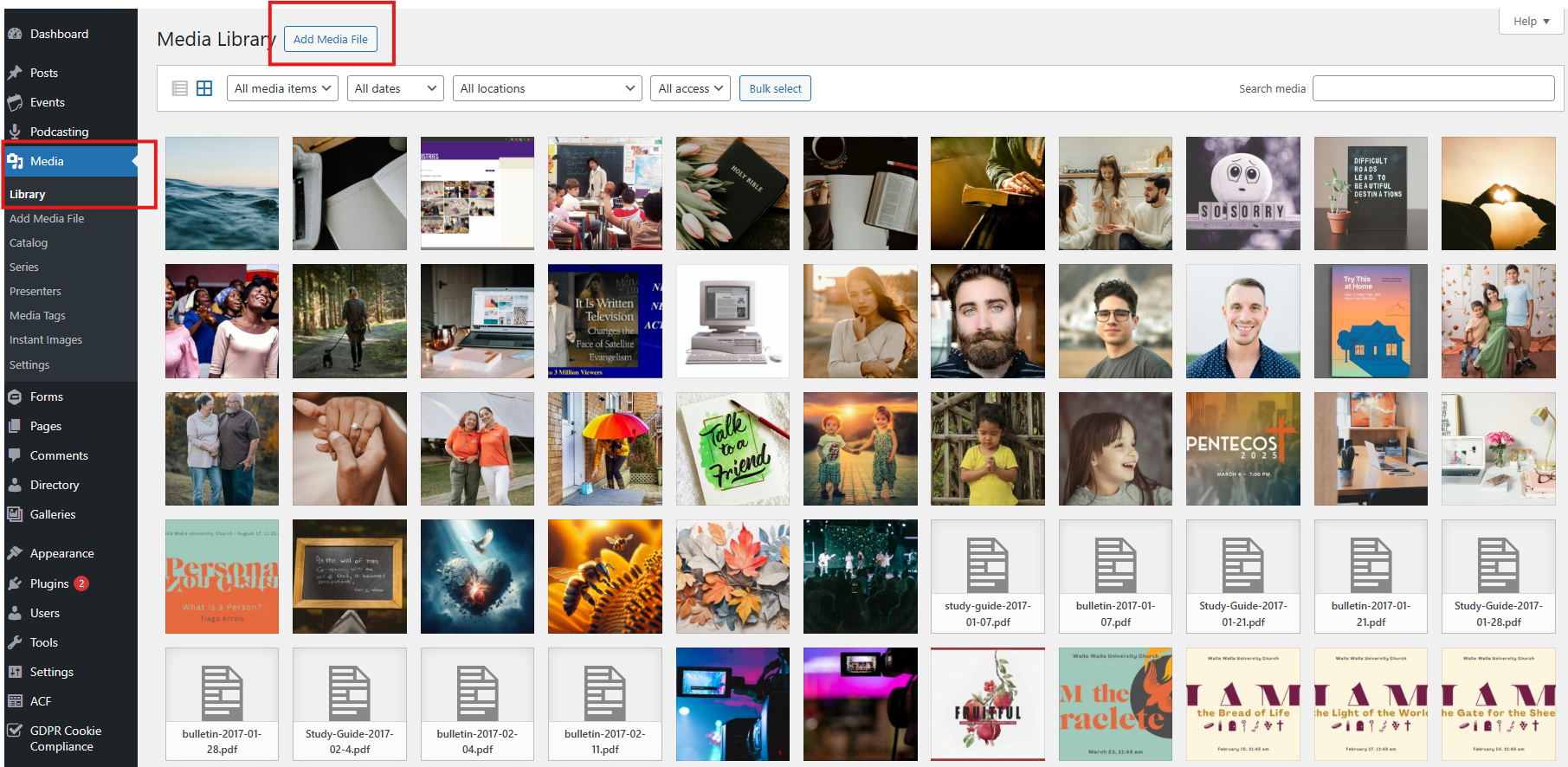
4. Once you have entered the data field you will then add a Featured Image of this entry. Upload saved thumbnail image from video (Rt click to save image for most sites) > Save to folder on computer > Click on Featured Image button > Upload image to Media Library and choose that photo > Click set image button in lower right hand corner.

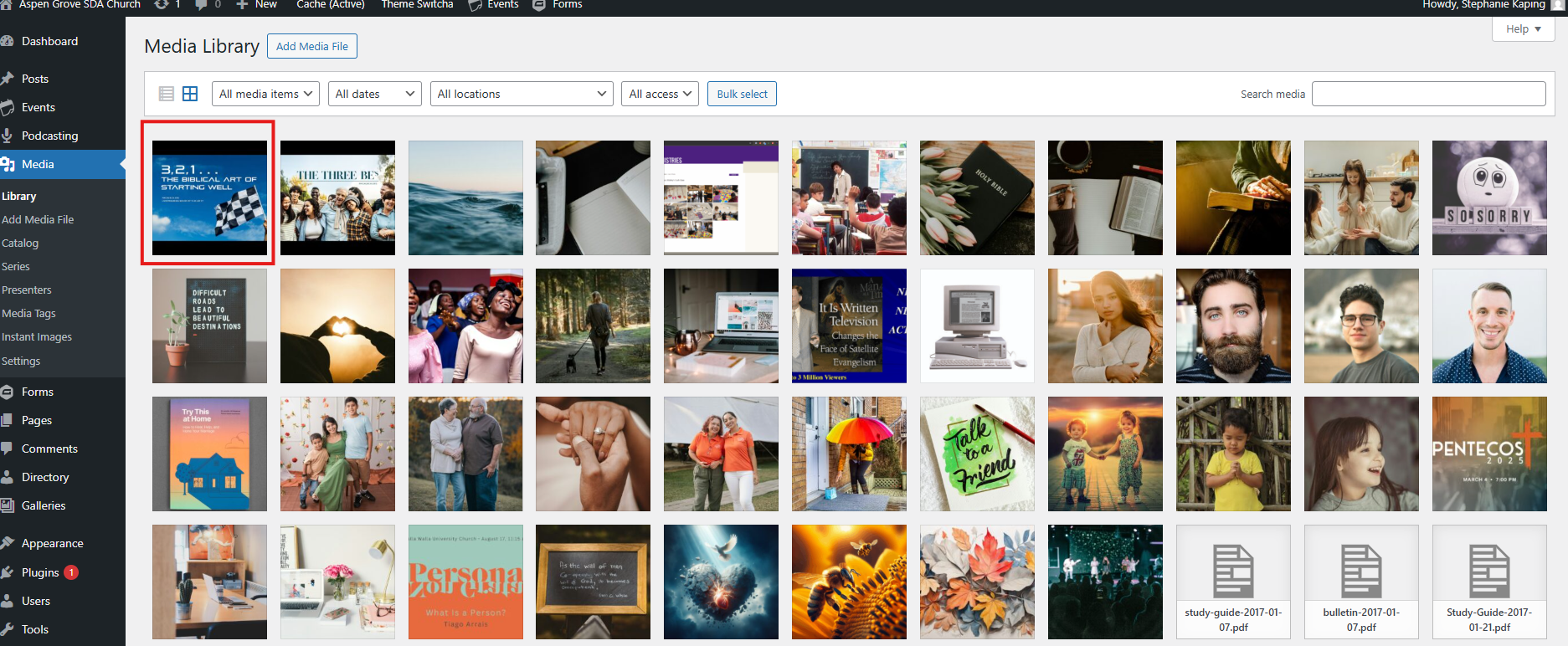
5. A thumbnail will appear in item window on the right side of the chosen picture. If you are finished entering the data click the Publish or Update button.
Part 2: Display Catalog Items
After you have entered your information in the catalog, next you will need to make it viewable on your site.
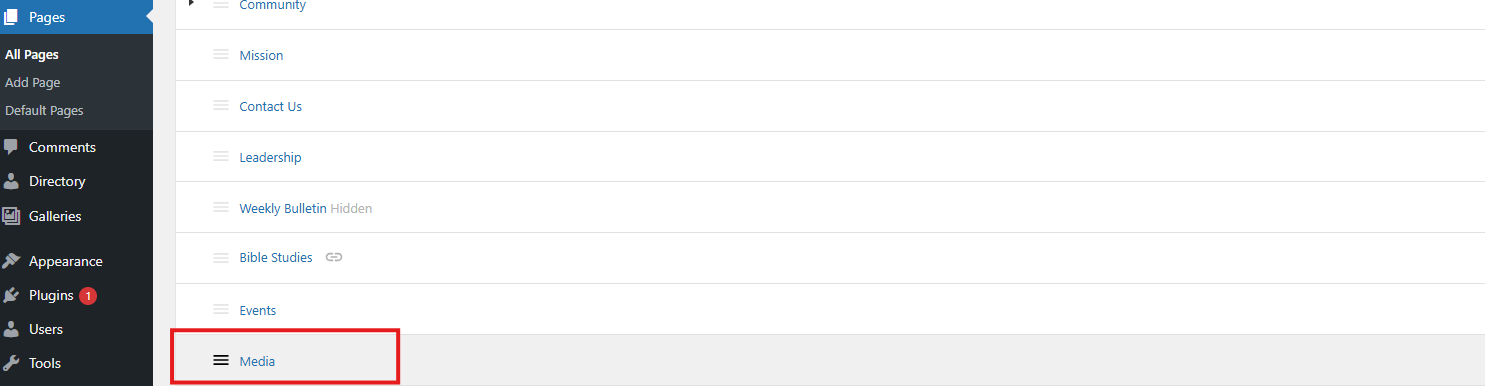
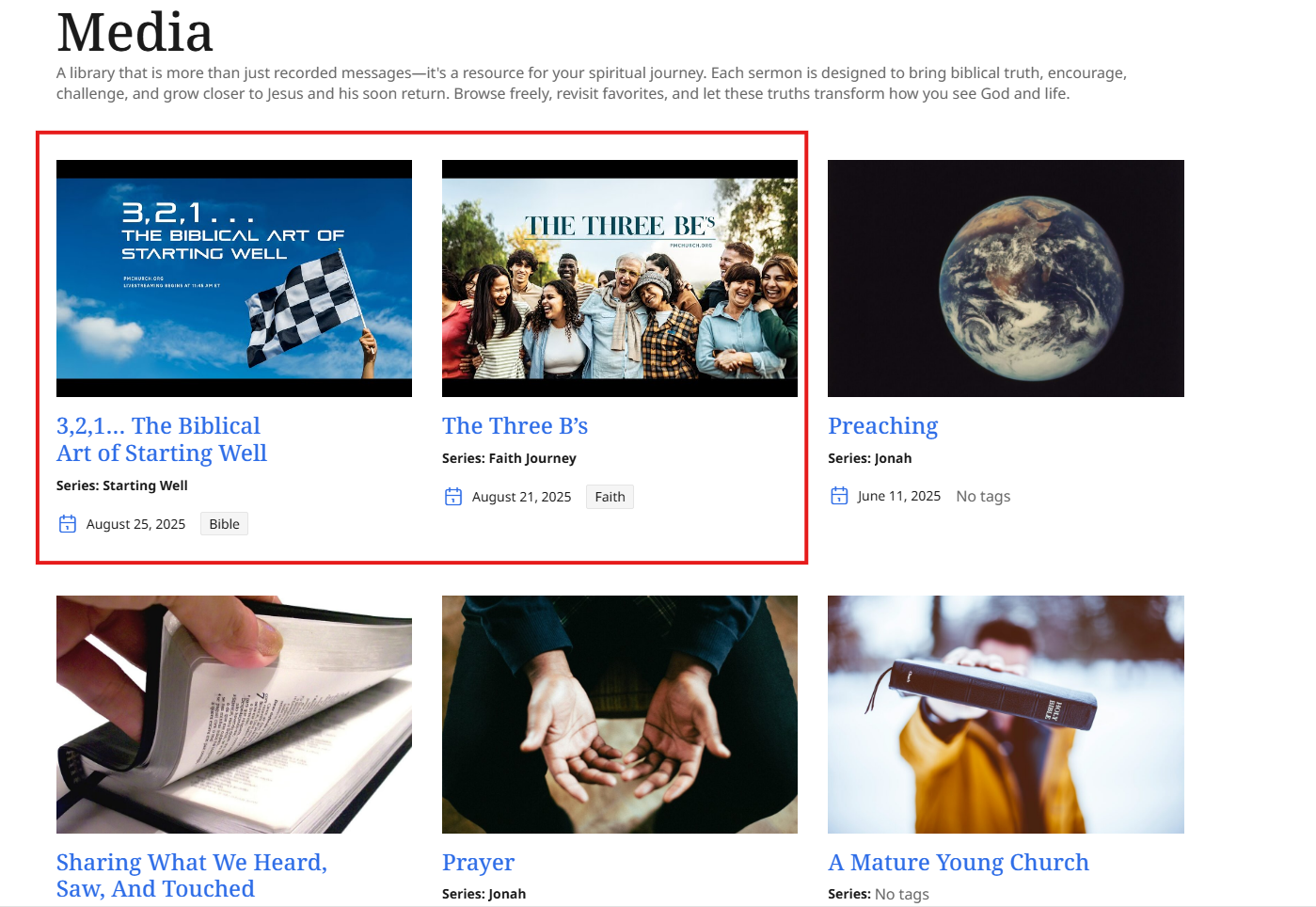
Return to your Dashboard and either choose an existing page or create a new page, to edit page. If new page add title for page and even can add a intro paragraph about the video library (see below).
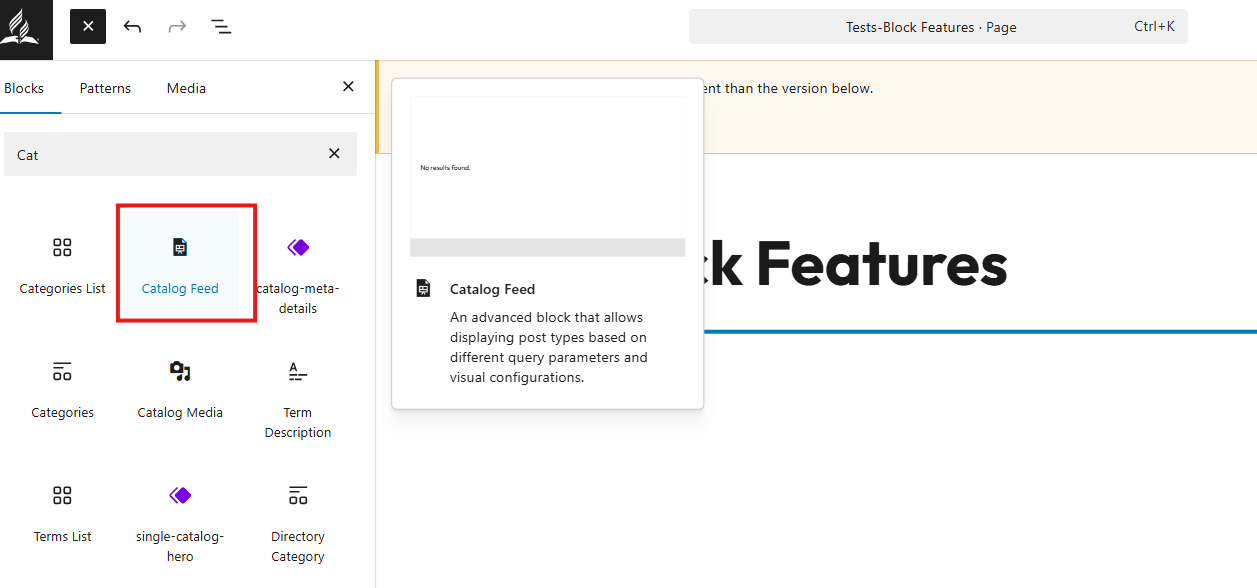
Go to Block Inserter > choose Catalog Feed > All the information will be populated on the page (most recently added will appear first). Make sure to save page and then View page to see what the feed will look like.
Adding Vimeo Links
When you are adding links from your Vimeo account by copying link and pasting it into your catalog entry please make sure it looks like this https://vimeo.com/12345678 with no extra character after the number. If you do it may give you a warning of "not a valid URL" or not attach at all in the catalog.
Find additional articles on how too transform your Frame site in our Knowledge Base.