

The File Block allows you to upload and display downloadable files on your WordPress posts and pages. It's a convenient way to share documents, PDFs, spreadsheets, and other file types with your site visitors.
Discover how to implement the File block and explore its various customization options. Let's look at the steps:
Adding a File Block to Your Content
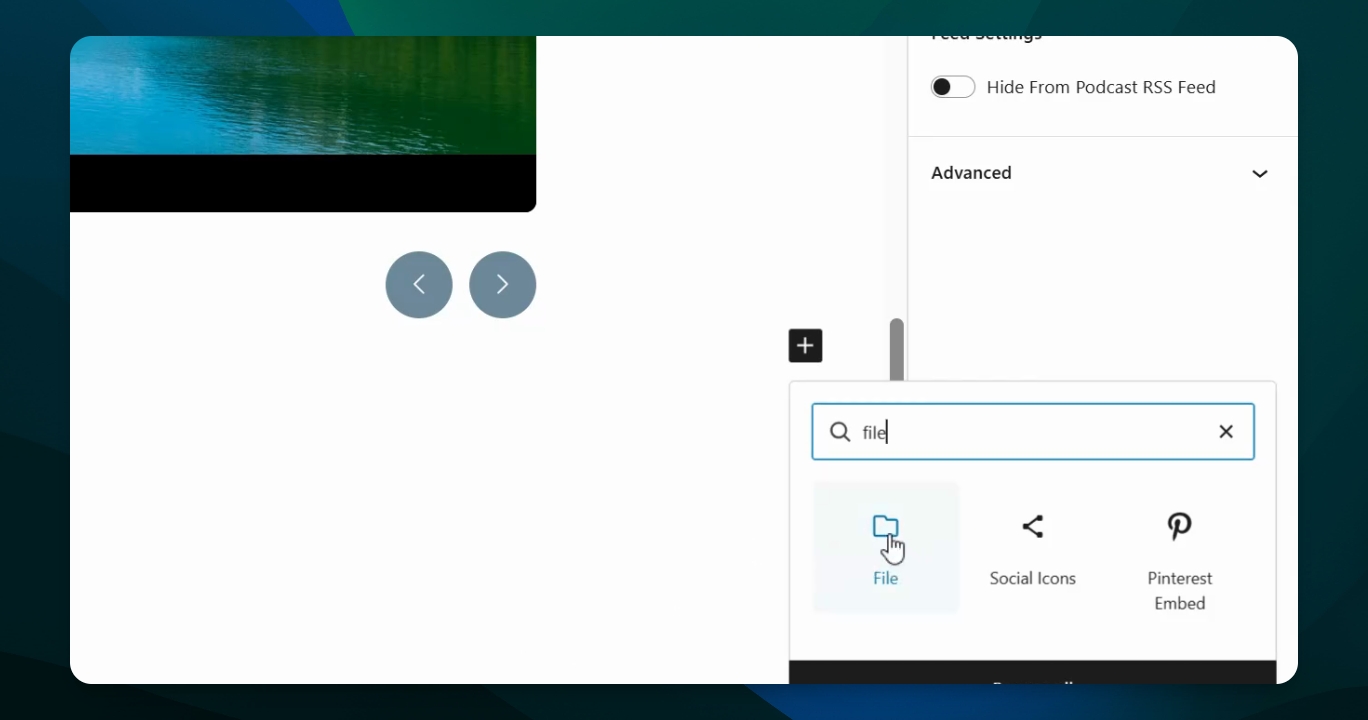
Go to your block inserter menu on the left hand side or choose the plus sign to add a block.

Type in File
You can also type "File" in the search window to find the desired block.
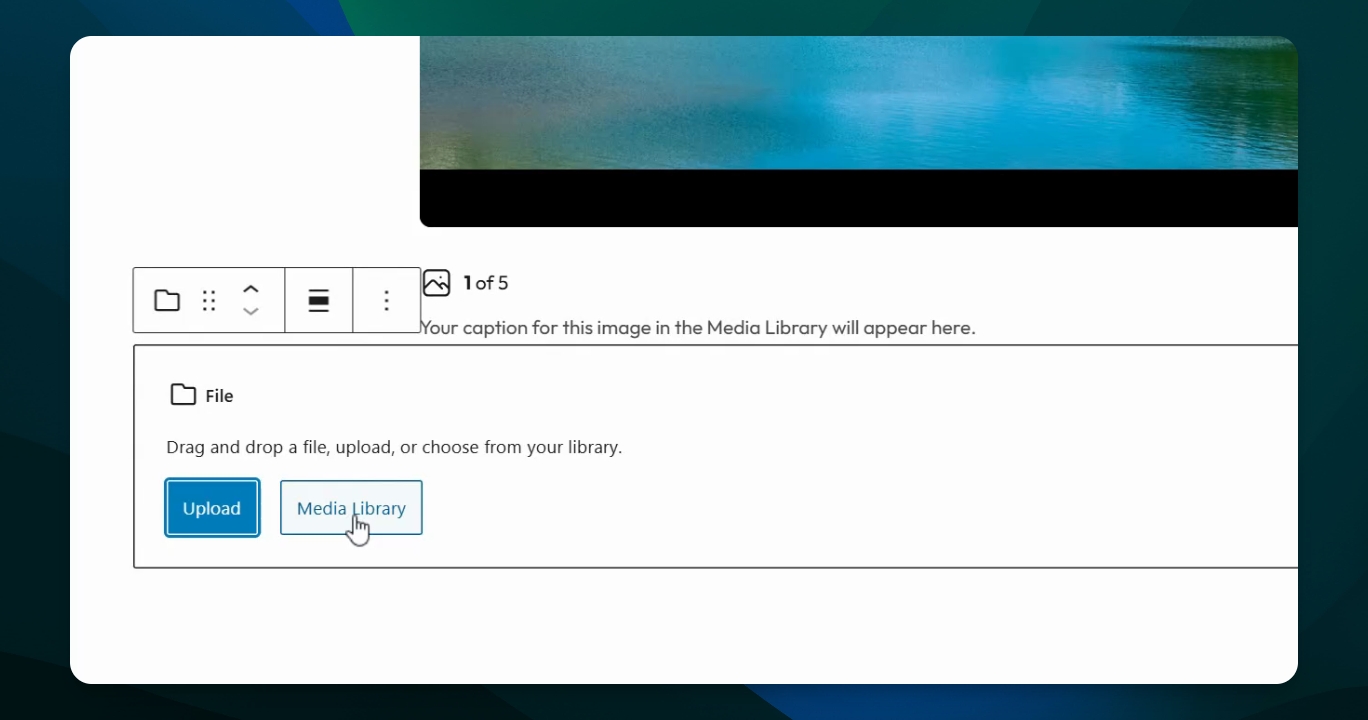
Upload PDF Option
Select a PDF to upload from your desktop, such as a newsletter or another document. For this example, we will select a document already uploaded in the media library.
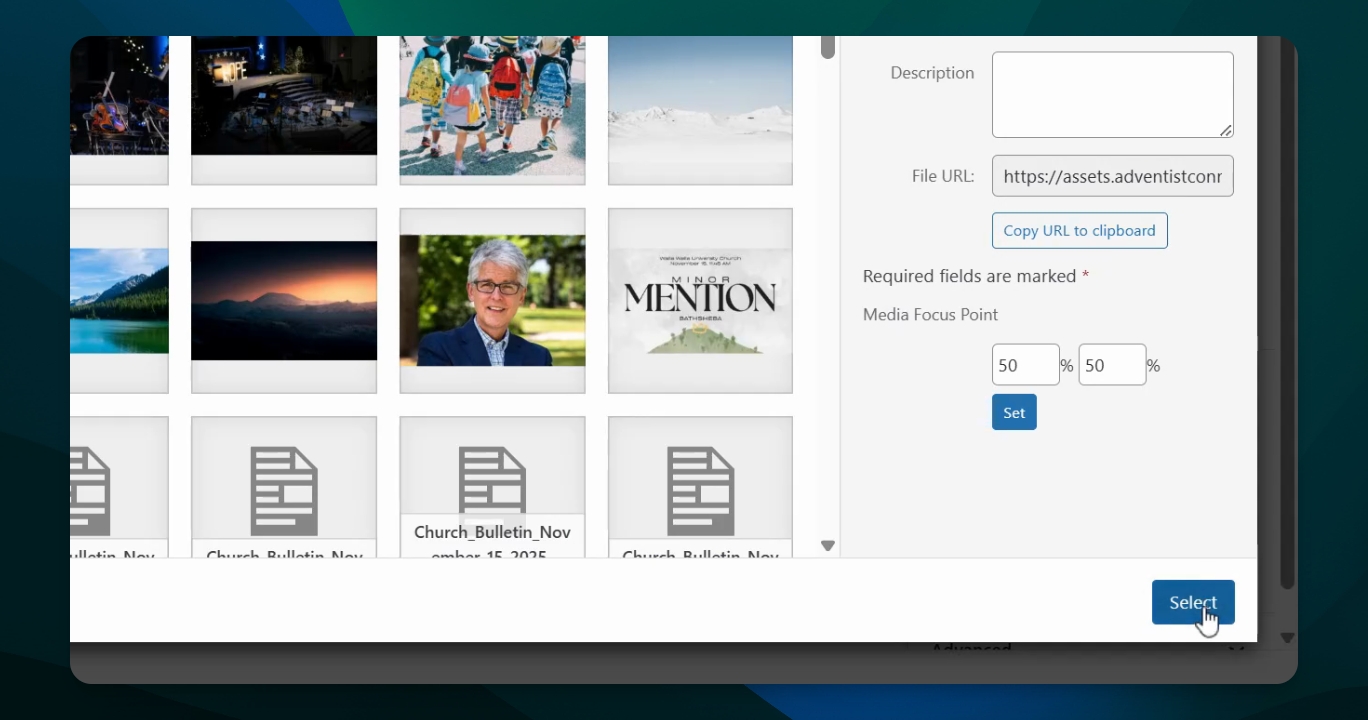
Select Document
Click on the document you want to place on your page to select it.
Default View of PDF
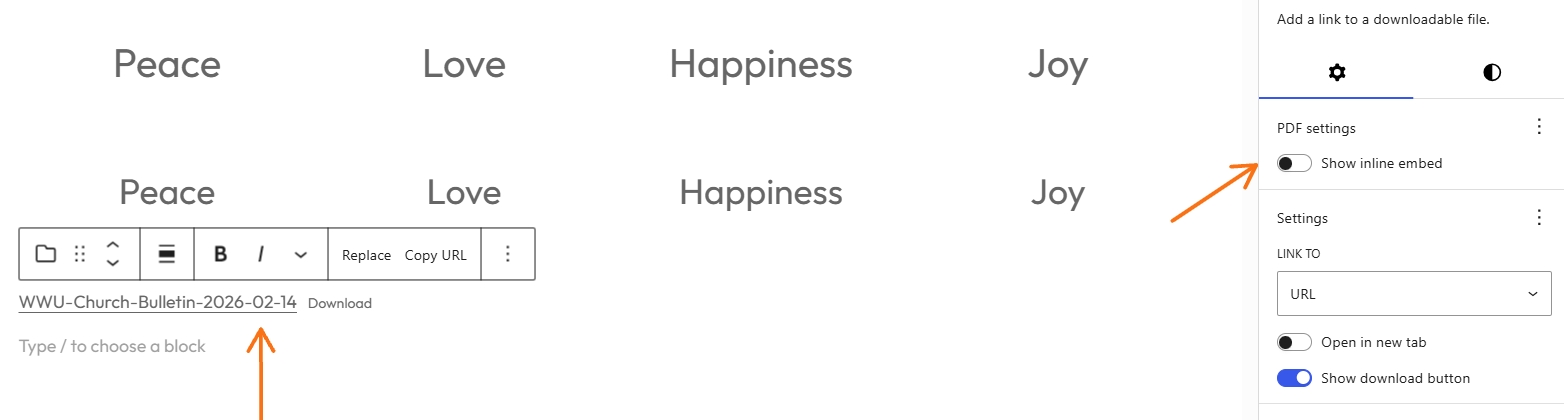
You will see the entire PDF, and users can scroll down and read. It also includes the document name and a download option.
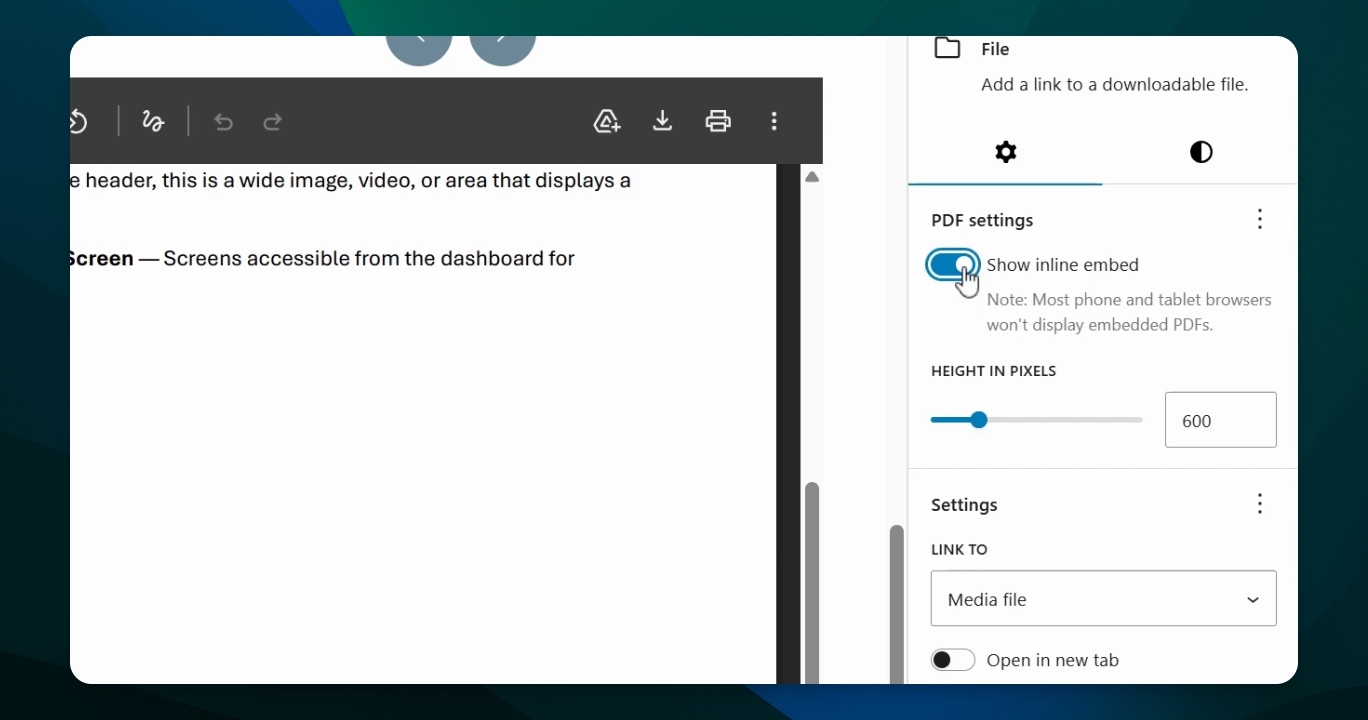
Options to Adjust PDF Settings
If you prefer not to display the whole window, go to your settings menu, choose block, and click the gear icon. Under PDF settings, toggle the option to show inline embed.
Final Note
Each PDF or Excel Sheet needs to be its own file block, which is how you add this block to your page.