

In this tutorial, we're going to be showing you how to use the spacer block. Specifically, we're going to take a look at best practices for improving page layout and readability.
Spacing Best Practices:
For attractive spacing on your pages, the best practice is to prioritize using built-in margin and padding controls over the Spacer block. Margins and padding offer better control, and ensure better responsiveness across different screen sizes.
Margins and padding are configured for individual blocks in the styles settings.
Adding a Spacer Block to Your Content:
1. Simply click the Block Inserter (+) button to find the the block, or start typing /spacer in an empty paragraph and hit enter to quickly insert a Spacer Block into your post or page.
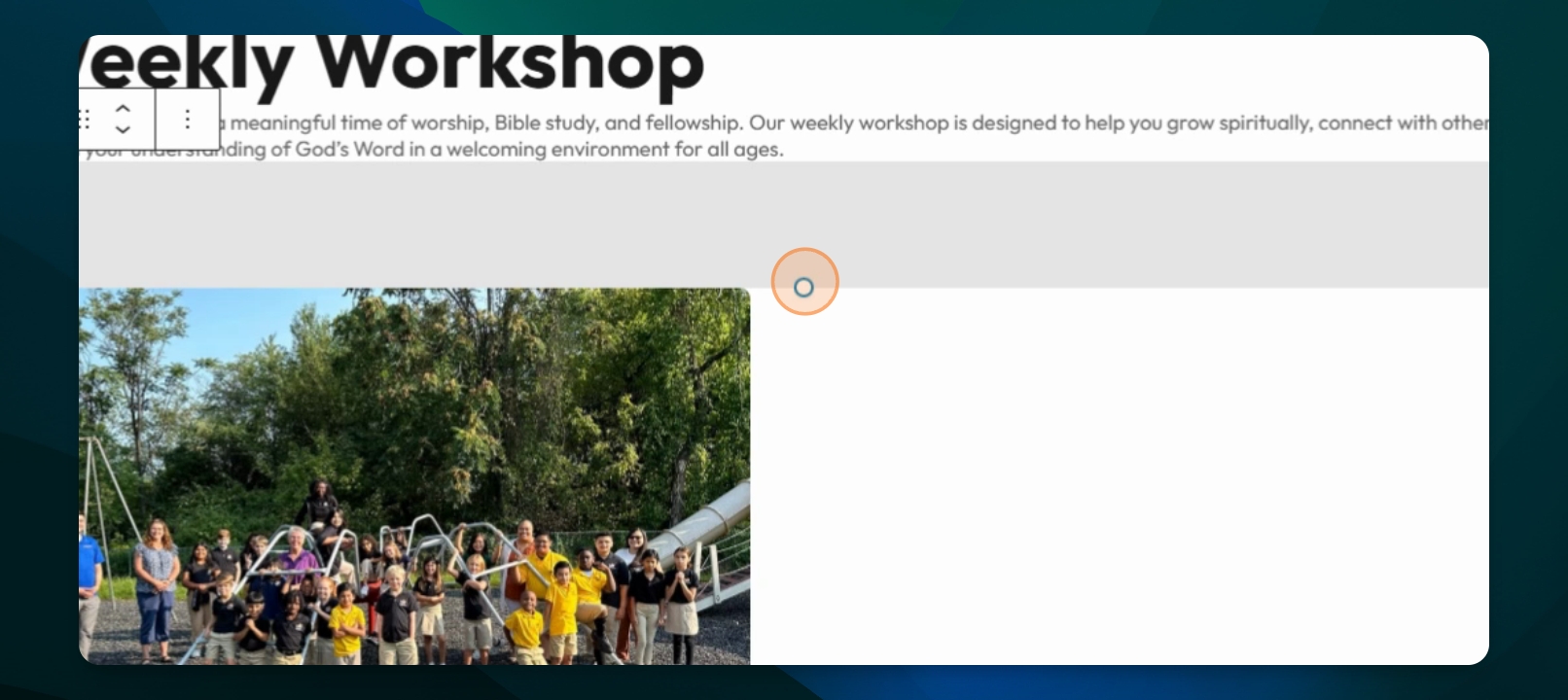
Quickly adjust the height of the Spacer Block using the handle to click and drag or adjust it in the height settings.
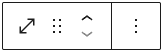
Block toolbar
Each block offers unique toolbar controls that enable direct editing and manipulation.
Spacer Block Toolbar Buttons:
Transform to
Block moving tools
More options
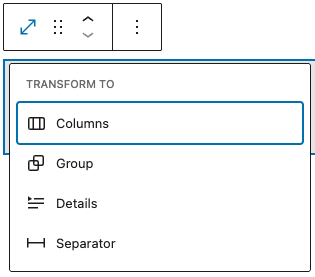
Transform to:
You can transform the Spacer Block into a Columns Block, Group Block, Details Block, or Separator.
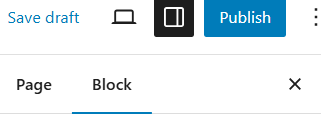
Block settings
Each block offers specific options in the settings sidebar, complementing those available in the block toolbar. If the sidebar is not visible, click the side column icon next to the Publish or Update button to display it.
Height
The Spacer Block offers height settings to adjust the height of the block.
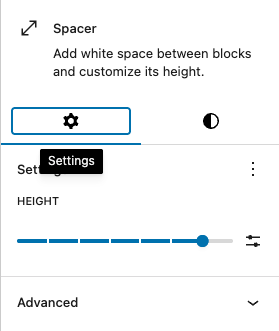
Advanced
The Advanced tab in the Spacer Block allows you to add an HTML anchor and CSS classes to your block.
HTML anchors enable you to create a unique web address for a specific List Block, allowing you to link directly to that section of your page.