TL;DR
1
Click into the block
Select the block you wish to delete.
2
Access options
Click the three dots for options.
3
Click Delete
Scroll down and click Delete to remove.
4
Delete images and text
Repeat the process for images and text.
5
Undo if needed
Use undo options to recover deleted items.
Let's Do It Together!
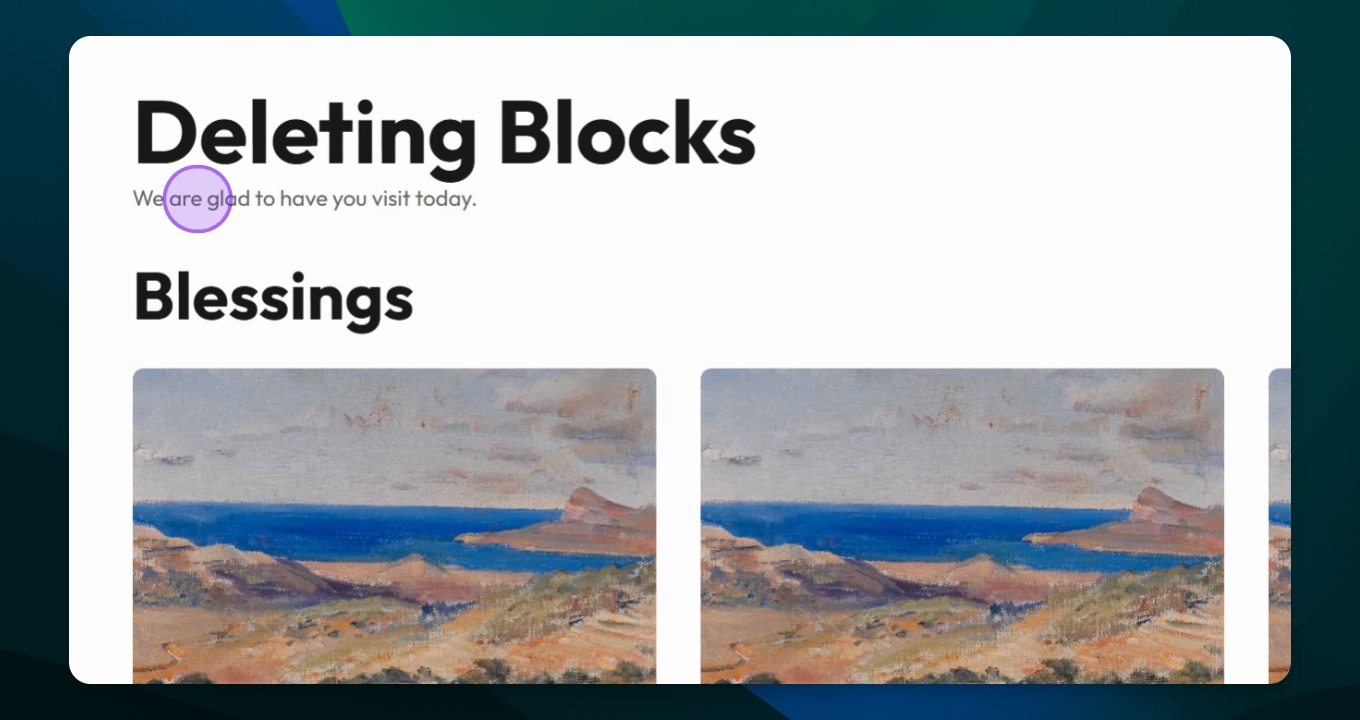
Step 1: Click into Block
Click into the block you want to delete.
The options for that block are displayed.
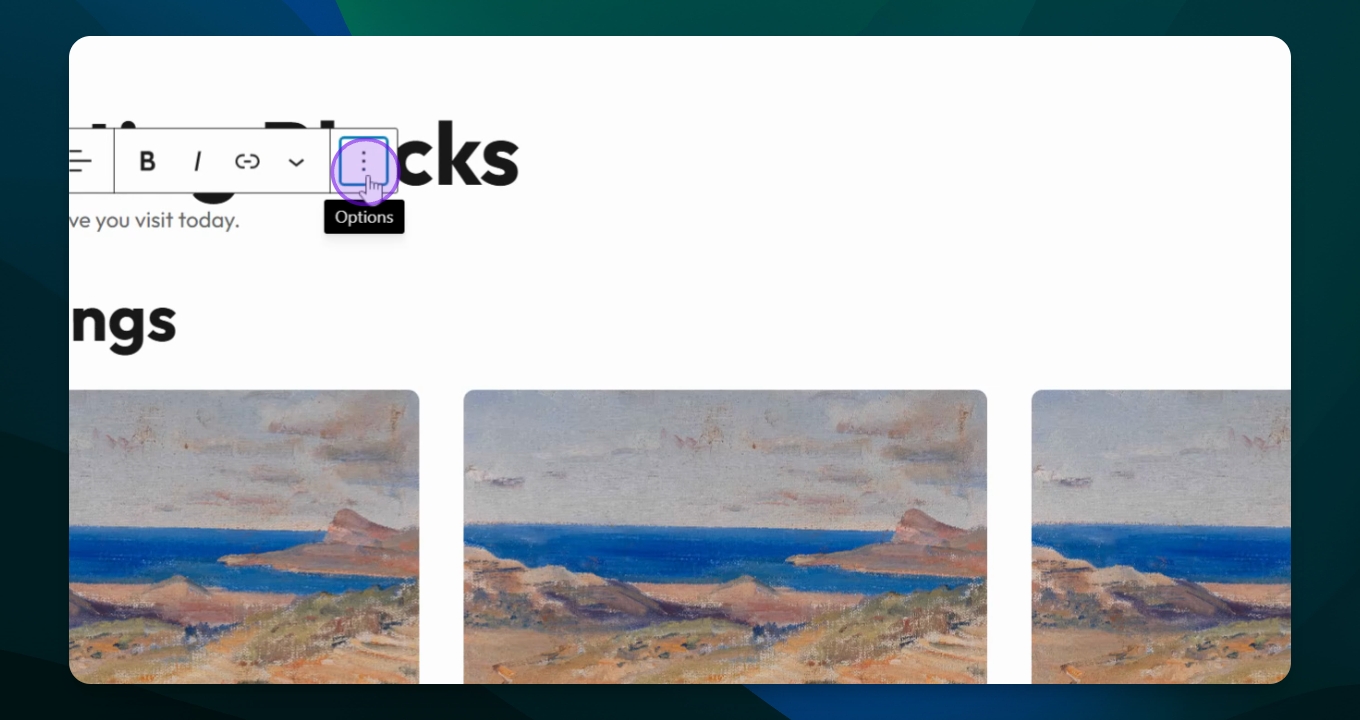
Step 2: Access Options
Click the three dots to access options.
The options menu opens.
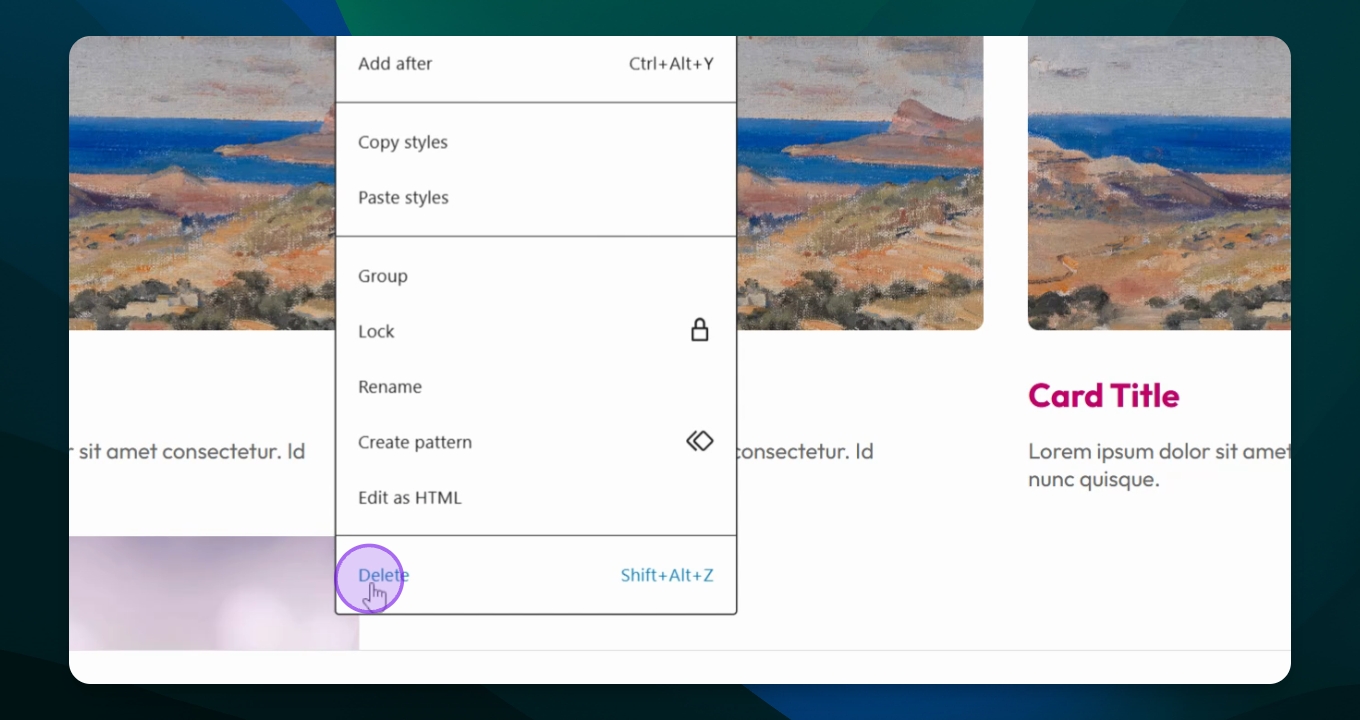
Step 3: Delete Block
Scroll to the bottom and click Delete.
The block is removed from the page.
Step 4: Delete Images
Follow the same process to delete images.
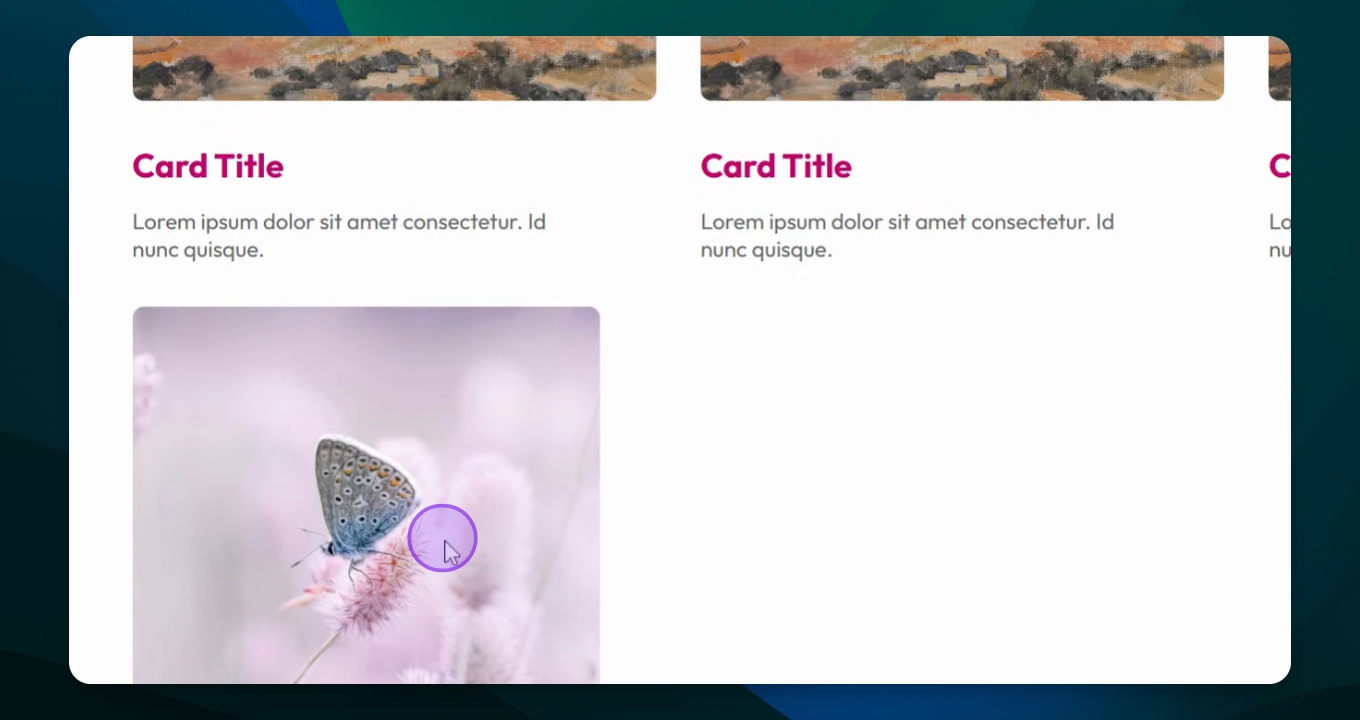
Step 5: Replace Images
You can also replace images instead of deleting.
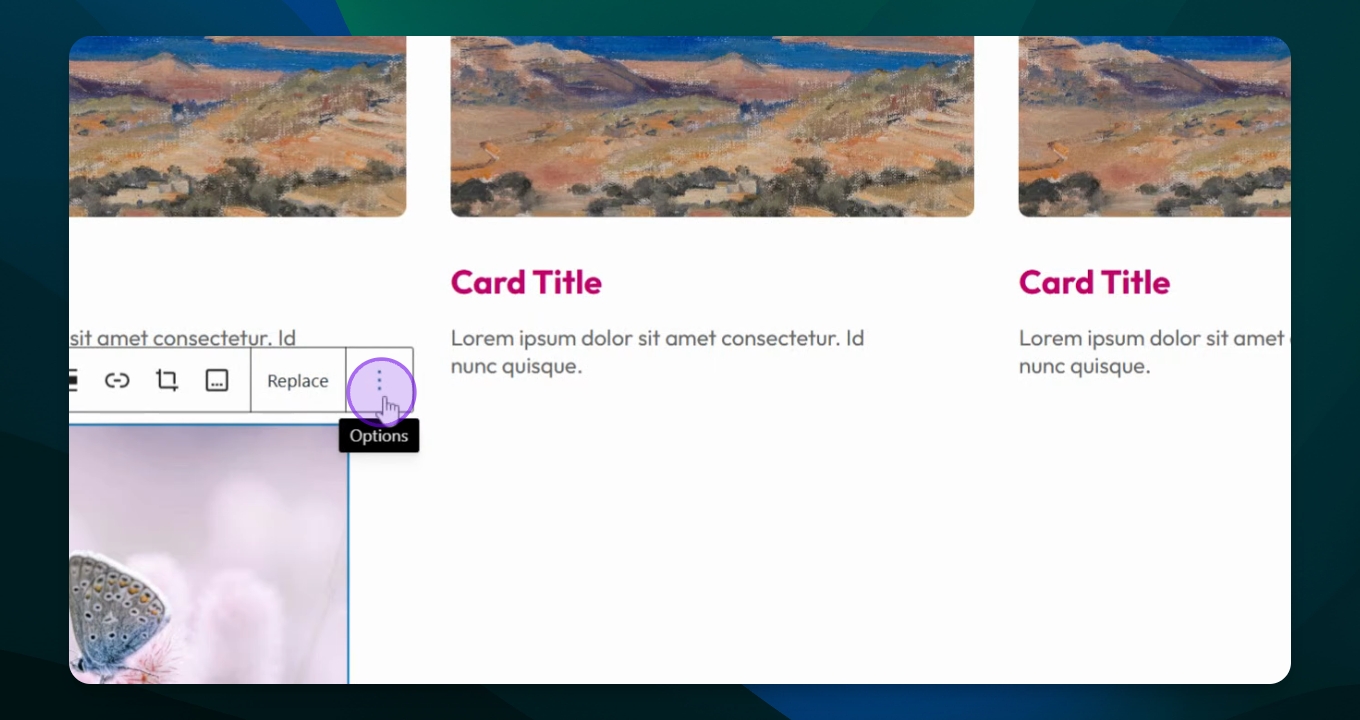
Step 6: Delete Text
Use the same method to delete text.
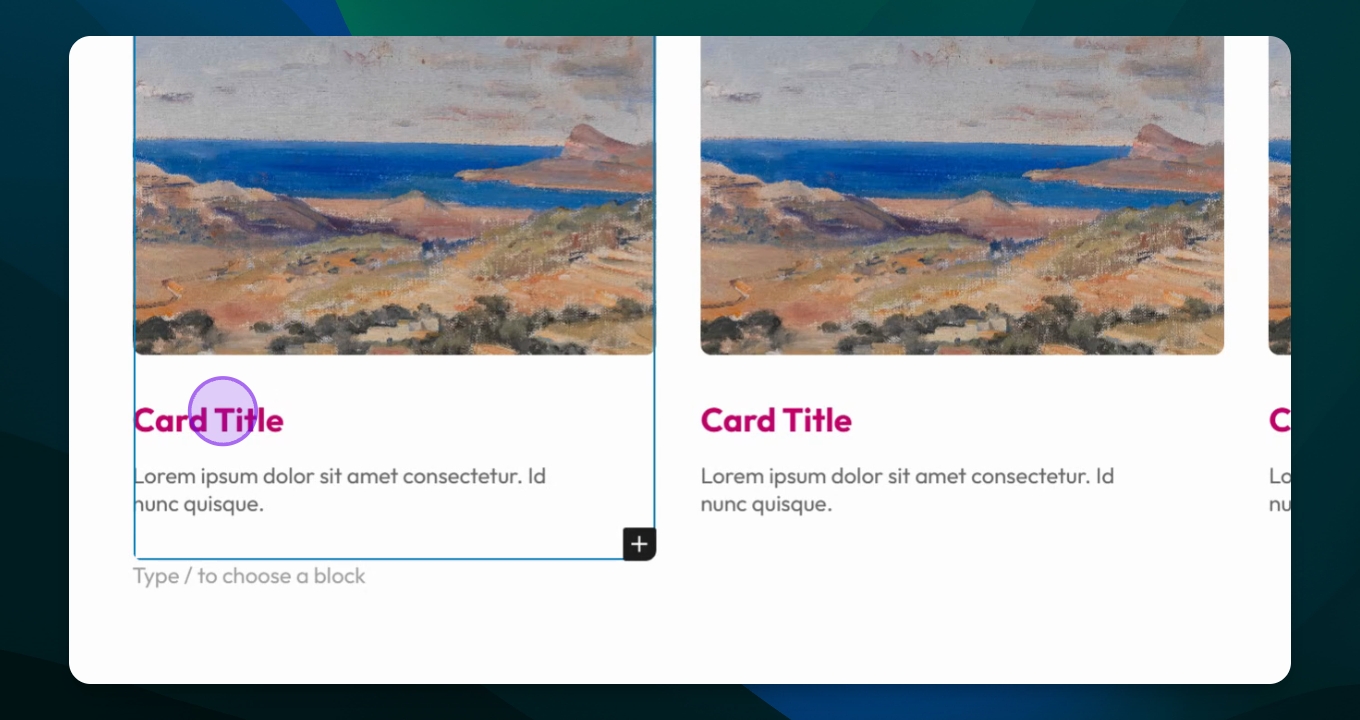
Step 7: Access Document Overview
Go to your document overview.
The list view is displayed.
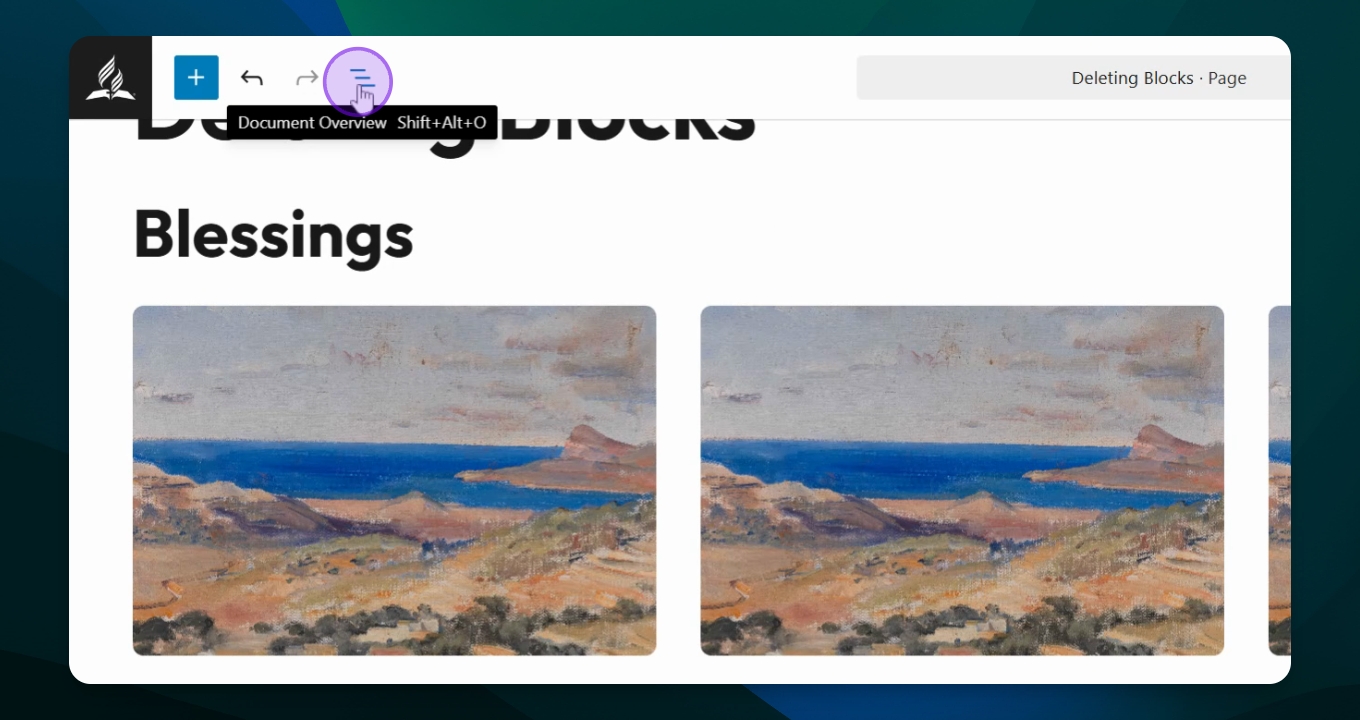
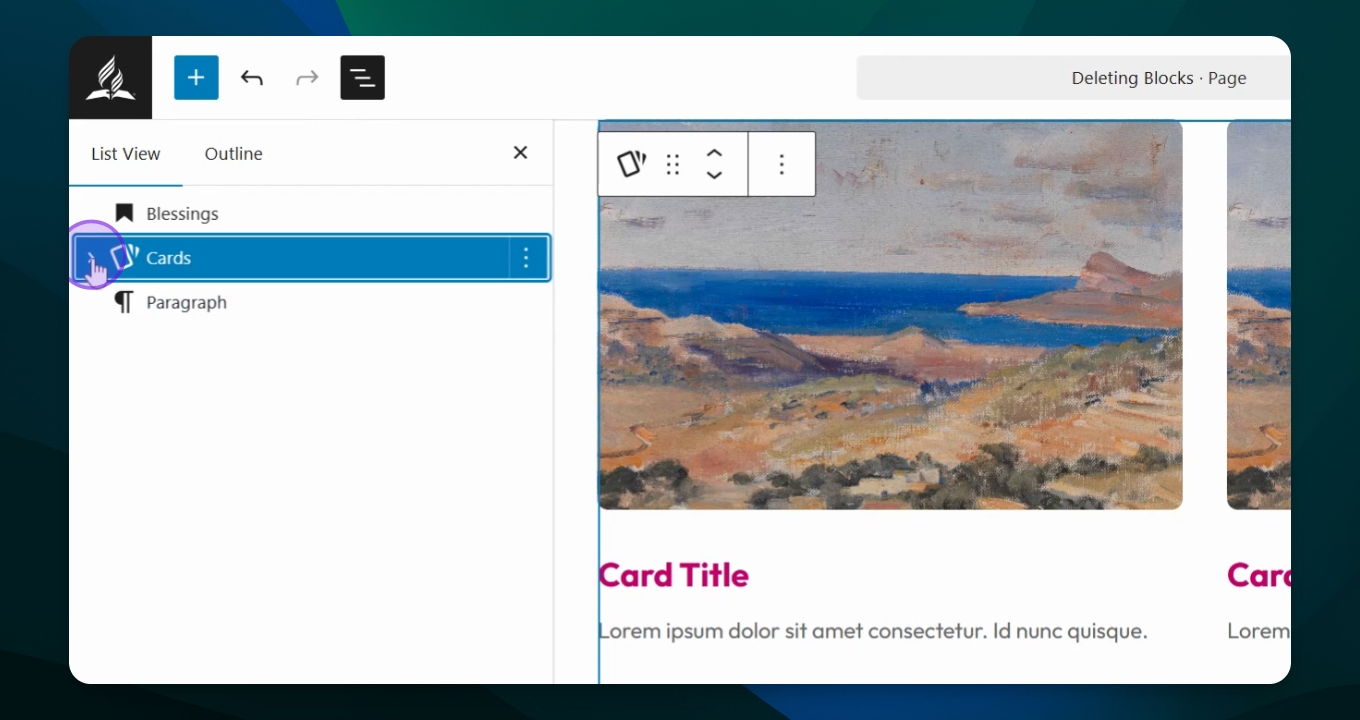
Step 8: Click Card Pattern
Select your card pattern from the list.
Step 9: Highlight Card Title
Highlight the card title you want to remove.
Step 10: Click Caret Icon
Click the caret icon to access deeper options.
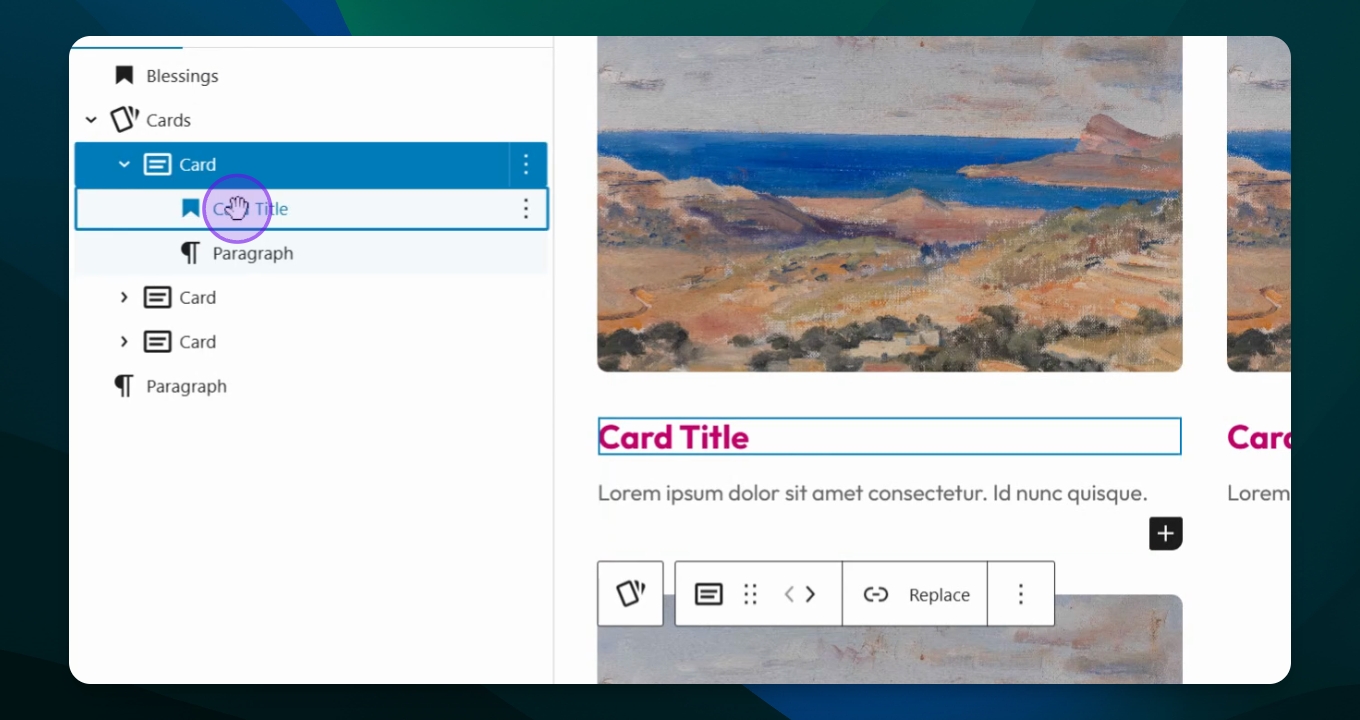
You navigate into the first card.
Step 11: Access Card Title
Click into the card title or paragraph.
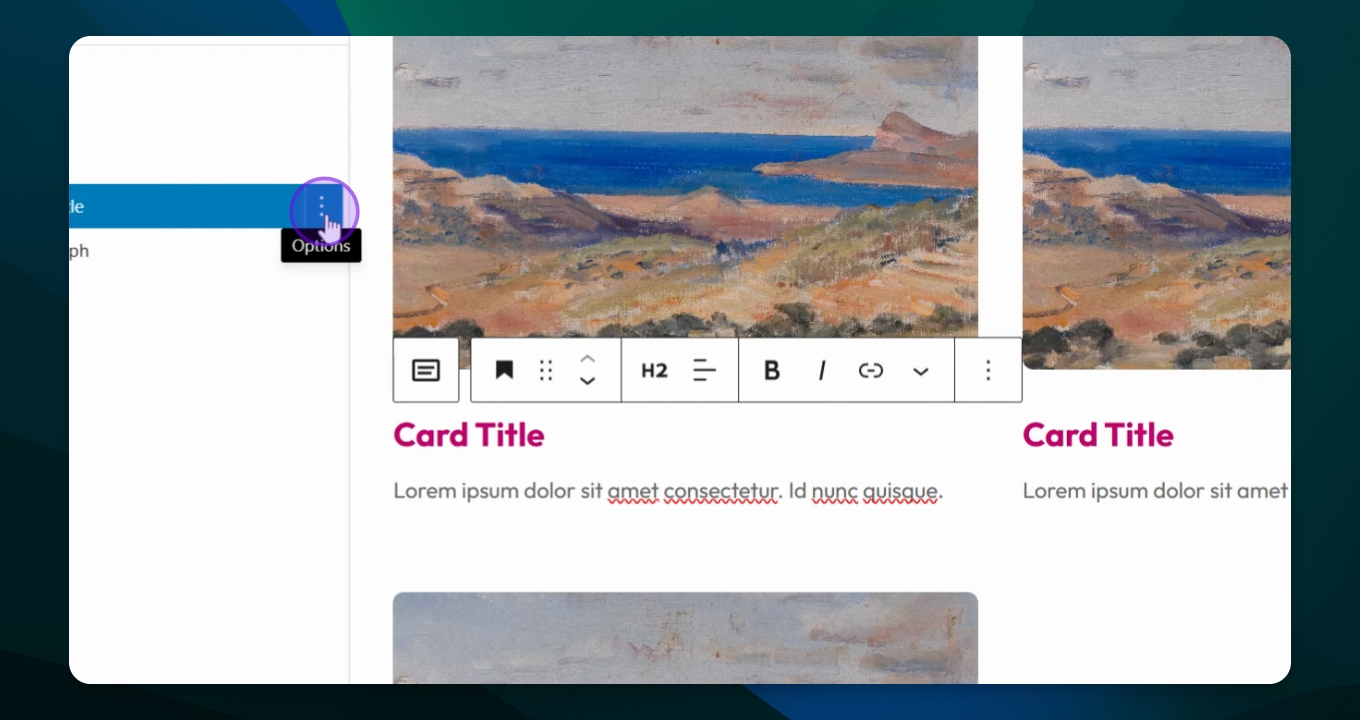
Step 12: Delete Card Title
Use the three dot option to hit Delete.
The card title is deleted.
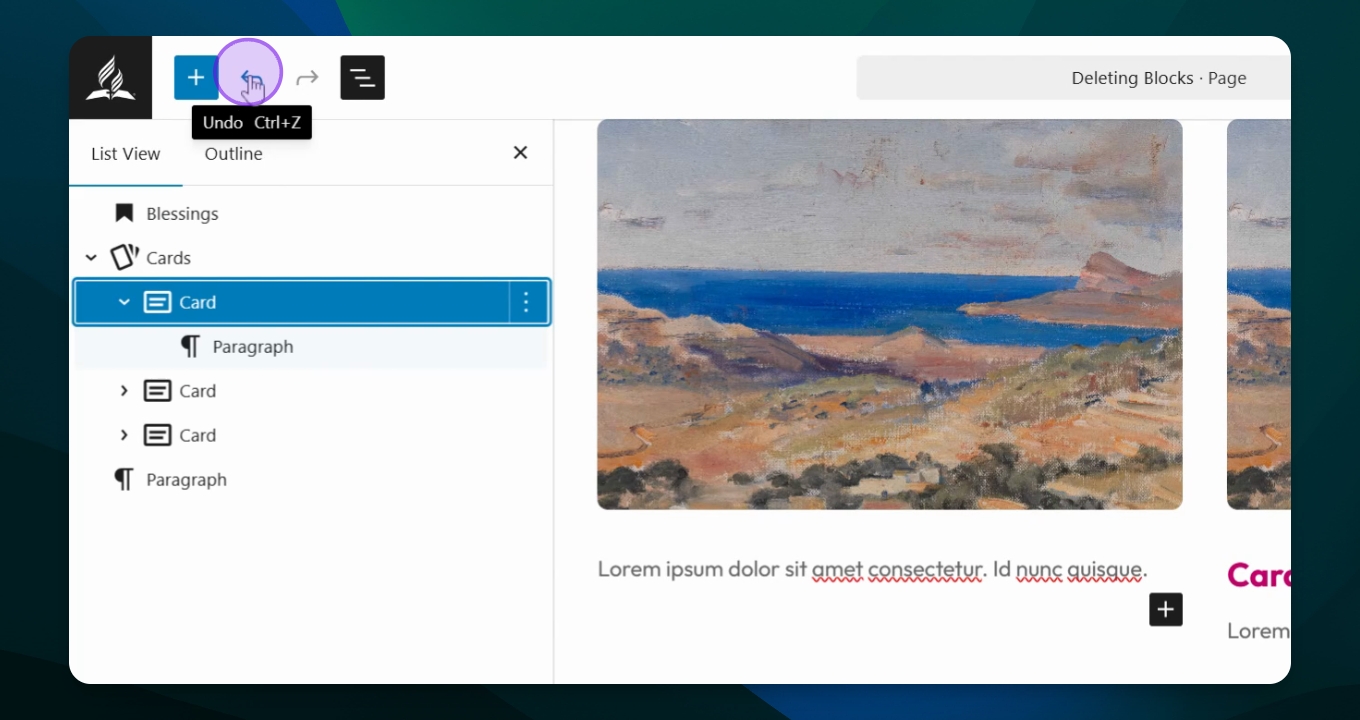
Step 13: Undo Deletion
If needed, use the undo arrow or Control Z (PC) / Command Z (Mac).