

Drafts
A draft is a page or post that is not yet visible on your live website.
Use drafts when you are still working on content and don’t want visitors to see it yet.
How to Save as a Draft
Open or create a page in the Block Editor.
If the page is new, click Save Draft in the top-right corner.
The page will be saved privately so you can return and edit later.
Autosave
Frame automatically saves your work as you edit.
Autosave is a backup — it prevents loss if your browser closes unexpectedly.
Autosave does not publish your changes.
If needed, you can restore autosaved content when reopening the page.
Previewing Changes (Before Publishing)
Preview lets you see what your page will look like live without showing it to visitors.
How to Preview
In the top-right corner of the editor, click Preview or View Page.
A new tab will open showing what the page will look like once published.
Use preview to check:
Layout and spacing
Images and formatting
Text accuracy
Only you see the preview — your visitors do not.
Publishing (Making Changes Public)
When you're ready for everyone to see the page, publish it.
If the Page is New
Click Publish to make the page live.
If the Page Already Exists
Click Update to replace the current live page with your new changes.
Once published or updated, the changes become visible to all site visitors.
Viewing the Live Page
After you publish or update:
Option 1 — From the Editor
Click View Page in the top-right corner.
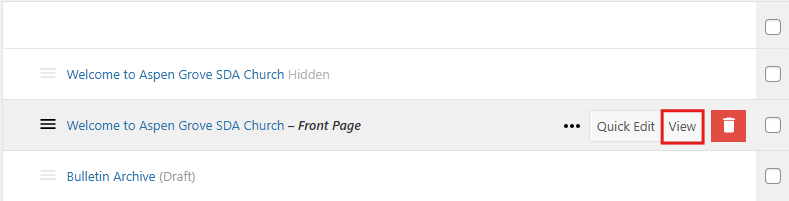
Option 2 — From the Dashboard
Go to Dashboard → Pages
Hover over the page title
Click View
Option 3 — On the Website
Navigate through your site menu like a visitor would.
If Your Changes Don’t Appear Right Away
Your browser might be showing a cached (older saved) version.
Try one of the following:
Refresh the page
Press Shift + Refresh for a hard reload
View in Incognito / Private Window