

Frame automatically saves your work while you edit pages and posts. If content is accidentally deleted, changed, or overwritten, you can use Revisions and Autosaves to restore a previous version.
These tools help prevent permanent content loss.
What Are Revisions?
Revisions are saved versions of your post or page created whenever you click Update or Publish. Frame stores multiple revisions, allowing you to compare changes and restore an earlier version.
Revisions are useful when:
Content was accidentally deleted
Incorrect edits were made
You want to compare changes
Multiple users are editing the same page
What Is an Autosave?
An autosave is an automatic backup created while you are editing.
Frame periodically saves your work in the background. If your browser closes or your internet connection is lost, your recent edits may still be recoverable.
Autosaves do not overwrite your live content unless you choose to restore them.
How to View Revisions:
Step 1: View Revisions
Go to the page or post you want to recover.
Navigate under Posts to find the desired page.
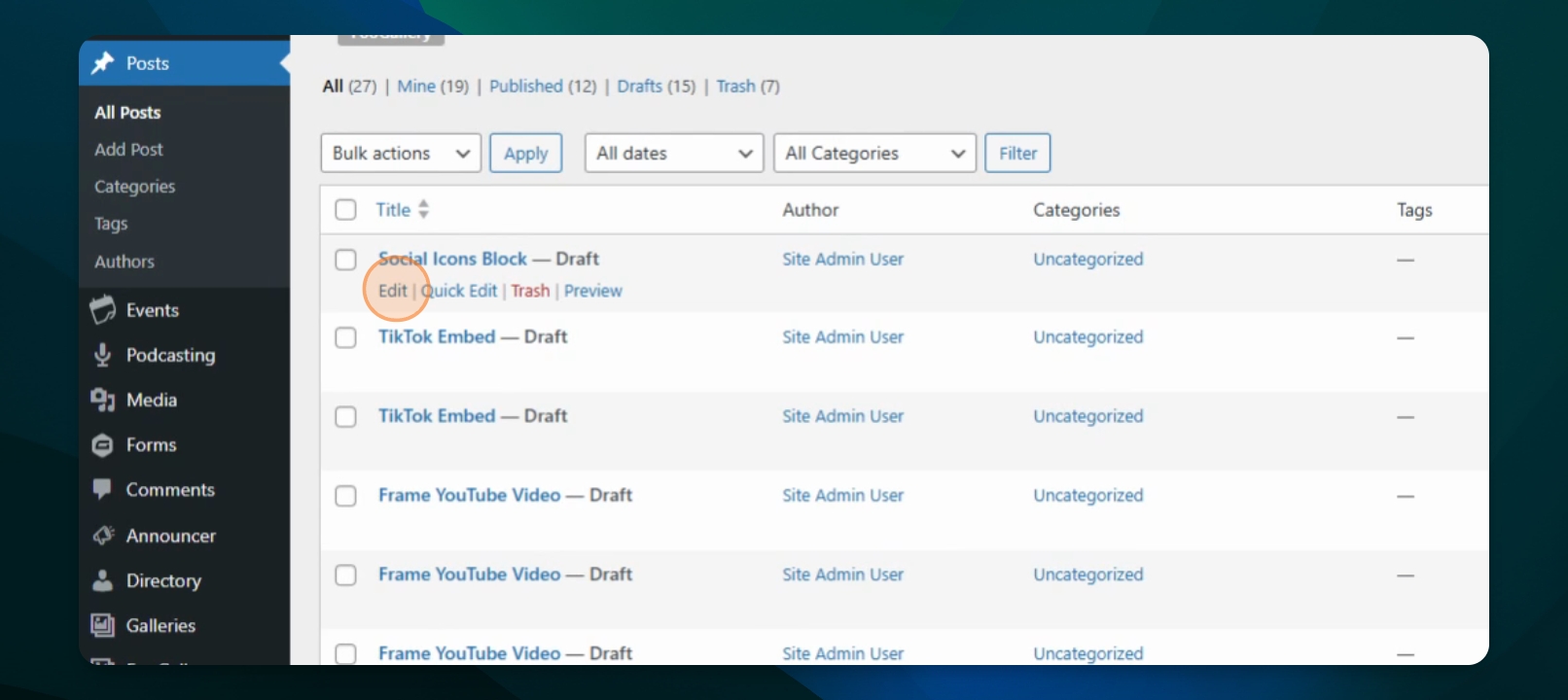
Step 2: Edit the Page
Click the Edit button on the page.
Step 3: Access Revisions
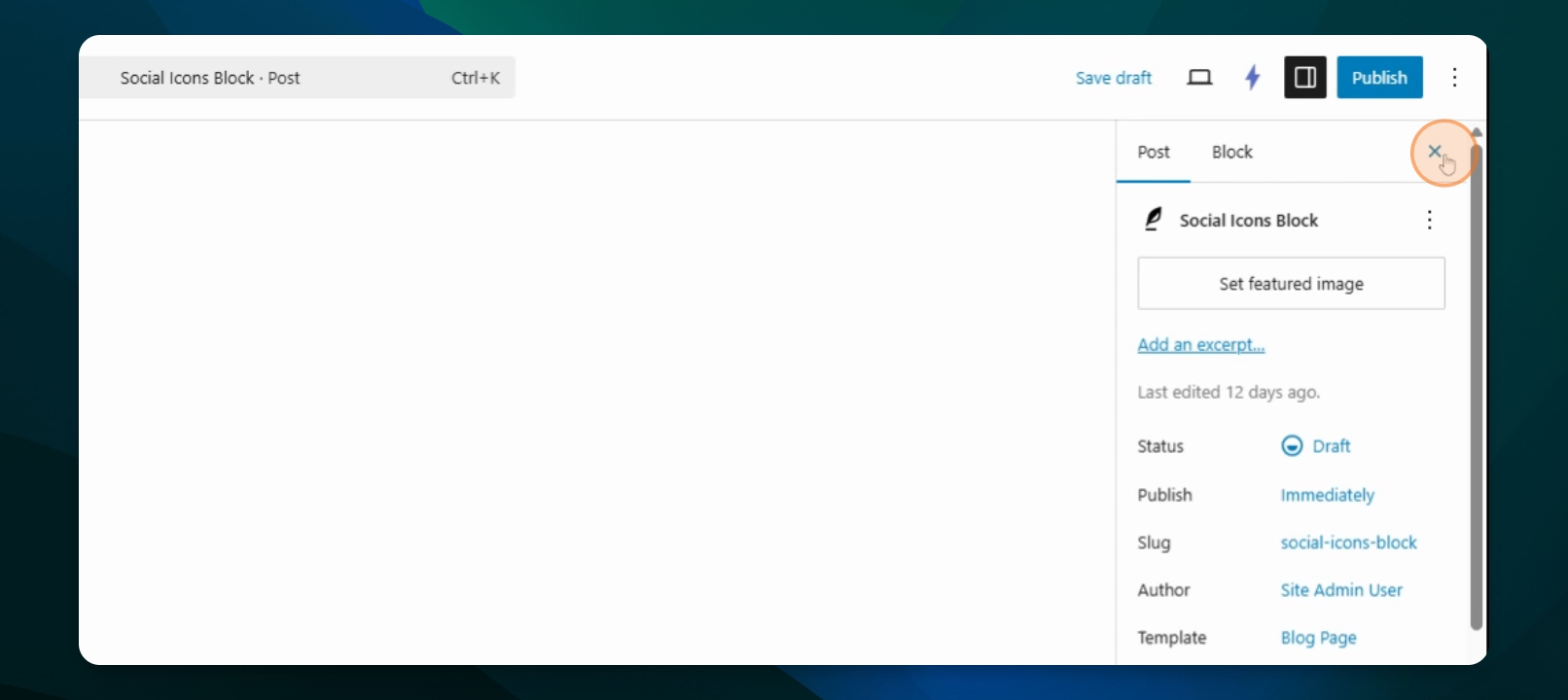
On the right side, click the Settings icon and then Revisions to view the number of revisions.
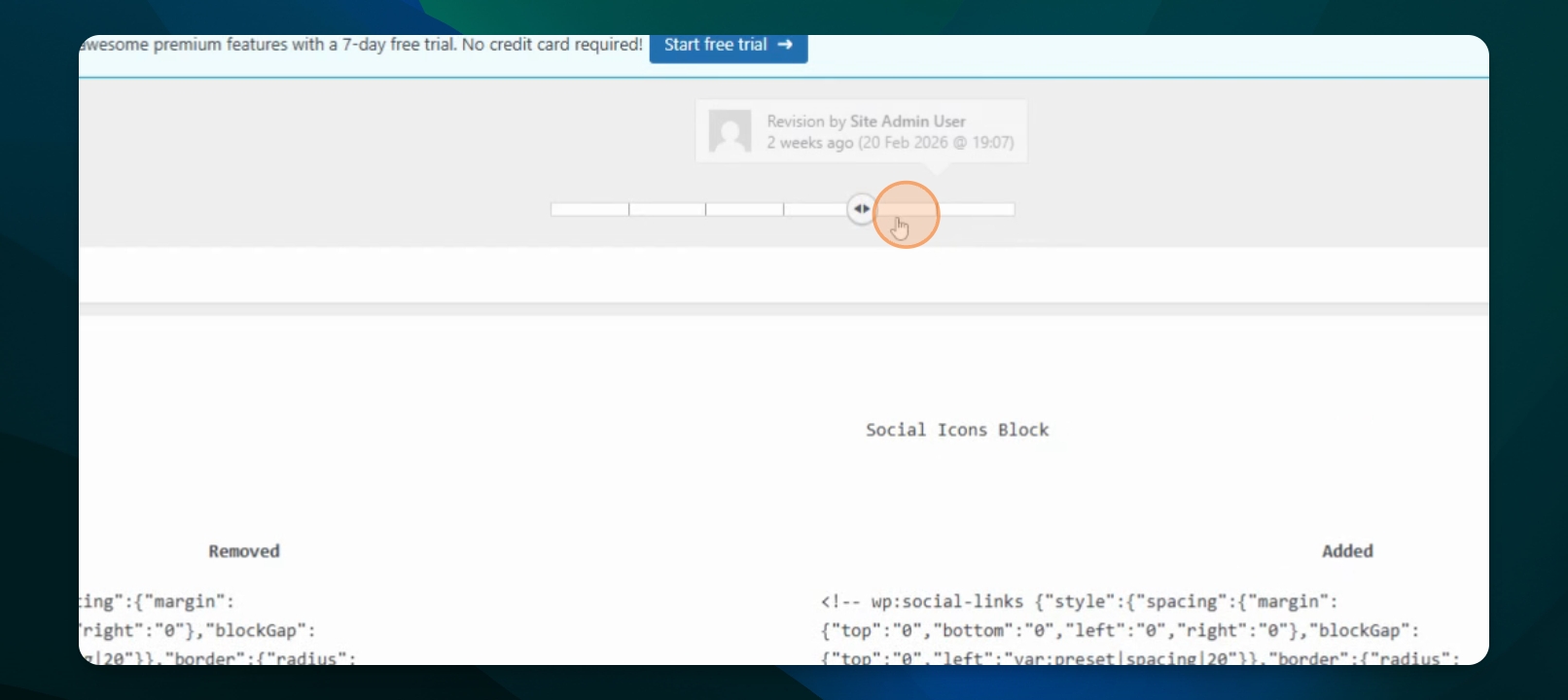
Step 4: Use the Slider
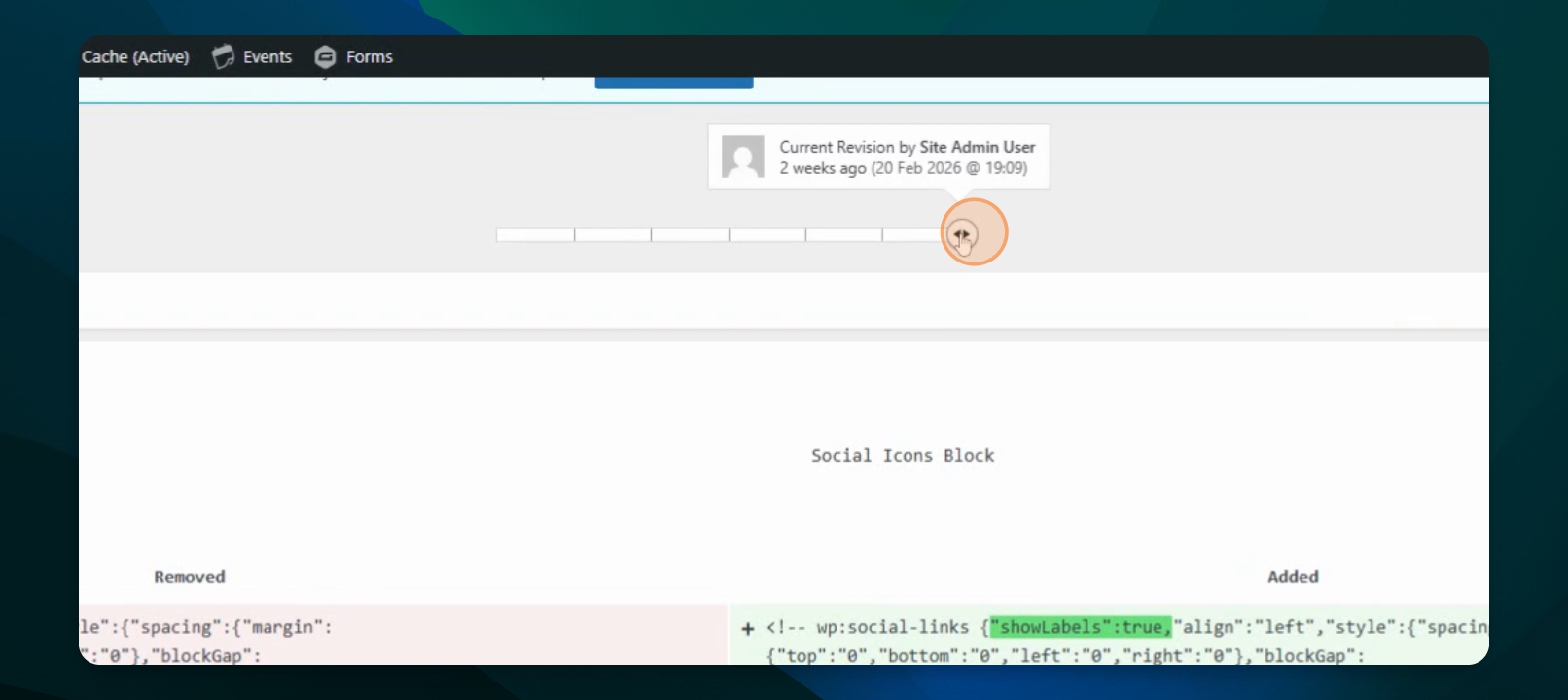
Use the slider to view different versions of the page.
Step 5: Restore a Version
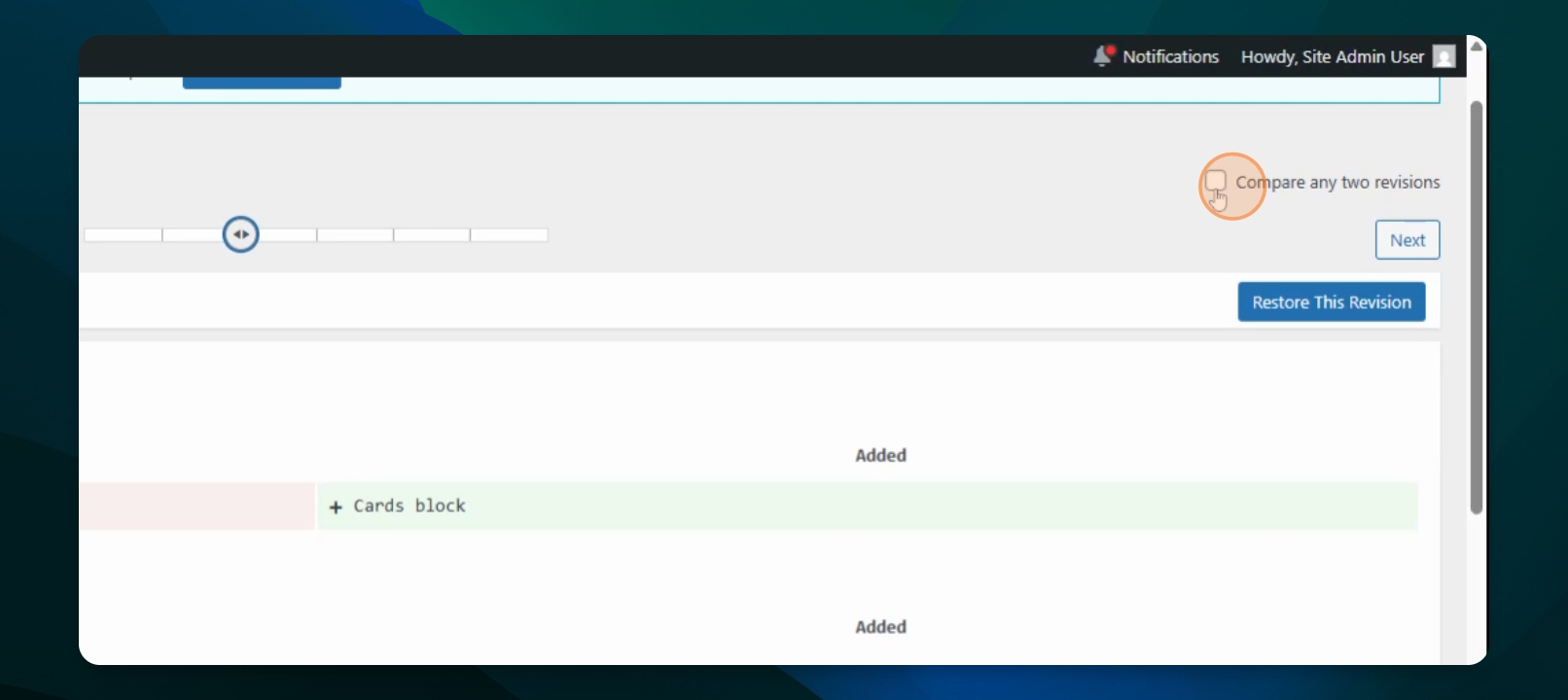
Click Restore this version to revert back to the selected revision.
Step 6: Compare Revisions
To compare two revisions, select them, and sliders will appear showing the changes.
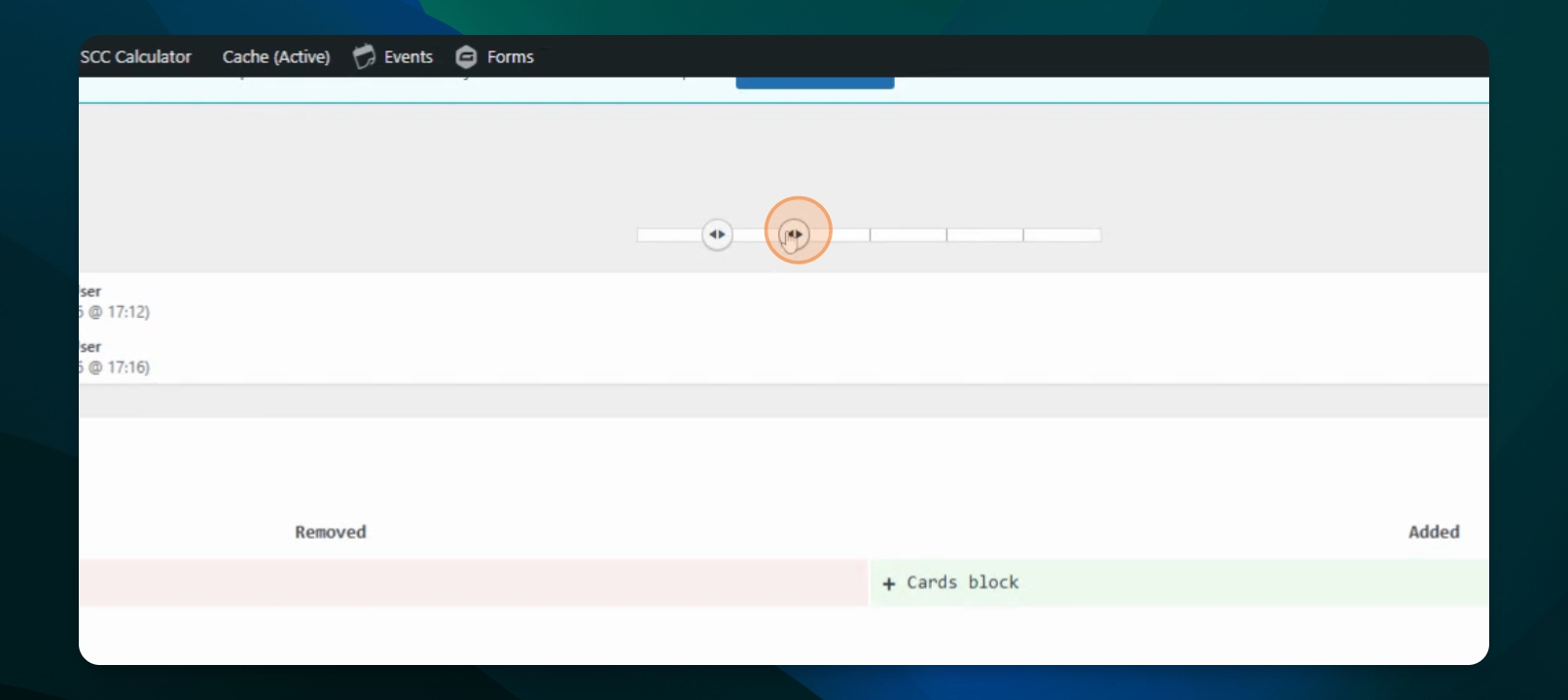
After restoring, the page will open to the chosen revision.
Restoring an Autosave
Open the post or page again.
If an autosave is available, Frame will display a recovery notice.
Click Restore Autosave to recover your most recent unsaved changes.
Best Practices to Prevent Content Loss
Save your work frequently using Update or Publish.
If you think you've lost work, check Revisions before rewriting large sections of content.
Avoid leaving pages open in multiple tabs while editing.
Use Preview to review changes without publishing.