

Configure how your website's homepage functions with these settings. You can choose to display your recent blog posts or a specific static page as your main entry point. These options require at least one page to be created on your site. Please note that certain plugins that control content display may affect how these settings operate.
If you've deleted your original homepage or tested a new one and now can't view your homepage correctly, you need to reset your reading settings. Ensure the homepage display is set to a static page, and select the page you would like to display as the homepage from the dropdown.
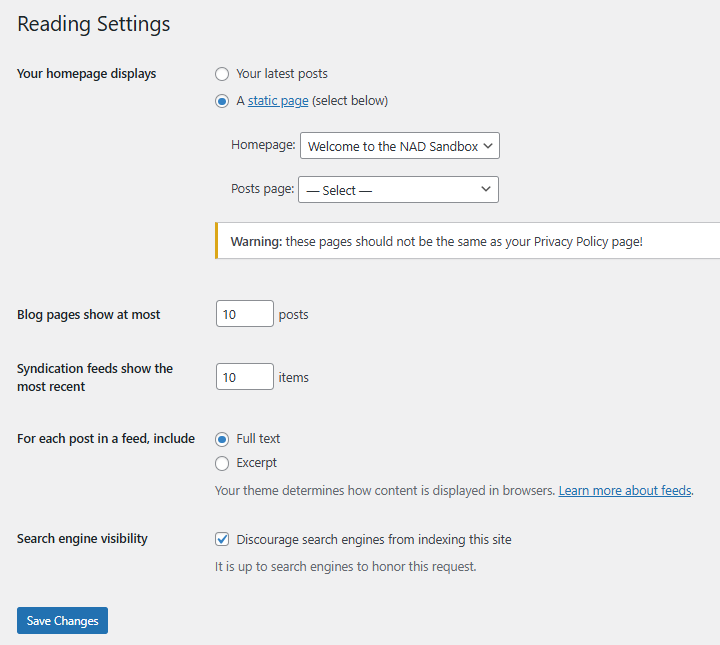
Homepage Display Options
Your latest posts – Select this option to show your recent blog posts on your home page. The "Blog pages show at most" setting controls how many posts appear.
A static page – Select this option to use a specific page as your homepage, with blog posts appearing on a separate page.
Home page – From the dropdown menu, choose which page will serve as your front page. Without a selection, posts will appear on both your home page and Posts page.
Posts page – From the dropdown menu, select which page will display your blog posts. If none is selected, posts will only be viewable through categories, archives, post feed blocks, and other navigation.
Note: If creating a custom home page template, avoid naming it "home" to prevent conflicts. Also, password protection on your Posts page won't restrict access to the actual posts.
Content Display Settings
Blog pages show at most [X] posts – Set the number of posts that appear per page on your site.
Syndication feeds show the most recent [X] posts – Set how many posts appear in your RSS feeds.
For each article in a feed, show:
Full text – Display the complete content of each post in feeds.
Excerpt – Display only a summary of each post, which uses less bandwidth.
Note that these settings will apply for the blog template page. Blogs may appear differently if set up through post feed blocks on a page.
Save Your Changes
After adjusting your settings, click the Save Changes button to store your modifications in the database. A confirmation message will appear at the top of the page when your settings have been successfully saved.