

Access the Forms Section
From your dashboard, locate the "Forms" in the left-hand menu. Click “New Form” to begin the creation process.
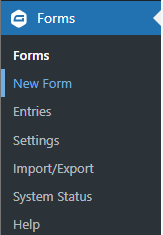
A prompt will appear asking you to enter a title and optional description for your new form. You’ll need to give your form a name before continuing—don’t worry, you can always change it later. This name helps you easily identify the form in your dashboard.
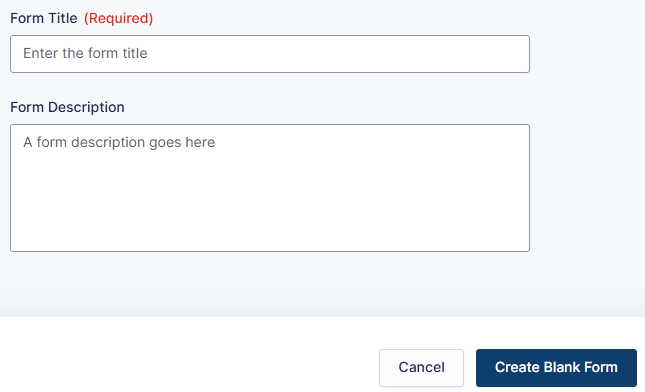
After filling in the required fields, click the "Create Form" button to proceed. You’ll then be taken to a blank Form Editor screen, ready for you to start building your form!
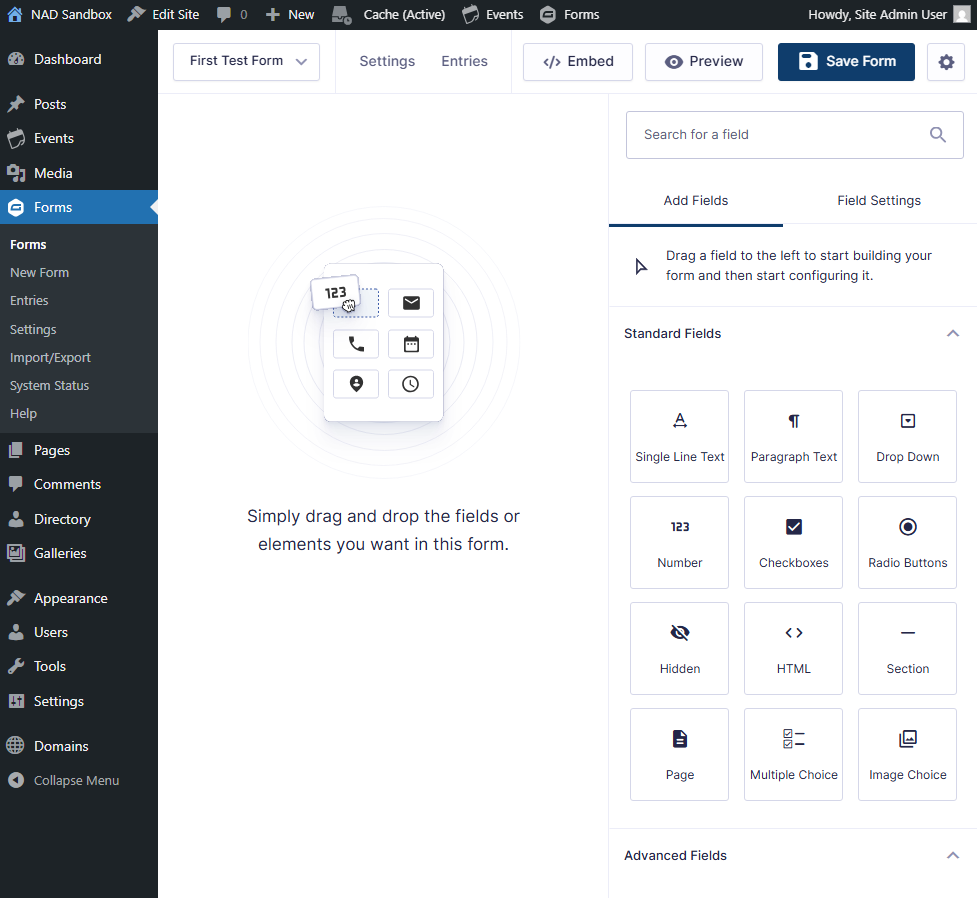
Once you have finished here is how to add to the page:
Go to page you want a form
Edit Page
Place curser on page
Go to Block Inserter menu (top left, box with "+" sign)
In the search window type Form > Click Form Icon
A box appears on your page in the window says choose Form and a drop down menu appears.
Choose the Name of the Form you created then the form appears on the page.
Save Page > View Page