TL;DR
1
Open Document Overview
Use the document overview to see all your blocks.
2
Select and Move Blocks
Click and drag or use arrows to reposition blocks.
3
Shift-Click for Multiple Blocks
Hold Shift and click to select multiple blocks.
4
Move to Bottom
Select a block and move it down to the bottom of the page.
Let's Do It Together!
Step 1: Move a Block Using Document Overview
Open your document overview to view your blocks.
Click the arrow to move the block up or down.
Your selected block will now be repositioned accordingly in the list.

Step 2: Move Multiple Blocks Together
Select multiple blocks by holding the Shift key and clicking on them.
Use the document overview to move the entire group as needed.
All selected blocks will be moved together.
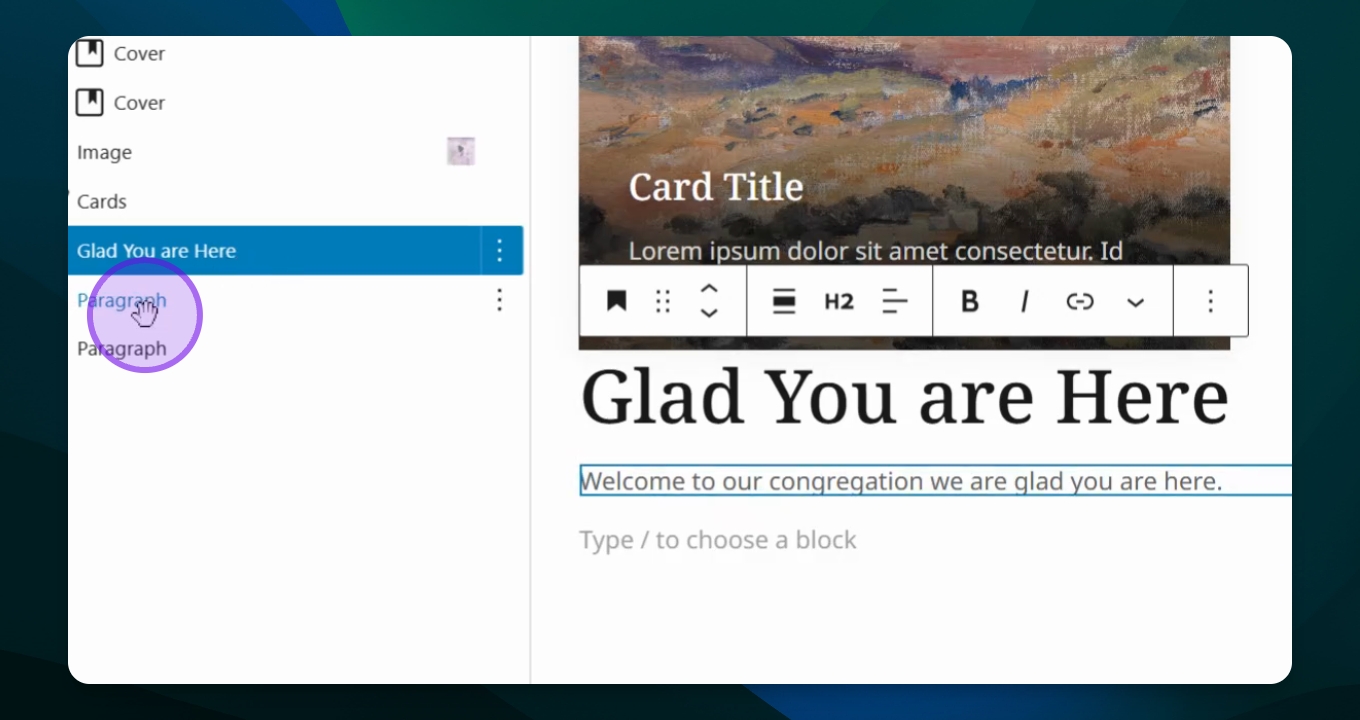
Step 3: Move a Single Block
Click into the block you want to move.
Use the arrows in the toolbox to reposition the block.
Your single block will be moved to the desired position.
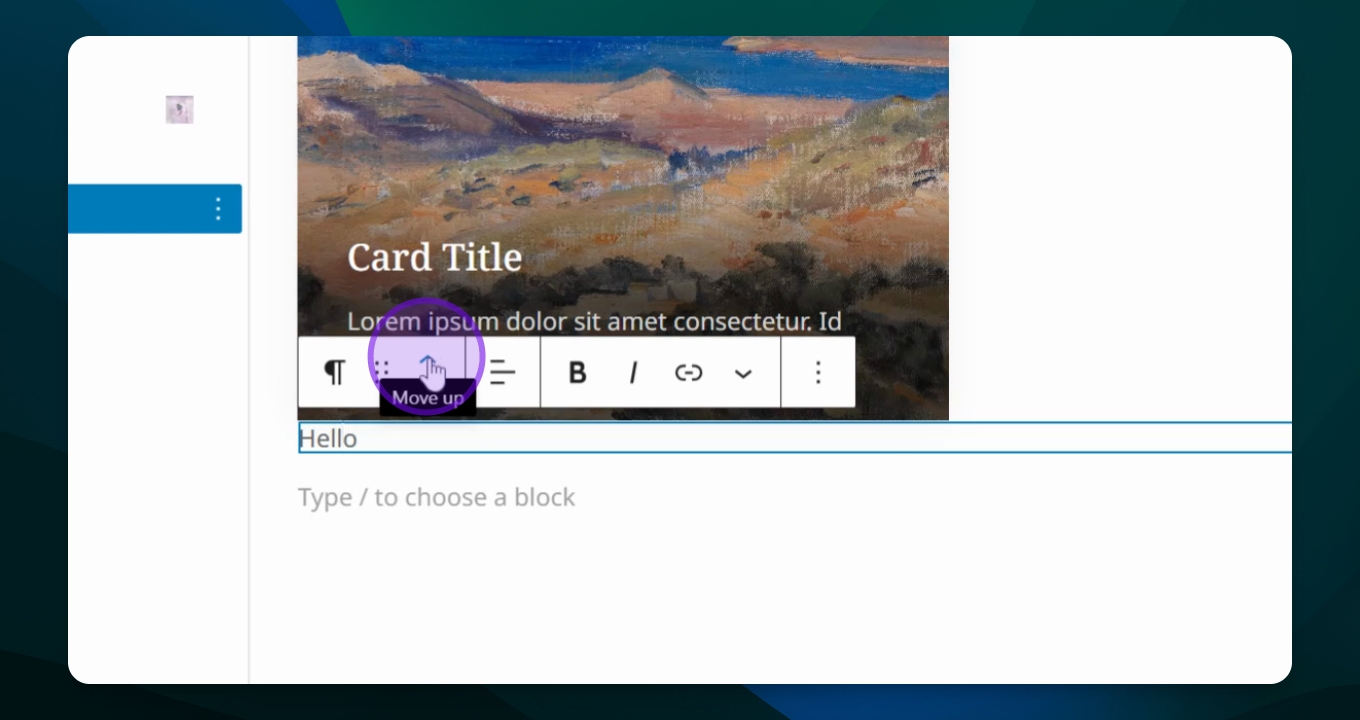
Step 4: Move a Block to the Bottom of the Page
Select the block you want to move.
Click the down arrow in the toolbox to move it down.
The block will now be placed below the selected blocks.