

In this guide, you'll learn how to create and customize a media and text block. This block lets you combine images or videos with text, buttons, and more for flexible layouts. Let's look at the steps:
Step 1: Add a New Block
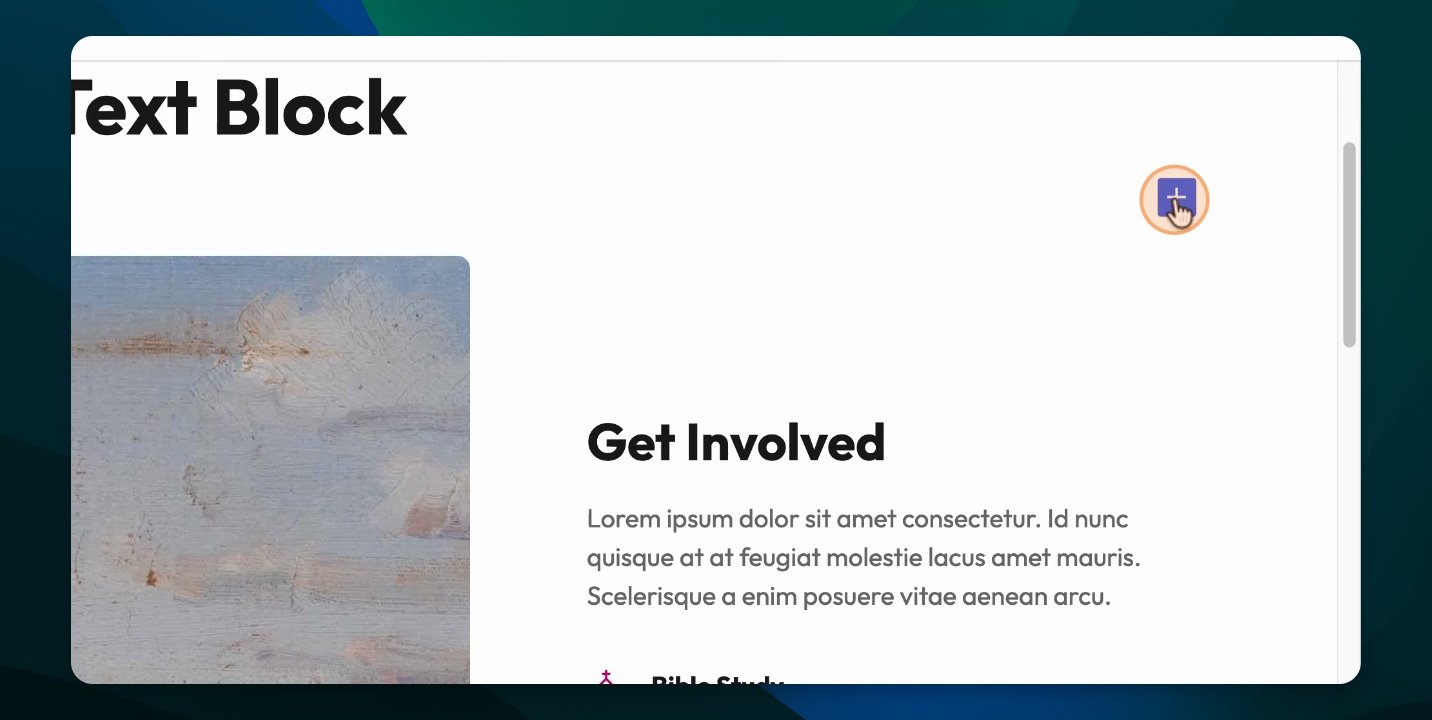
Click the plus sign to add a new block in your editor.
Step 2: Search for Media and Text
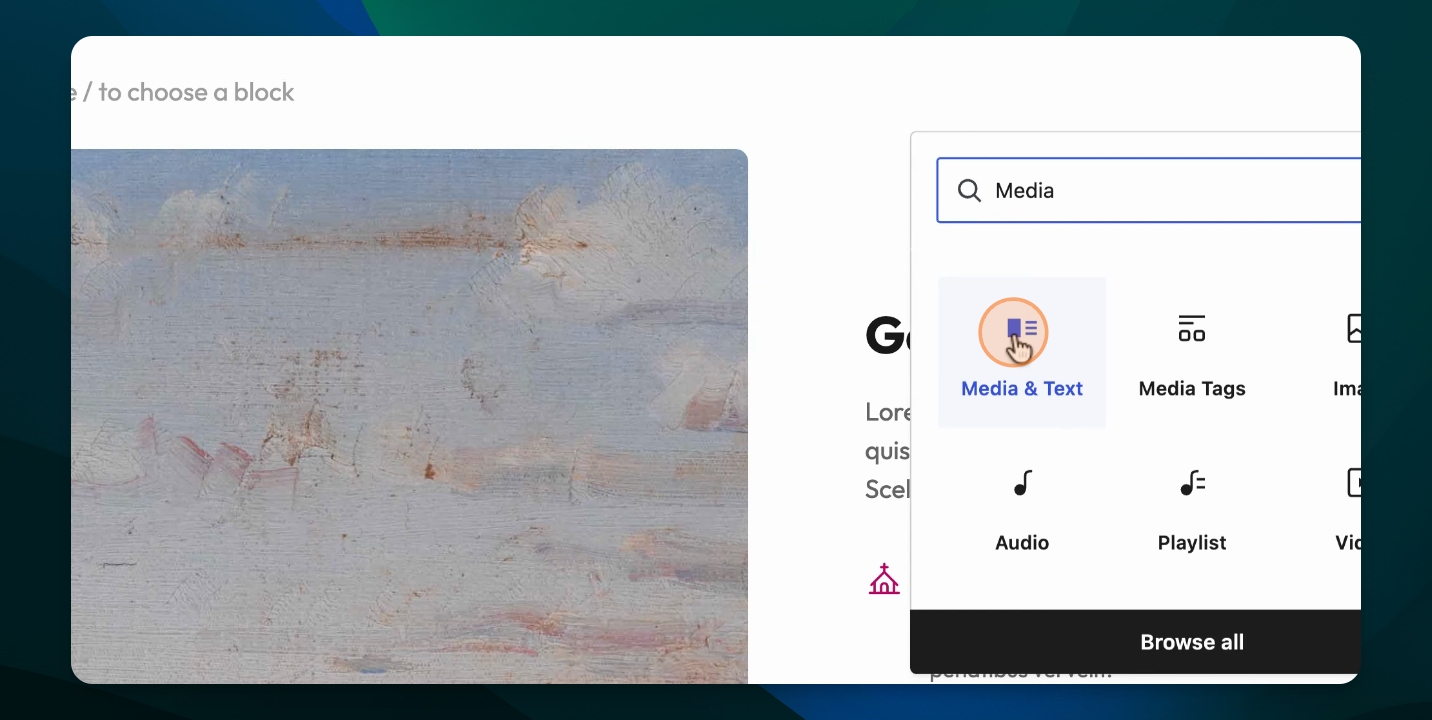
Type media in the search bar. Select the media and text block from the options.
Step 3: Understand the Block Layout
The left side of the block is for a photo or video. The right side is for content such as headlines, paragraphs, or buttons.
Step 4: Add a Photo
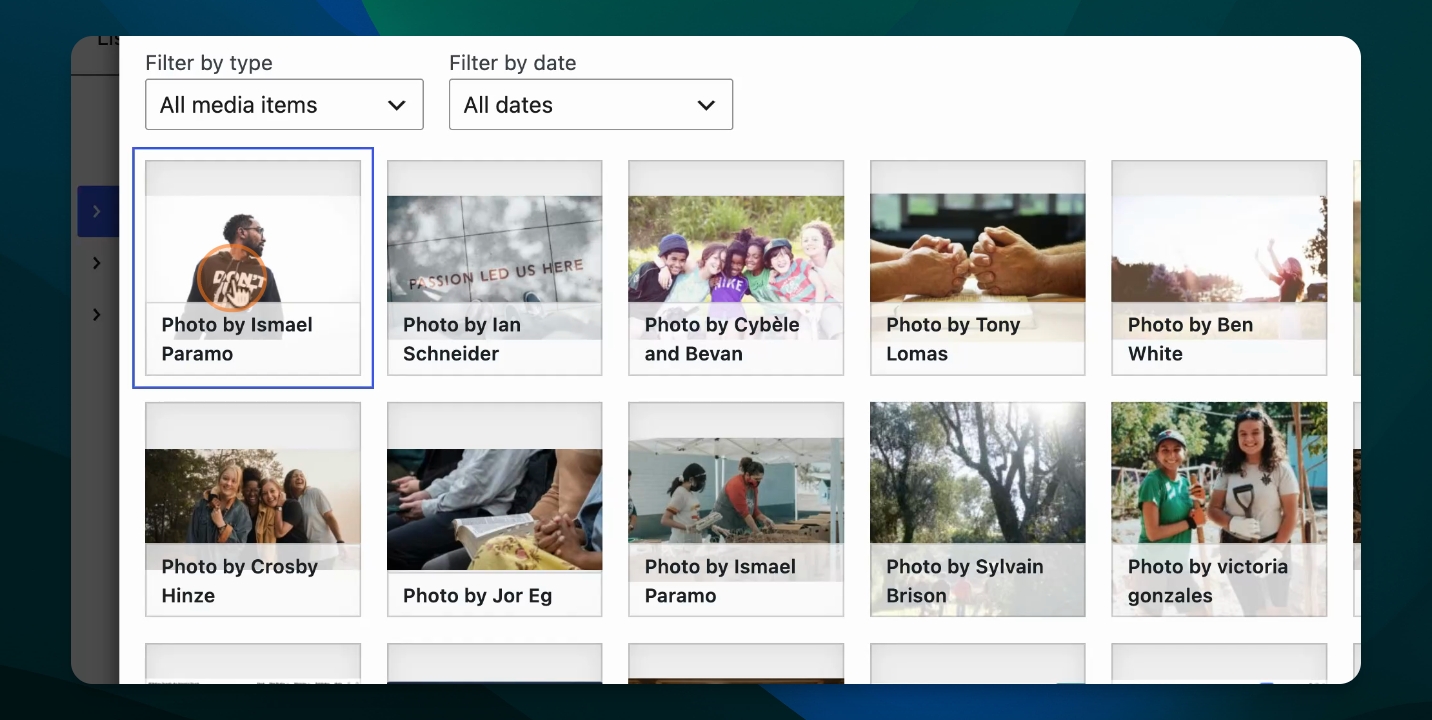
Click to add a photo to the left side of the block. Choose your desired image.
Step 5: Confirm Photo Placement
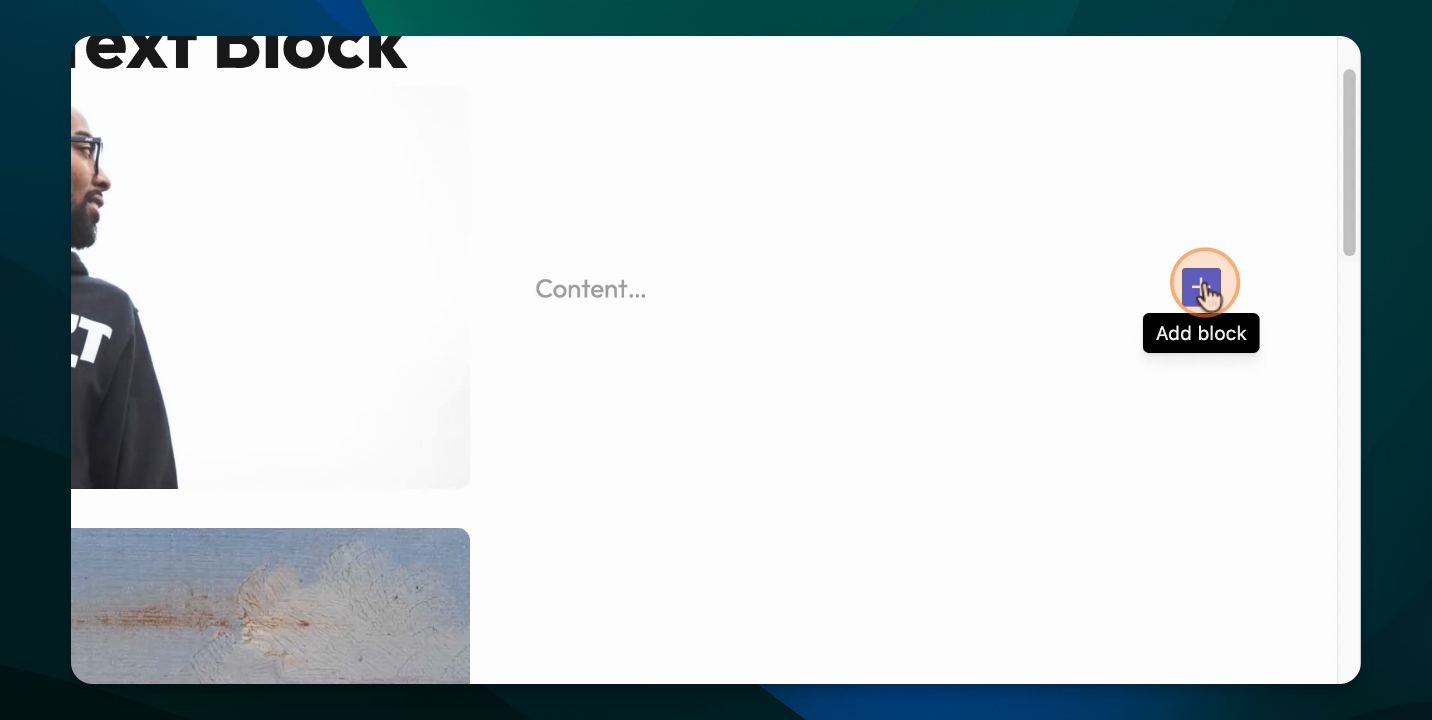
Verify that the selected photo appears in the left section of the block.
Step 6: Add Content to the Right Side
Start adding your content on the right. Add a heading, then a smaller heading if needed, followed by a paragraph, lists, forms or a button.
Explore Additional Options
You can add forms, surveys, lists, or other elements to the block as needed.
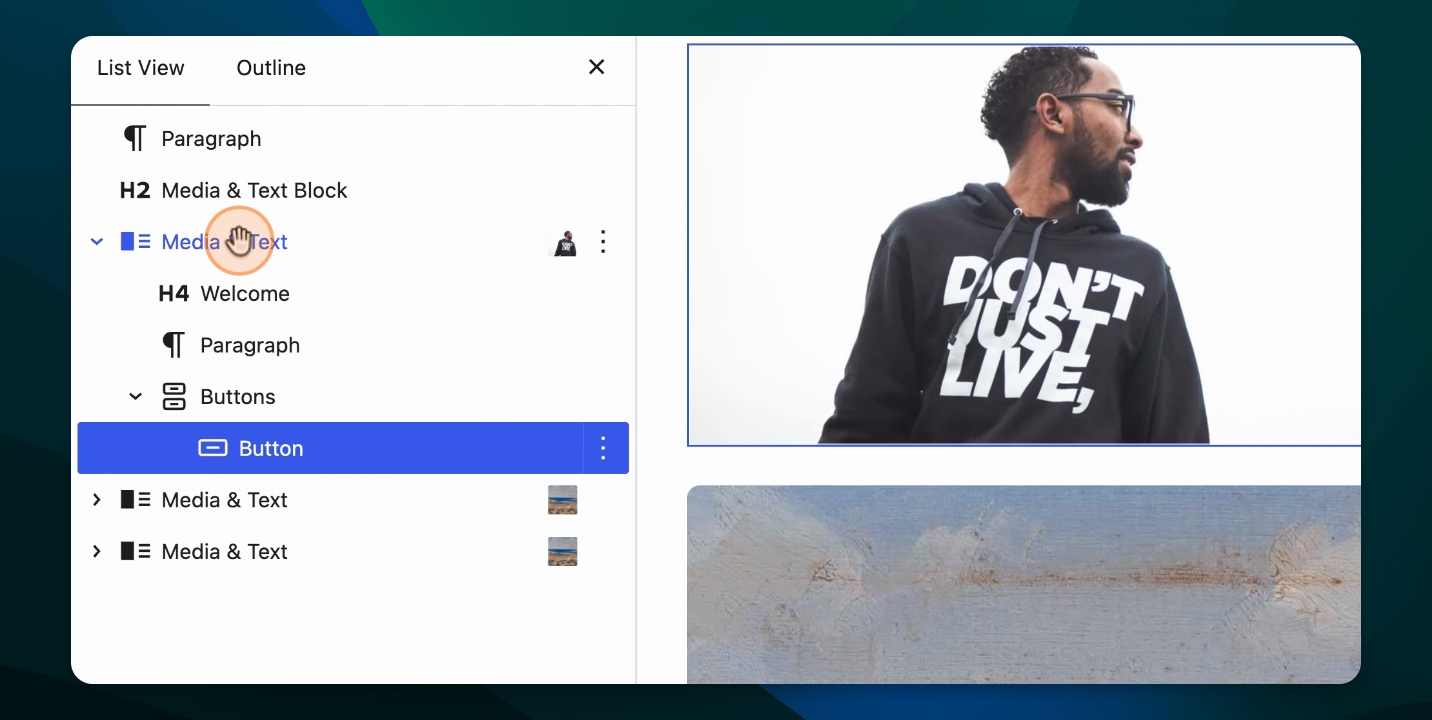
Step 9: Delete or Add Blocks as Needed
If you want to remove or add specific blocks, you can do so. You may also add a form or a button at the bottom if desired.
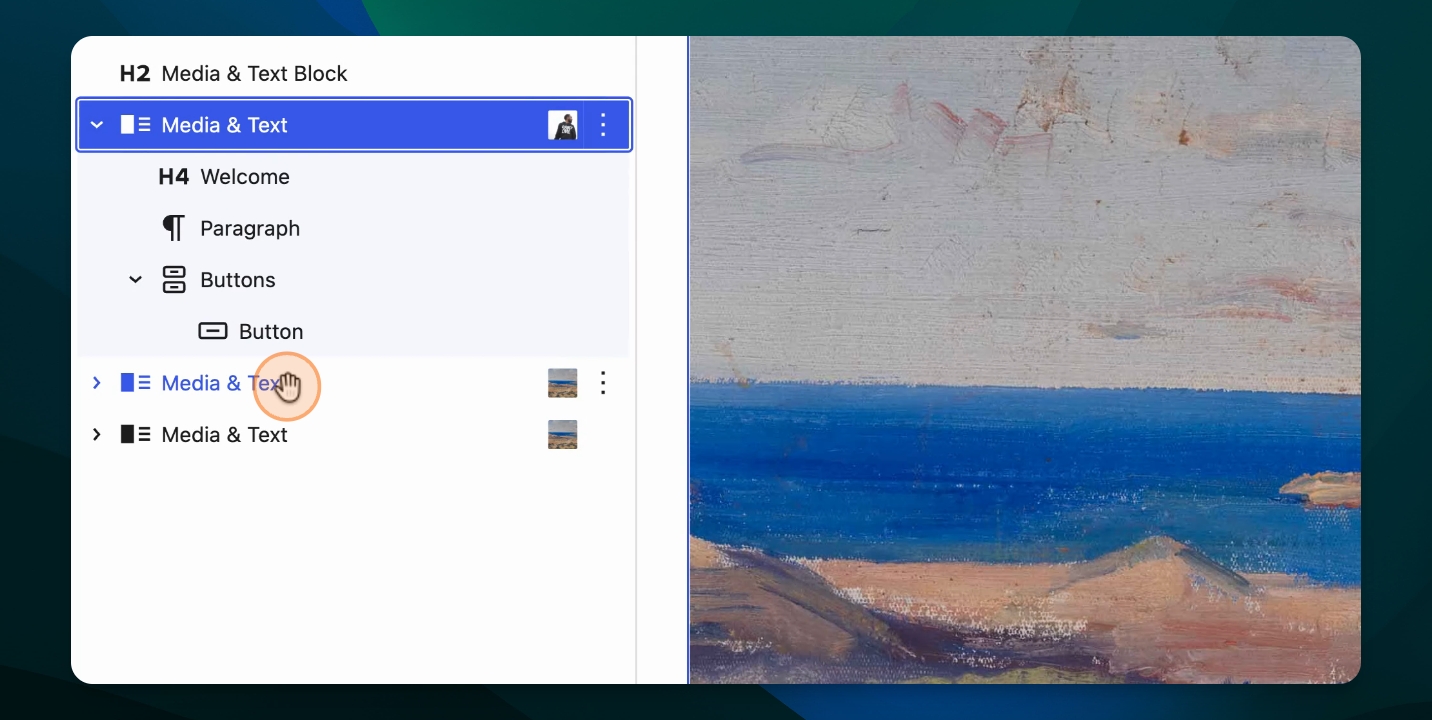
Step 10: Change Media and Text Orientation
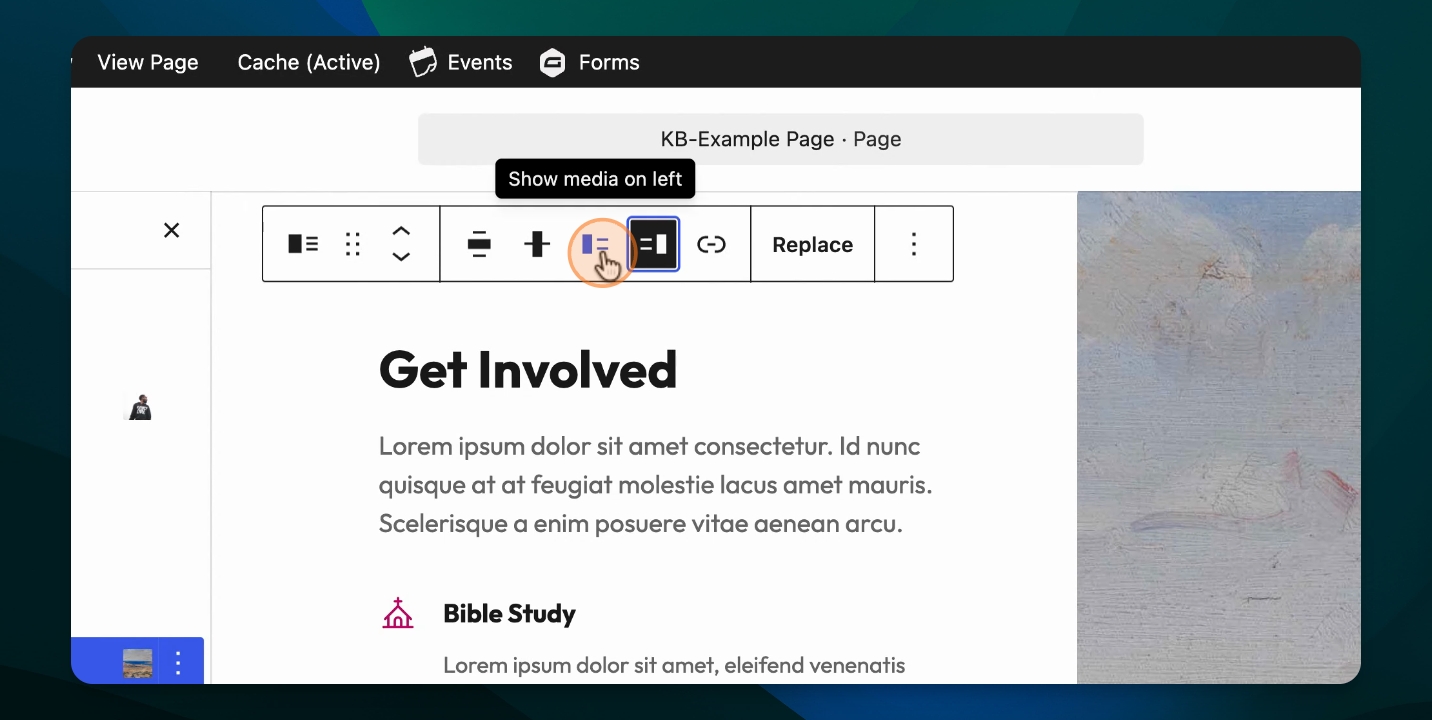
To switch the position of the media and text, go to the toolbox and select show media on the left or show media on the right. This will swap the blocks' positions.
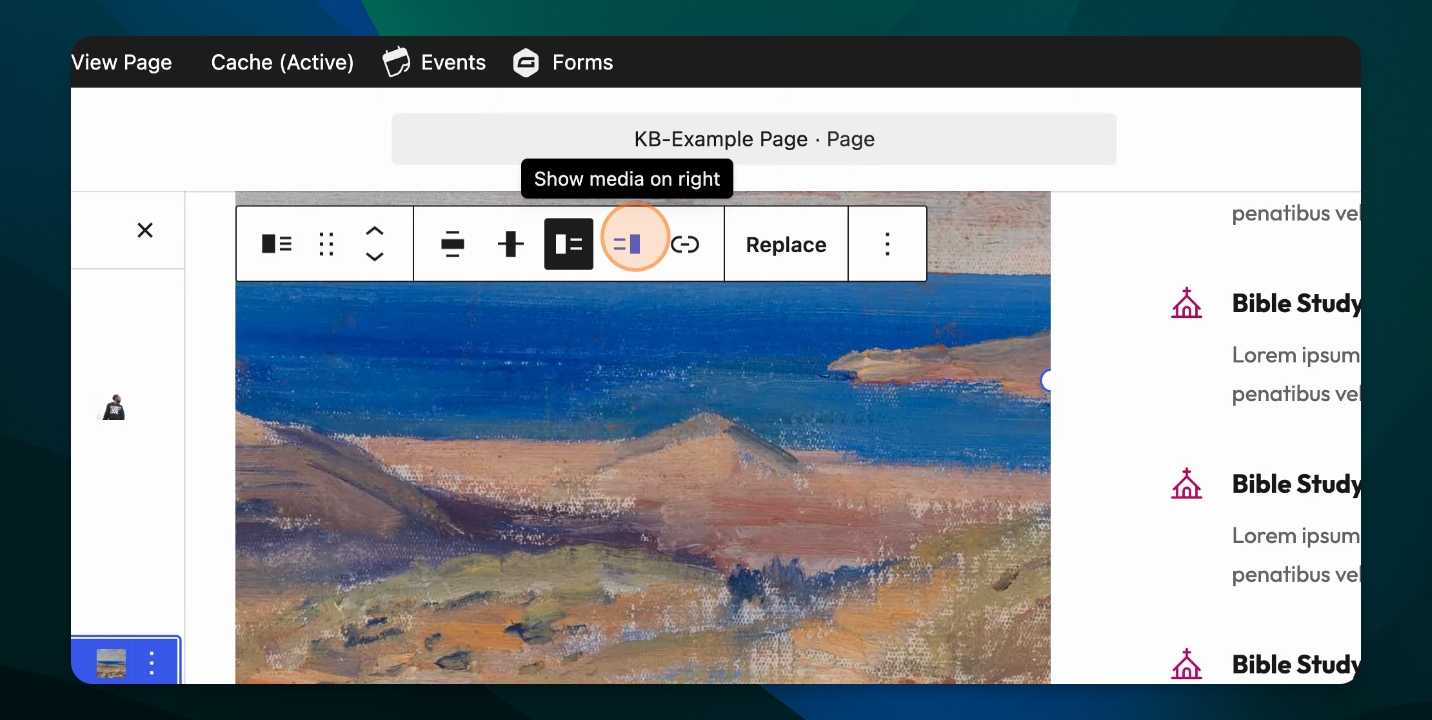
This feature is helpful when adding multiple blocks or when you want a different page layout. By default, media appears on the left and text on the right. You can change this in the toolbox if needed.
The Media and Text block is versatile for calls to action, highlighting people, events, or anything you want to feature on your page.