

The table block is ideal for organizing seminar topics, schedules, and detailed information. You can also use it for listing pastors or speakers for upcoming weeks. Let's look at the steps:
Step 1: Add a Table Block
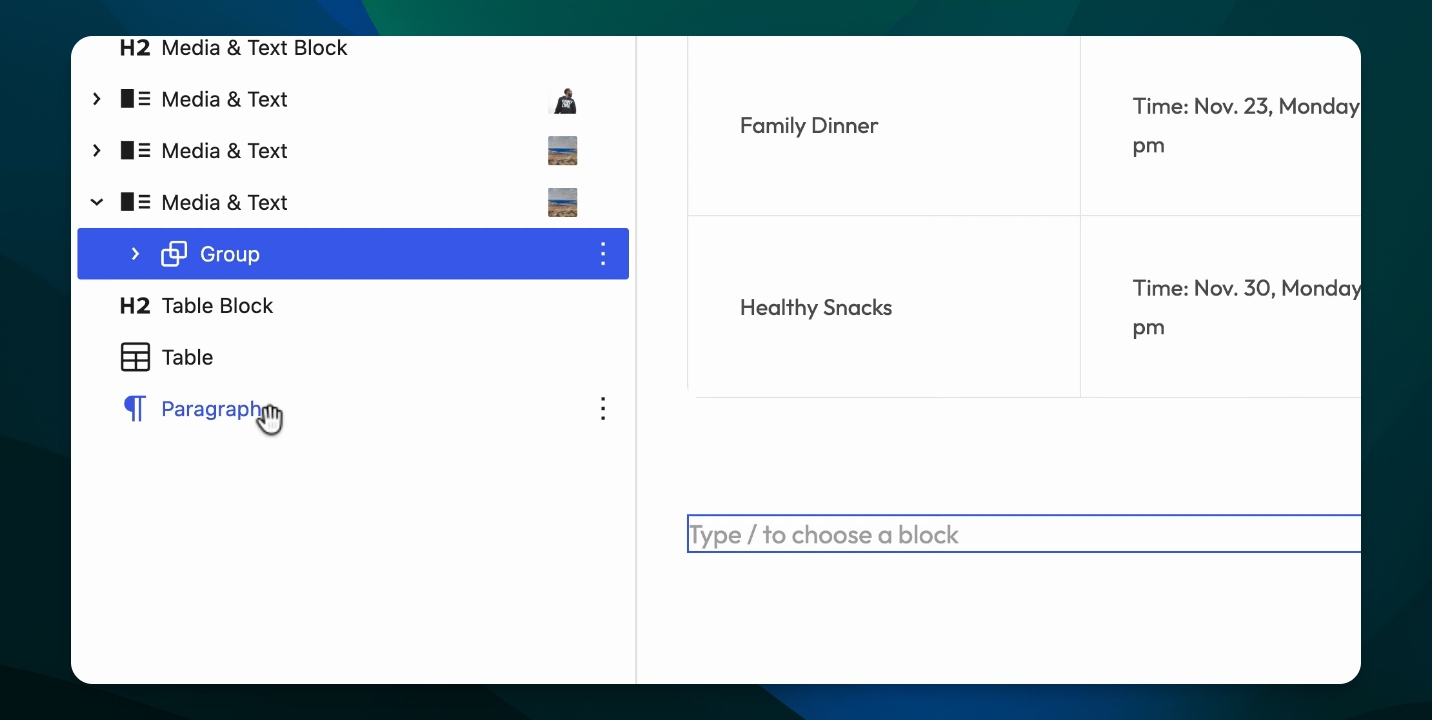
Click the plus sign to add a new block. Type table in the search box and select the table icon from the list.
Step 2: Set Table Columns
When the new table window appears, choose how many columns you want. For example, select four columns.
Step 3: Set Table Rows
Select how many rows you want in your table. For this example, choose four rows and click the button to create the table.
Step 4: Enter Table Information
Begin typing your seminar topics, dates, and details into the table cells.
Step 5: Add a Header Section
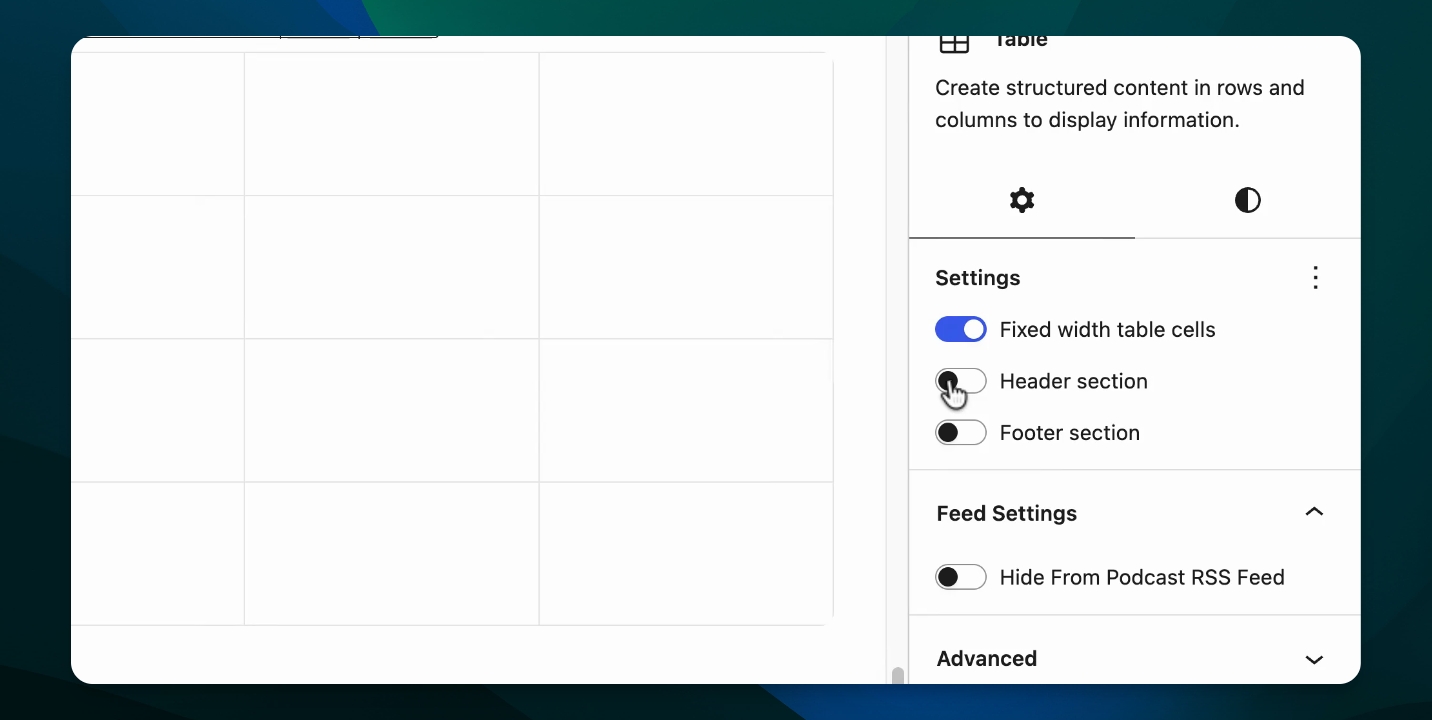
To add a header, go to the settings sidebar and enable the header section. This will create a colored background with header text above your table rows.
Step 6: Add More Rows or Columns
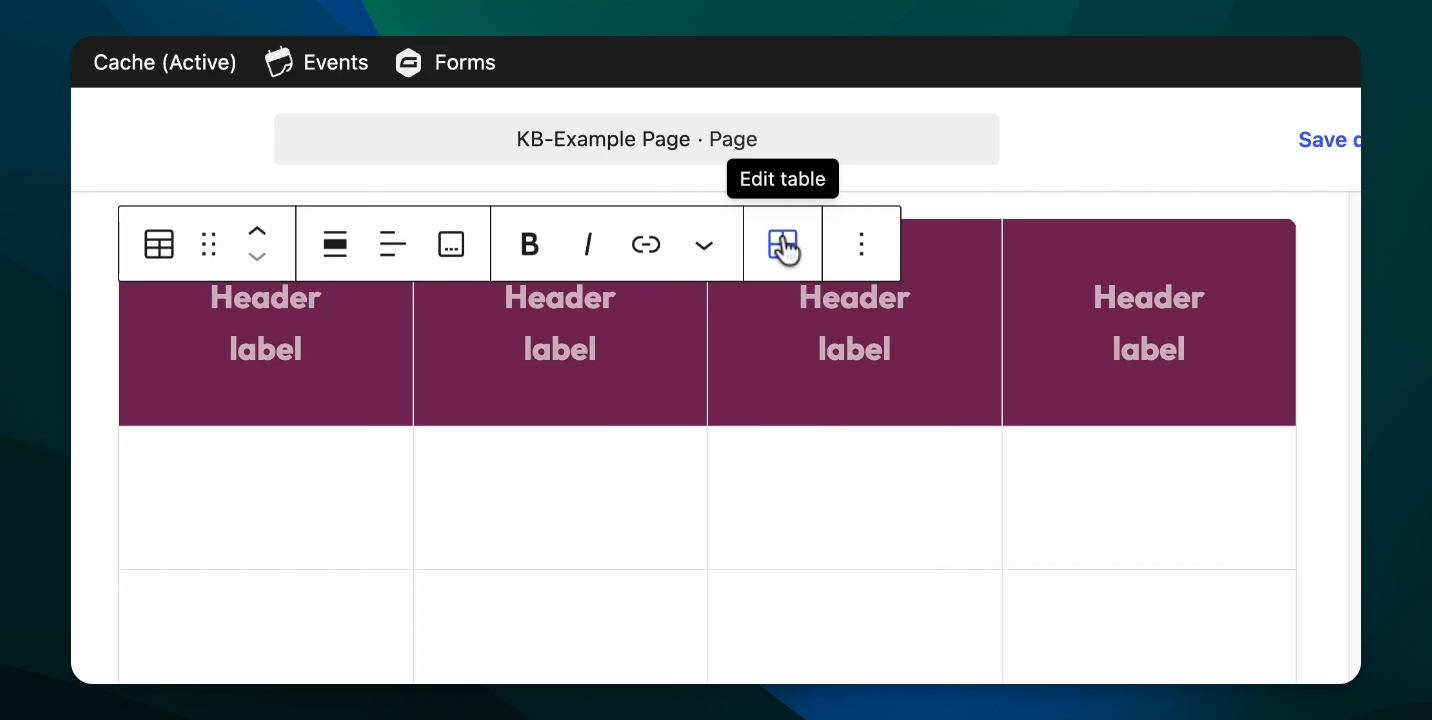
If you need to expand your table, use the edit table icon in the toolbox. You can insert or delete rows and columns as needed. For example, insert a row after the last row to add more information.
The table block is a handy tool for organizing information for events, speaker lists, or schedules. If you have more than one line of text in a cell, the cell will automatically adjust its size to fit the content.
This should help you communicate important details for your next event or seminar.