Please note that you can change templates for any page on your website except your Welcome page (front page).
However we strongly recommend that you do not change the template for your Welcome page, as it is the foundation for your website's navigation and links. Leave as the default template.
This guide covers two ways to change your page template in Frame. Let's look at the steps:
Option 1
Step 1: Open Template Settings
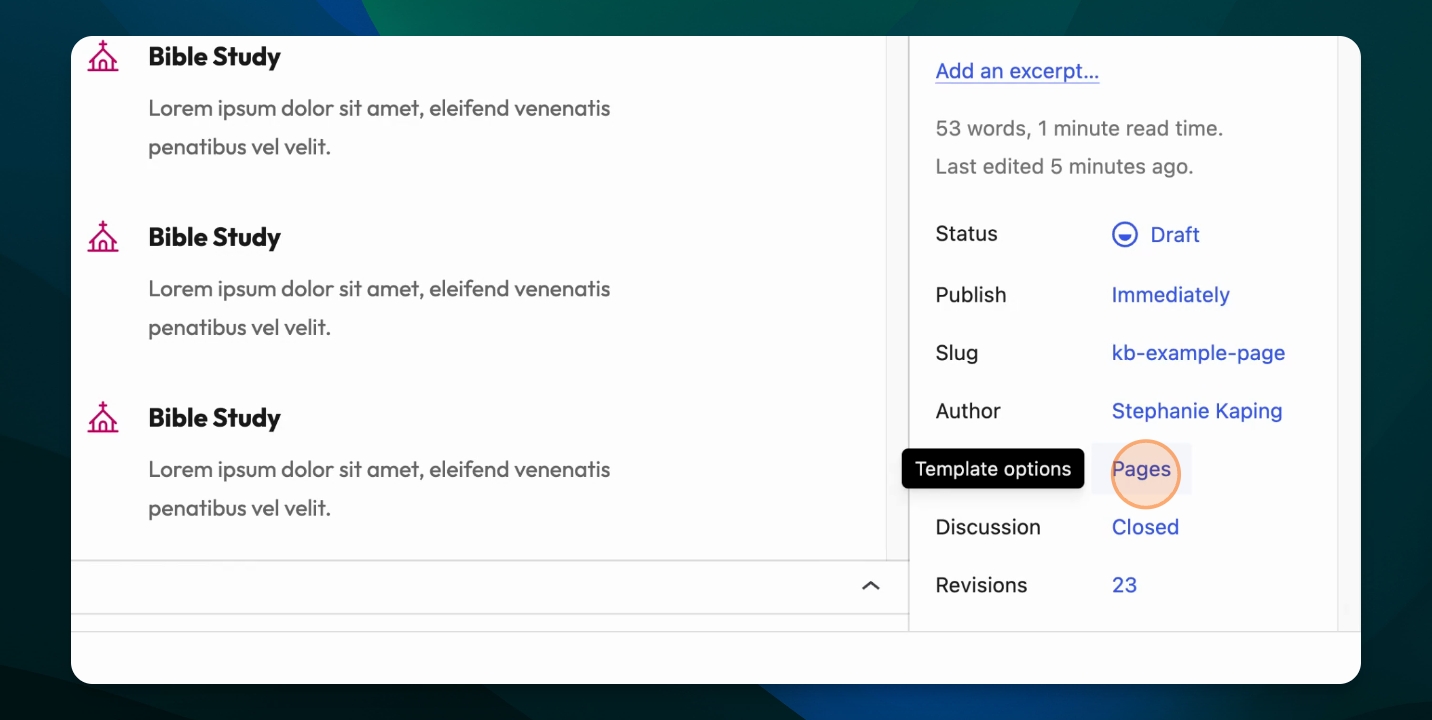
While on a page in the editor, access the settings sidebar. Scroll down to the Template section. To the right, you'll see the current template type. Click this area to continue.
Step 2: Change the Template
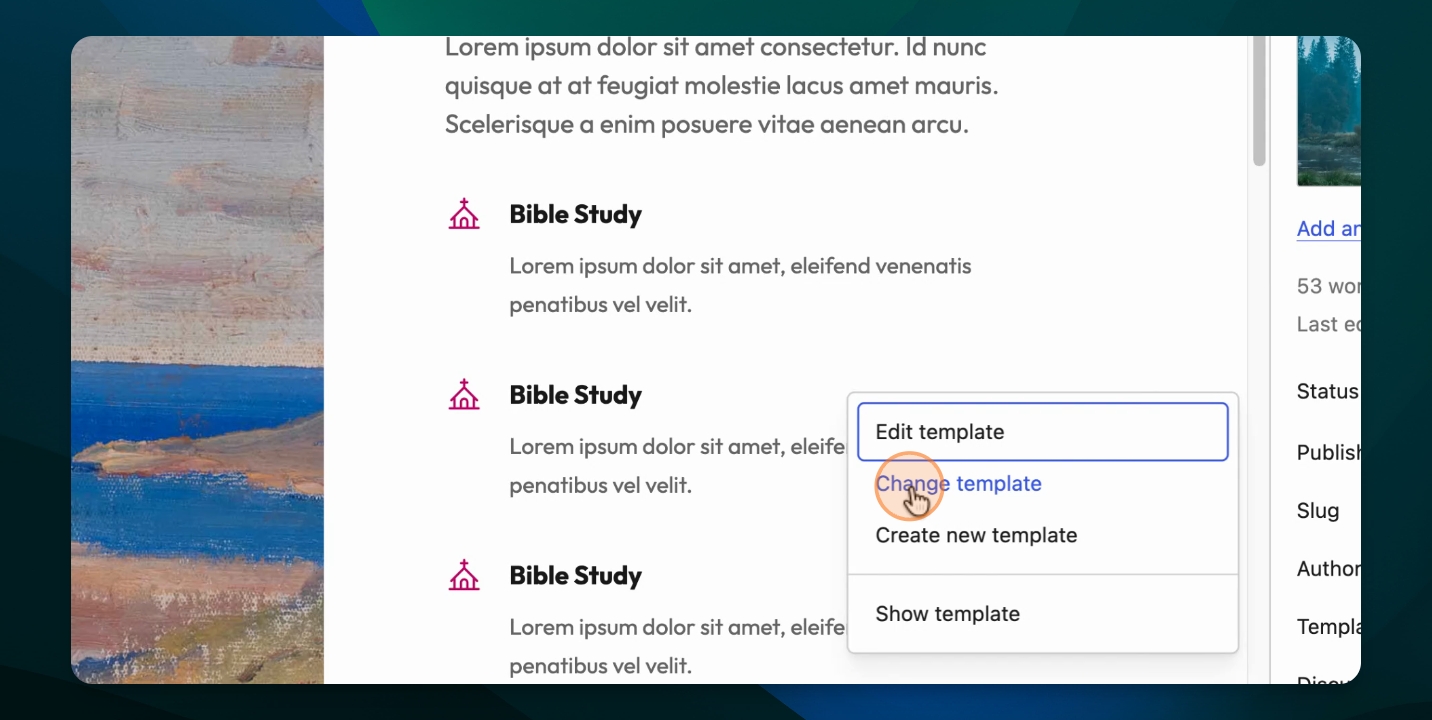
A fly out window appears with several options. Click Change Template. You'll see a list of available page templates. Choose the template that fits your needs, such as No Hero or Page with sub Nav. Click the desired template to apply it automatically.
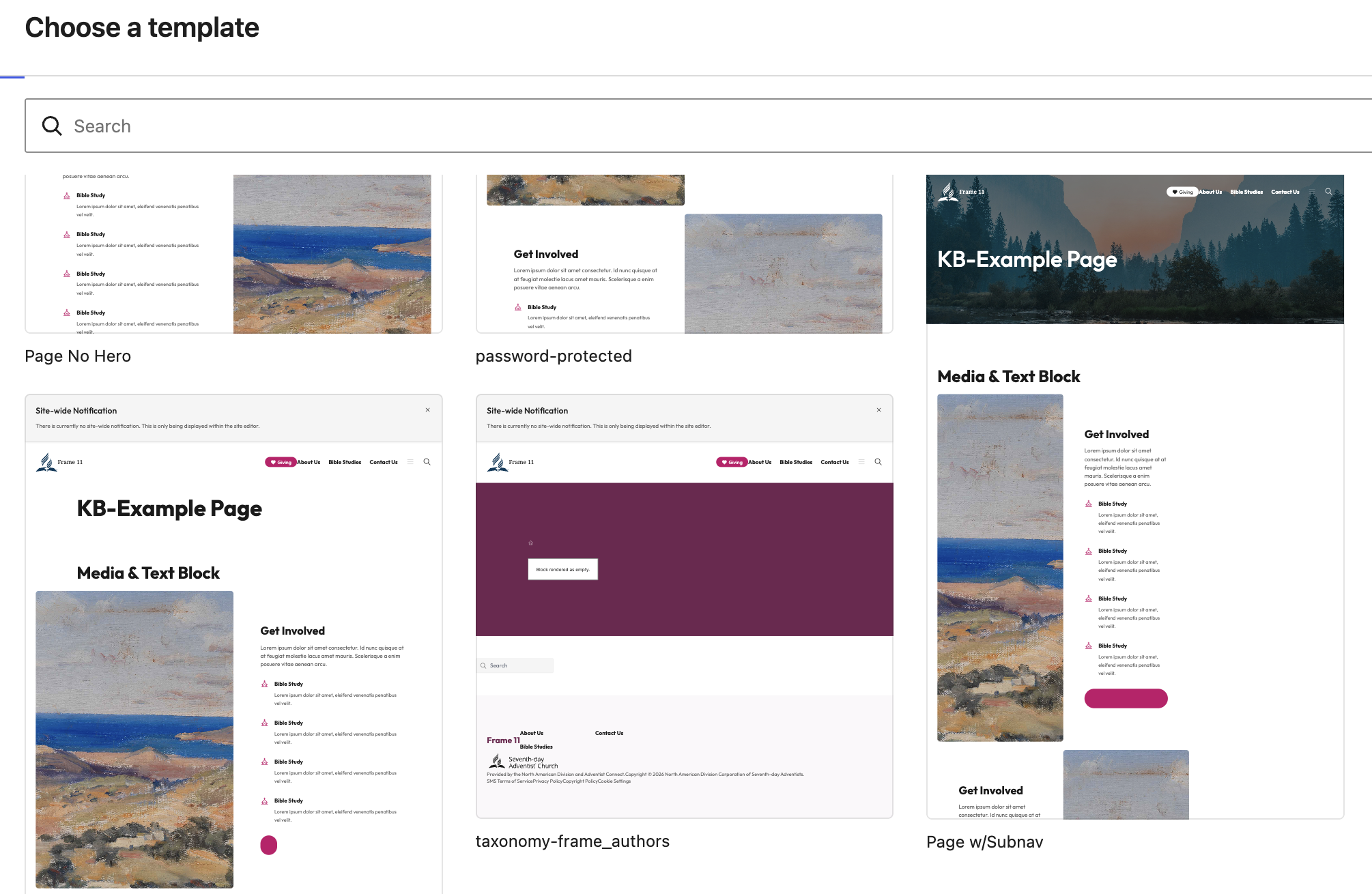
Step 3: Save the Page
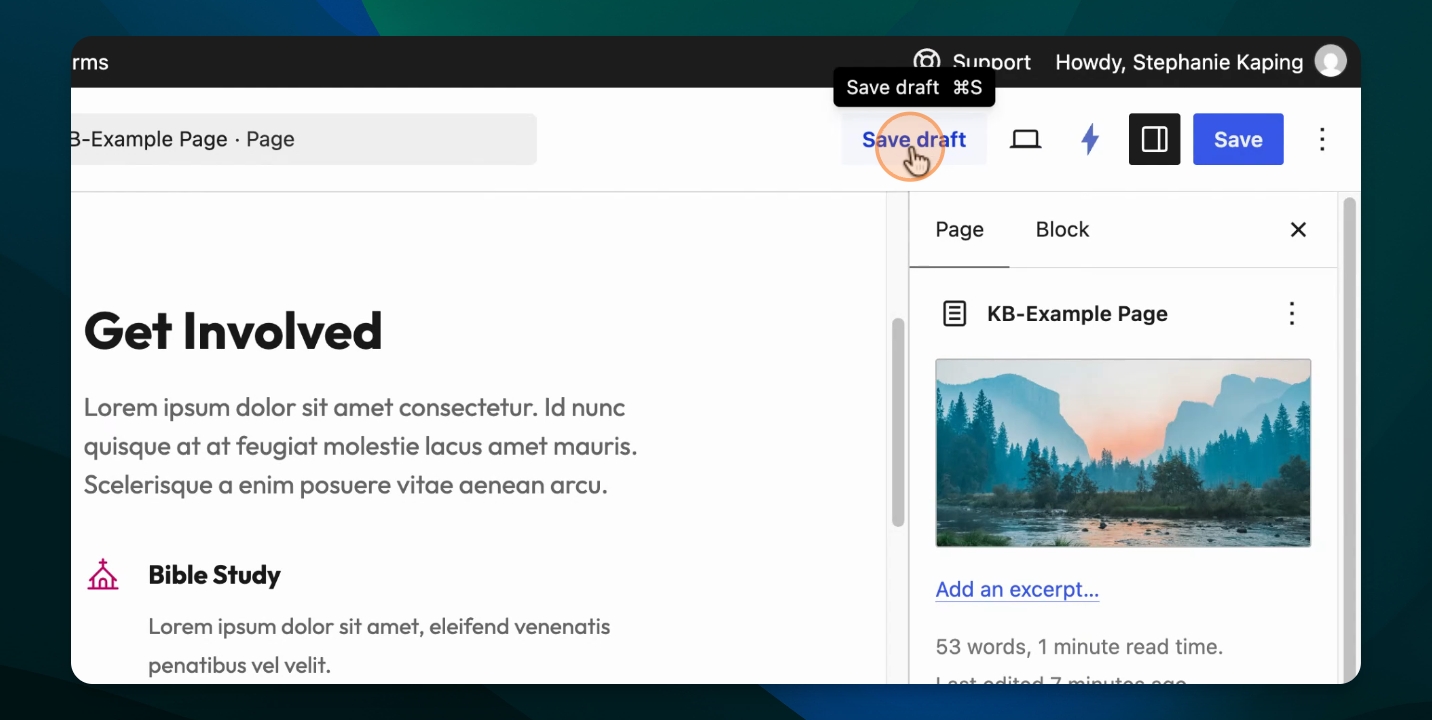
After changing the template, verify it now shows the new template type, such as Page with sub Nav. Save the page. If the page is not published, save it as a draft.
Option 2
Step 1: Use Quick Edit to Change Template
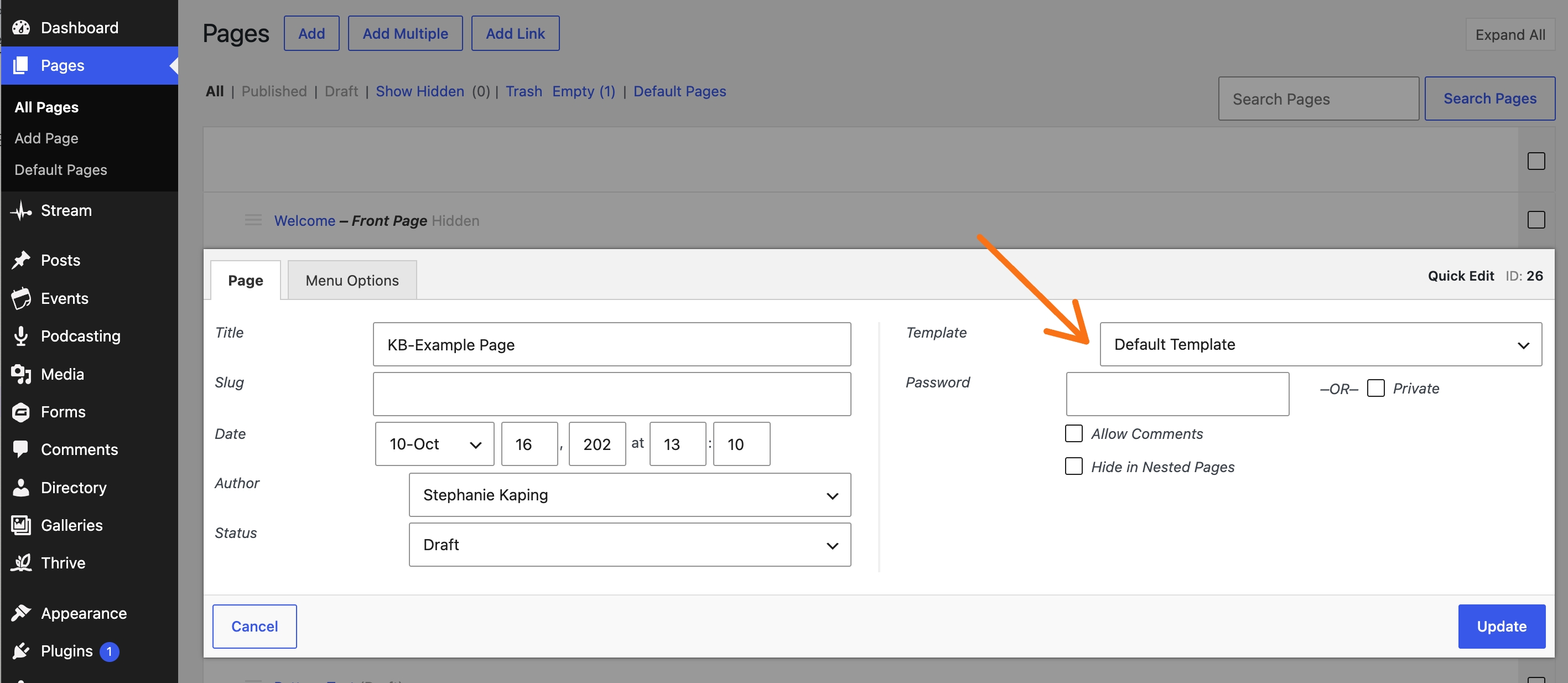
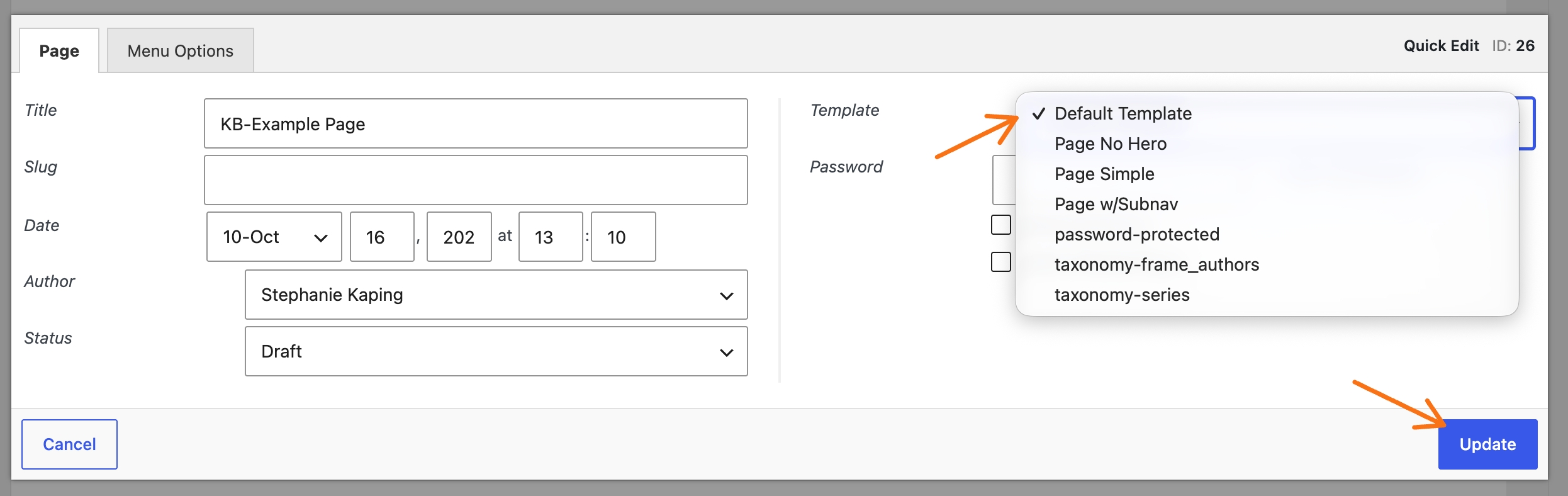
Go back to Pages and click All Pages. Select the page you want to edit. Move to the right and click Quick Edit. In the Quick Edit window, you'll see the current template. To change it, select a different template, such as Default template, then click Update.