Headings are crucial for structuring your content, providing clear navigation for both readers and search engines. They create a logical flow and help users understand the organization of your page at a glance.
Let's Do It Together!
Step 1: Add a Heading
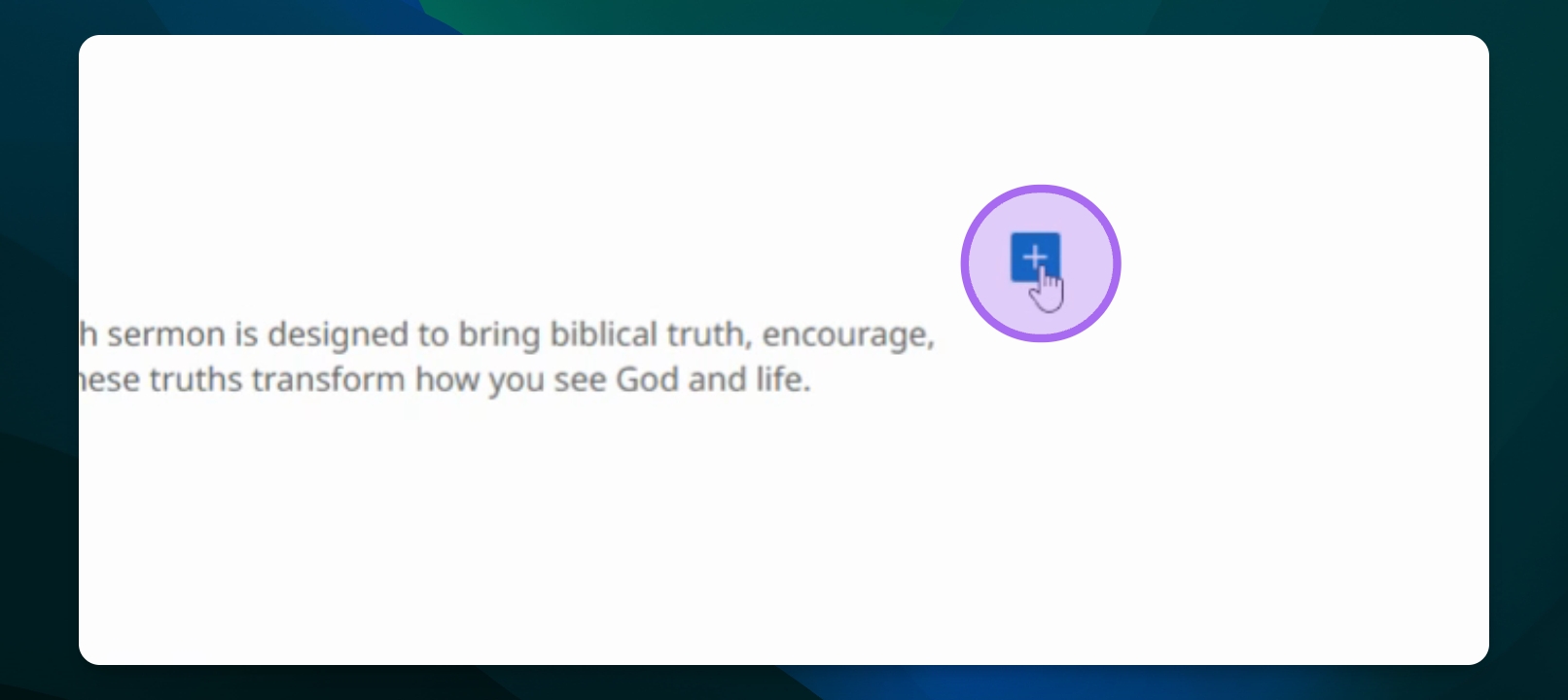
Use the blue block inserter to drag or click on heading.
For this tutorial, we'll use alternatively a slash command: type heading and press Enter.
/h1for Heading 1/h2for Heading 2/h3for Heading 3
To quickly add specific heading levels, use shortcut commands in a new paragraph block:
Your heading is now added to the frame site.
Step 2: Customize the Heading
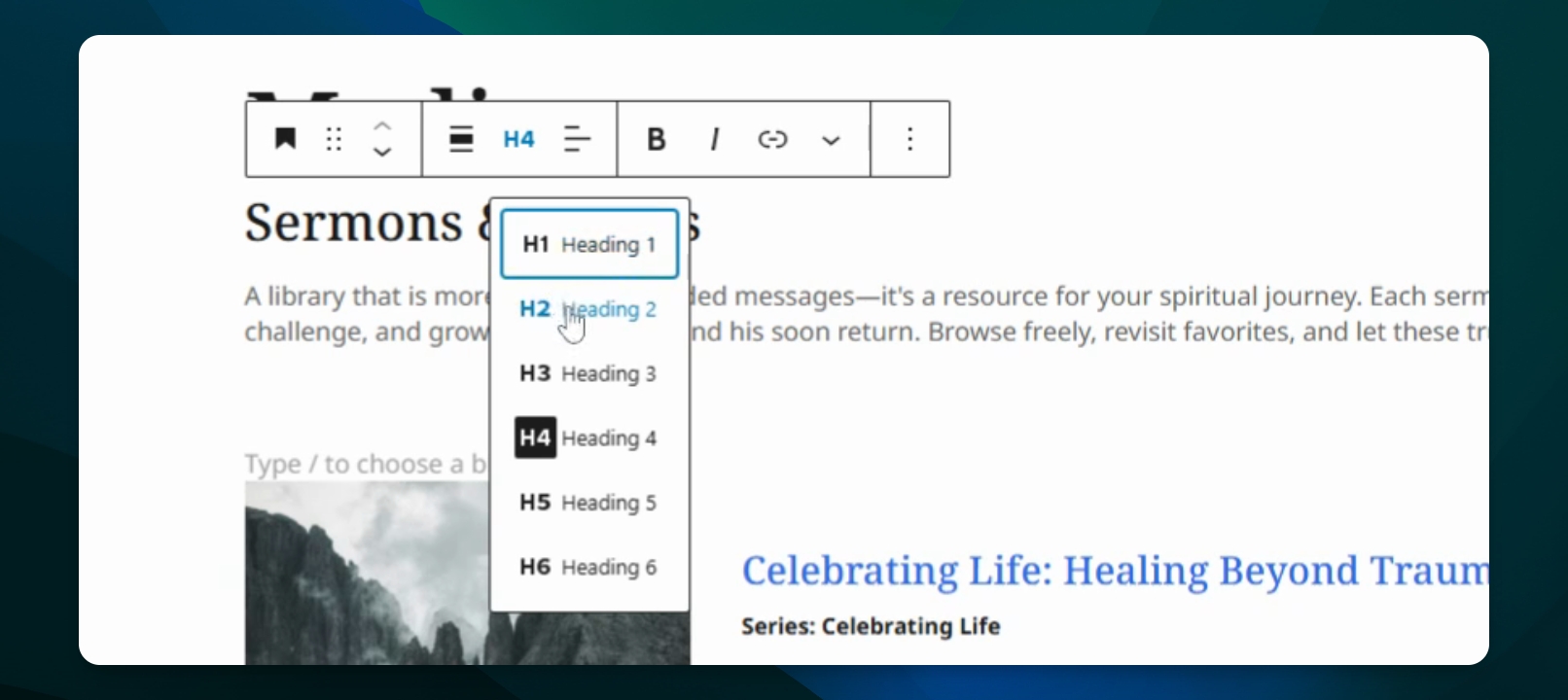
Choose the heading level: Heading 1, Heading 2, Heading 3, or Heading 4.
For this example, we will select Heading 2.
Align the text: choose left, center, or right alignment.
For now, we'll leave it aligned to the left.
Remember: the page title is automatically set to Heading 1, so typically levels under that should be H2.
Step 3: Style the Heading
Highlight the text to bold or italicize it.
You can transform text using the transform button to change it from a paragraph to a heading.
To style further, access the settings button on the right side of the screen.
Change text color and background color as needed.
Adjust typography using preset sizes or a custom pixel size.

Step 4: Adjust Dimensions and Borders
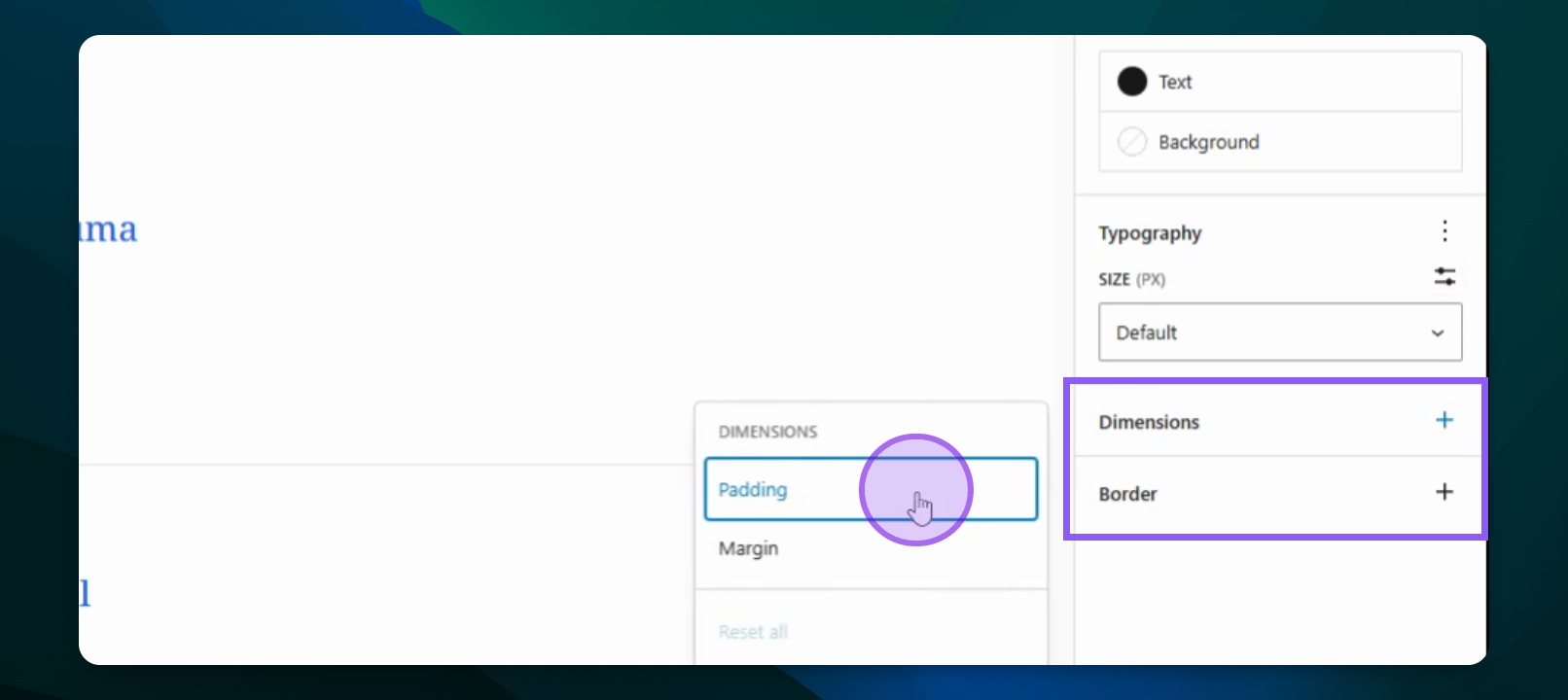
Modify padding and margins under dimensions for more space.
Add a border and adjust the border radius for rounded corners.
Change the border color if desired.
Step 5: Move and Link the Heading
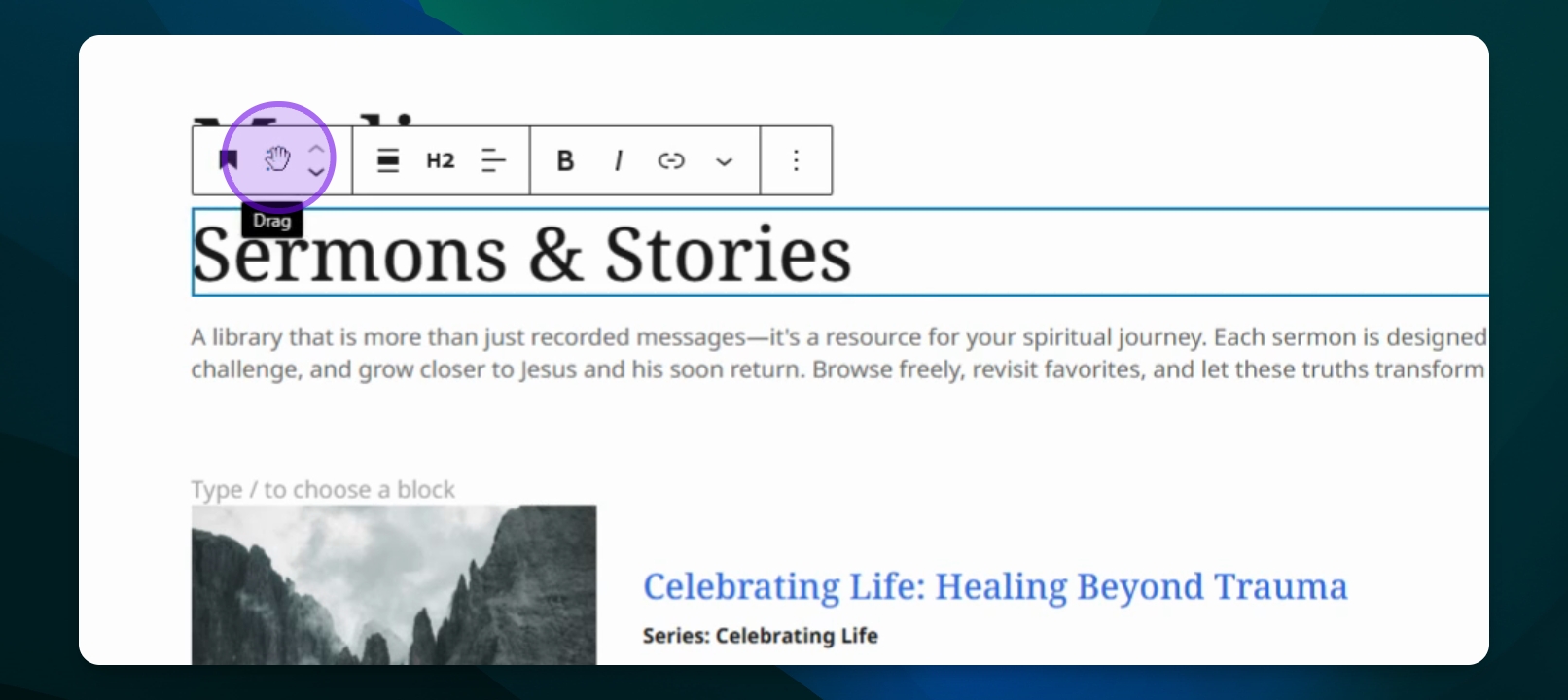
Drag the heading to reposition it using the drag button.
Press Ctrl Z to undo any changes.
Highlight the text to add a link to make it clickable.
Your heading can now be moved and linked for navigation.
Step 6: Additional Options
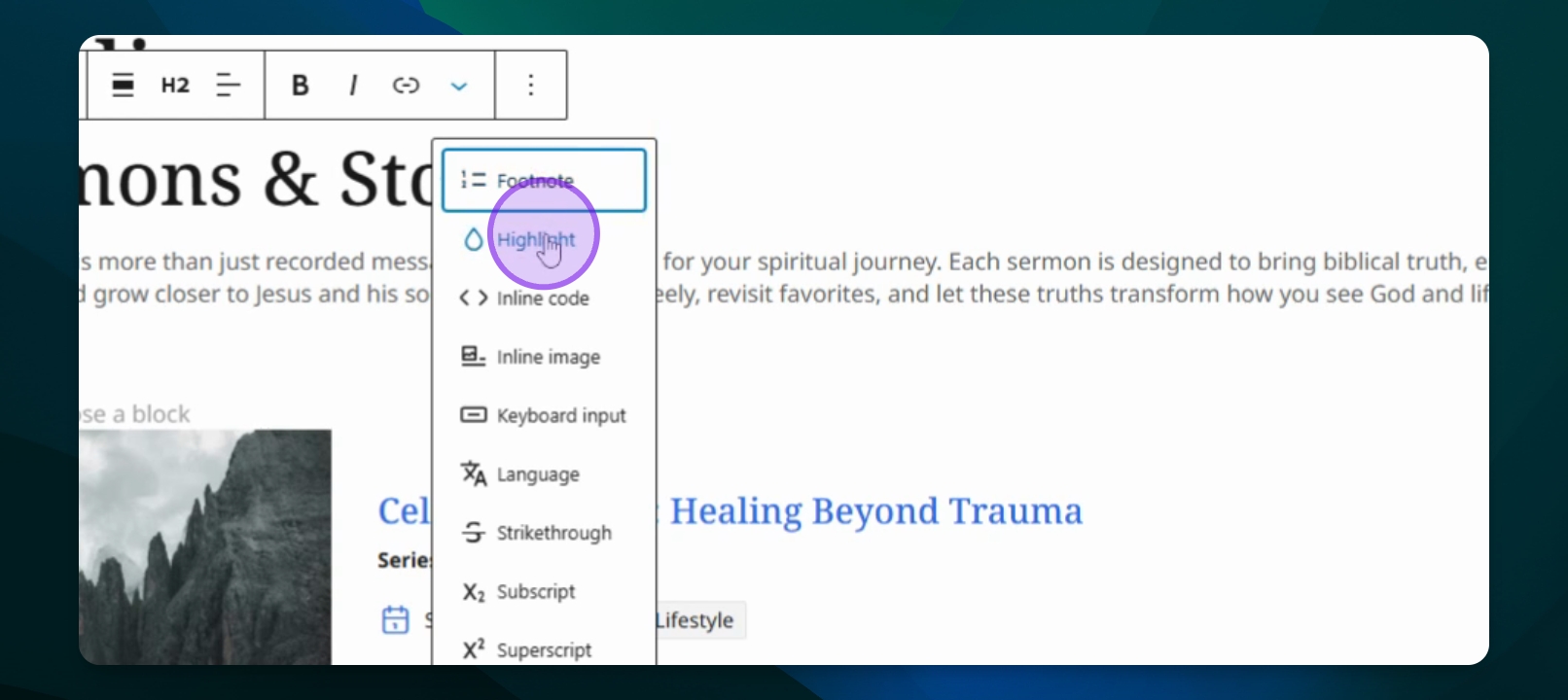
Add footnotes or apply strike, subscript, or superscript formatting as needed.