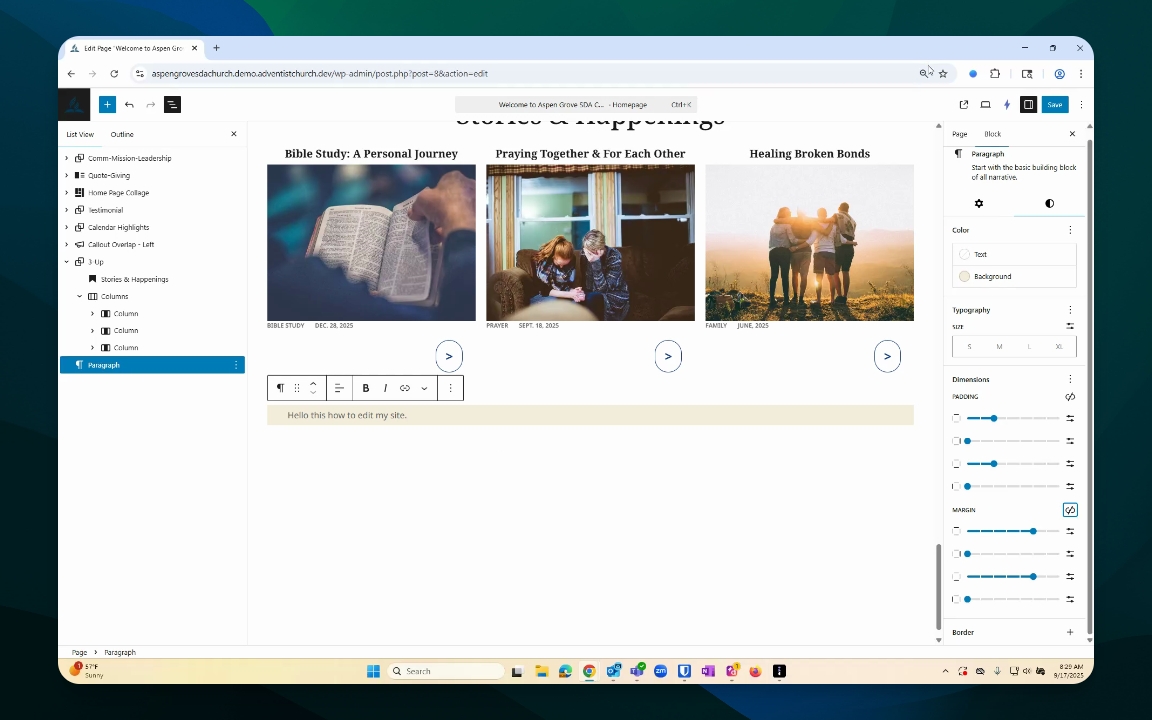
TL;DR
Let's Do It Together!
Step 1: Access Your Dashboard
Log in to your account.
Go to your dashboard or click on your site name in the upper left corner.
You will now see all your pages listed.
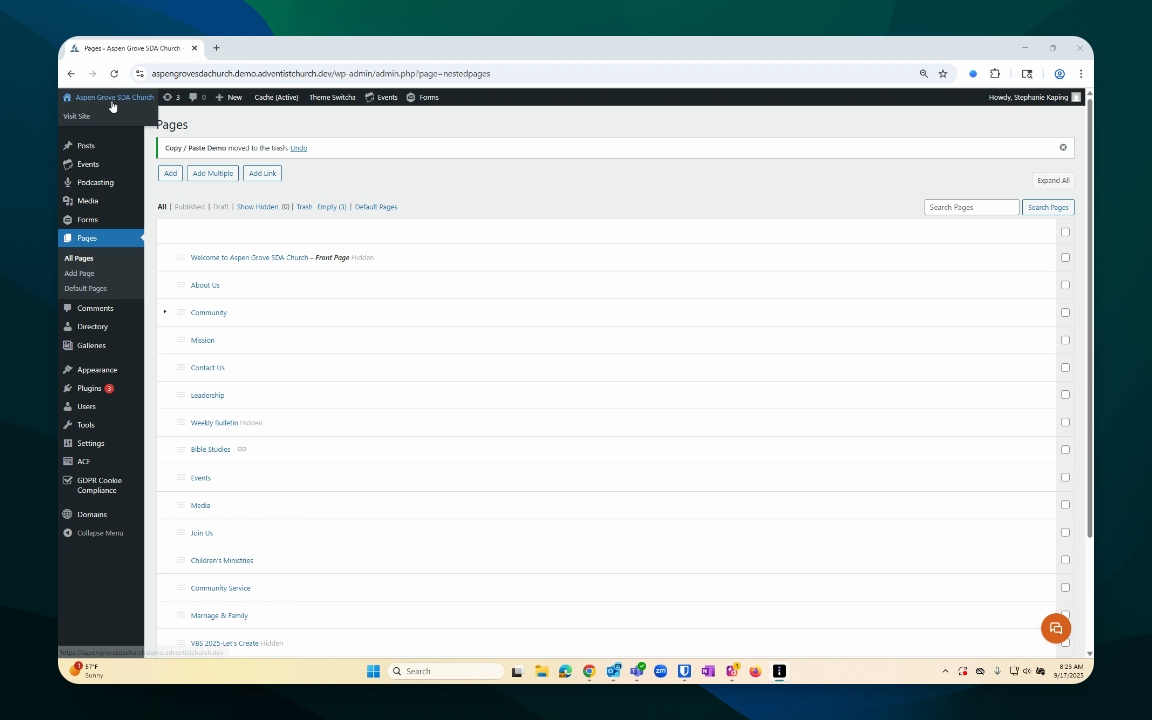
Step 2: Choose a Page to Edit
Select the page you wish to edit.
For this tutorial, we will work on the homepage.
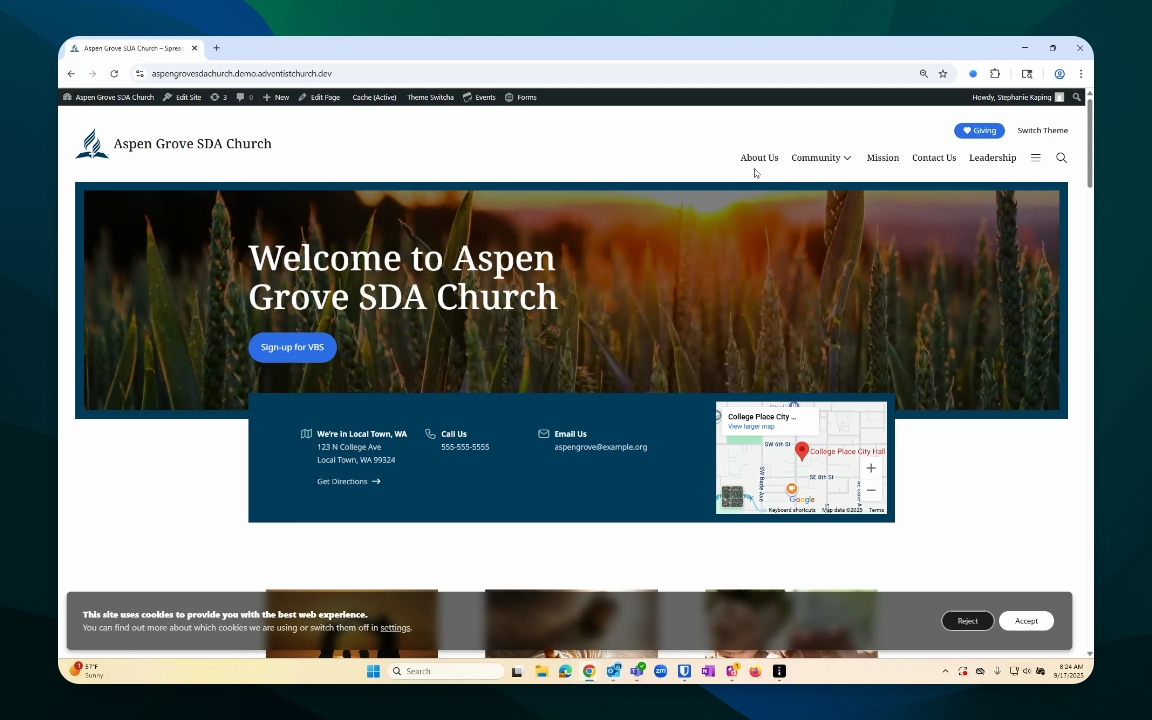
Step 3: Enter Edit Mode
Click on Edit Page in the black bar.
You are now in edit mode for this page.
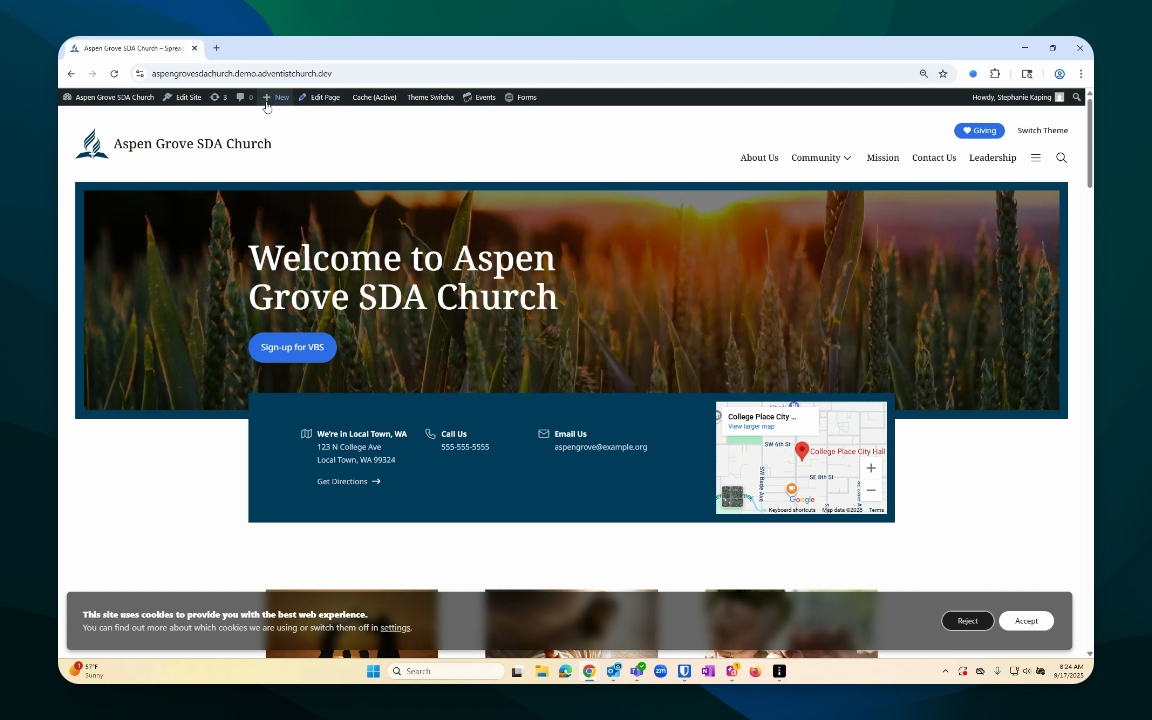
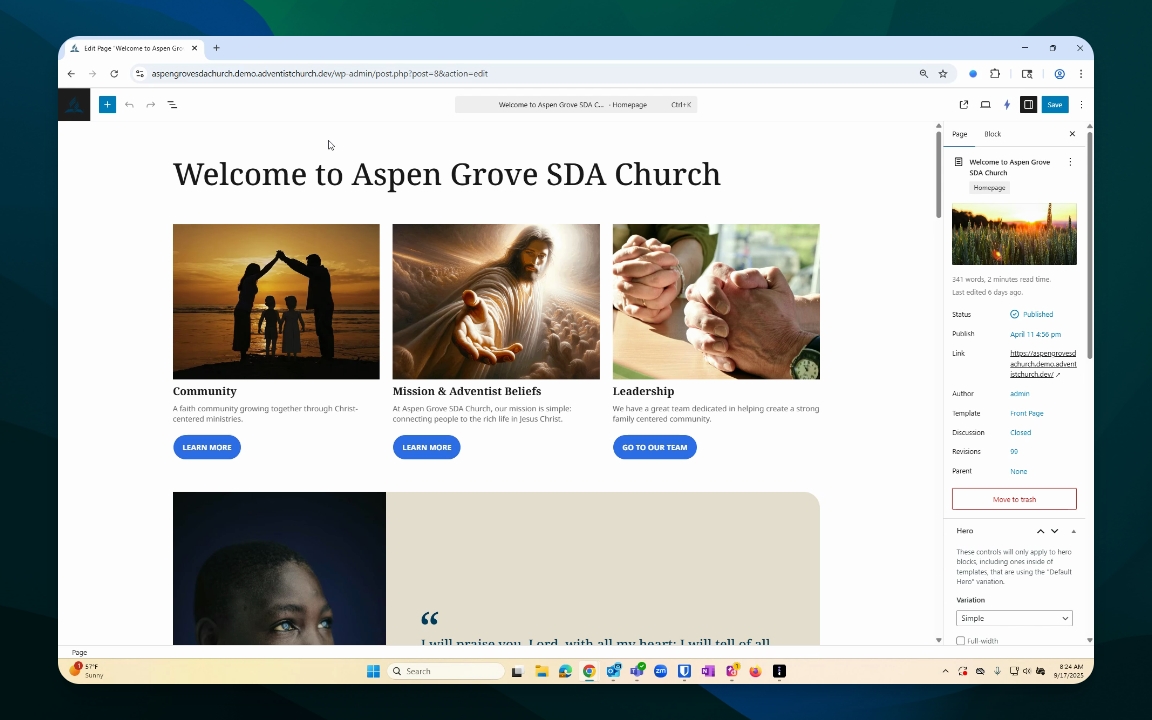
Step 4: Use the Settings Menu
On the right side, find your settings menu.
This controls your page and individual content blocks.
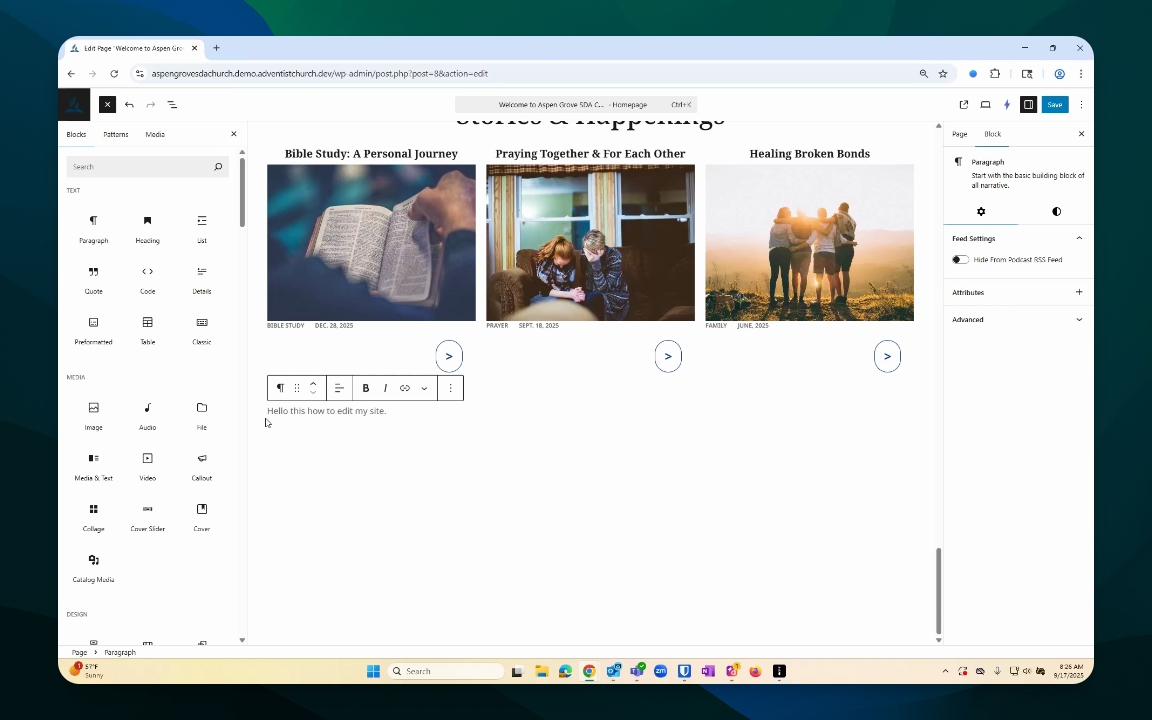
Step 5: Insert Blocks
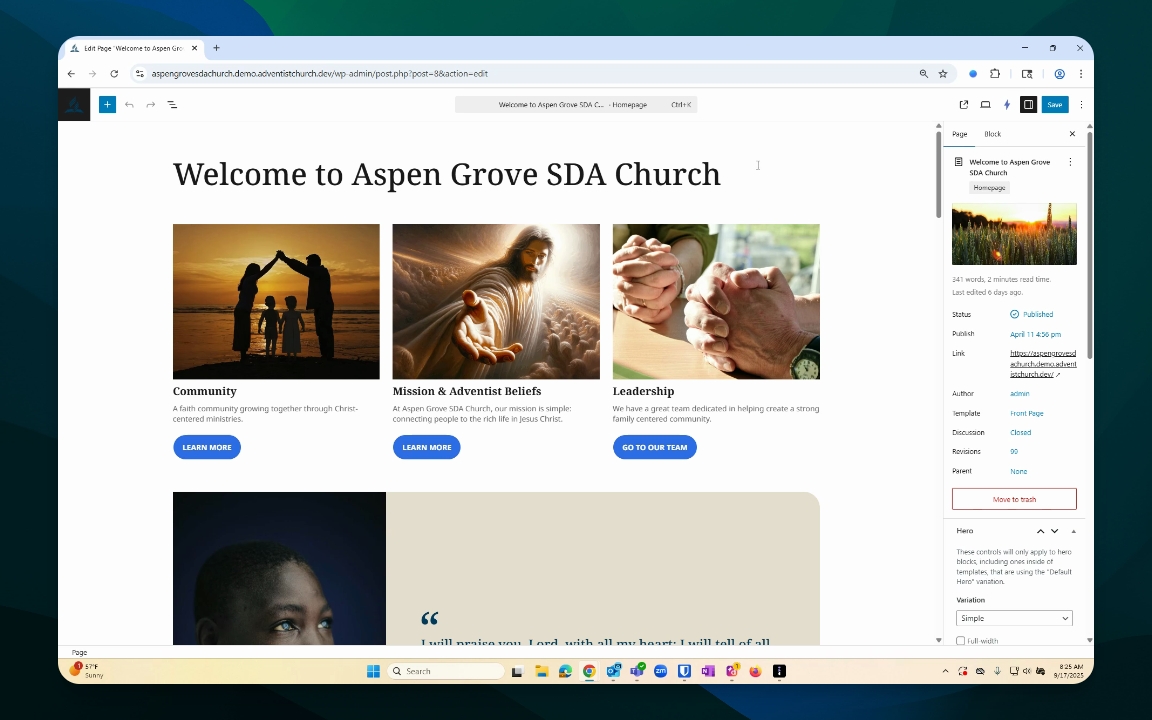
Click the blue plus sign on the left to open the block inserter.
Choose the type of block you want to add (e.g., heading, paragraph, button).
Step 6: Add Content
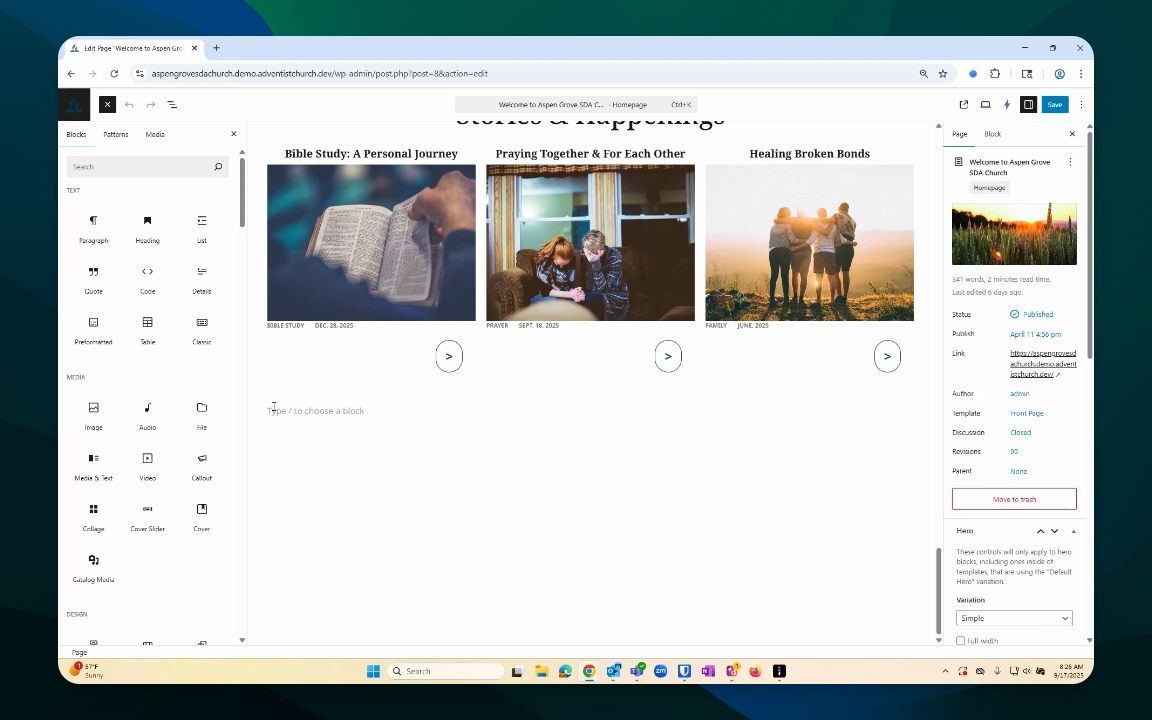
Place your cursor in the desired block.
Start typing your text.
Step 7: Save Your Work
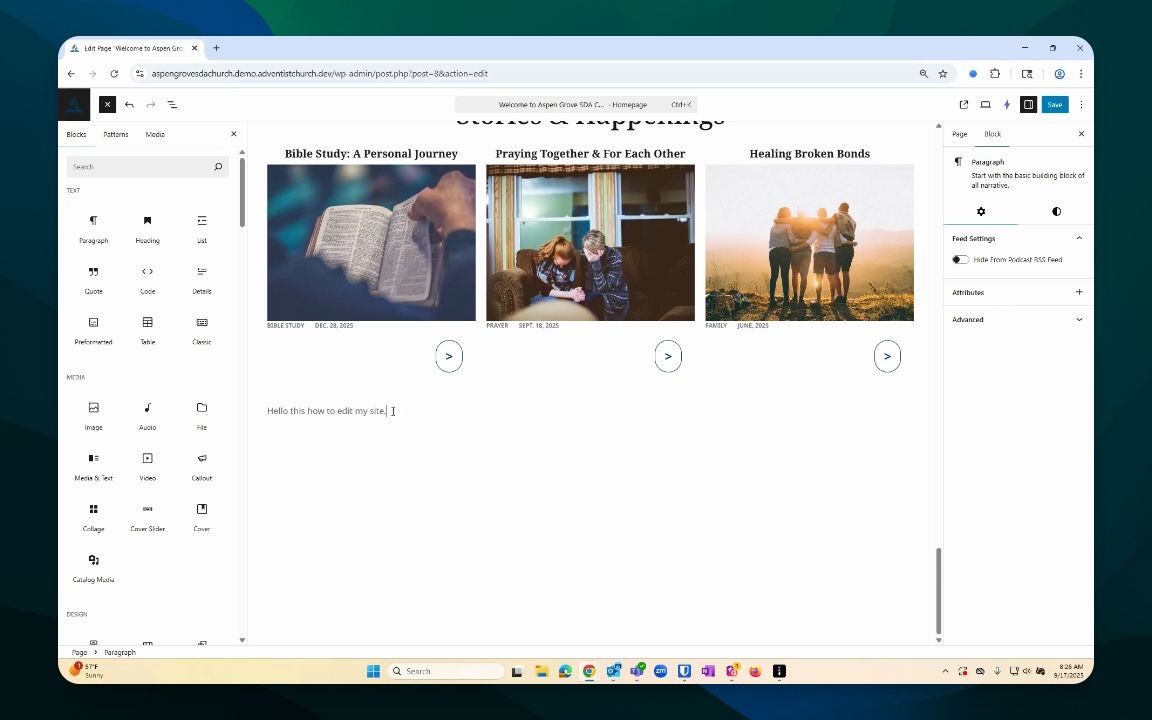
Once you finish editing, make sure to save your changes.
This keeps everything updated and prevents loss of work.
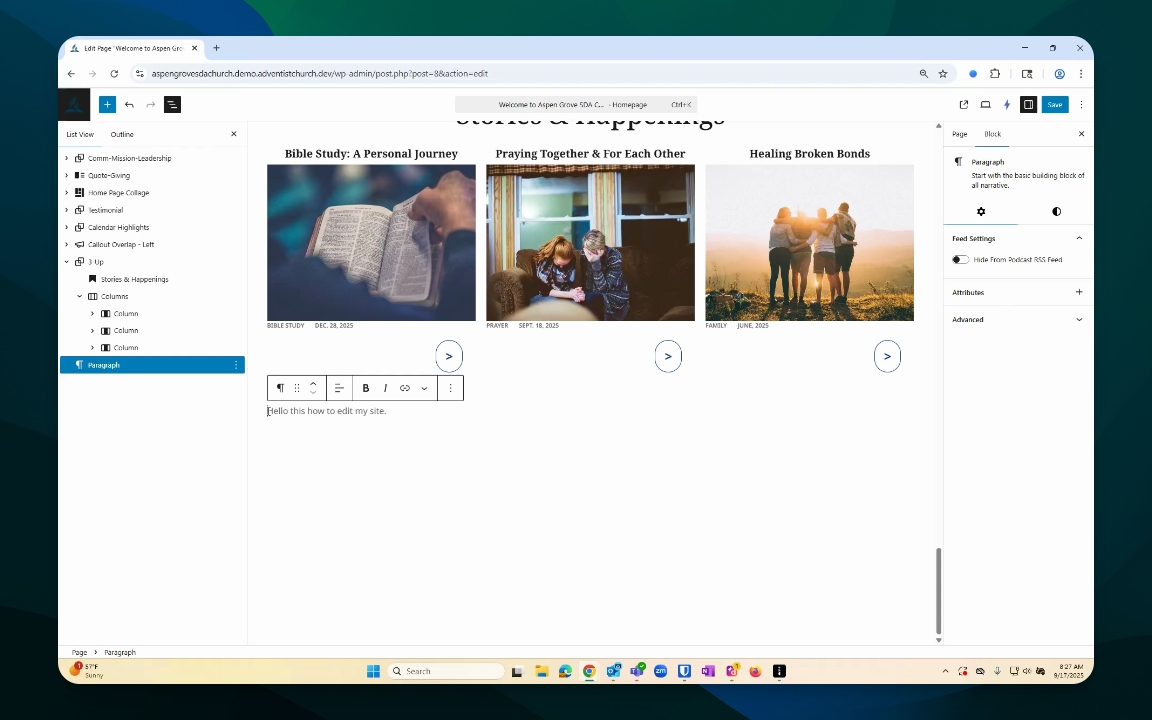
Step 8: Review Document Overview
Utilize the document overview to see all blocks used on your page.
This helps you find specific content easily.
Step 9: Adjust Block Settings
Access padding, color, and dimension settings in the block menu.
Adjust margin and borders as needed for better layout.
Step 10: Finalize and Preview
Once done, save the page again.
You can view the page temporarily to check your edits.