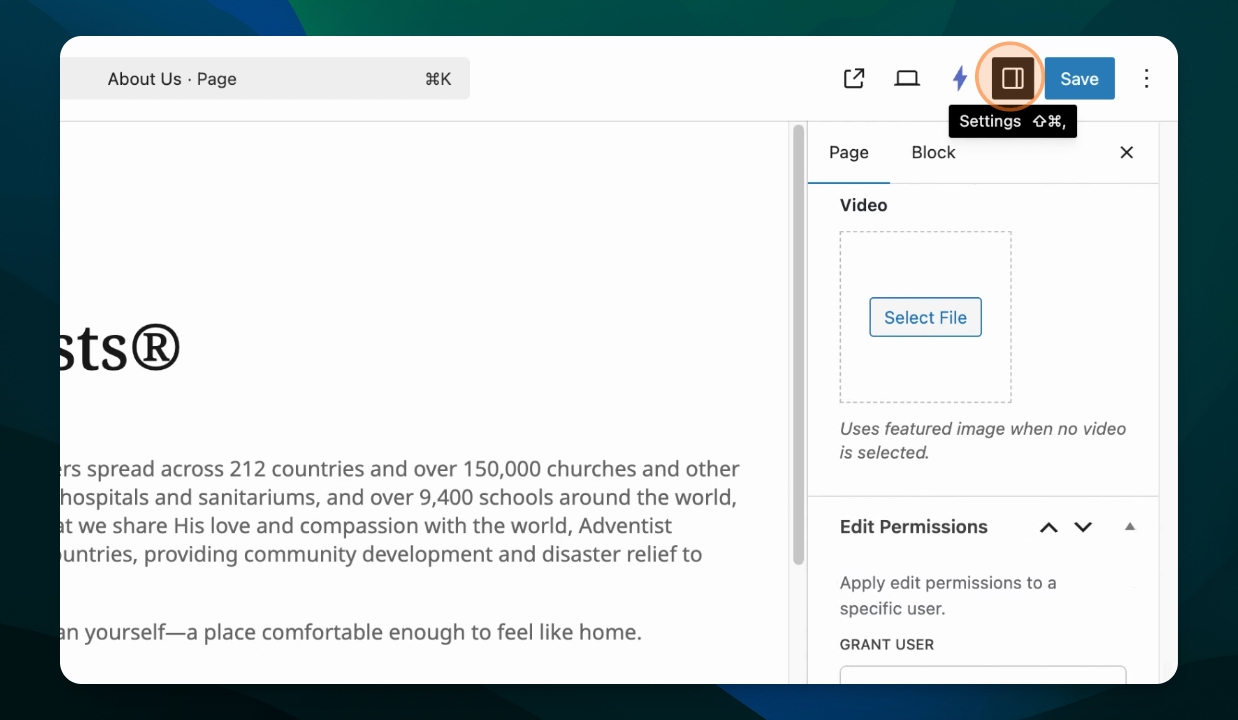
Let's learn how to access the Settings menu for both your blocks and your page when you're in the page editor. Let's look at how the Settings menu works:
Open Settings Menu
From within the page editor, go up to the right and choose the Settings menu.
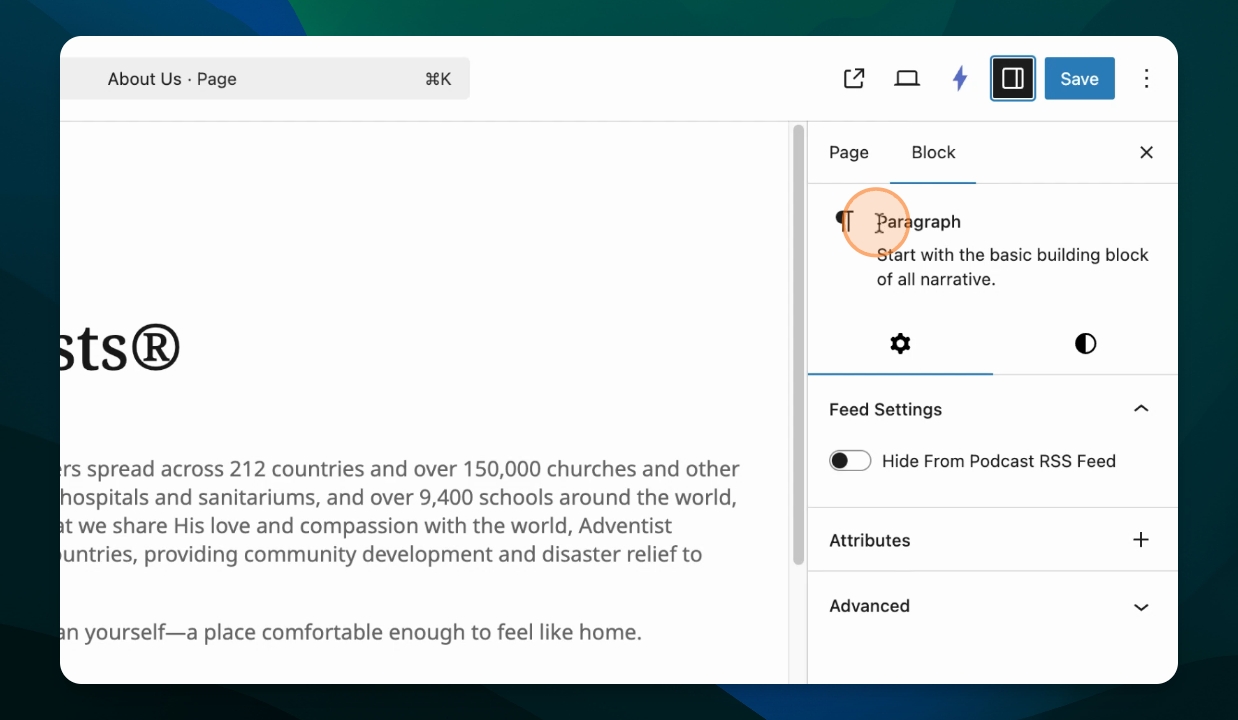
View Block Options
Note that the Block tab of the menu is opened automatically if a block is selected. For example, if you have a paragraph block selected, options specific to it will be shown.
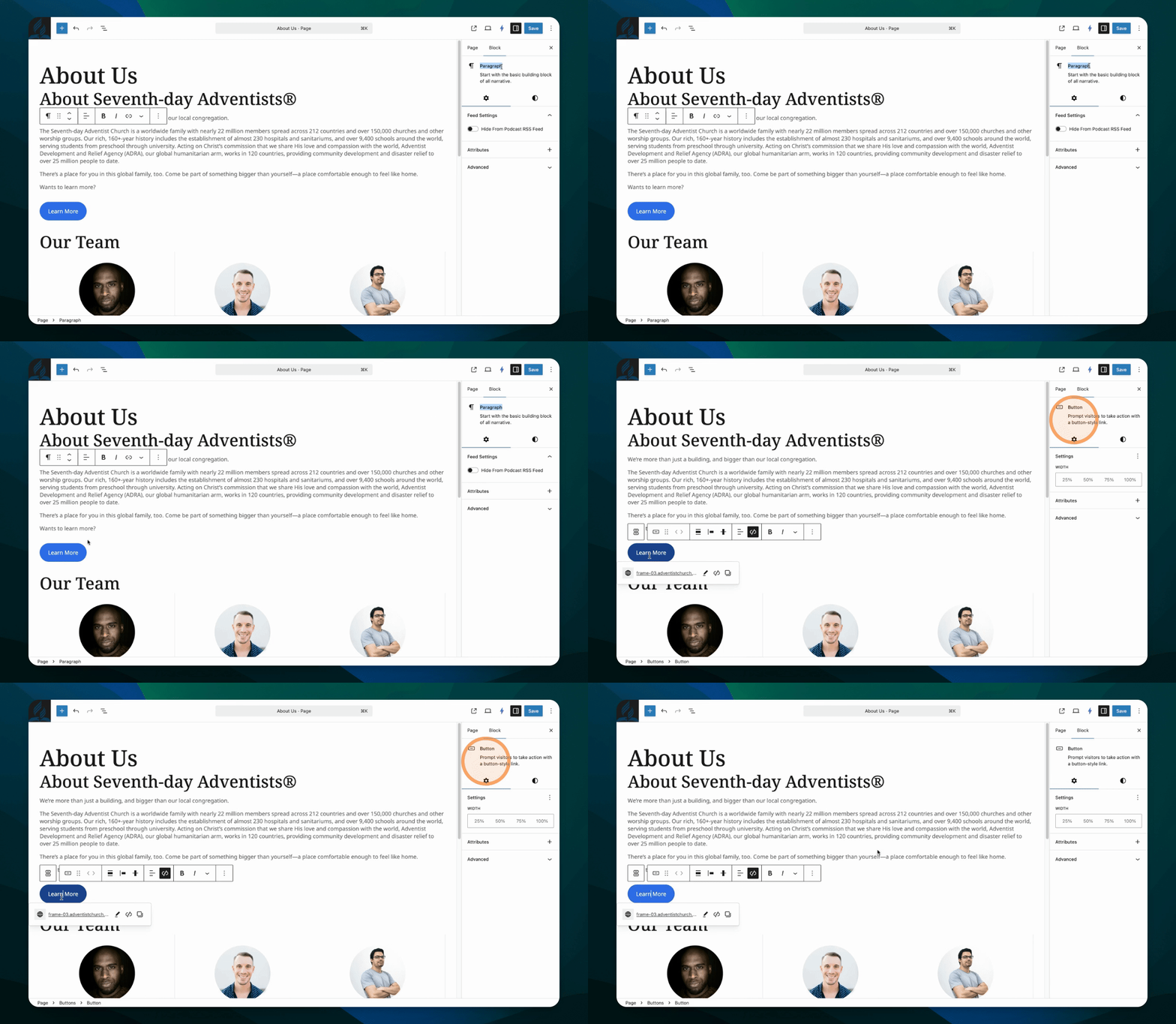
As you select different blocks, like a button, different options specific to that block will be available in the block settings menu.
View Page Options
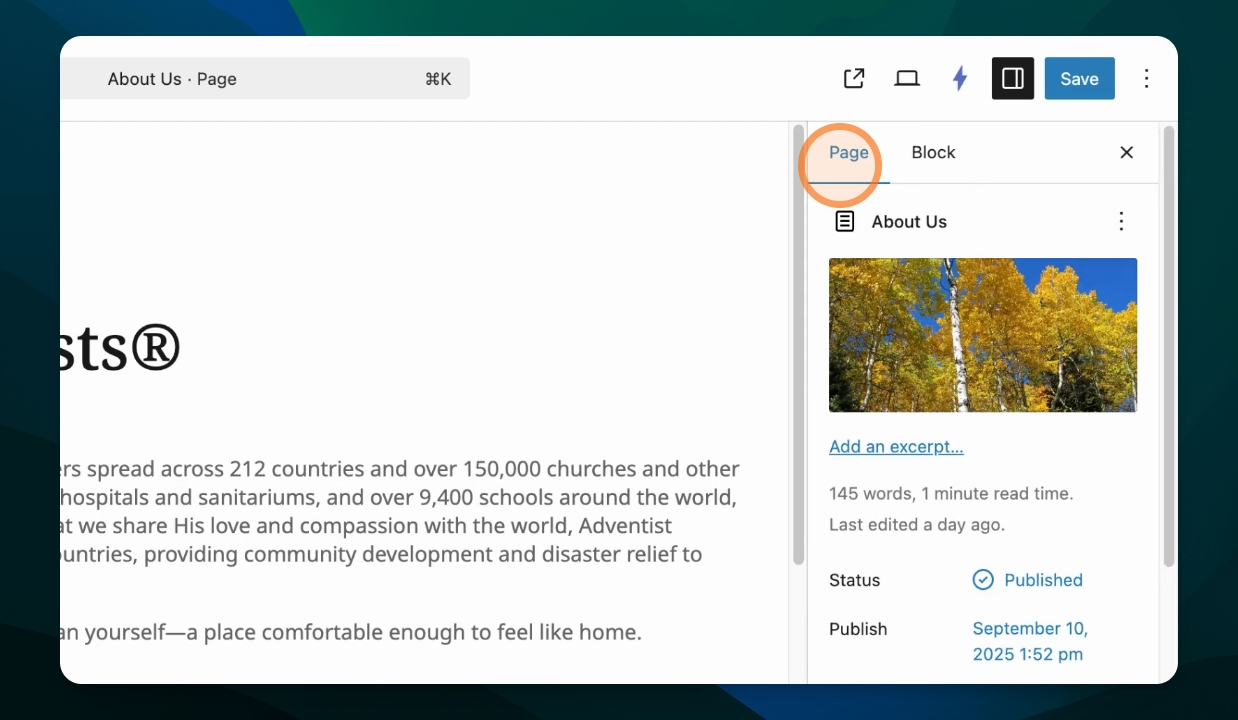
If you want to adjust settings for the entire page, click the Page tab to see options such as Set Featured Image and Page slug.
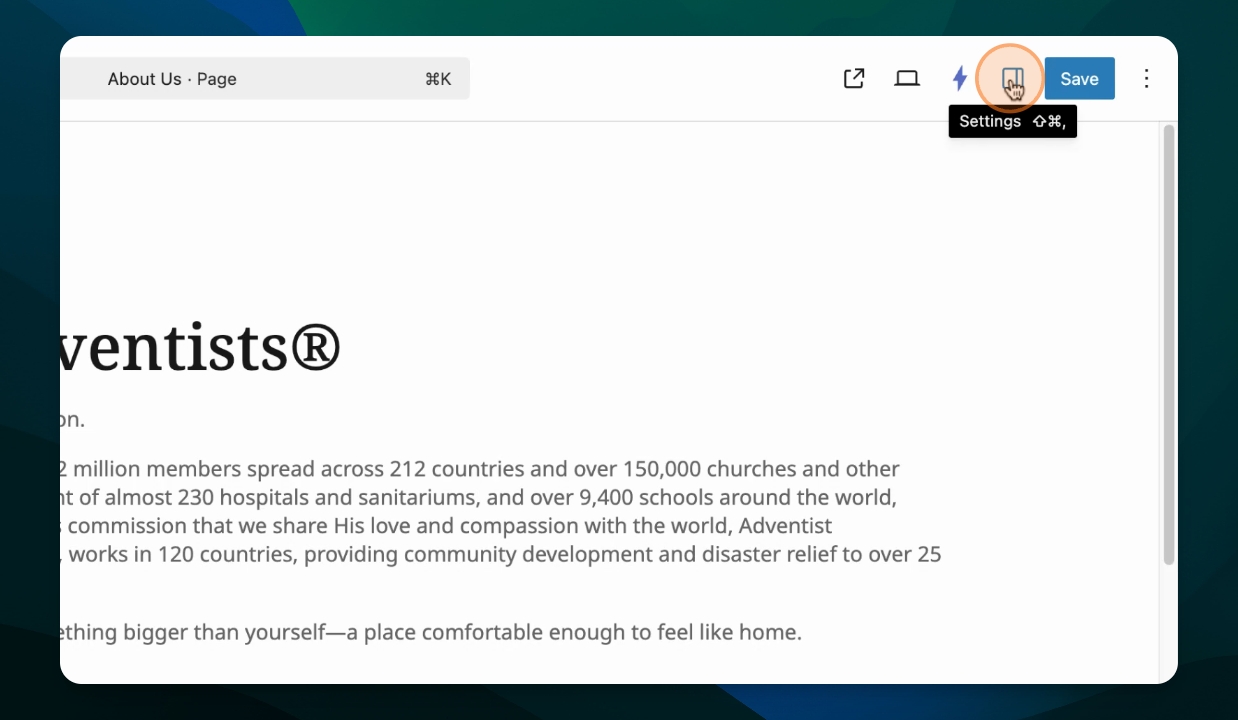
Hide Settings Menu
To hide the menu, click the Settings icon again.