TL;DR
If using an established pattern before deleting a block you will need to go to:
Editor > Document Overview Sidebar > Select Pattern > Click on you 3 Options dots > Click Detach
This makes that pattern fully editable. We recommend that you do not use the "edit pattern" option. This will change that pattern site wide.
Let's Do It Together!
Step 1: Hover Over Elements
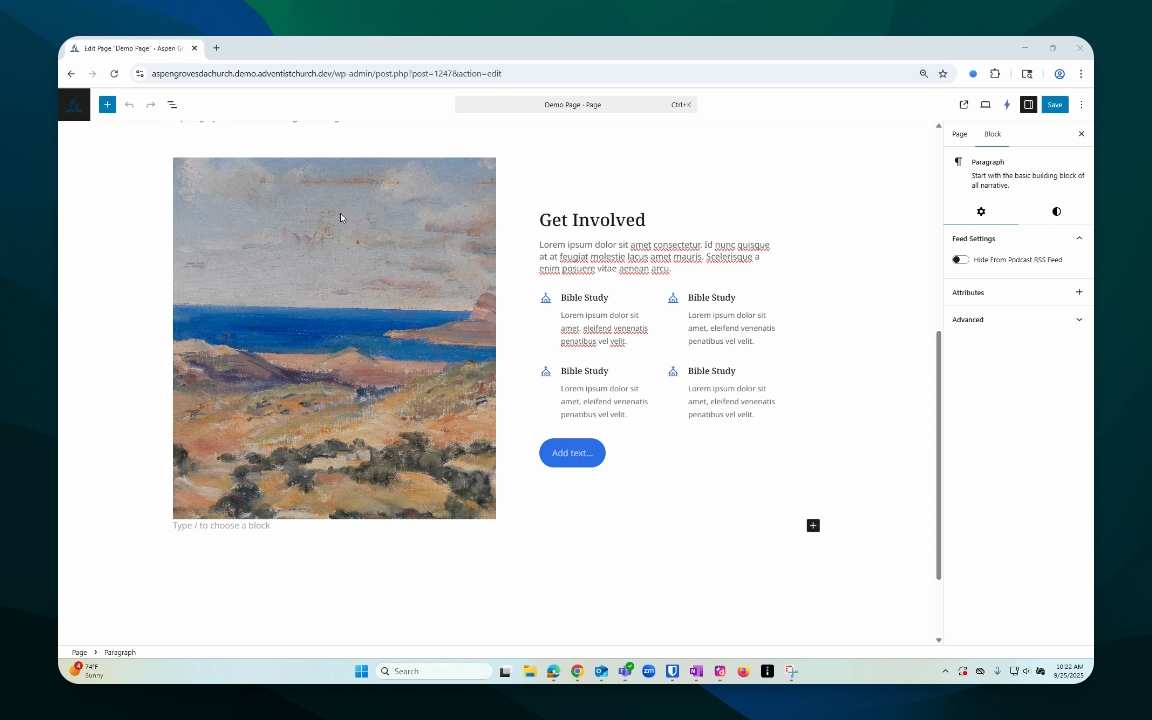
Position your cursor over the desired text or image block.
Notice the cursor changes when hovering over different elements.
Step 2: Click on Photo Block
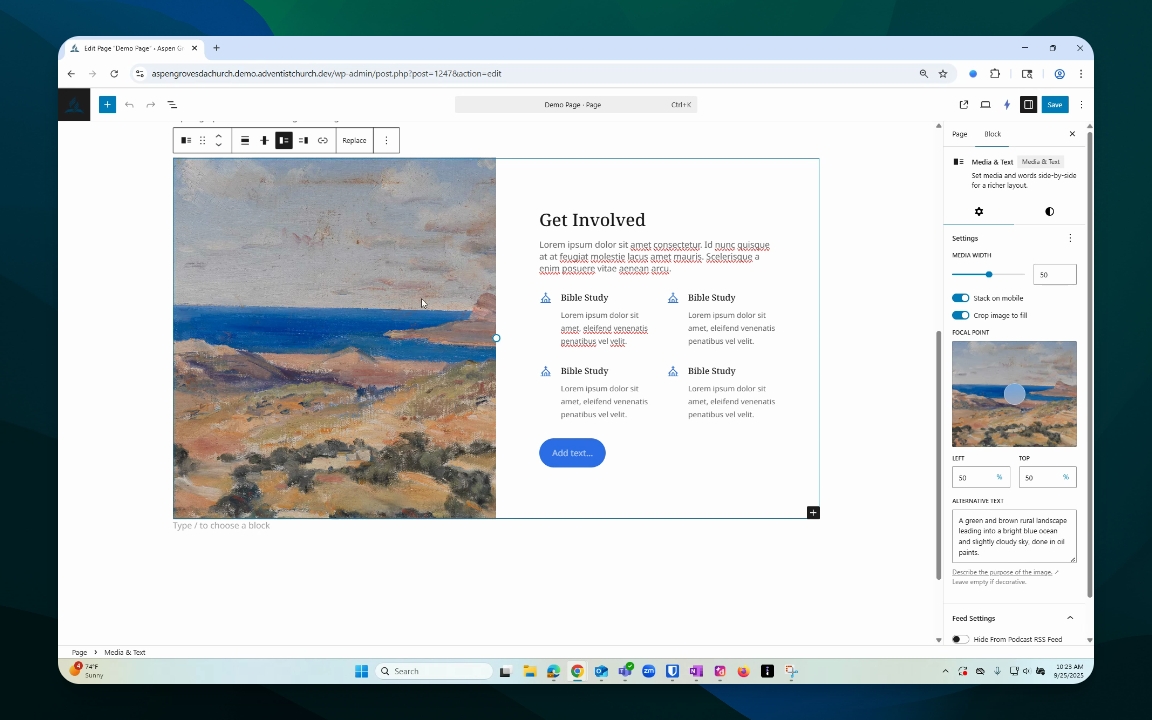
Click on the photo block to access its options.
A menu will appear with a replace option.
You can choose to replace the photo or keep it as is.
Step 3: Click on Text Block
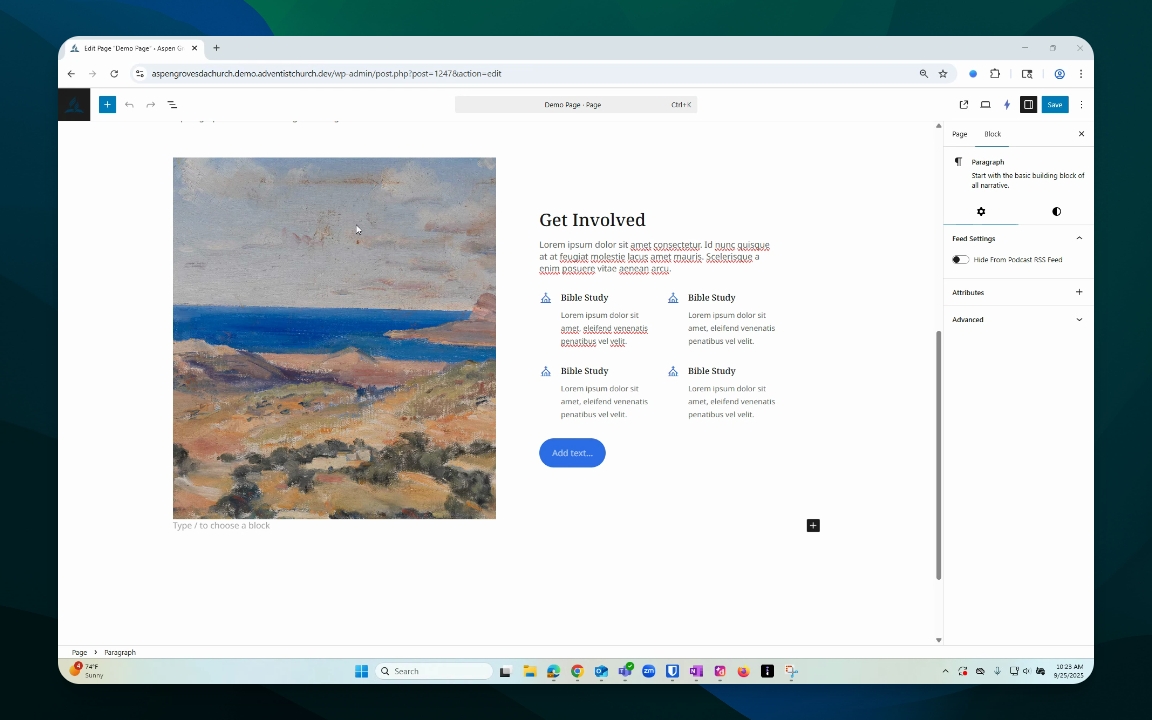
Hover over the text block and click to select it.
A different menu will appear, showing the cursor's position.
Step 4: Edit Text
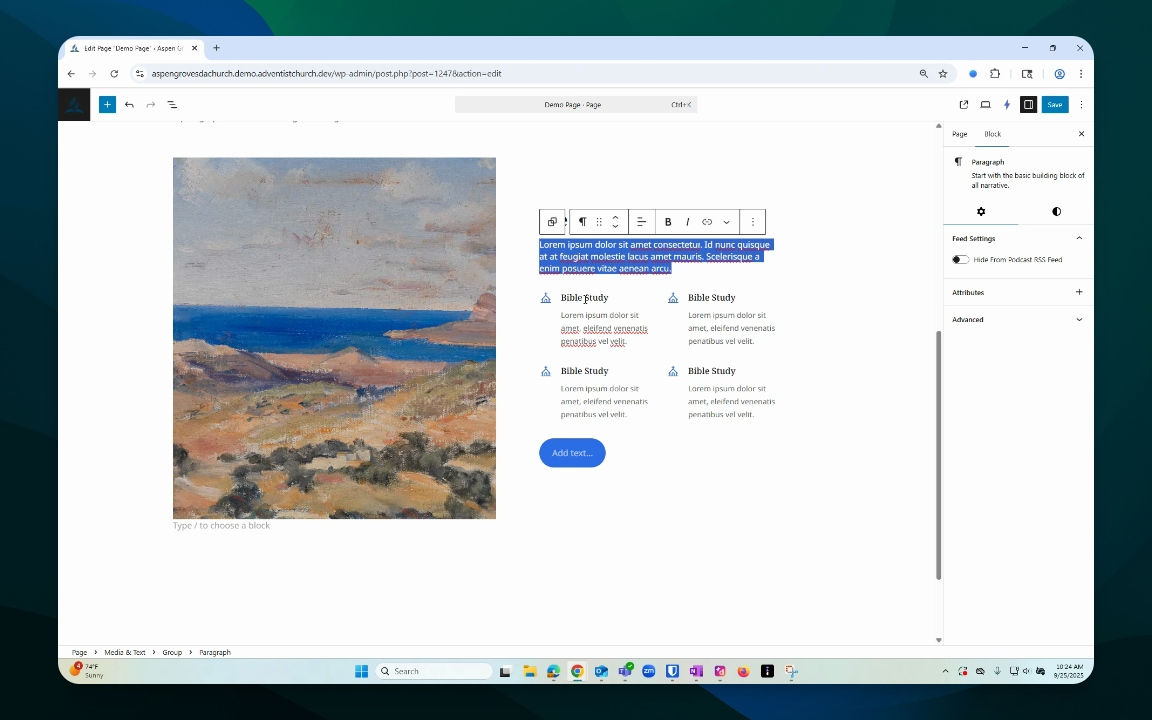
Highlight the text you want to change.
Type in your new text to update the title or paragraph.
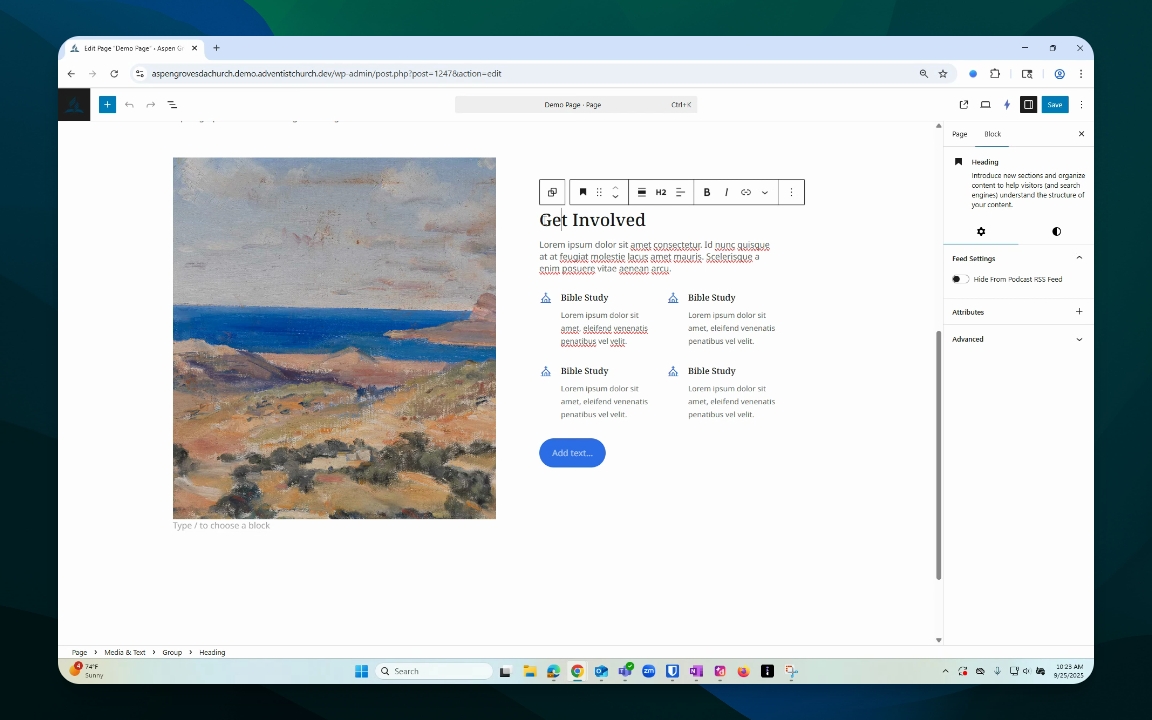
Step 5: Modify Grouped Elements
Click into different elements within the group to edit them.
You can highlight, move, or delete elements as needed.
Use the options key to delete unwanted elements.