

This guide explains how to delete posts from your post list using two different methods, as well as how to restore or permanently delete them from the trash. Let's look at these options:
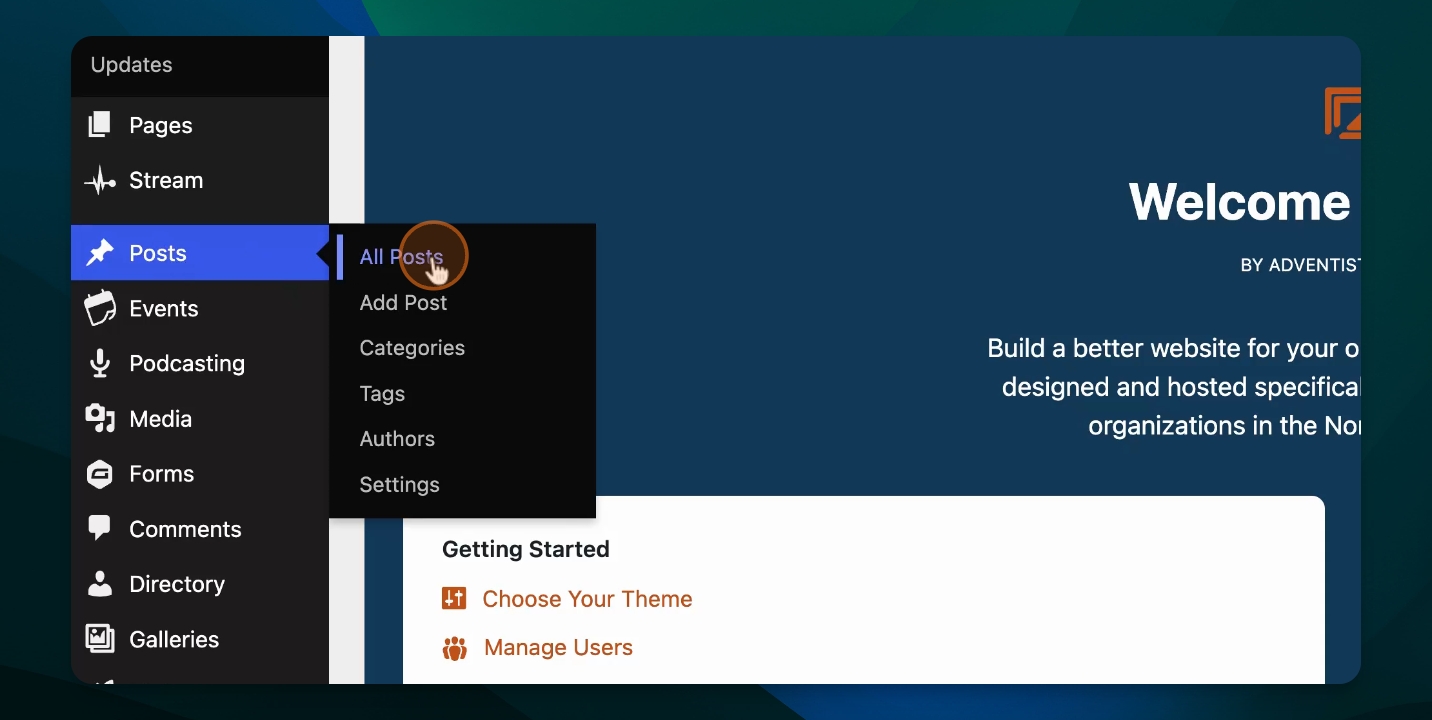
Open All Posts
From your dashboard, navigate to Posts > All Posts to view your list of posts.
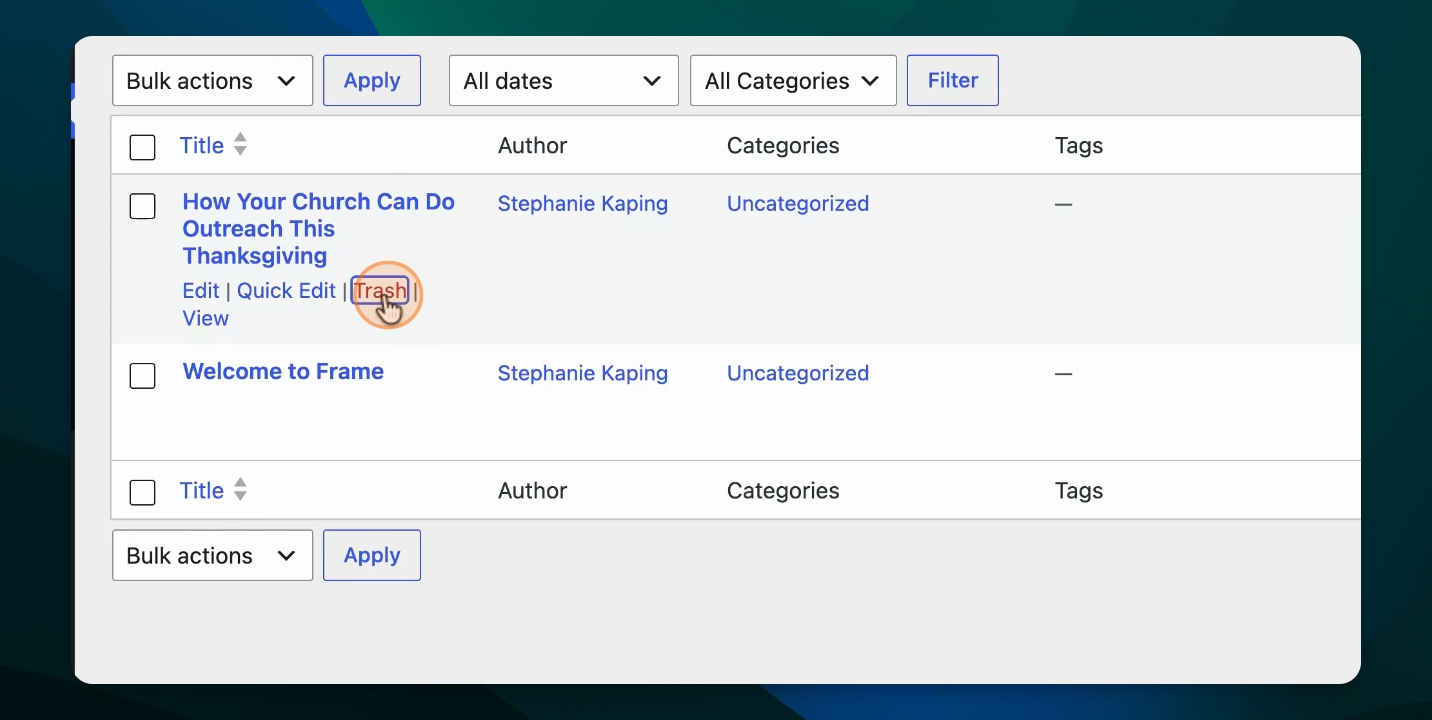
Option 1: Delete a Post From the List
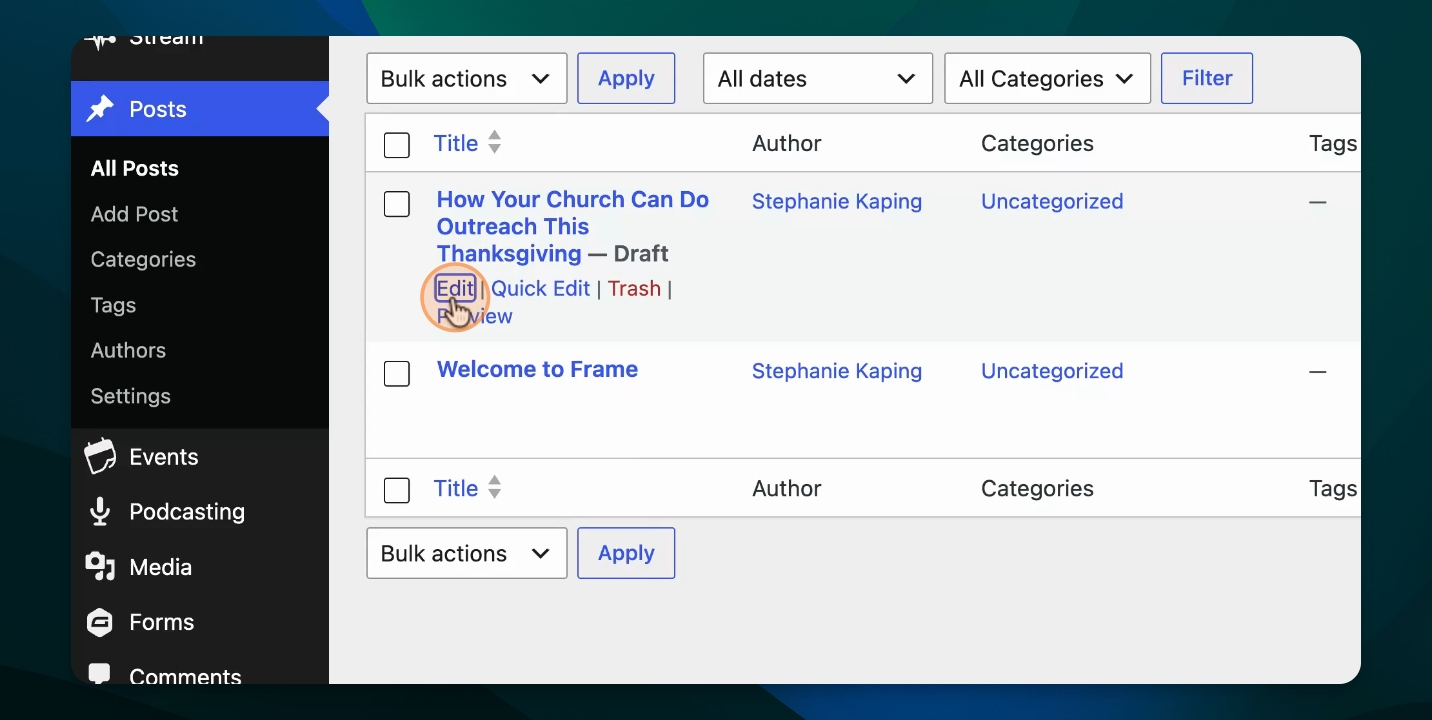
Hover over the post name to reveal options like Edit, Quick Edit, Trash, and View. Click Trash to delete the post.
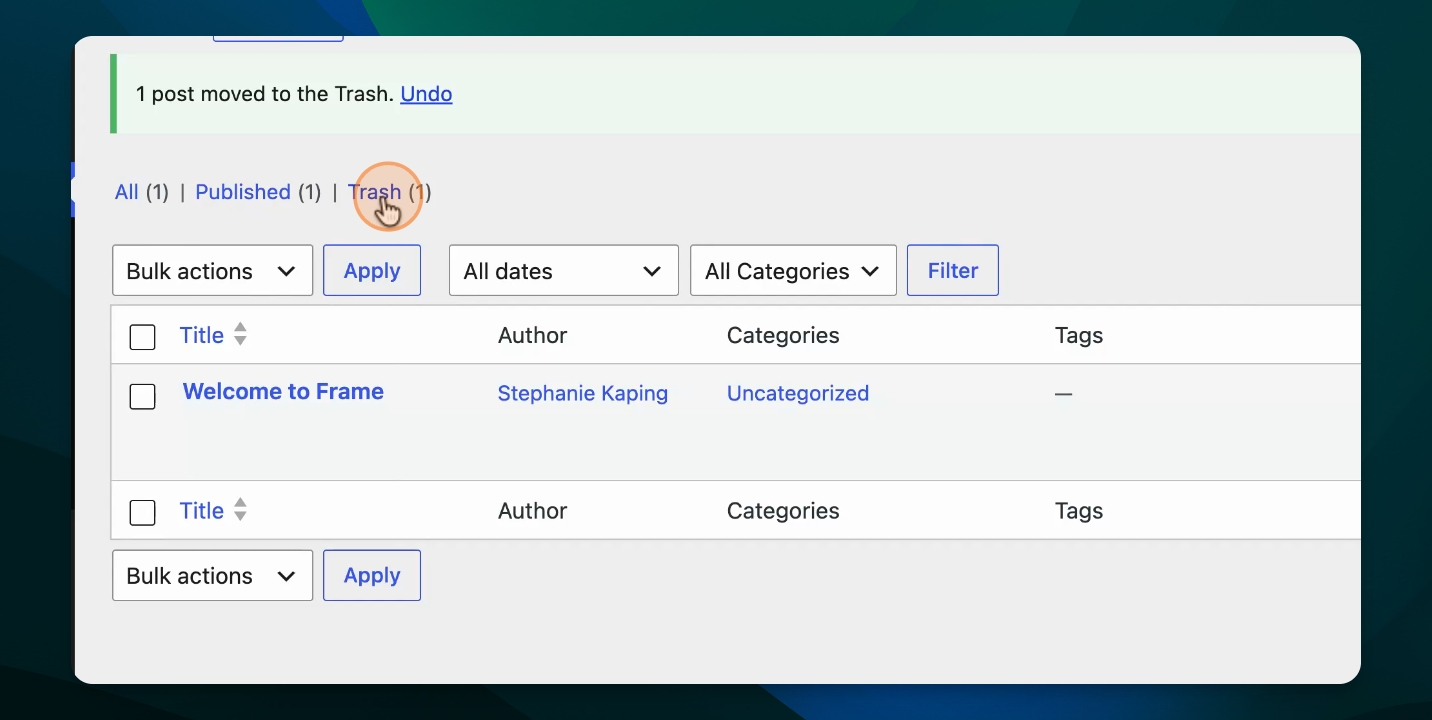
After deleting, only the posts you wish to keep will remain in the list.
Access the Trash to Undo Deletion
If you want to undo the deletion, locate the Trash link, which shows the number of items in the trash. Click on Trash to view trashed posts.
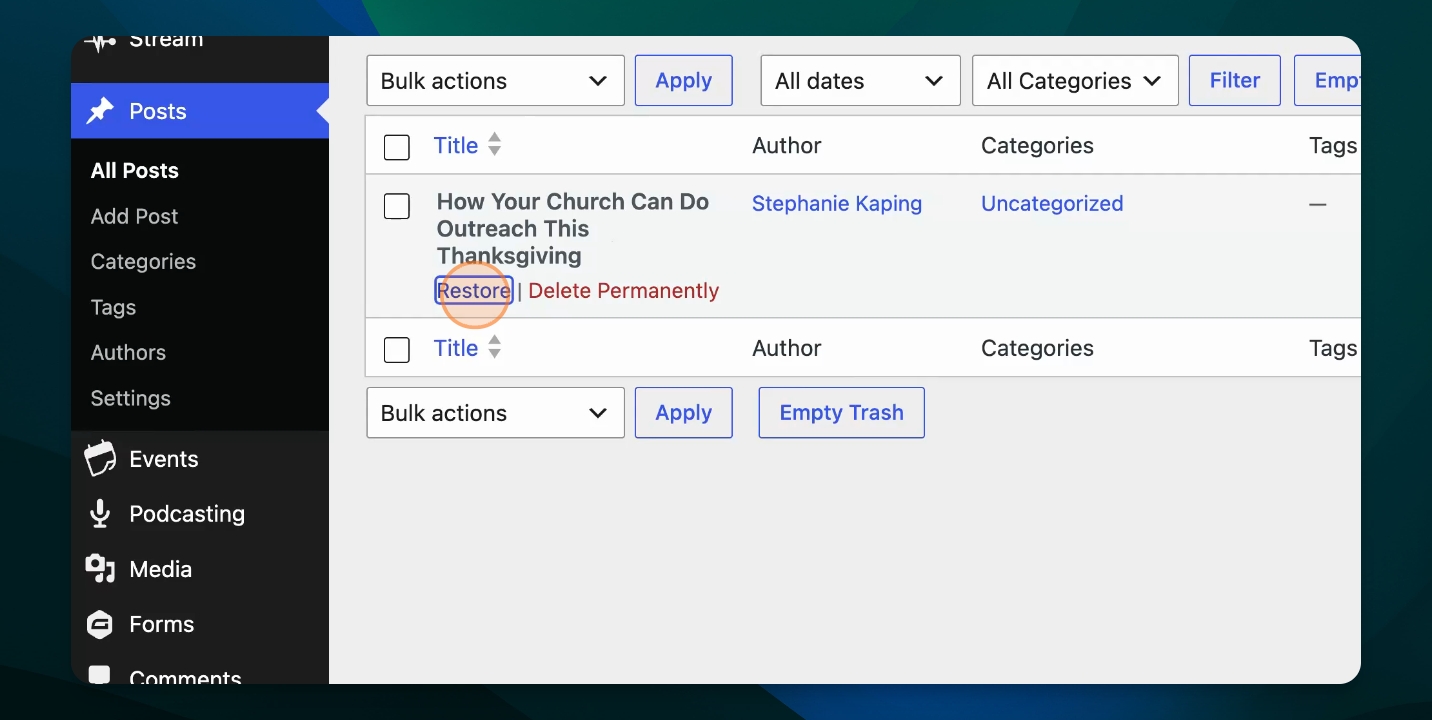
Restore or Permanently Delete
In the trash, find the post you deleted. You can choose to Restore it or Delete Permanently.
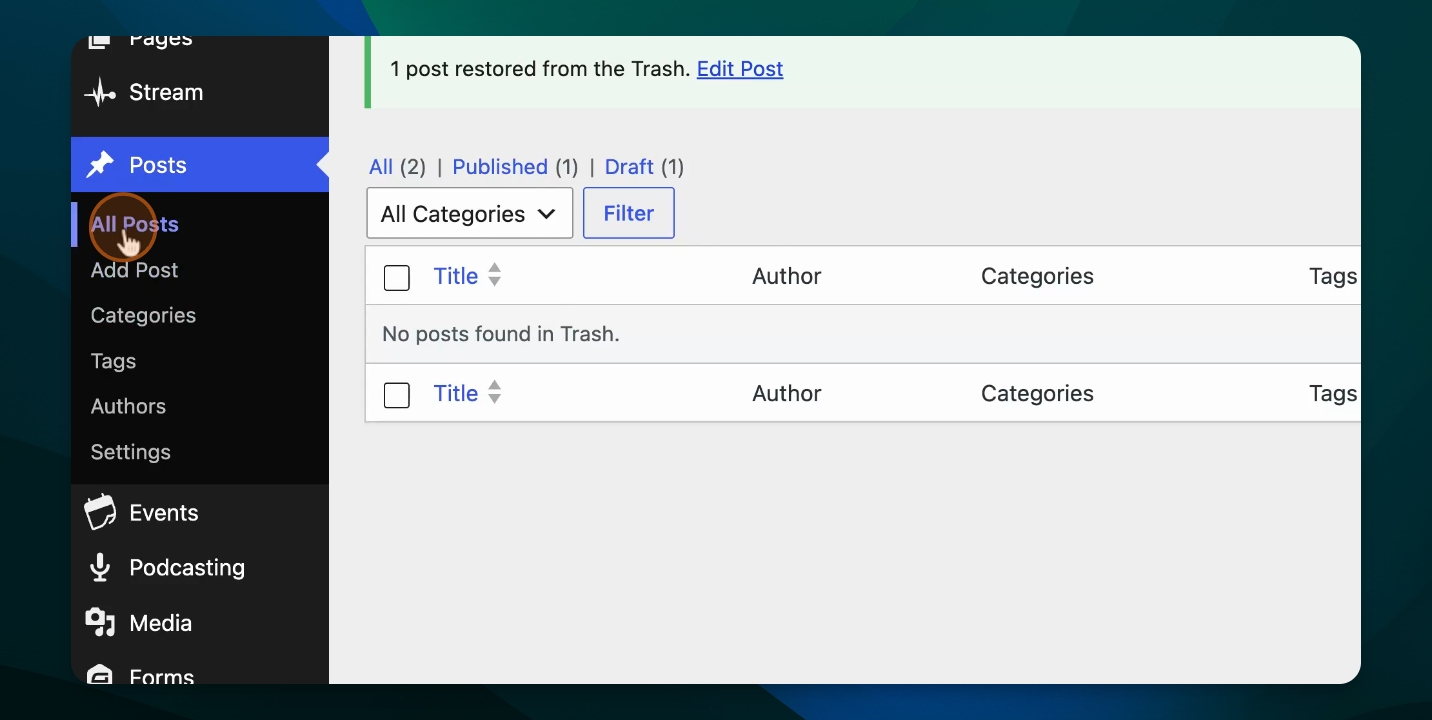
Return to All Posts
After restoring, go back to All Posts. The restored post will reappear in your list.
Option 2: Delete a Post From the Editor
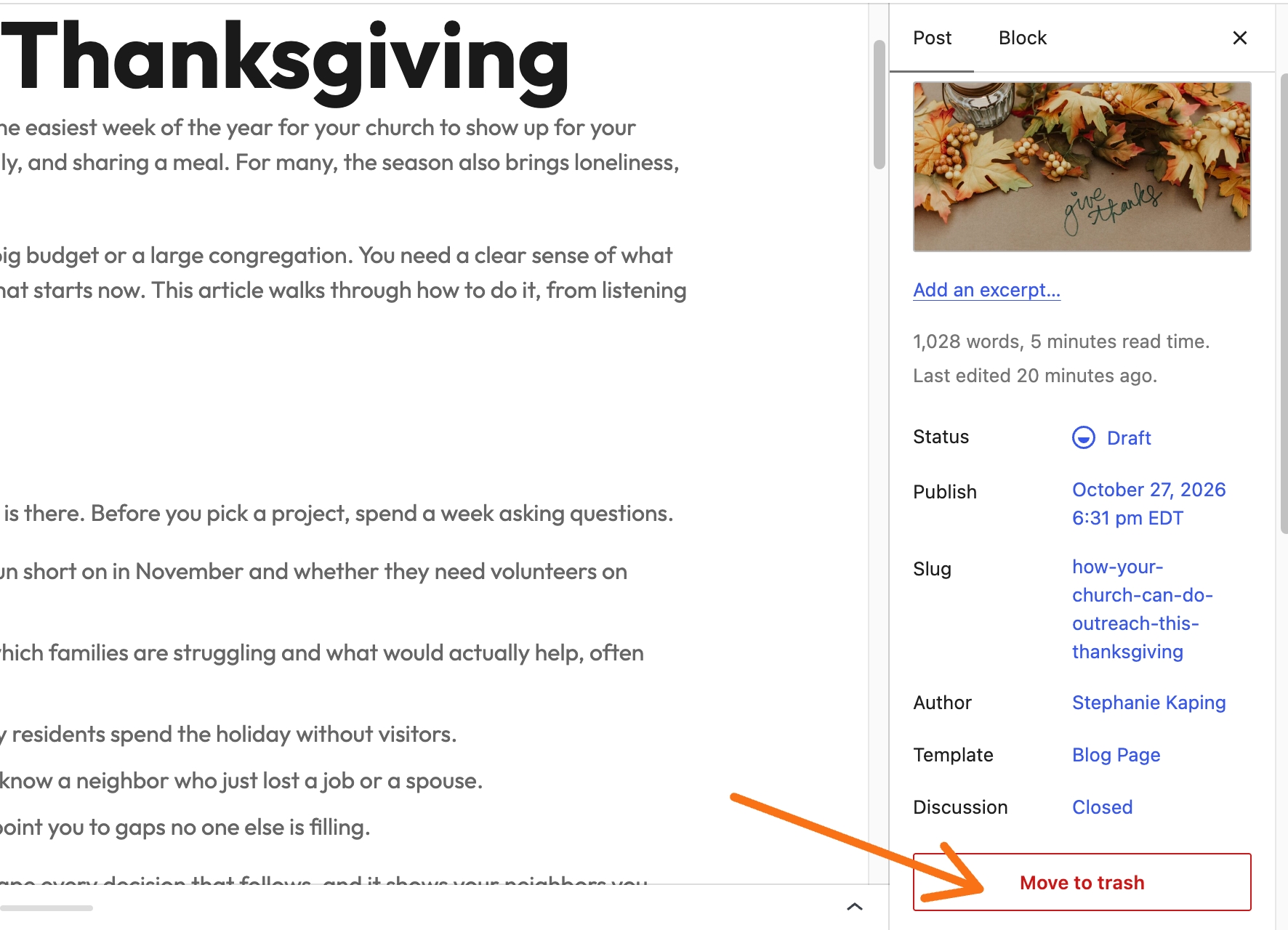
Alternatively, open the post in the editor. In the settings sidebar on the right, click Move to Trash.
Step 8: Confirm Deletion in Editor
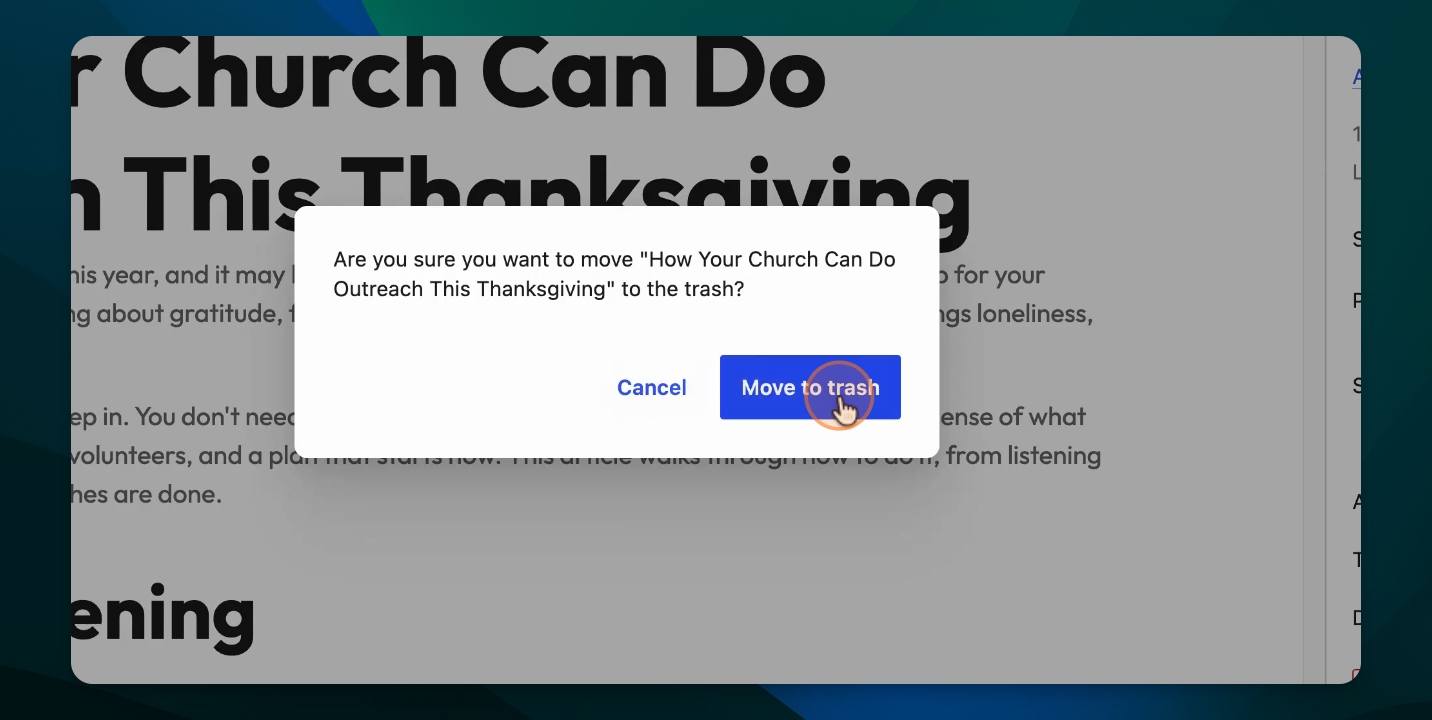
A confirmation window will appear asking if you are sure you want to move the post to trash. You can either cancel or confirm by clicking Move to Trash.
Verify Post Is Trashed
The post will be moved to the trash, and you will be returned to the list window where you can see the post in the trash.
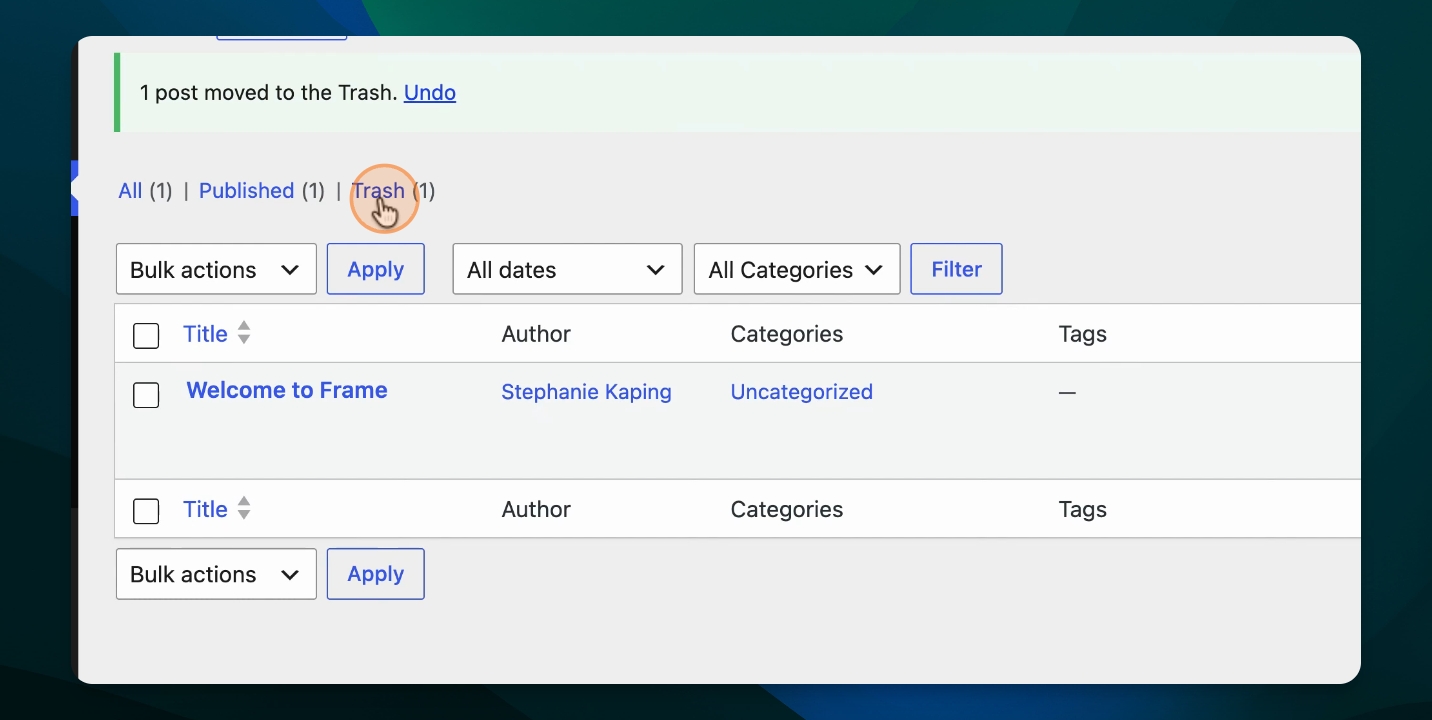
Restore or Permanently Delete From Trash
From the trash, you can again choose to Restore the post or Delete Permanently.
Restore the post and return to All Posts to confirm it has been restored.
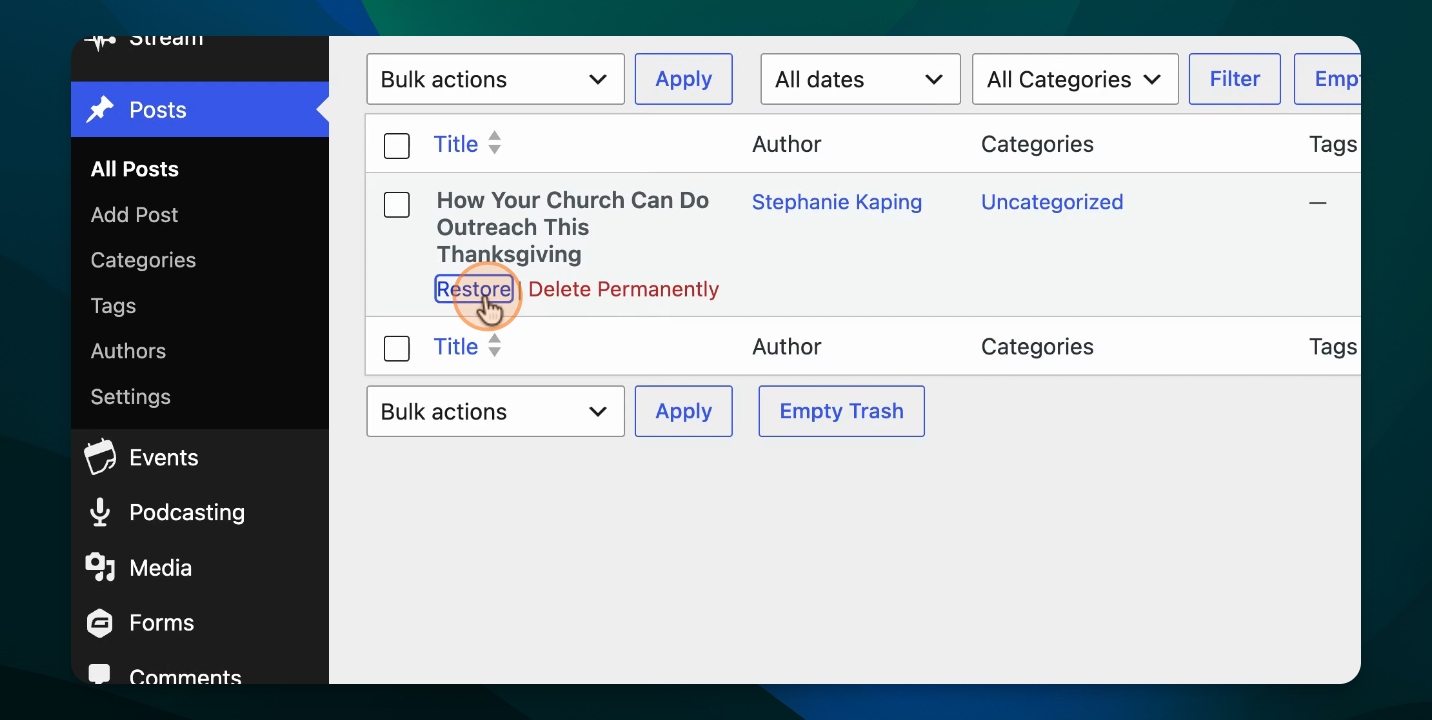
Note that restored posts may return in draft mode. You may need to edit and publish the article again to make it live.
Please note that items in the Trash are automatically deleted after a set period of time and can’t be recovered once removed. Likewise, any post clicked “Permanently Delete” can’t be restored, so please review items carefully before deleting them.
The Trash isn’t intended as a place to store posts for future use. If you’d like to keep a post for later, we recommend setting it to “Draft” status instead. Your post will stay saved and ready whenever you need it.