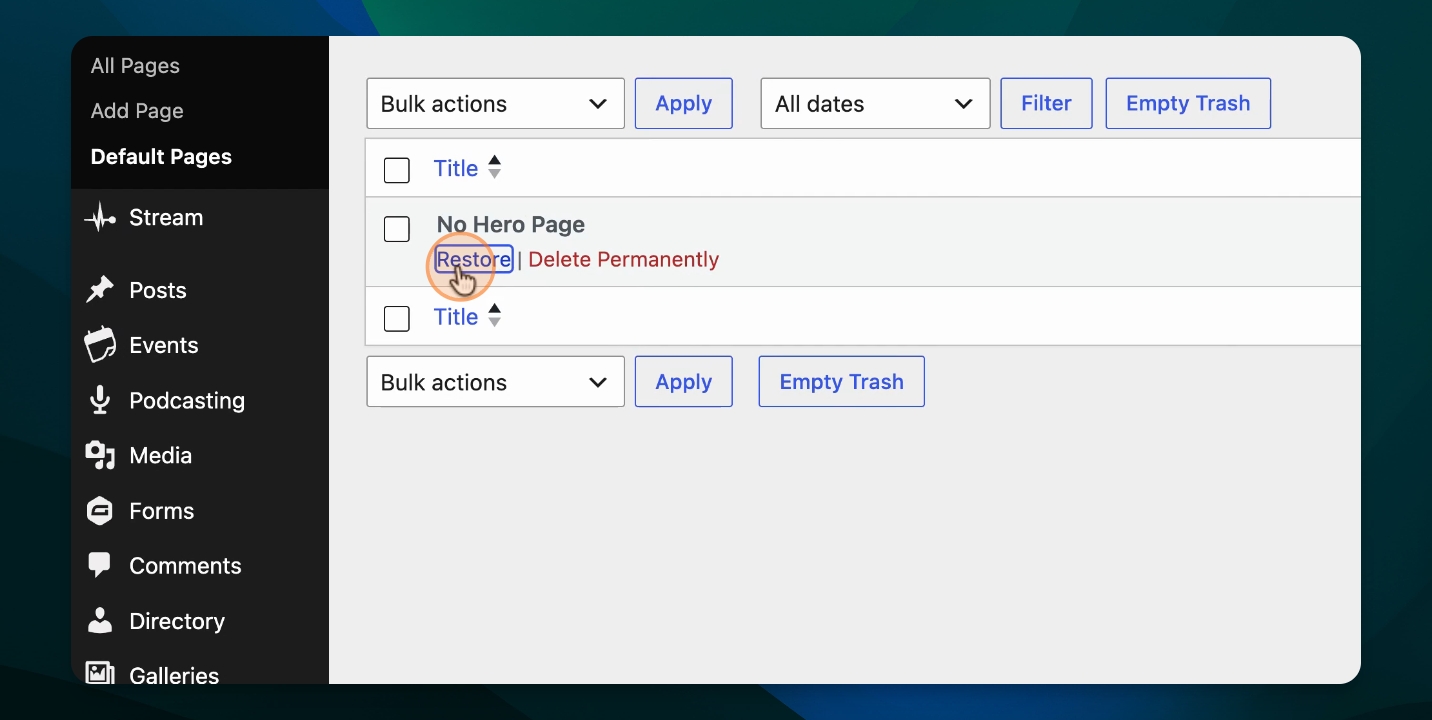
Please note that Pages in the Trash are automatically deleted after a week and can’t be recovered once removed. Likewise, any Page clicked “Empty” can’t be restored, so please review items carefully before deleting them.
The Trash isn’t intended as a place to store Pages for future use. If you’d like to keep a Page for later, we recommend setting it to “Draft” status and also hiding in from the main menu. Your Page will stay in your list and ready to publish again whenever you need to.
This guide explains how to delete a page from your website, including important considerations before removal. Let's look at the steps:
Step 1: Open All Pages
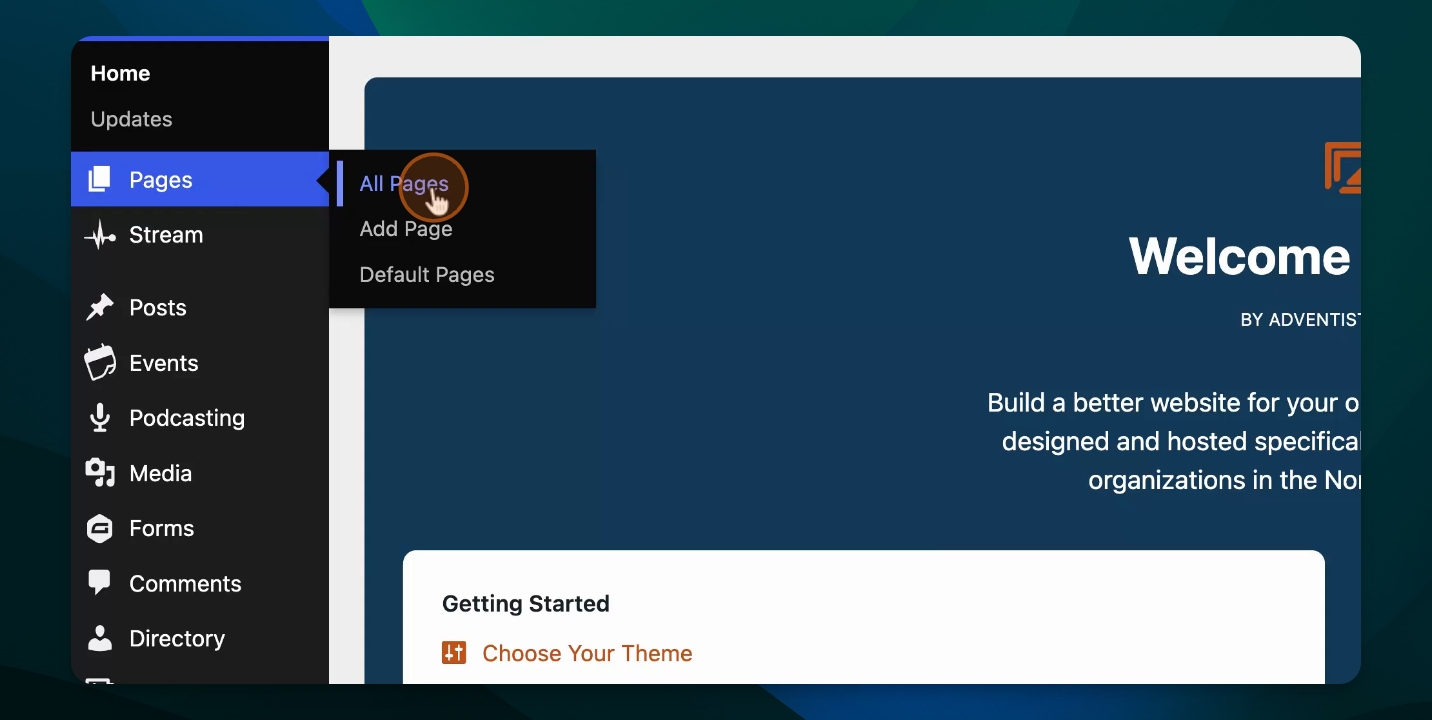
Go to the dashboard, then navigate to Pages and select All Pages.
Step 2: Review the Page to Delete
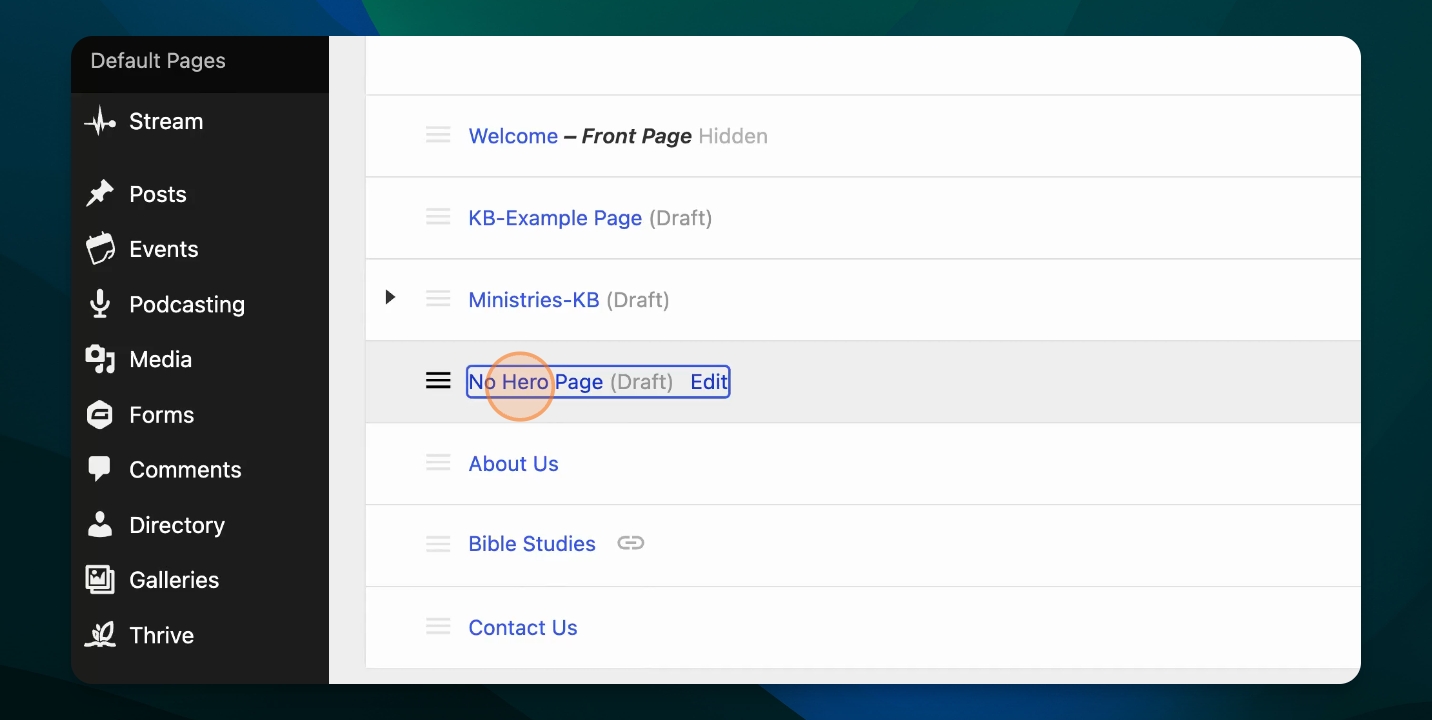
Open the page you are considering for deletion. Review carefully its content to ensure there is nothing you need elsewhere on your website. Also if there are any links involved from other pages.
Step 3: Return to All Pages
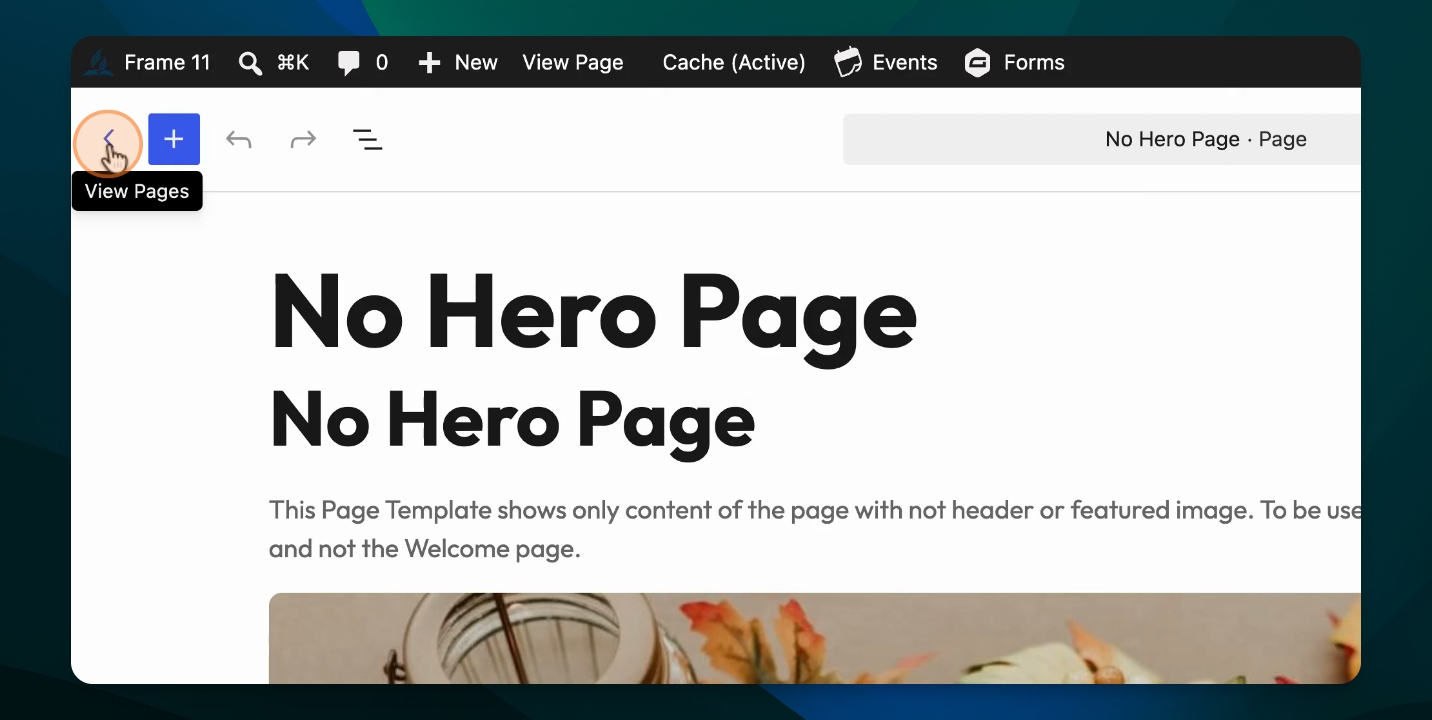
Exit the editor and go back to All Pages.
Step 4: Locate the Page
Find the page you want to delete in the list of pages.
Step 5: Delete the Page
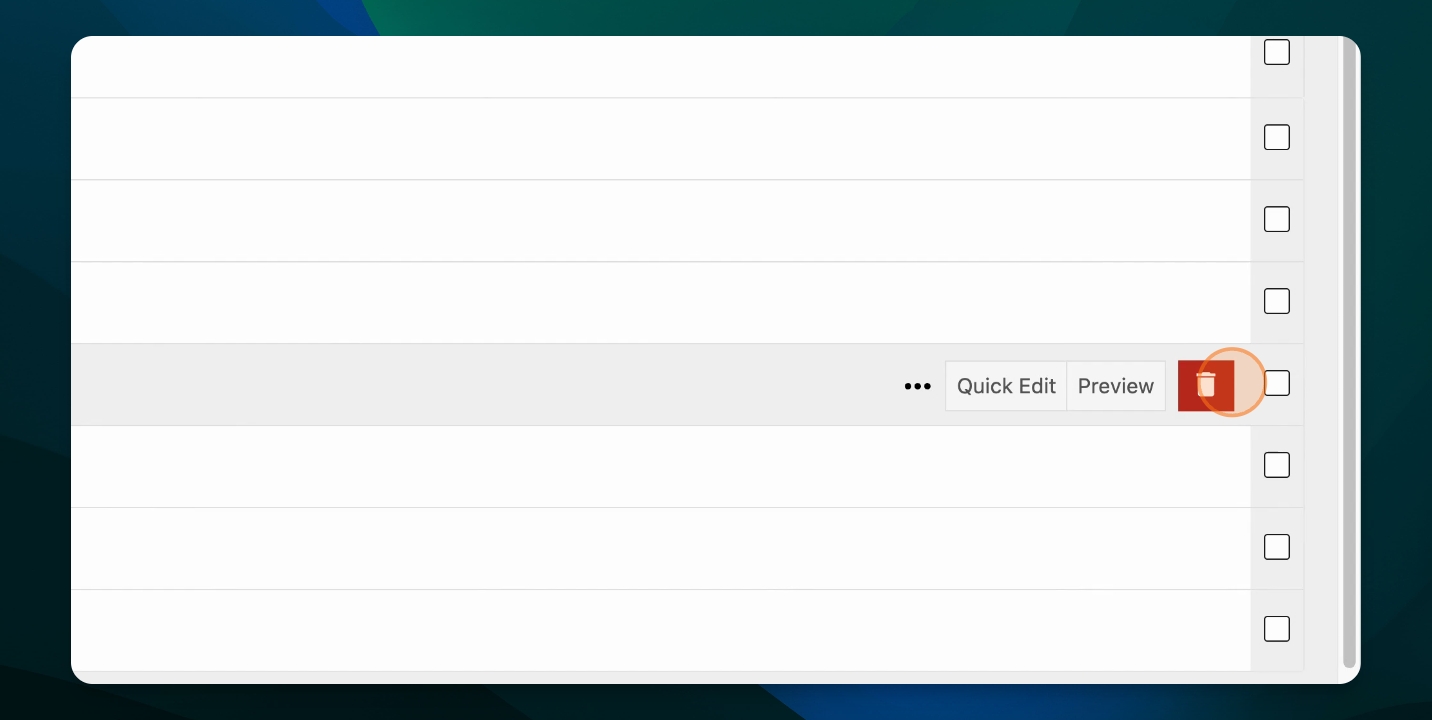
On the right side, click the trash can icon to delete the page.
Step 6: Manage Deleted Pages
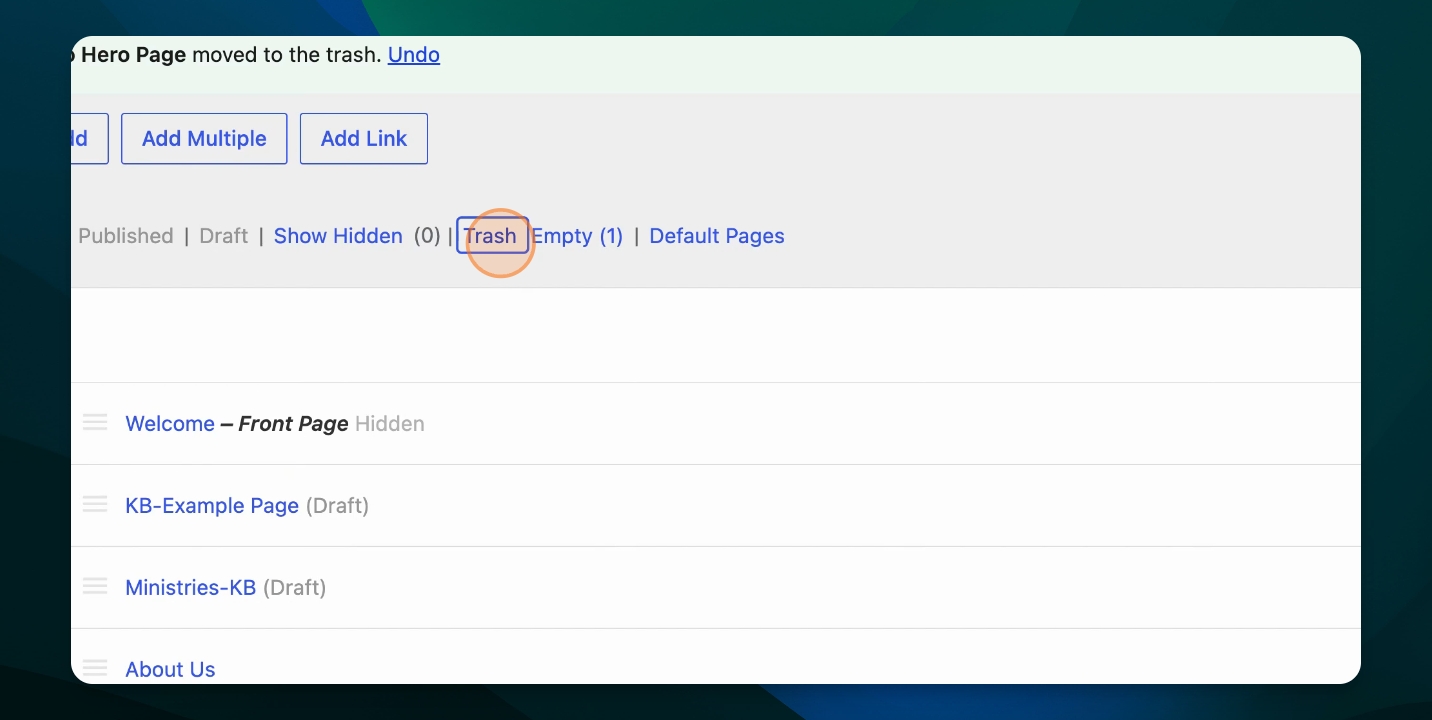
The deleted page moves to the Trash menu at the top. You can empty the trash to permanently delete pages, or restore them if needed.
If you "Empty" the trash, the deletion is permanent and you cannot retrieve the page.
Step 7: Restore or Permanently Delete
In the Trash menu, select the page to "Restore" it or "Delete Permanently". Restored pages return to your list of All Pages.