

TL;DR
1
Go to Pages
Navigate to your dashboard and select All Pages.
2
Select Source Page
Choose the page you want to copy from.
3
Highlight Content
Select the content boxes you wish to copy.
4
Copy Content
Click Options and then Copy to clipboard.
5
Paste Content
Go to the target page and use Command/Control + V to paste.
Let's Do It Together!
Step 1: Navigate to Pages
Go to your dashboard and select Pages.
Click on All Pages.
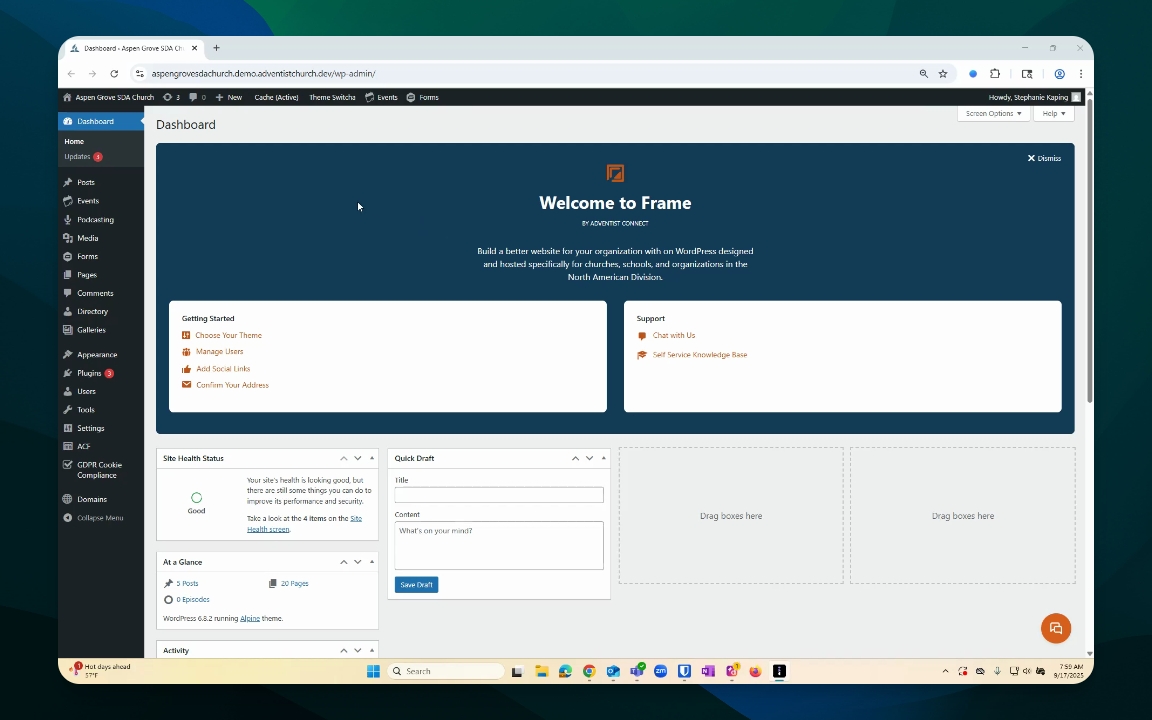
Step 2: Select the Page to Copy From
Choose the page you wish to copy from.
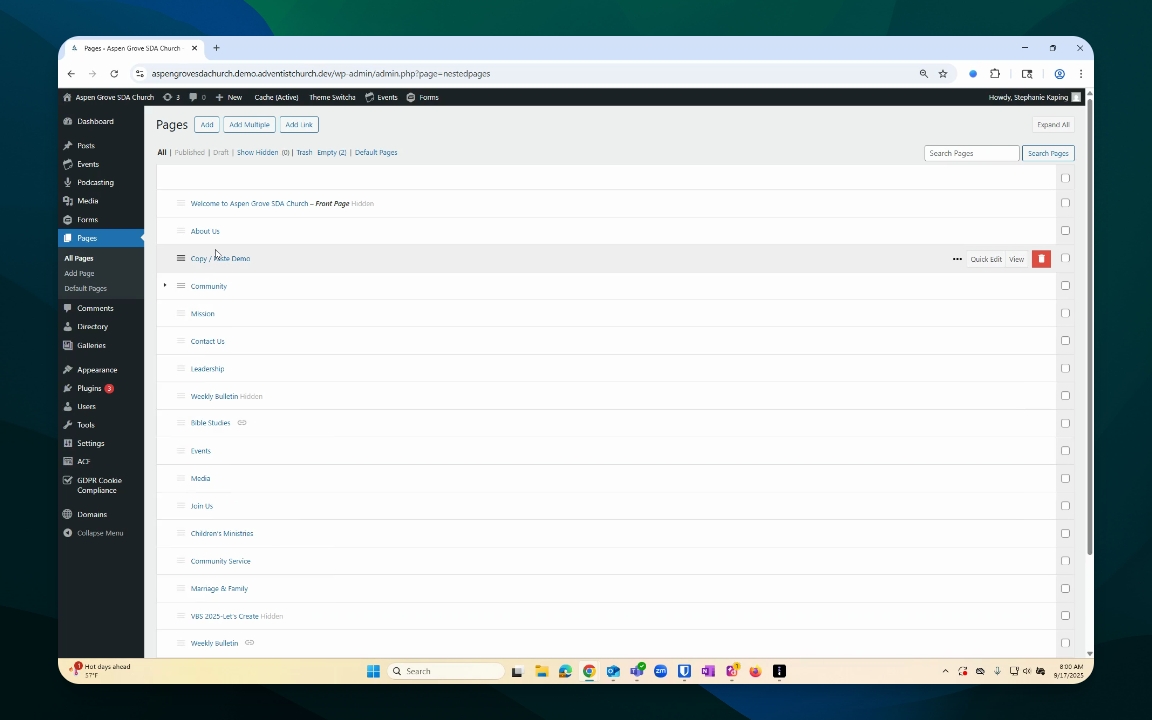
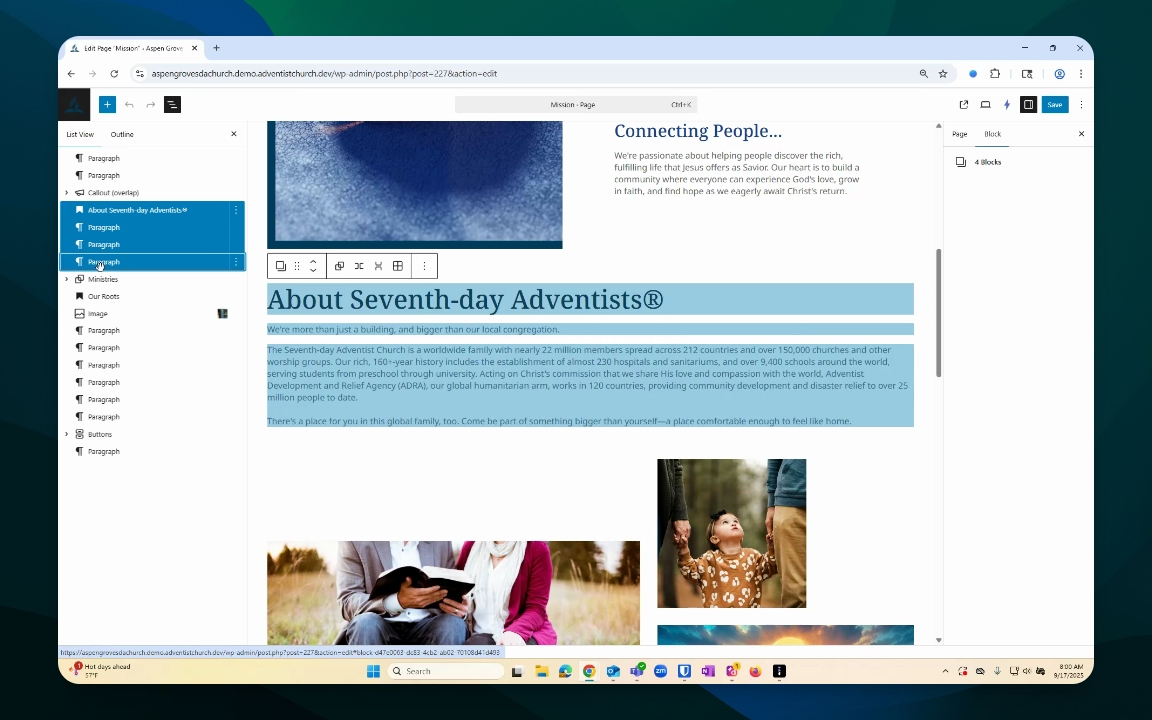
Step 3: Highlight Content
Go to your document overview.
Make sure to highlight the content you want to copy by clicking on the appropriate blocks.
If needed, hold the Shift key to select multiple blocks.
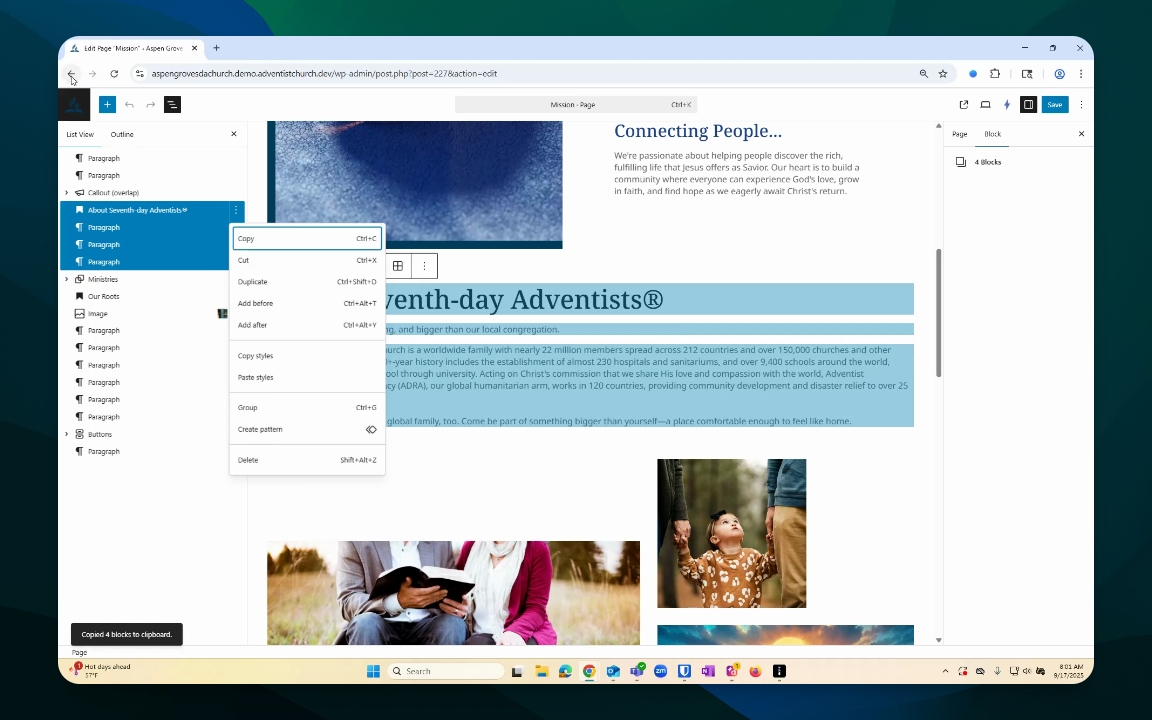
Step 4: Copy the Content
Once highlighted, go to your Options menu.
Click Copy to save it to your clipboard.
Step 5: Navigate to the Target Page
Go back to your Pages list and select the page where you want to paste the content.
You can ignore any warning window if this is a new page.
Step 6: Paste the Content
Place your cursor on the desired location on the page.
Use Command or Control + V to paste the copied content.
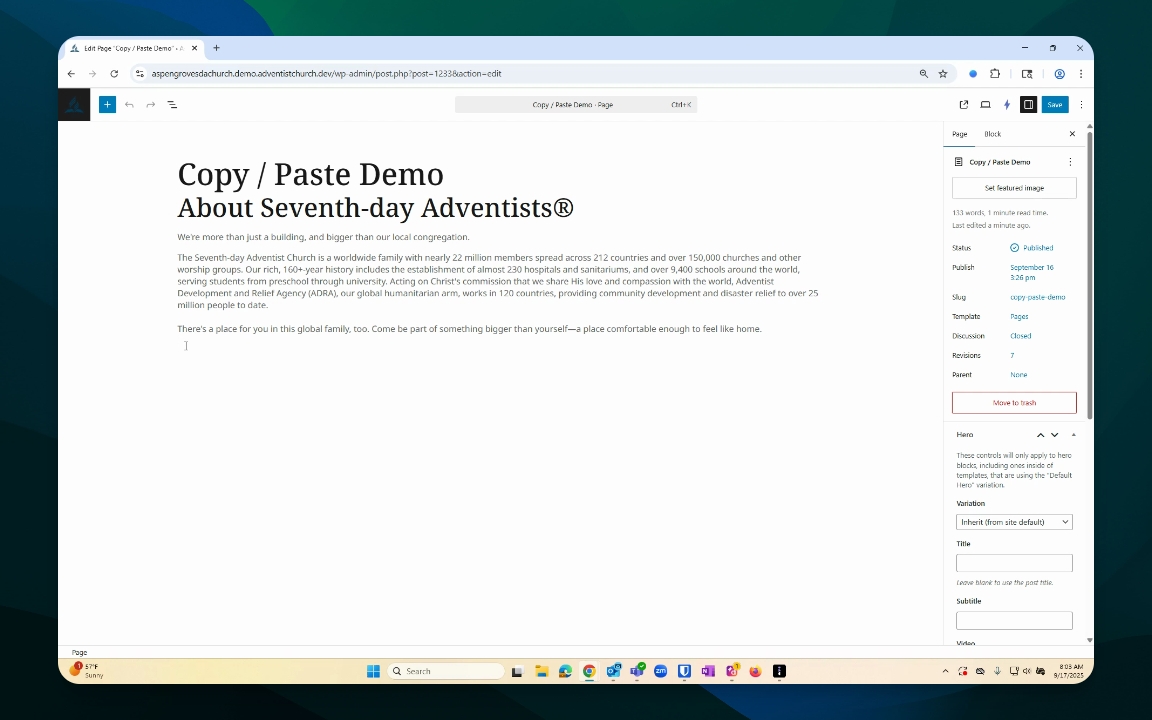
Step 7: Modify and Save
Modify the pasted content as needed, such as replacing images or text.
Don’t forget to save your work frequently.