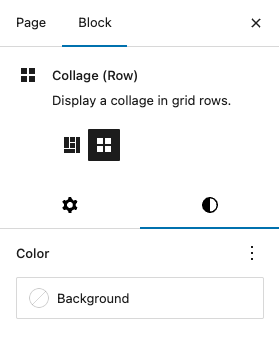
The Collage Block provides a simple, static way to display images in a grid or mosaic, adding interest and visuals to a web page.
The Collage Block differs from the Gallery Block in that a gallery of images doesn't need to be created to fill the block. It is best suited for static groups of images, not frequently updated.
Add a Collage Block
There are two ways to add a Collage block:
Simply click the Block Inserter (+) button to find the block,
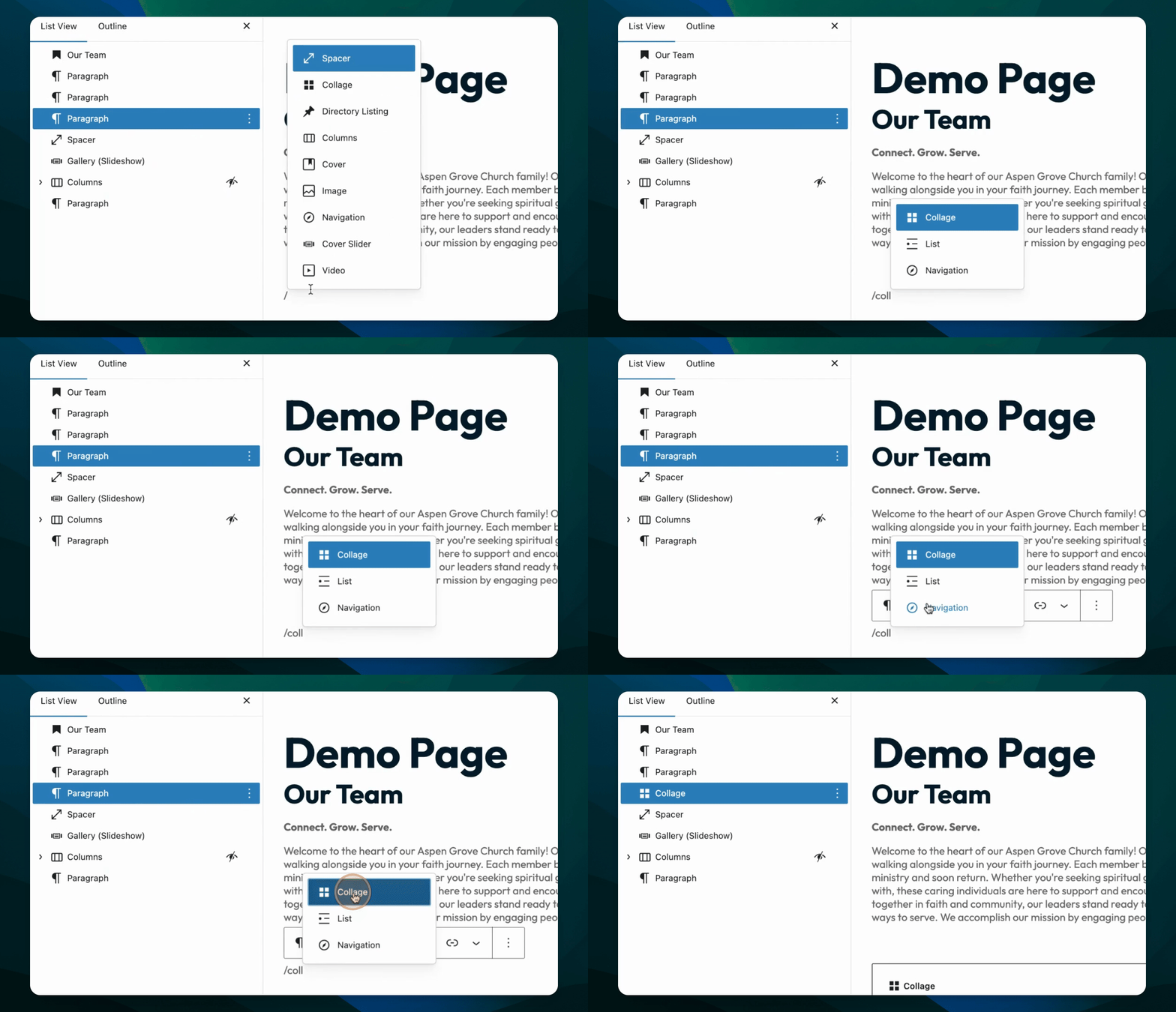
or start typing
/collagein an empty paragraph and hit enter to quickly insert a Collage Block into your post or page.
Best Practices
Use for a static collection of images
Row collages will always display three images across, except on mobile
Choose mosaic collage for a mix of vertical and horizontal images
You must have at least the Site Editor role to make page edits. If you don’t have the required permissions, please contact an administrator for assistance.
Block Toolbar

Every block comes with its own set of controls. By hovering over the buttons, you can see tooltips that reveal what each button does.
The toolbar for the Collage Block includes the following buttons from left to right:
Transform to
Block moving tools
Alignment
Add media
More options
Transform to
You can transform the Collage Block into a Collage (Row) or Collage (Mosaic). You can also place it into a Columns, Group Block, or Details Block.
Block moving tools
The up and down arrows allow you to move a block higher or lower within your content. The grab pad allows you to click and drag the block within your content.
Alignment
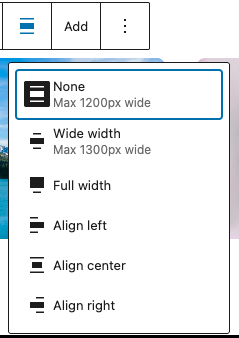
Adjust how wide the collage appears on the page in relation to the rest of content.
Add media
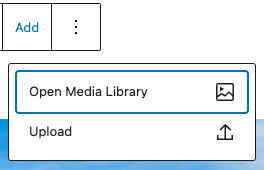
Choose to add a new image to the collage either from your device or from the Media Library.
Block Settings
Each block has settings that help you shape your message. To find these options for your Collage Block, click the Settings button  in the top-right corner of your editor.
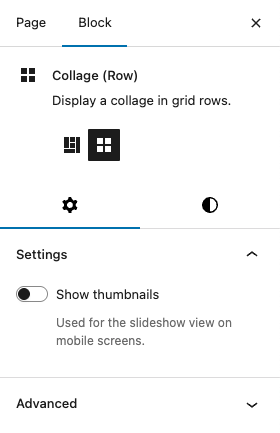
Settings
Layout
Choose between a mosaic display or a row display.
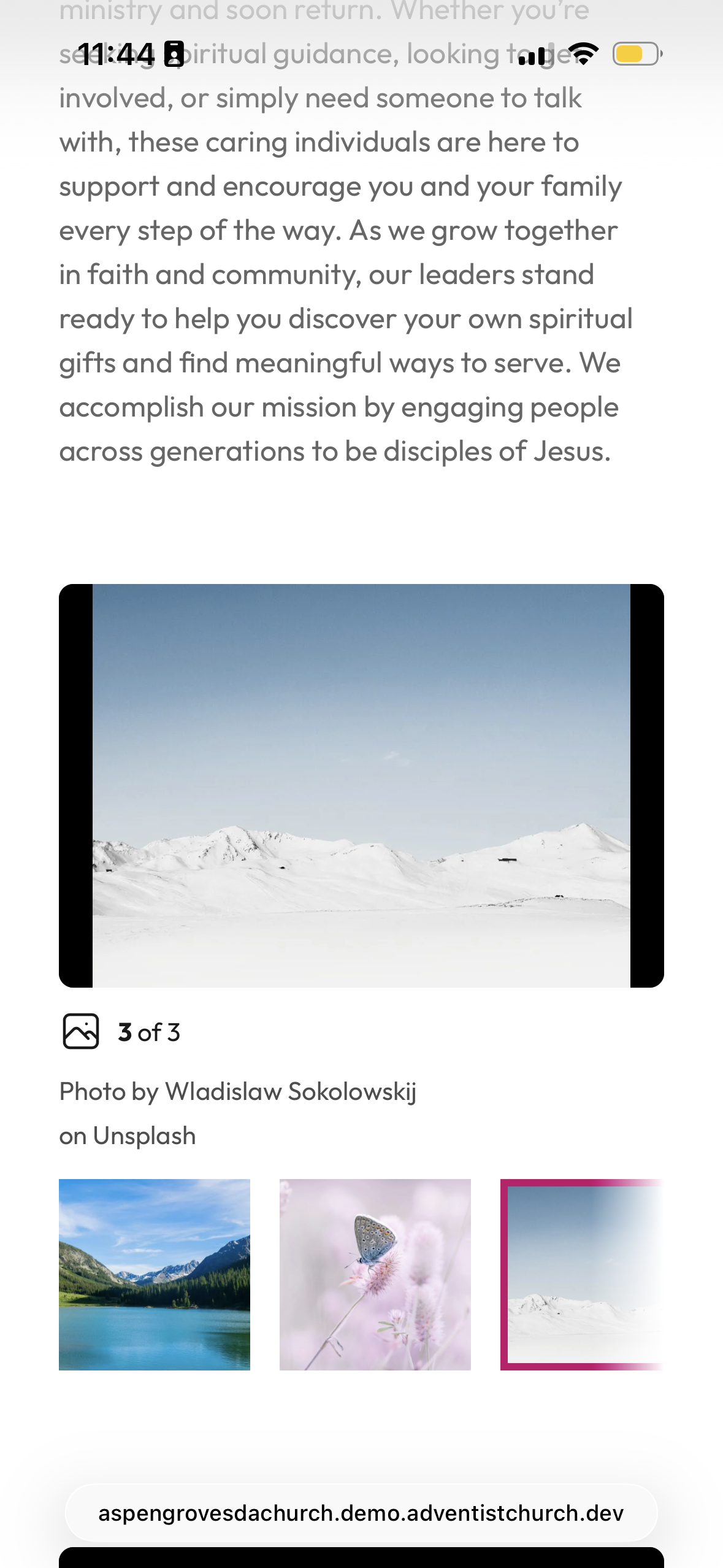
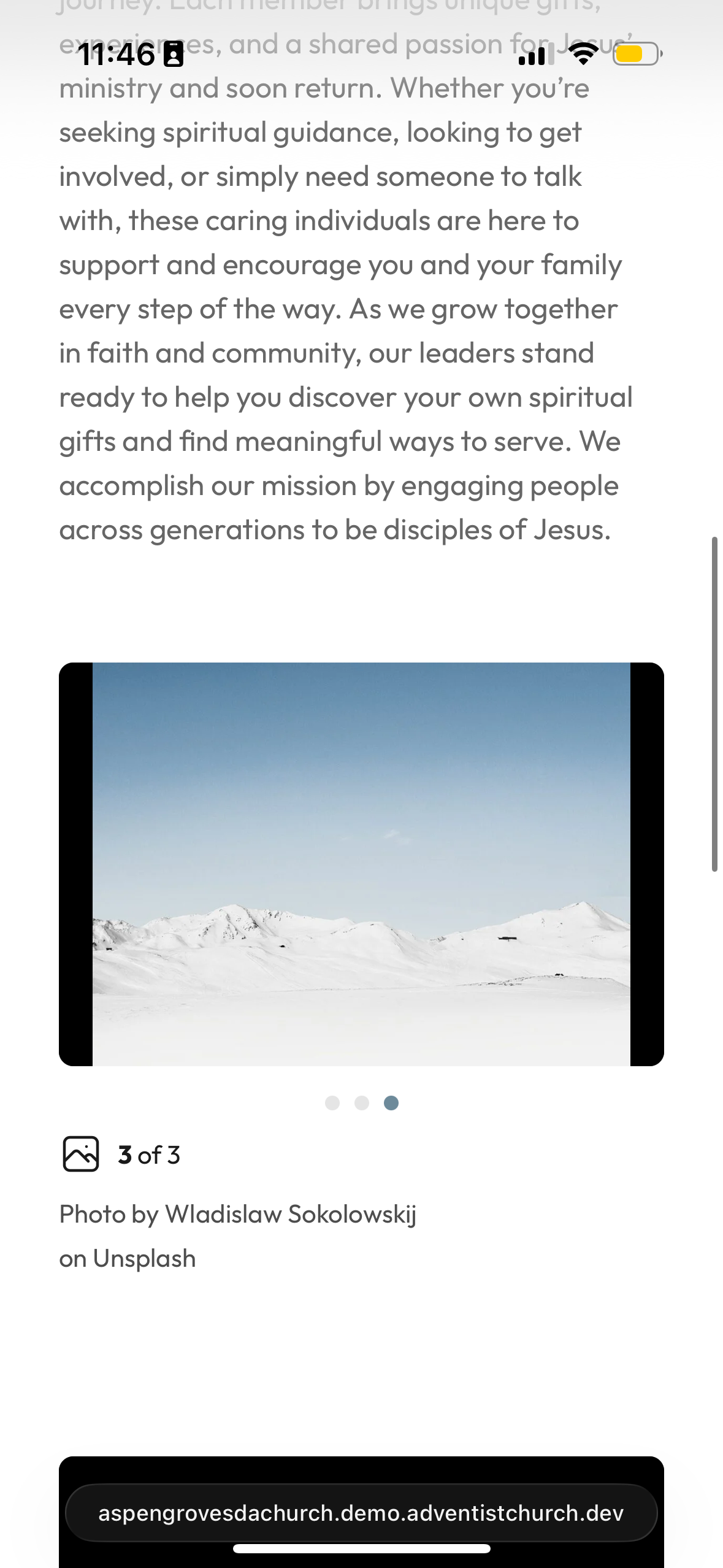
Show thumbnails
Choose to show or hide thumbnails of the pictures in the collage when in mobile. The mobile display will collapse the images in a collage into a slideshow.
Advanced
The Advanced settings allow you to add an HTML anchor and CSS classes to the Collage Block.
HTML Anchor: Create a unique anchor text for the Collage block and link it to another webpage. For more details, refer to Page Jumps.
Additional CSS Classes: Add custom CSS classes to the Collage block, enabling you to style the block as desired.
Style
You can set a background color for your collage with the Color setting.