Let's do it together!
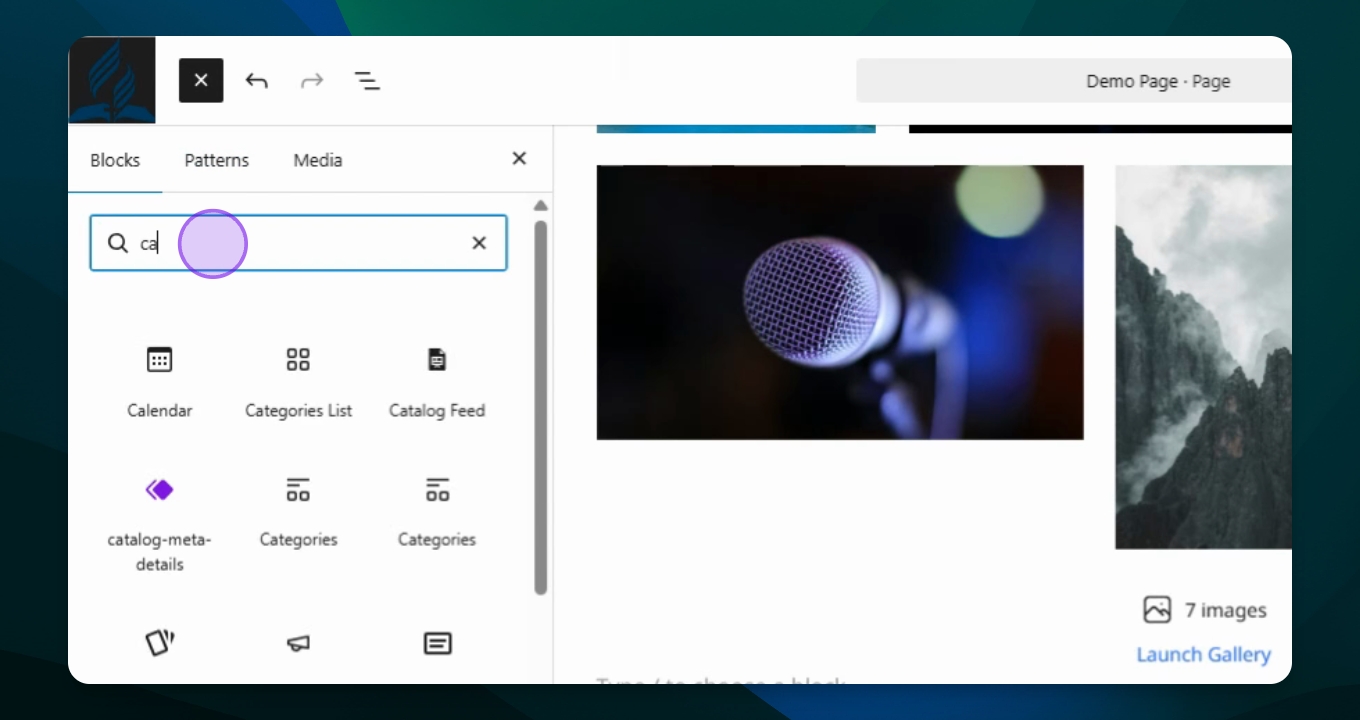
Step 1: Open Block Inserter
Go to your block inserter and type in card to see available options.
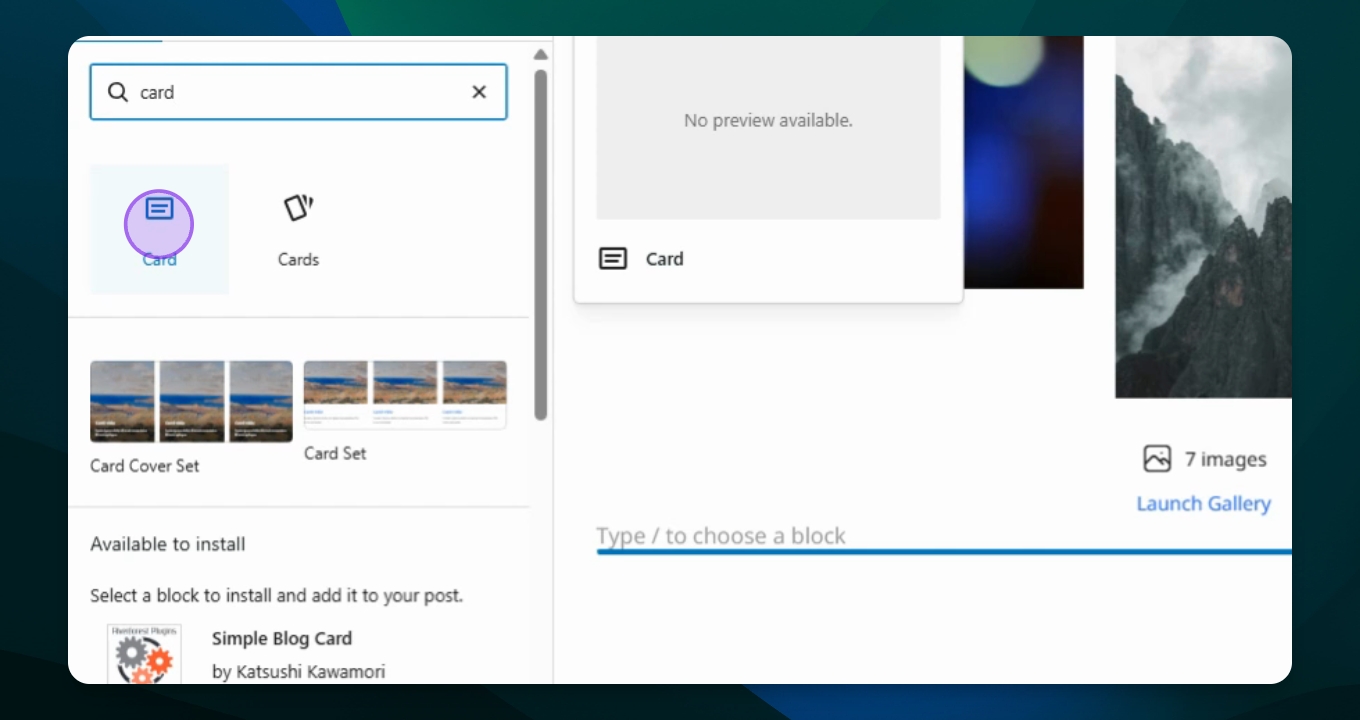
Step 2: Select Card Option
Choose the card option for a single card setup.
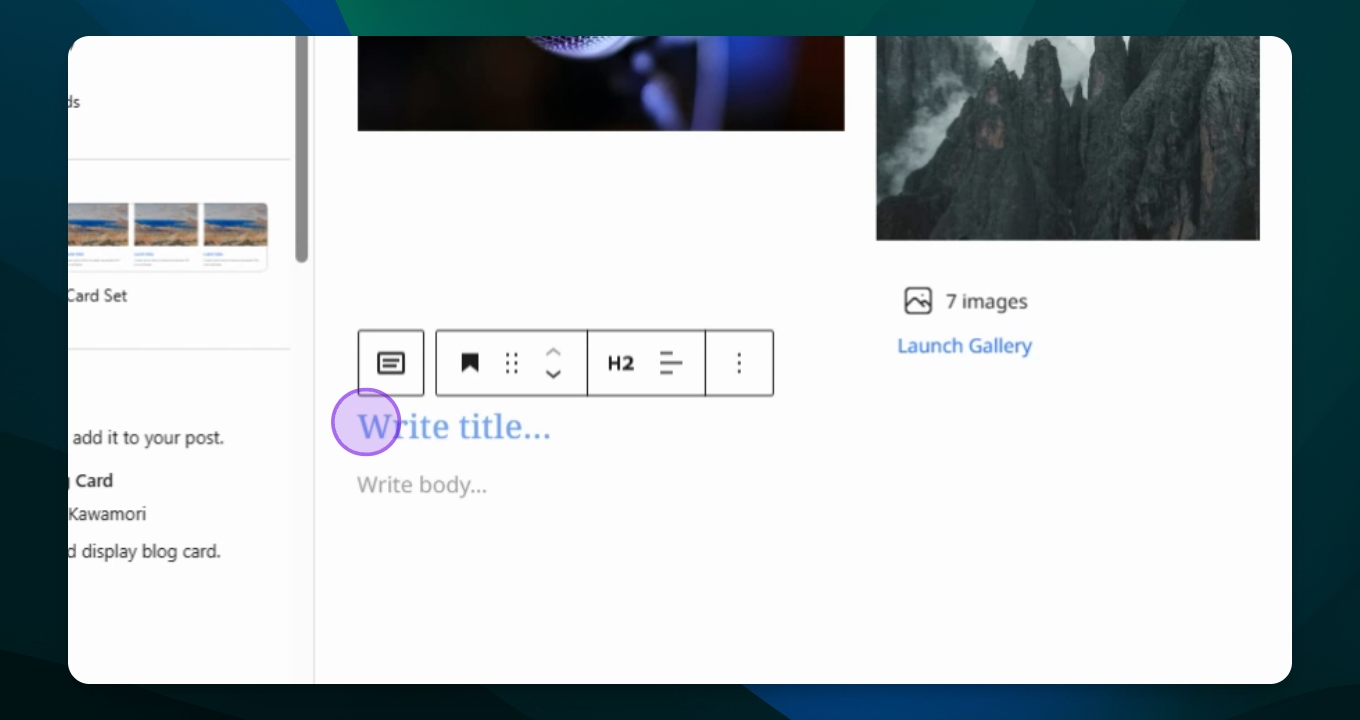
Step 3: Add Title
Type hello in the title block provided.
Step 4: Add Paragraph
Add a paragraph block to your card.
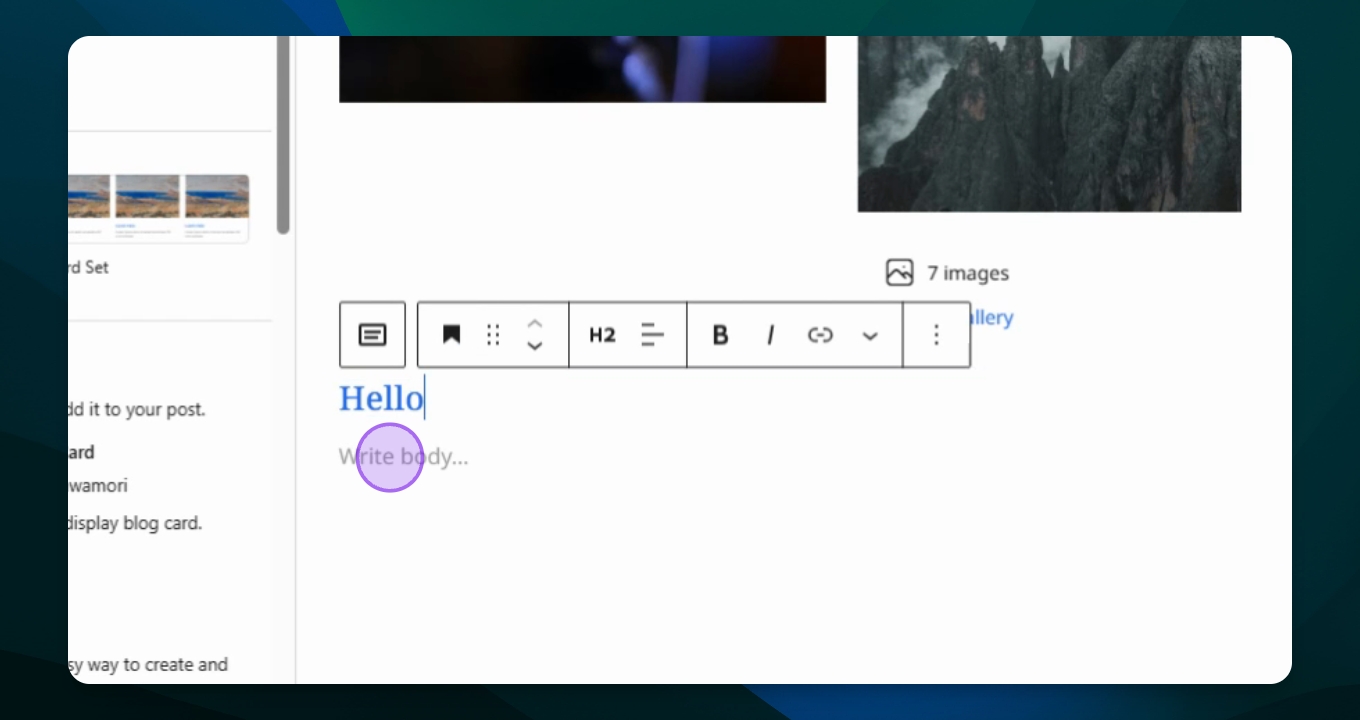
Step 5: Access Document Overview
Click to go to your document overview to view the card.
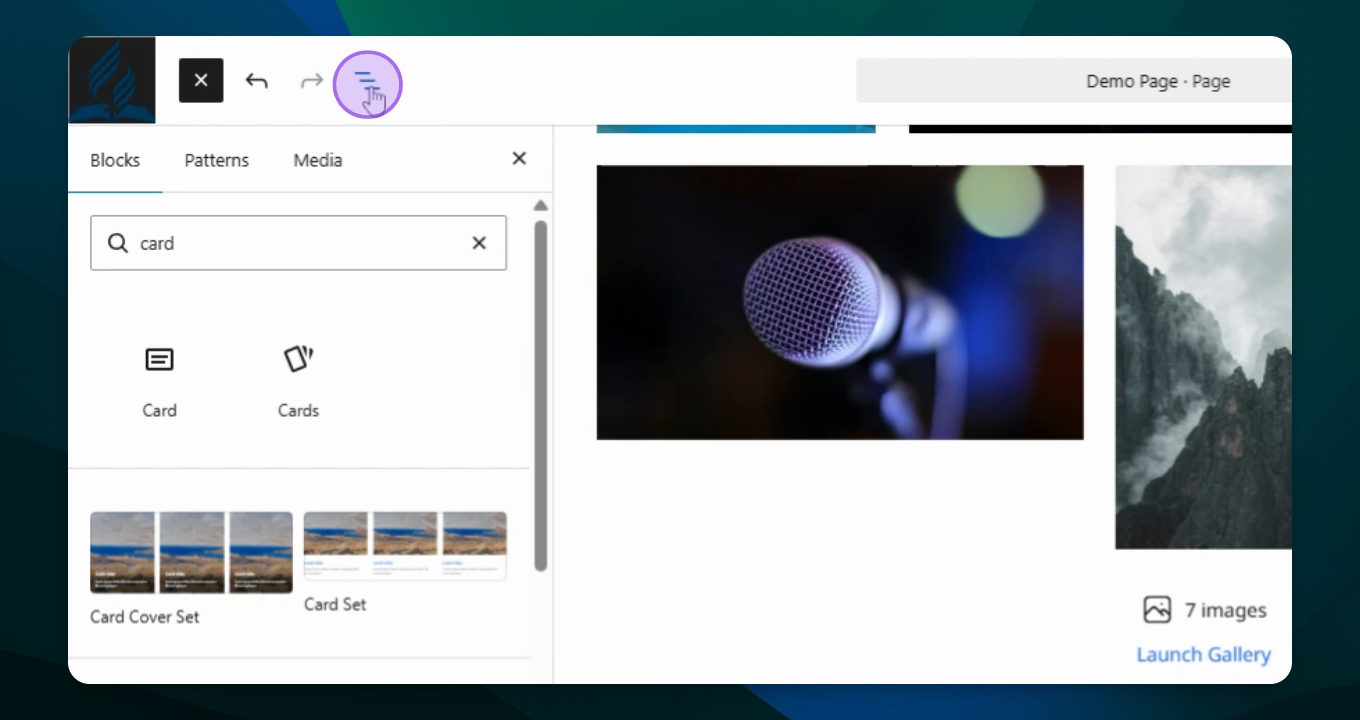
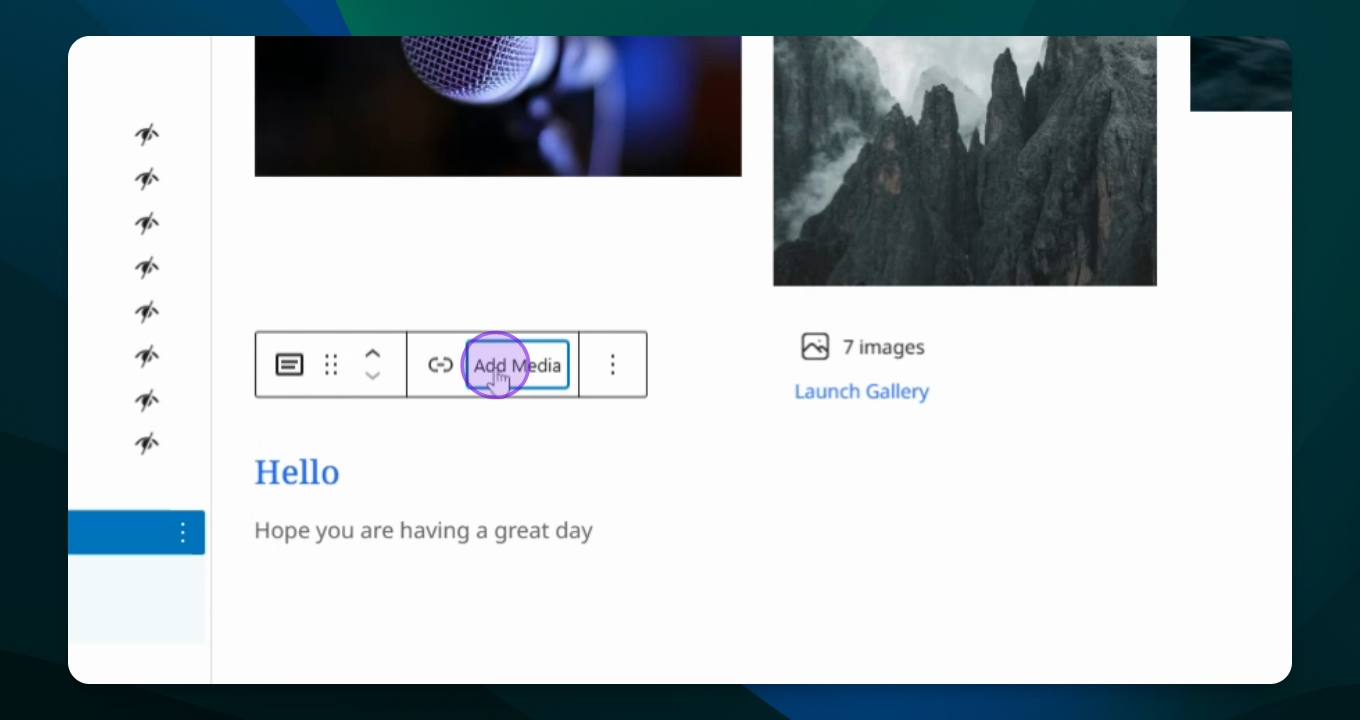
Step 6: Add Media
Click Add Media to include a photo in your card.
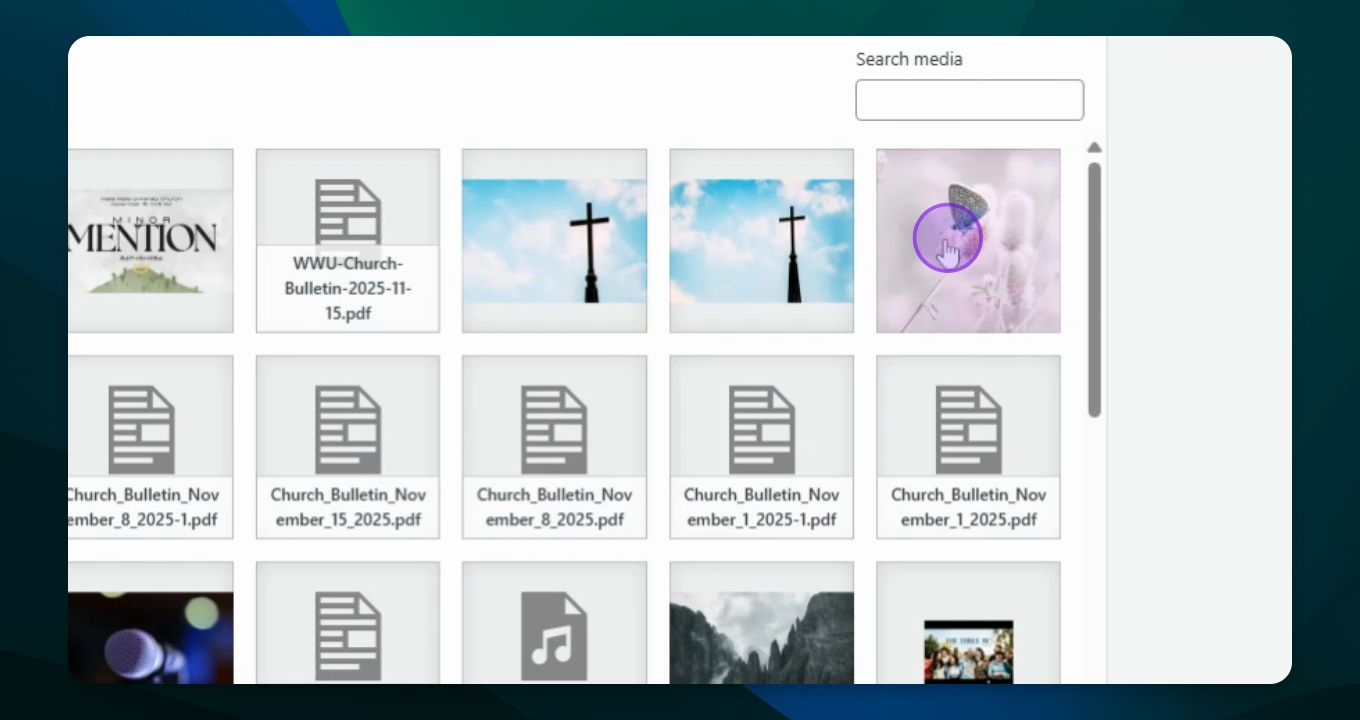
Step 7: Select Image
Open the media library, choose your desired image, and select it.
Step 8: Confirm Card Setup
Verify that the photo, title, and paragraph are grouped together in the document overview.
Step 9: Duplicate Paragraph
If needed, duplicate your paragraph block and modify the text as desired.
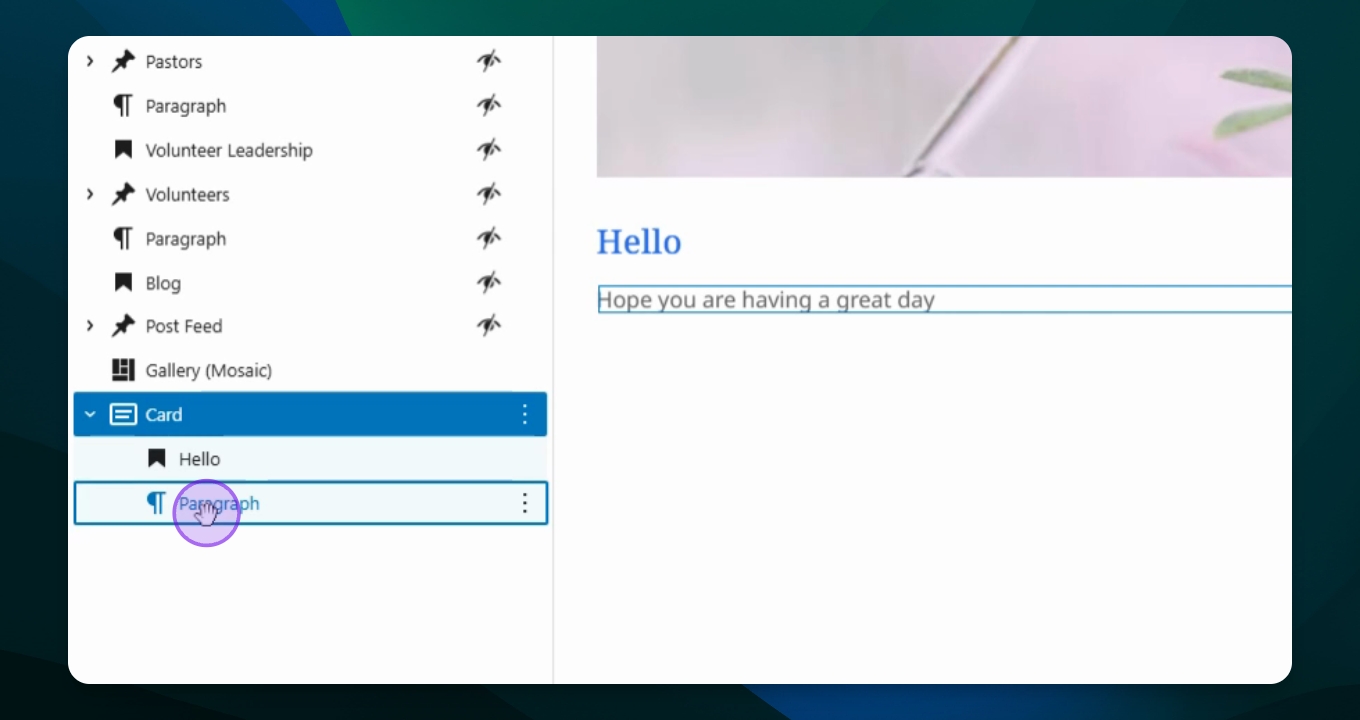
Step 10: Open Block Inserter for Cards
Return to the block inserter and type in card to add multiple cards.
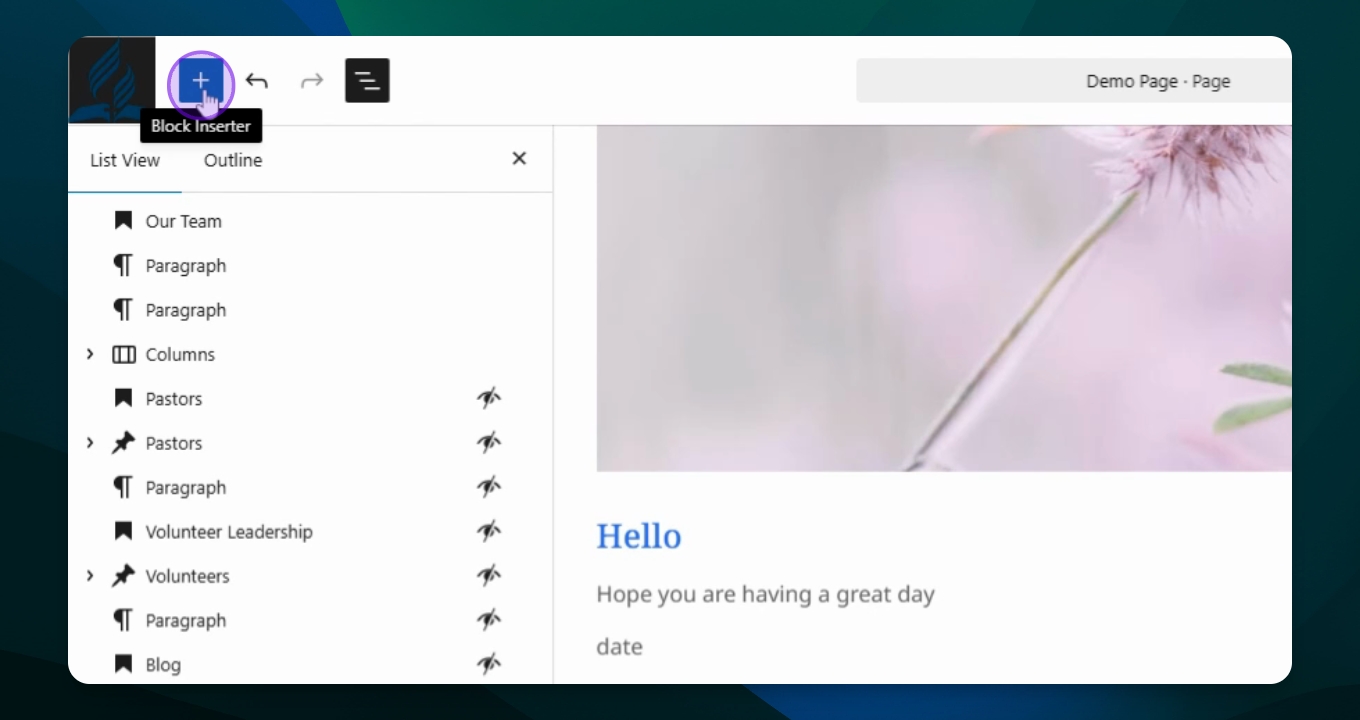
Step 11: Choose Cards Option
Select the cards option to set up multiple cards.
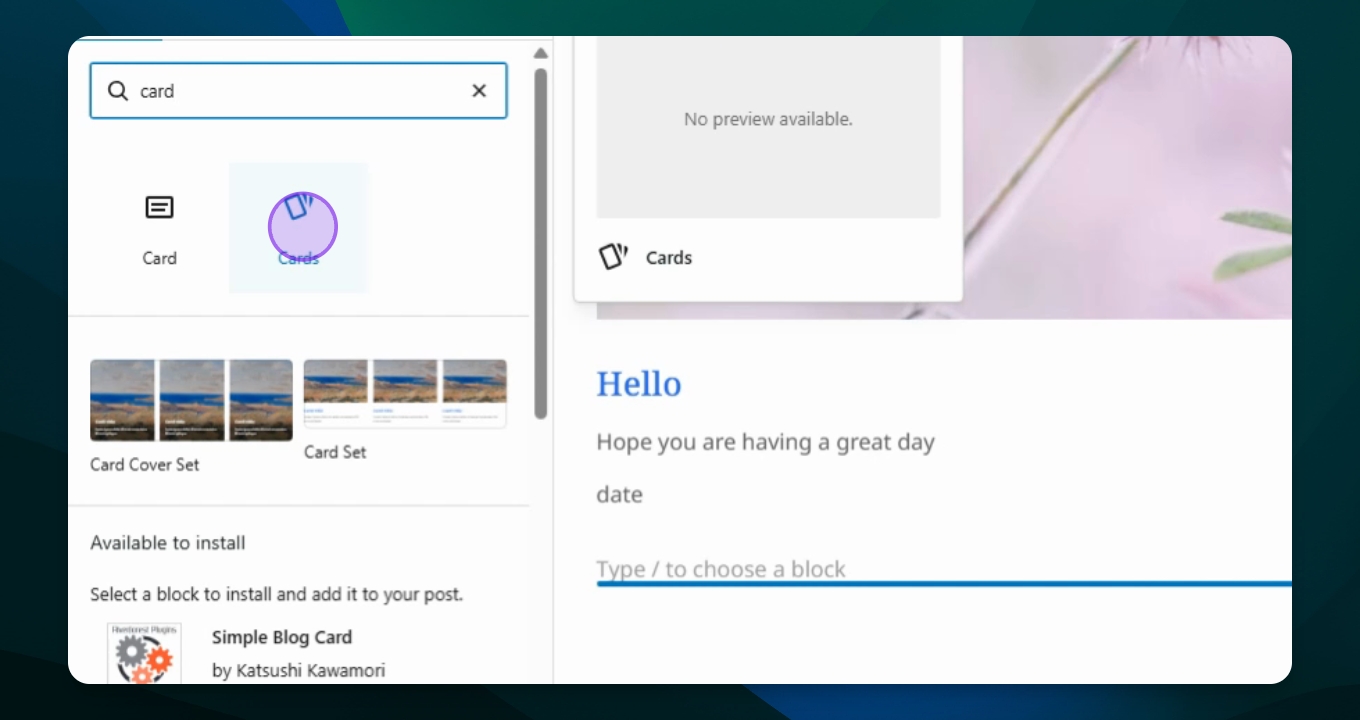
Step 12: Add Cards
Click to add cards, and each card will have its own section.
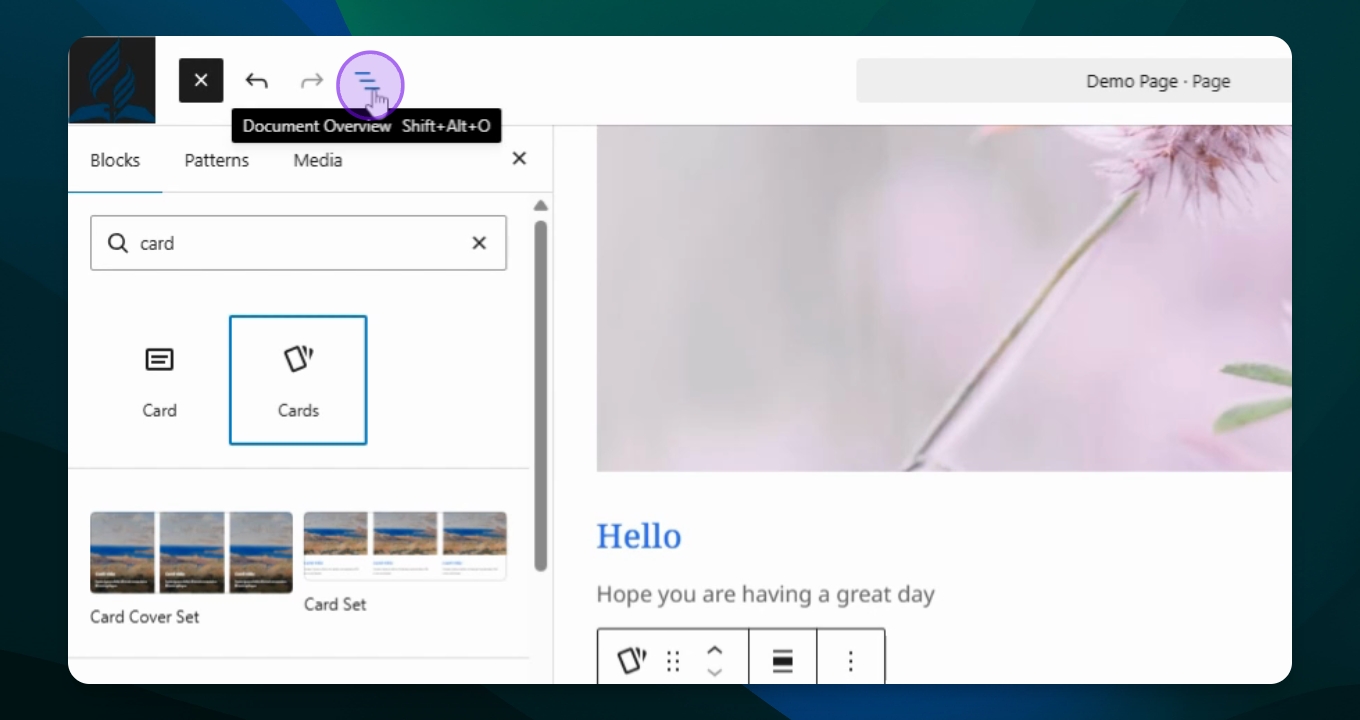
Step 13: Duplicate Cards
Click on a card, go to options, and select duplicate to create more cards.
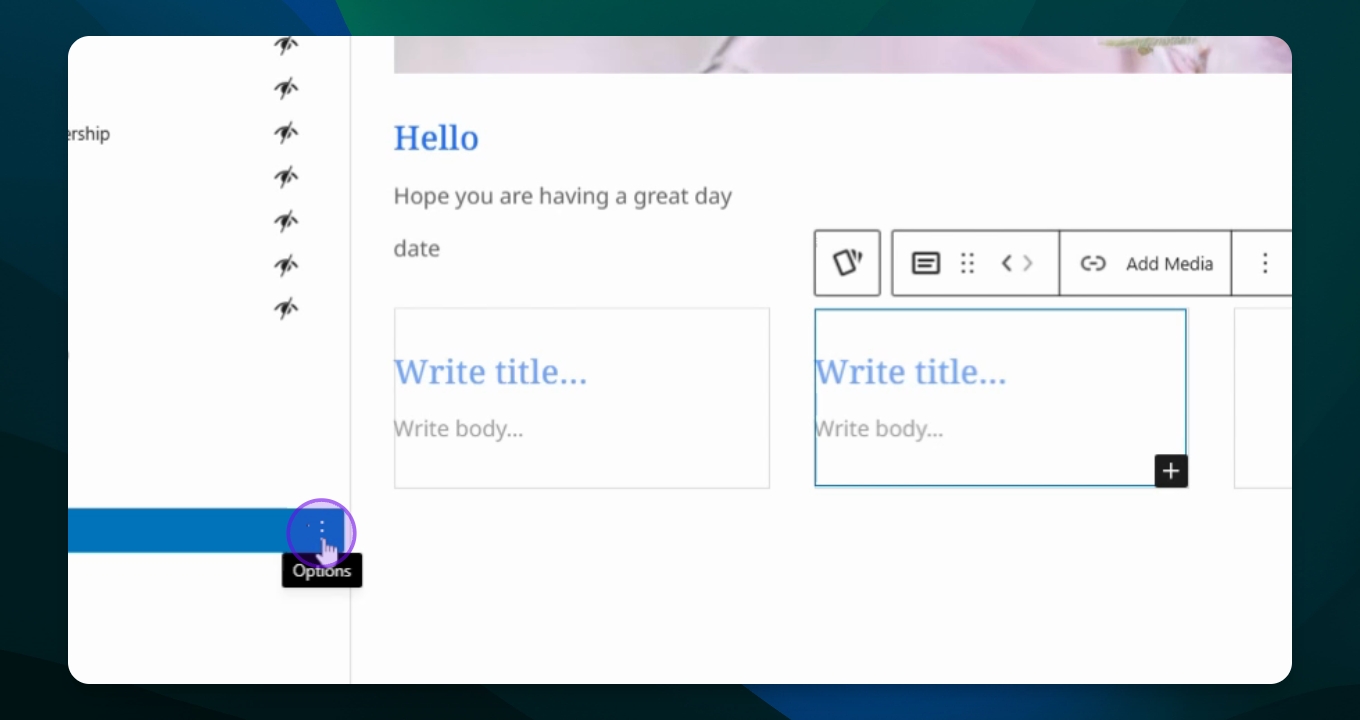
Step 14: Add Titles and Paragraphs
Input titles and paragraphs for each duplicated card.
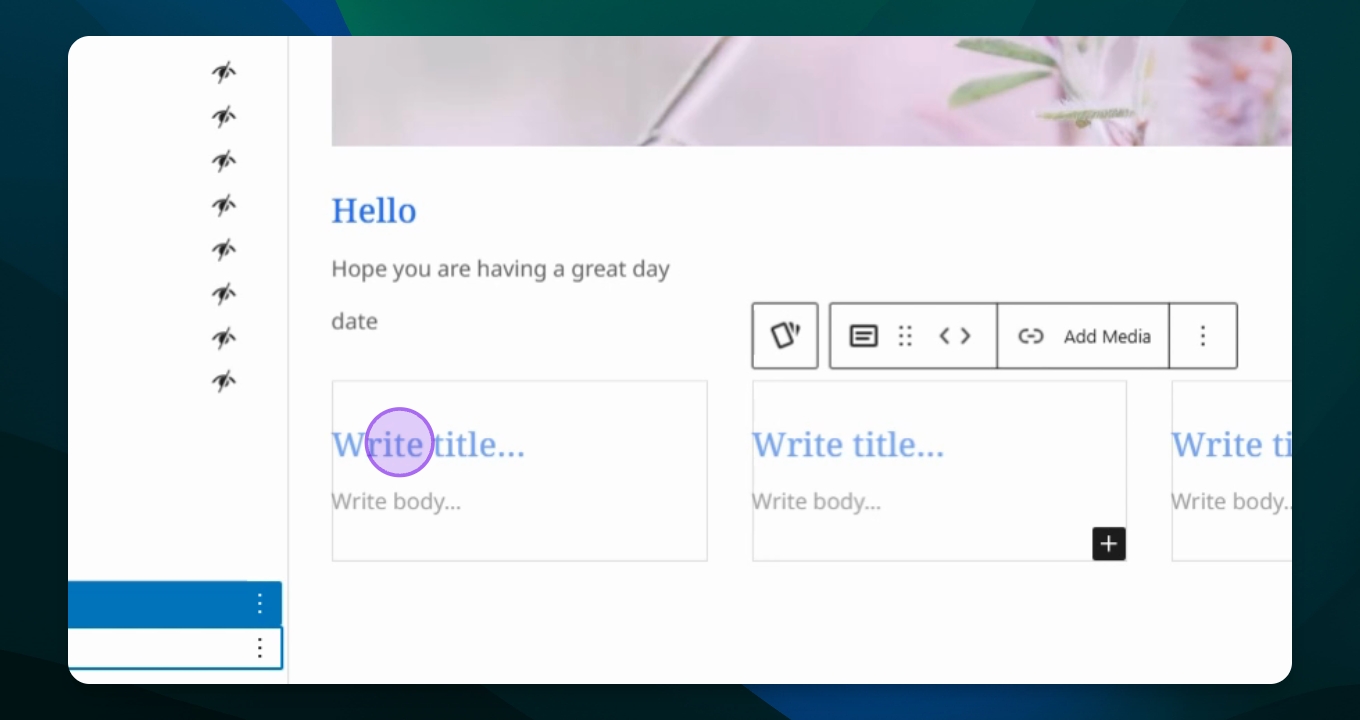
Step 15: Add Media to Each Card
Click on each card to add media by selecting different photos.
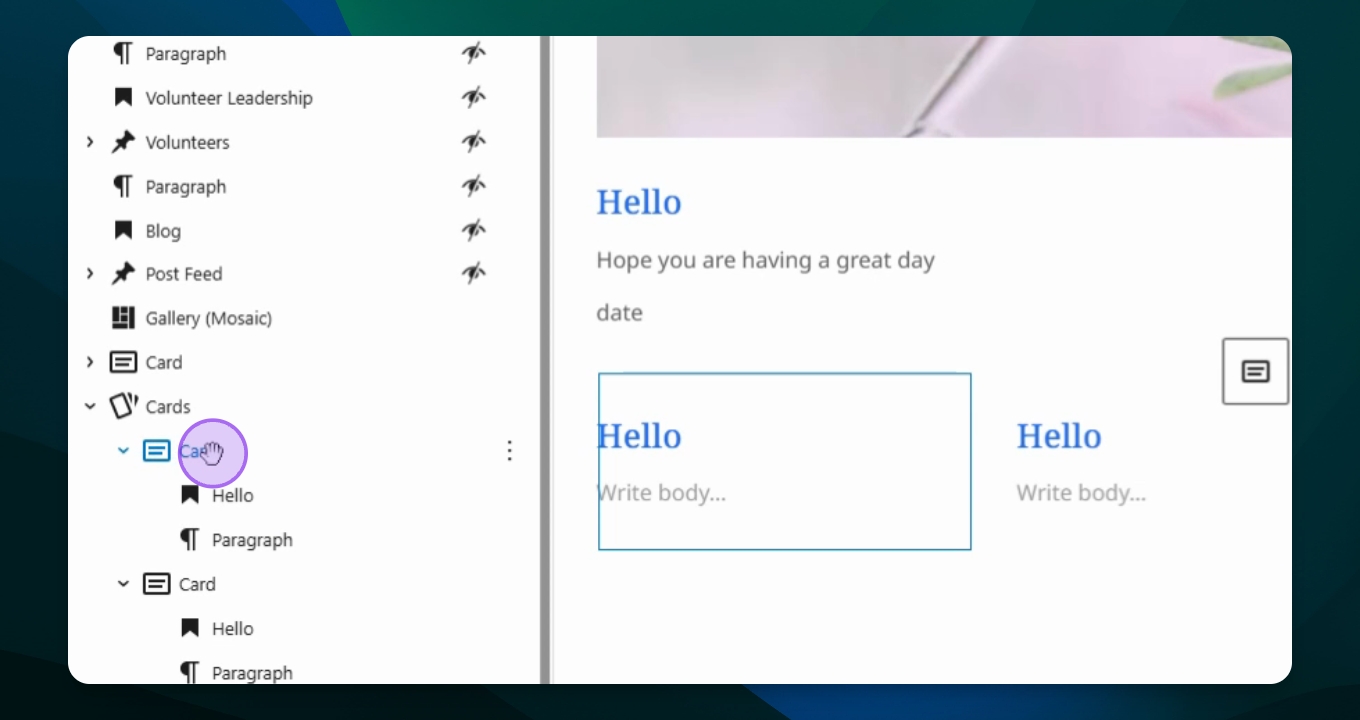
Step 16: Finalize Card Layout
You should now see three cards across your page for better readability.
Step 17: Duplicate Additional Cards
To add more cards, duplicate the last card you created.
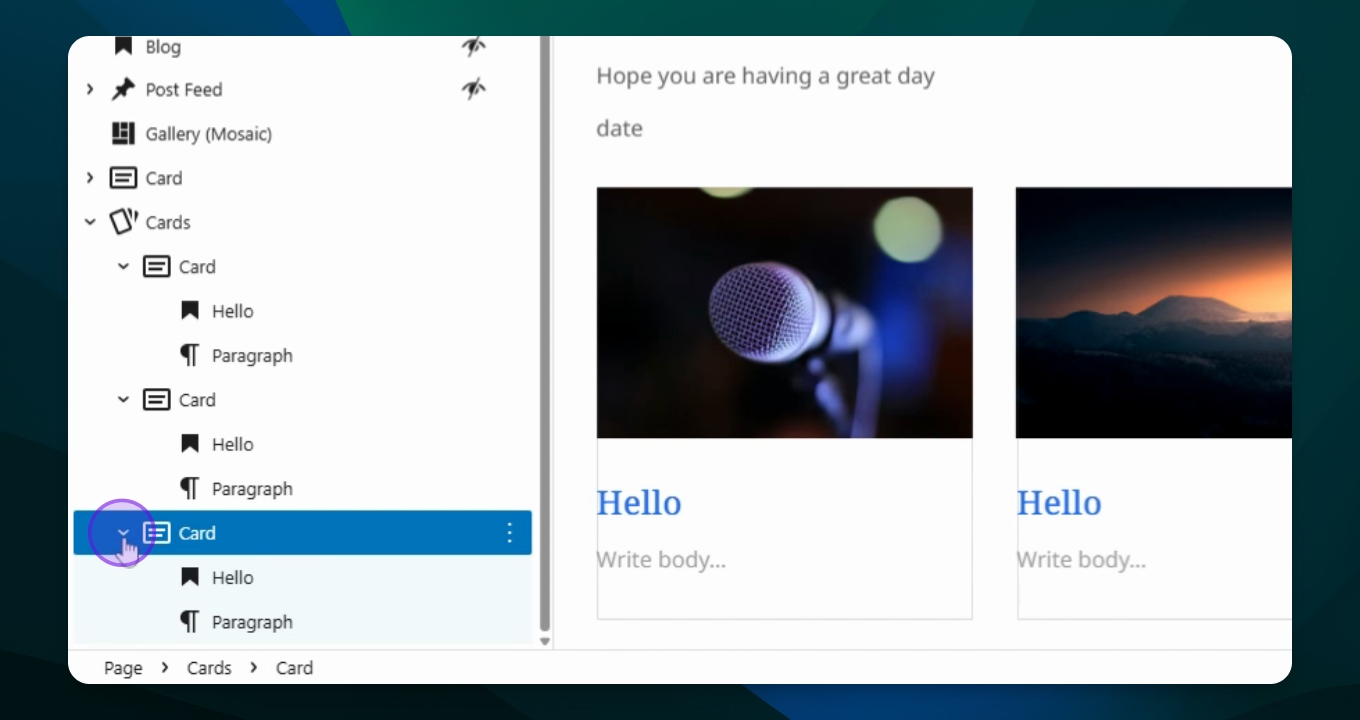
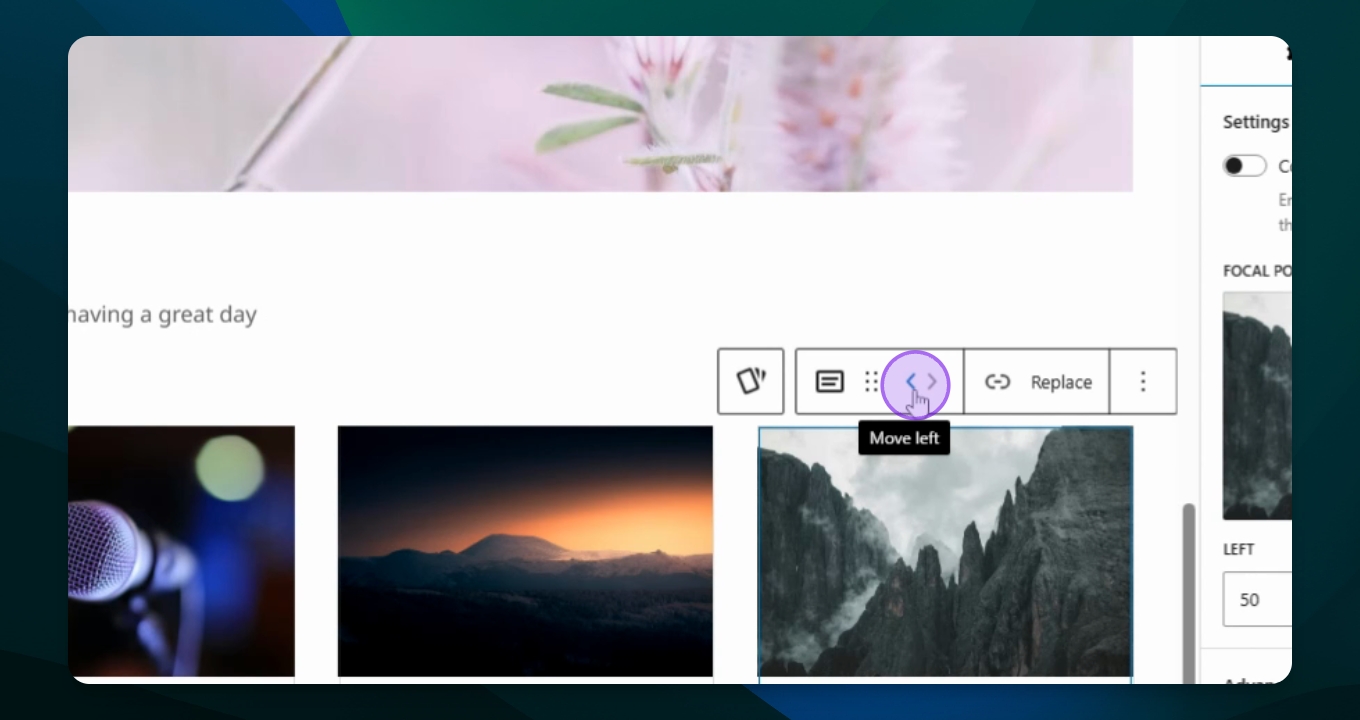
Step 18: Rearrange Cards
Highlight a card and use the toolbox to move it left or right as needed.