

This guide covers how to add, edit, and organize social media links on your website. Let's look at the steps:
Step 1: Log In and Access Social Links
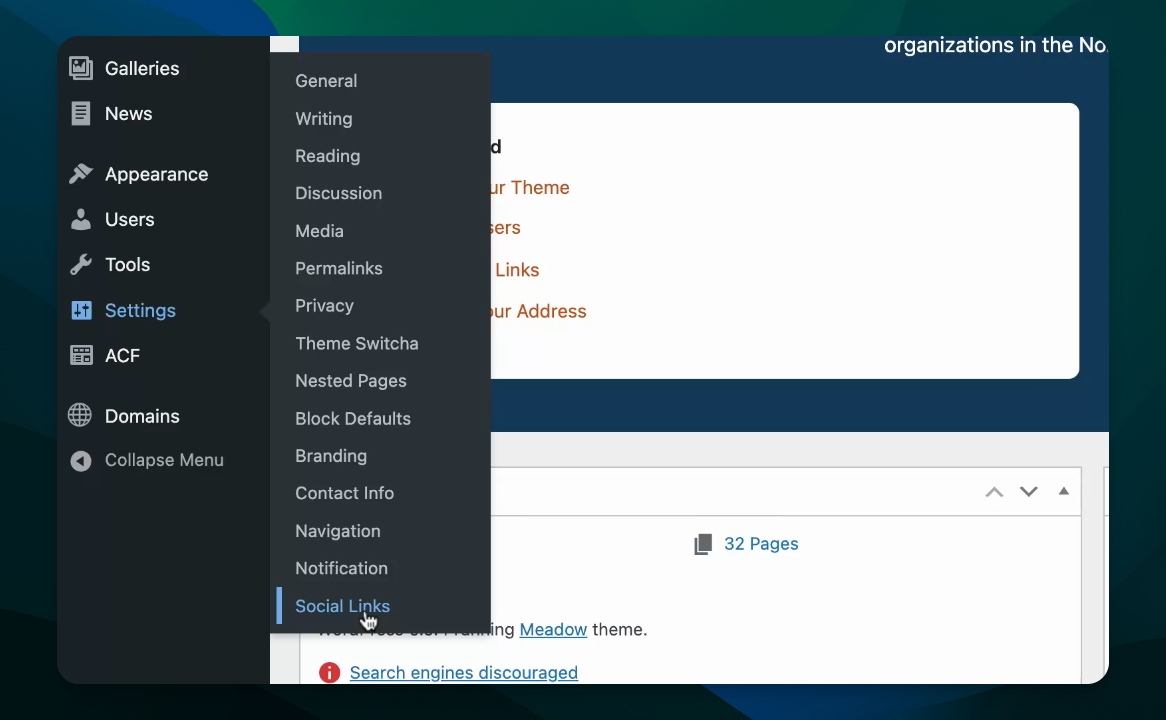
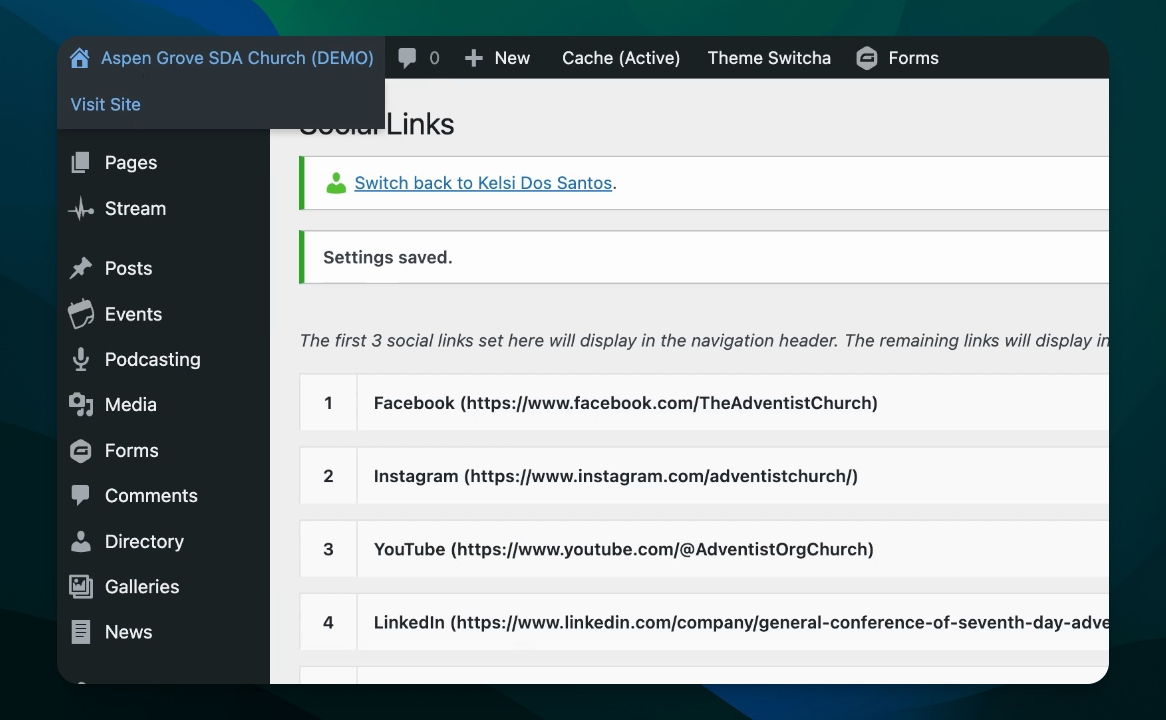
Log into your dashboard, go to Settings, and click on social links.
Step 2: Review Existing Platforms
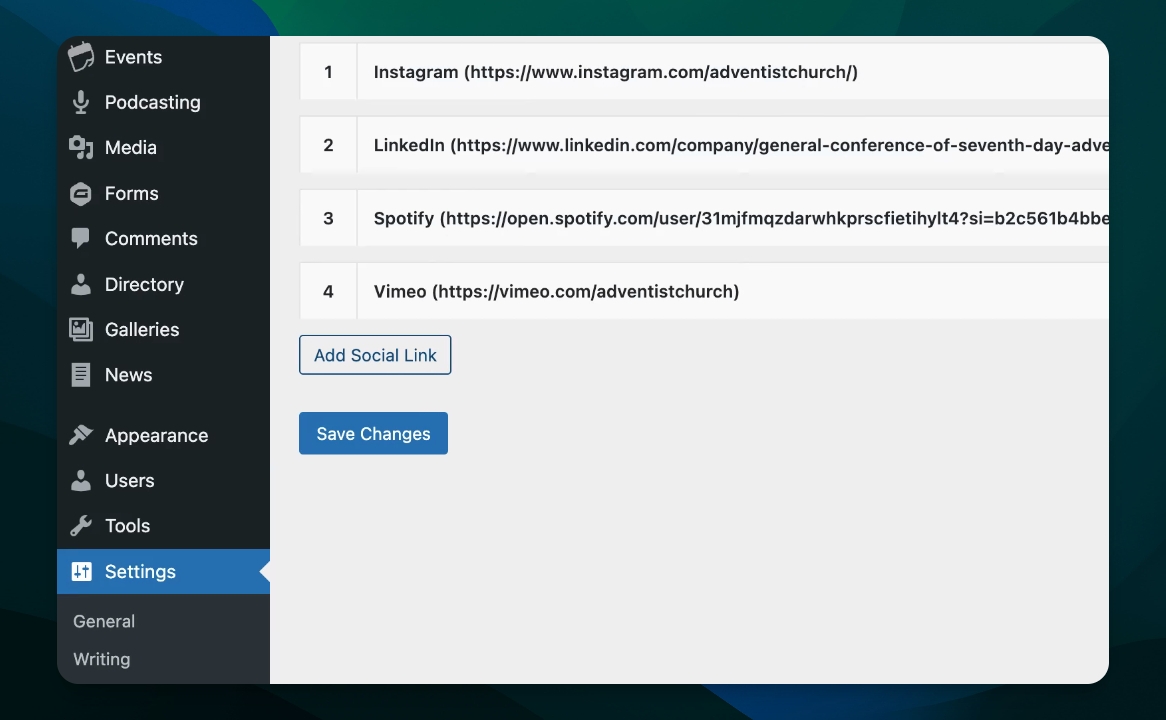
Check the list to see which social media platforms are already added.
Step 3: Add a New Social Link
Click the Add Social link option. Under Network, select the platform you want to add and paste your profile URL. Click the button again to add more links if needed.
Step 4: Collapse or Expand Link Details
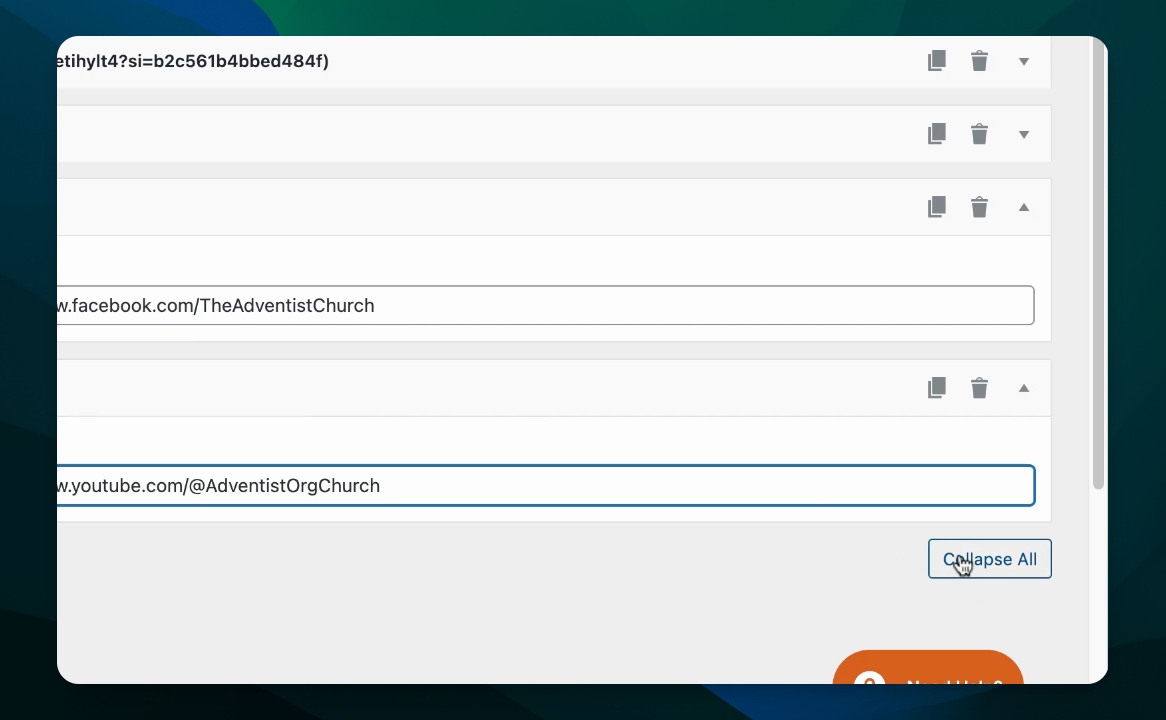
Use the Collapse all button to hide extra details or Expand all to show all details at once.
Step 5: Understand Display Limits
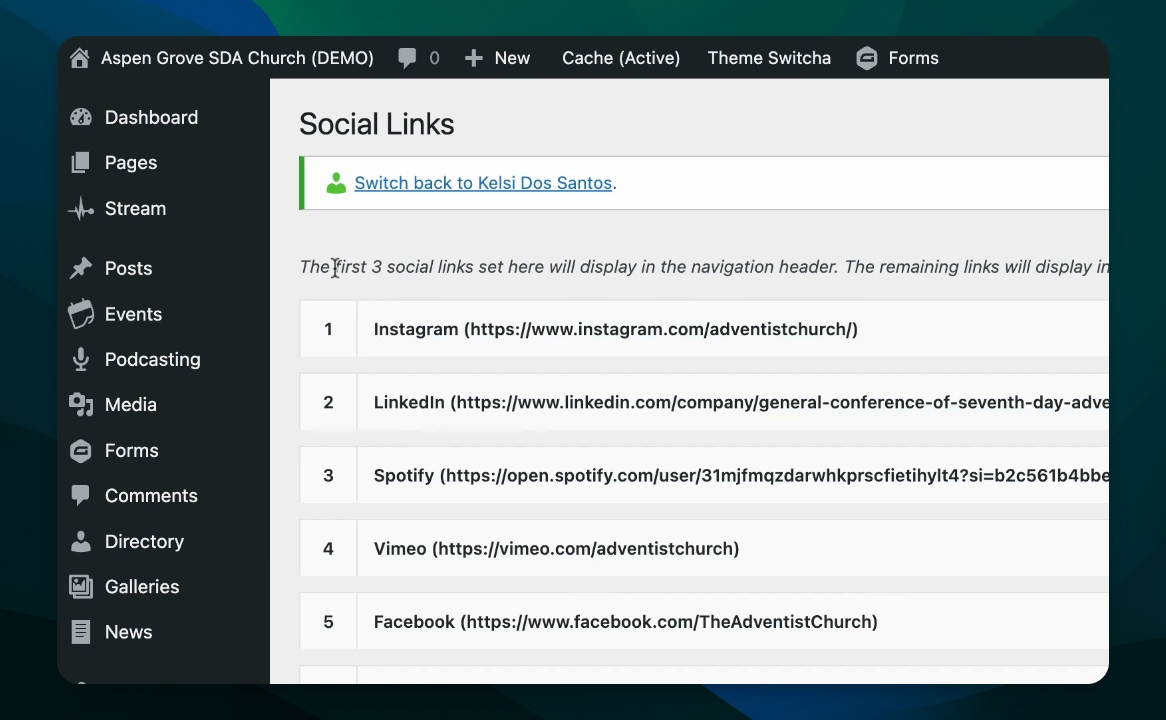
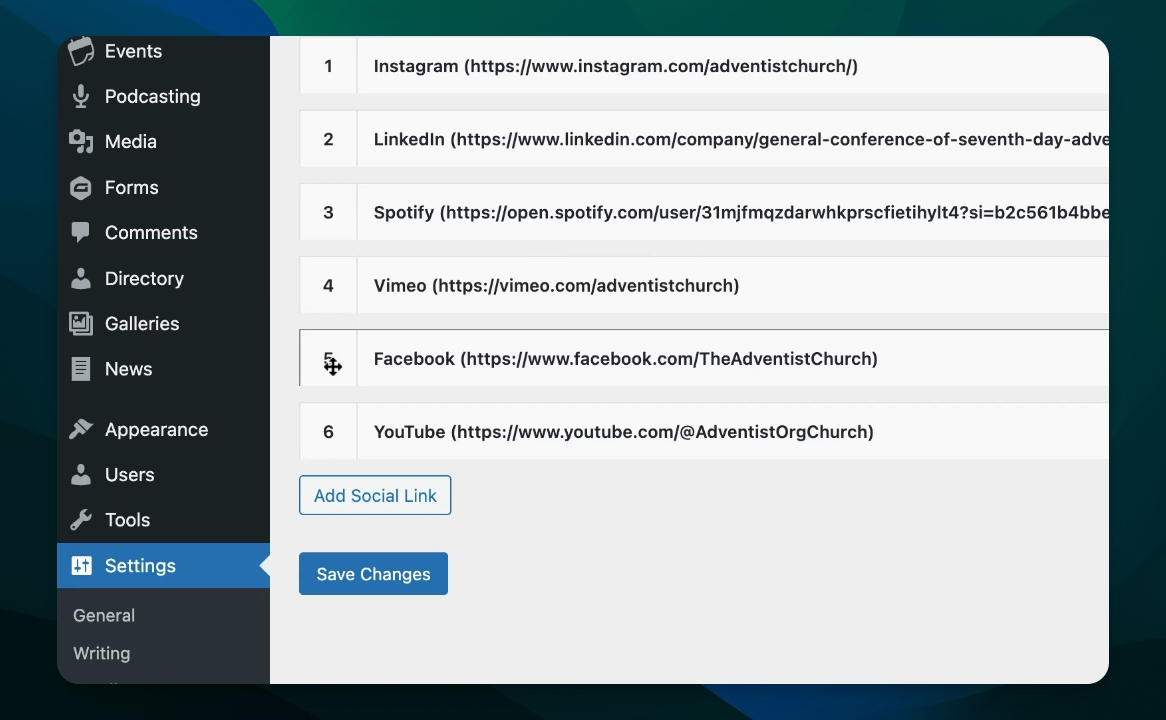
Only the first three social links will appear in your website's navigation or main menu. Place your most active platforms at the top of the list.
Step 6: Reorder Social Links
Click and drag the items to arrange them in your preferred display order.
Step 7: Delete a Social Link
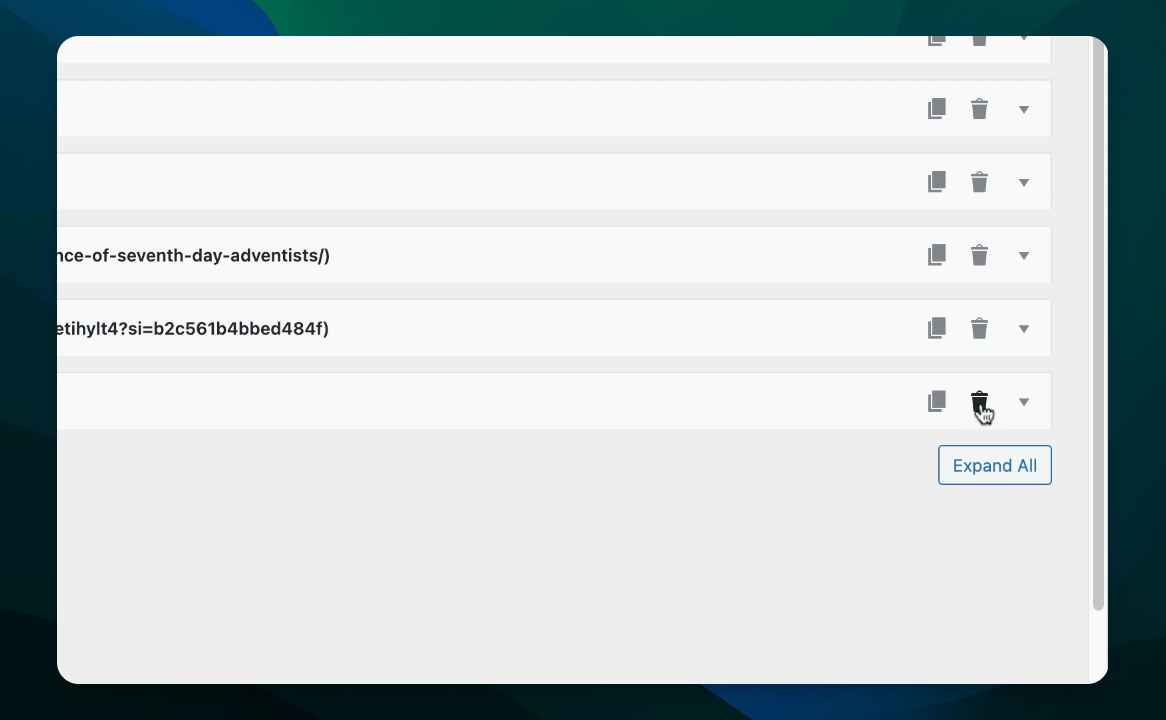
To remove a platform, click the trash icon next to it. For example, delete Vimeo if it's not needed.
Step 8: Edit an Existing Link
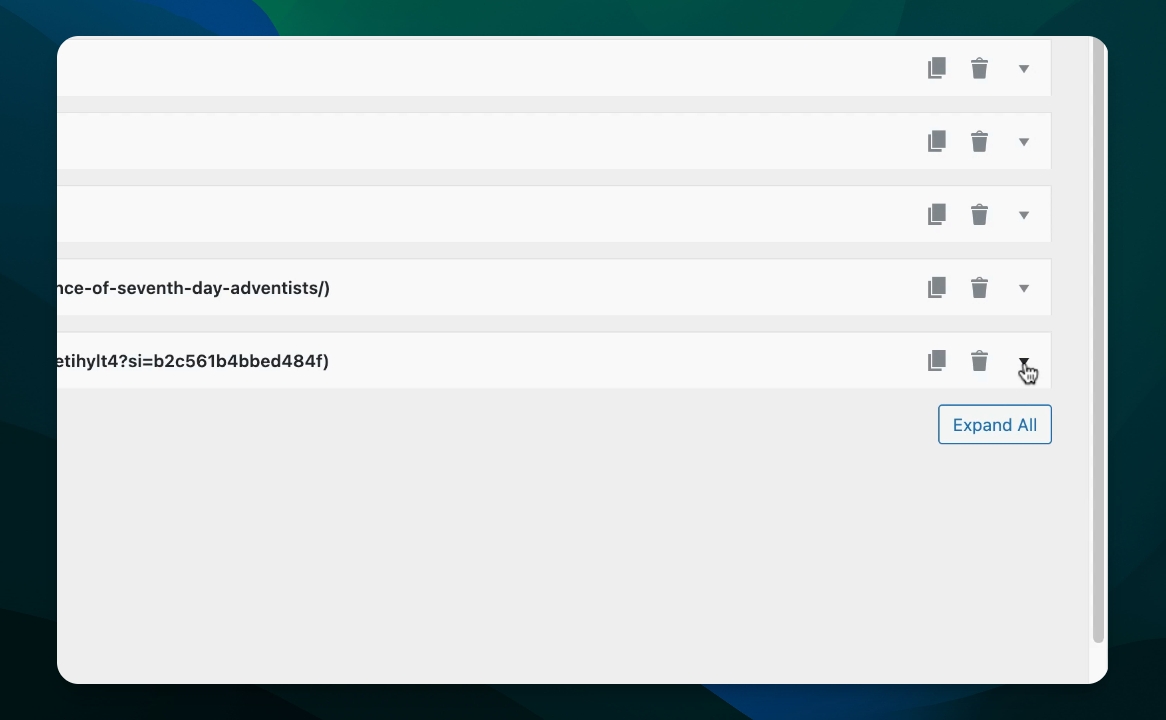
Click the dropdown arrow on a link to edit its details, such as updating the account information.
Step 9: Save Changes
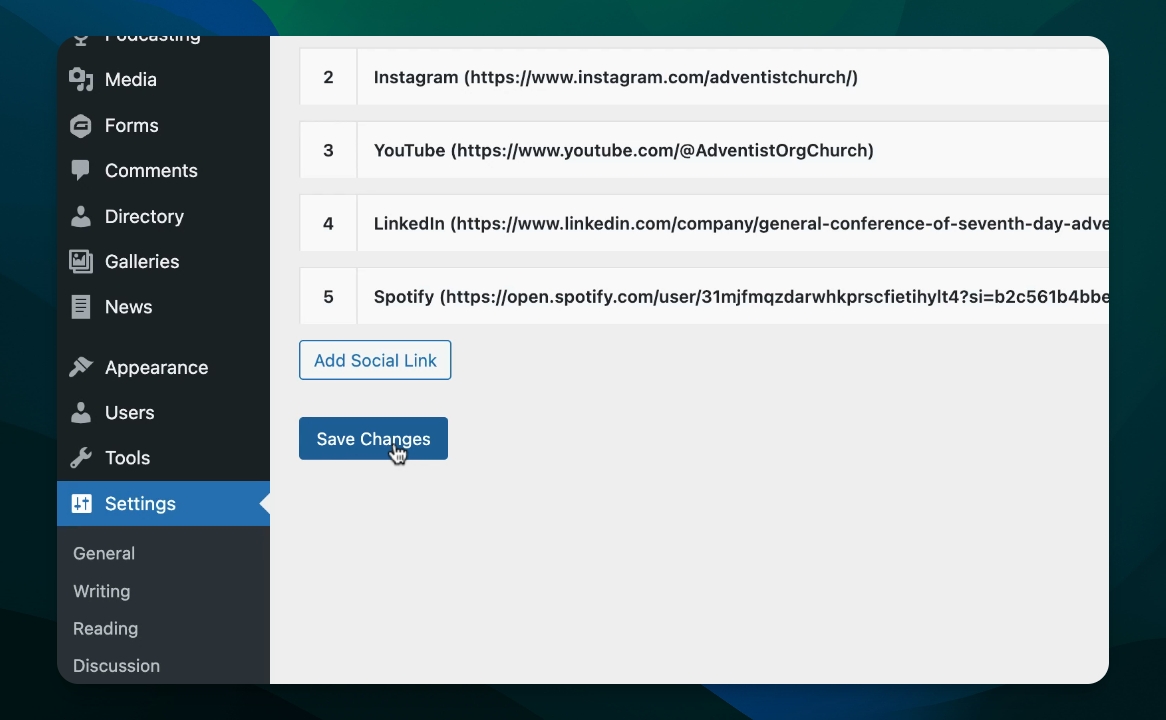
After making adjustments, save your changes.
Step 10: Preview Social Links on Site
Check your website to see the top three social links as icons in the header menu. Scroll to the footer to view all added platforms displayed at the bottom.
This feature is available across all Frame themes, ensuring your most active accounts are easily accessible from the top menu.