

In this video, we'll show you how to add a custom domain to your frame website. Let's look at the steps:
When a church, school, ministry, or organization website is added to the Frame platform, we automatically provide a free, official domain name for the website.
You can identify a platform-supplied domain as they will display in one of two ways:
Churches: *.adventistchurch.org (e.g., austinnewbeginningtx.adventistchurch.org)
Schools: *.adventistschoolconnect.org (e.g., adobe.adventistschoolconnect.org)
Ministries are always welcome to purchase and connect their own custom domains (like mychurch.com), but the platform-supplied domains remain permanently available at no cost.
Step 1: Login to Dashboard
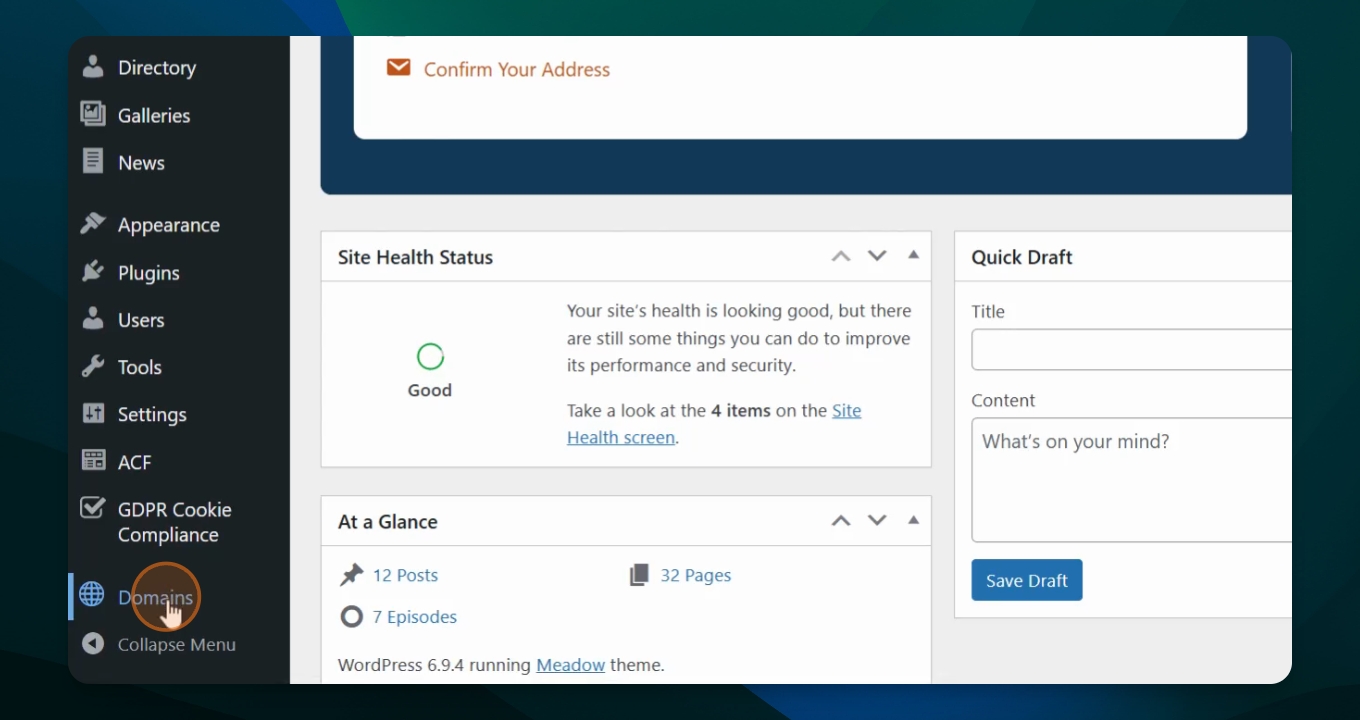
Once you have logged in in the dashboard, scroll down to Domains.
Step 2: Click on Domain
Click on Domains to see the list of all the domains associated with website.
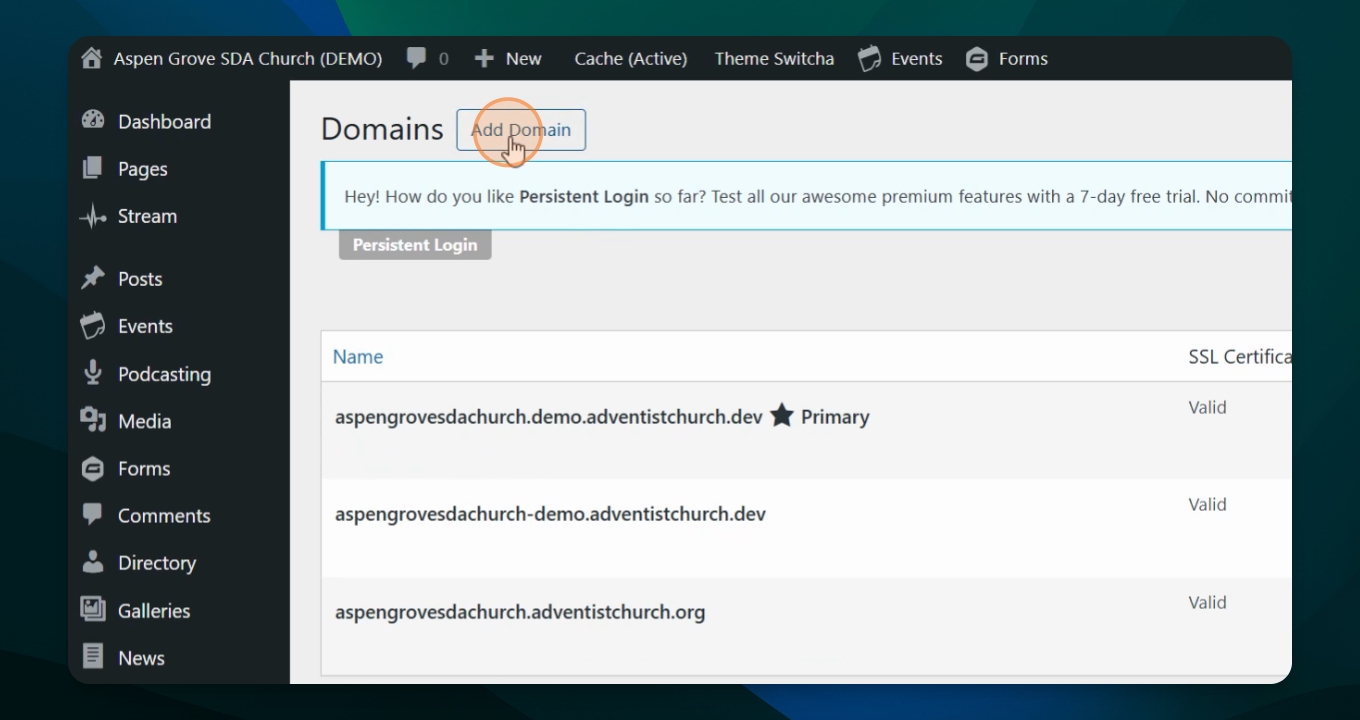
Step 3: Add Domain
To ad the new domain, click the Add Domain button.
Step 4: Enter Domain Name
A pop-up window will appear, add the custom domain in the e.g. example.com box.
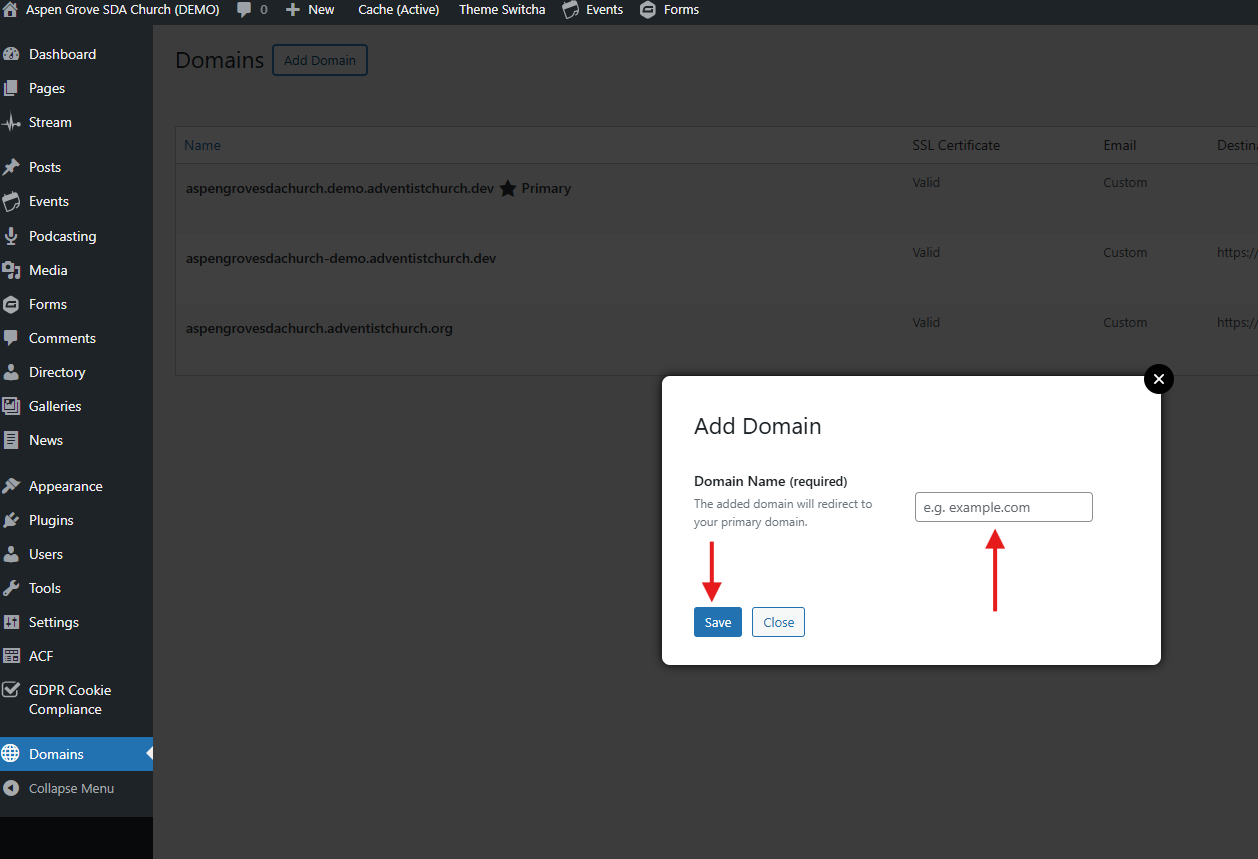
Step 5: Save Changes
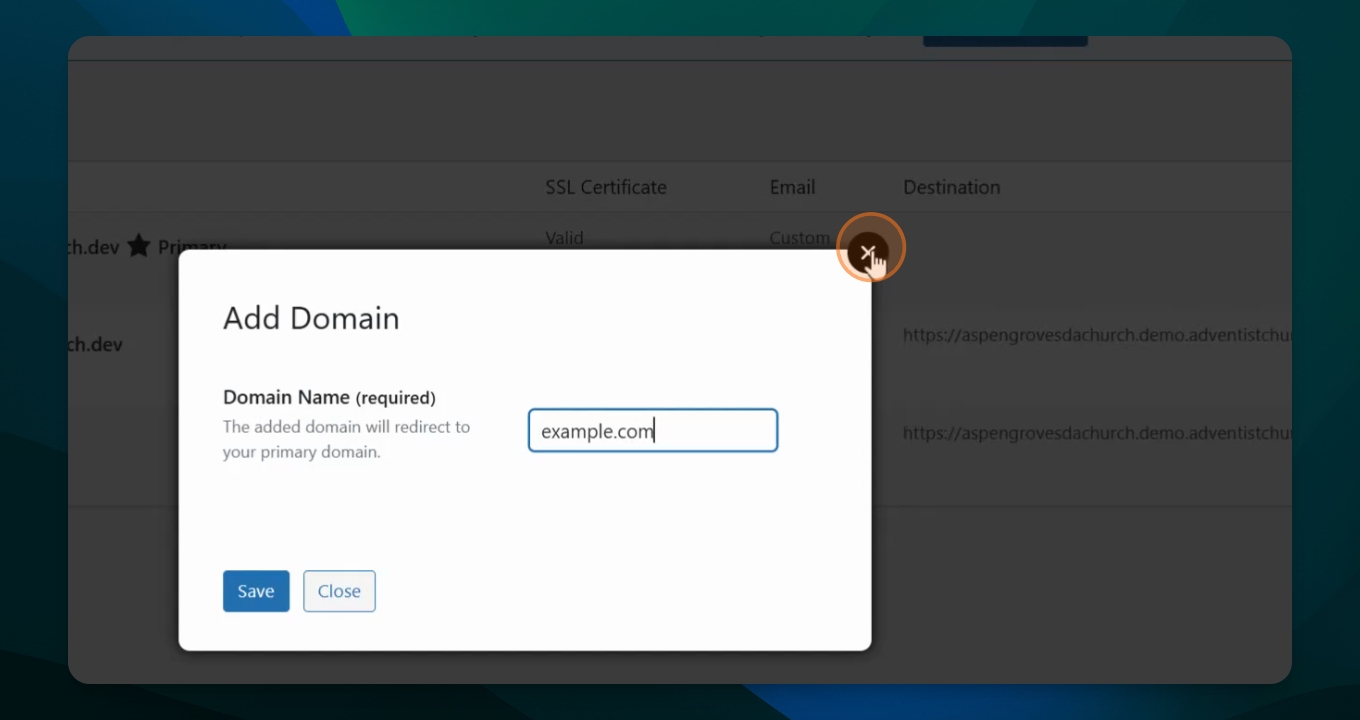
When finished entering the domain click the save button. Once it is saved the new domain will appear in the list.
Step 6: Make Primary Domain
Once it says valid for the SSL certificate, you need to make it your primary address. Hover over custom domain and in the menu options below choose Make Primary. In this example you see the top address has a "star" and the word Primary. By clicking "Make Primary" under the custom address you are changing that to the domain that was just added
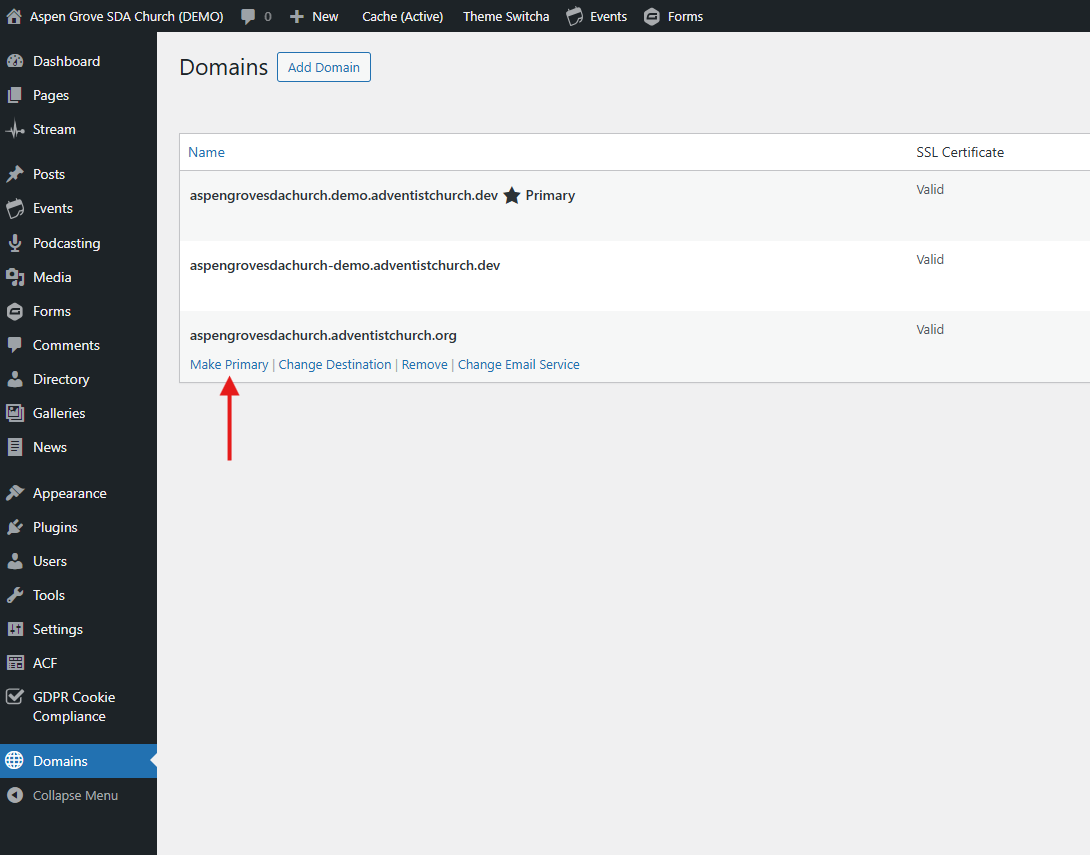
Note that there can only be one domain address as a Primary address. Likewise if you don't make the custom domain your Primary address it will remain with the original address for the website.
So for this example we've already made Aspen Grove sdachurch.demo.adventistchurch.dev as a primary address. Even though we have other names listed, you only have a primary.
Step 7: Confirm Setup
So you would make your new address the primary and then it would have a destination of the original address such as this one right here.
You have now added a custom domain to your Frame website.
Step 8: Adding Additional Domains
You have the ability to add additional domains for either to another website or another page on your Frame website. Add Additional Domains - Redirect
Step 9: Trouble Shooting Domains
Here is more information if you are running into issues with your domain or the website is giving errors.
Step 10: Advanced DNS Customization
Here is the link if you want to learn more about Advanced DNS Customization and managing your custom domain addresses.
Important Notes
If you're removing your primary domain, make sure to set another domain as primary first
Removing a domain will make it unavailable for accessing your site
This action does not cancel any domain registrations you may have purchased separately
Your site will still be accessible via your remaining domains or your default adventistchurch.org or adventistschoolconnect.org domain