

How to add additional domains to your website to manage redirects to external sites or pages in your Frame website.
Let's look at the steps:
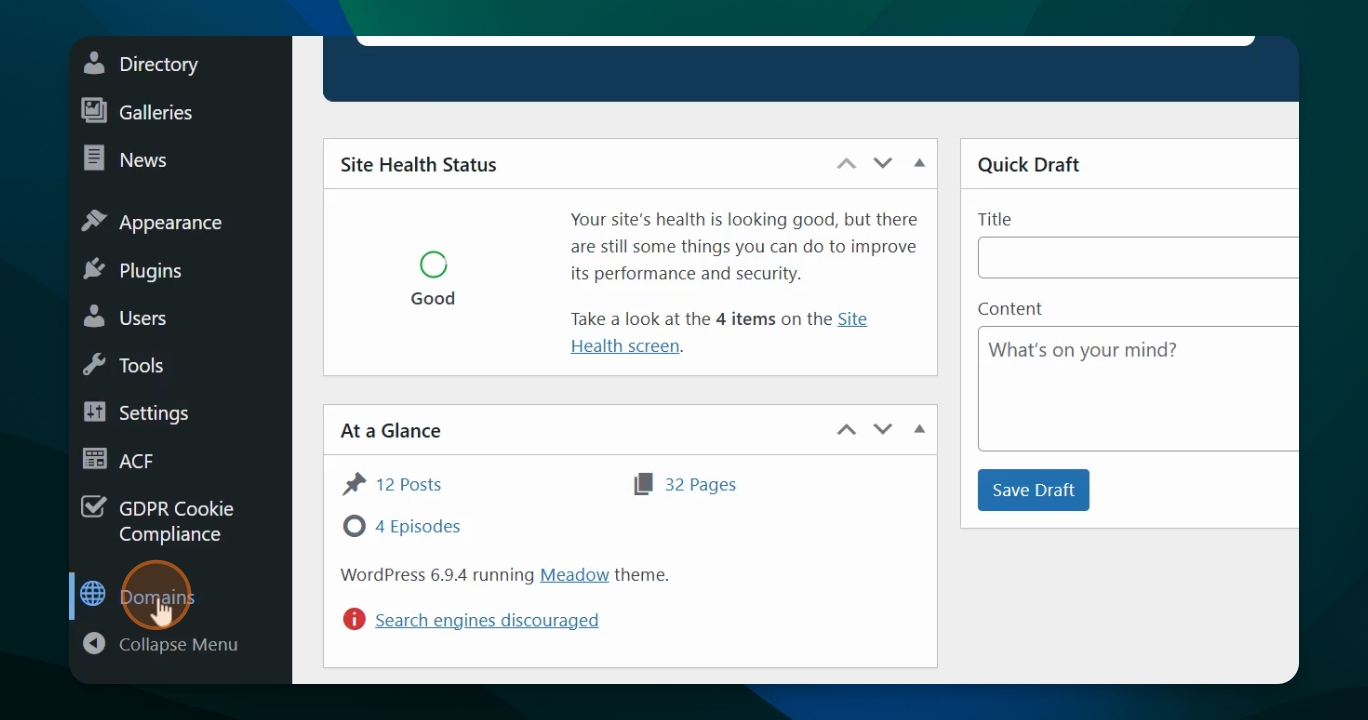
Step 1: Go to Domains
From the dashboard scroll down to domains.
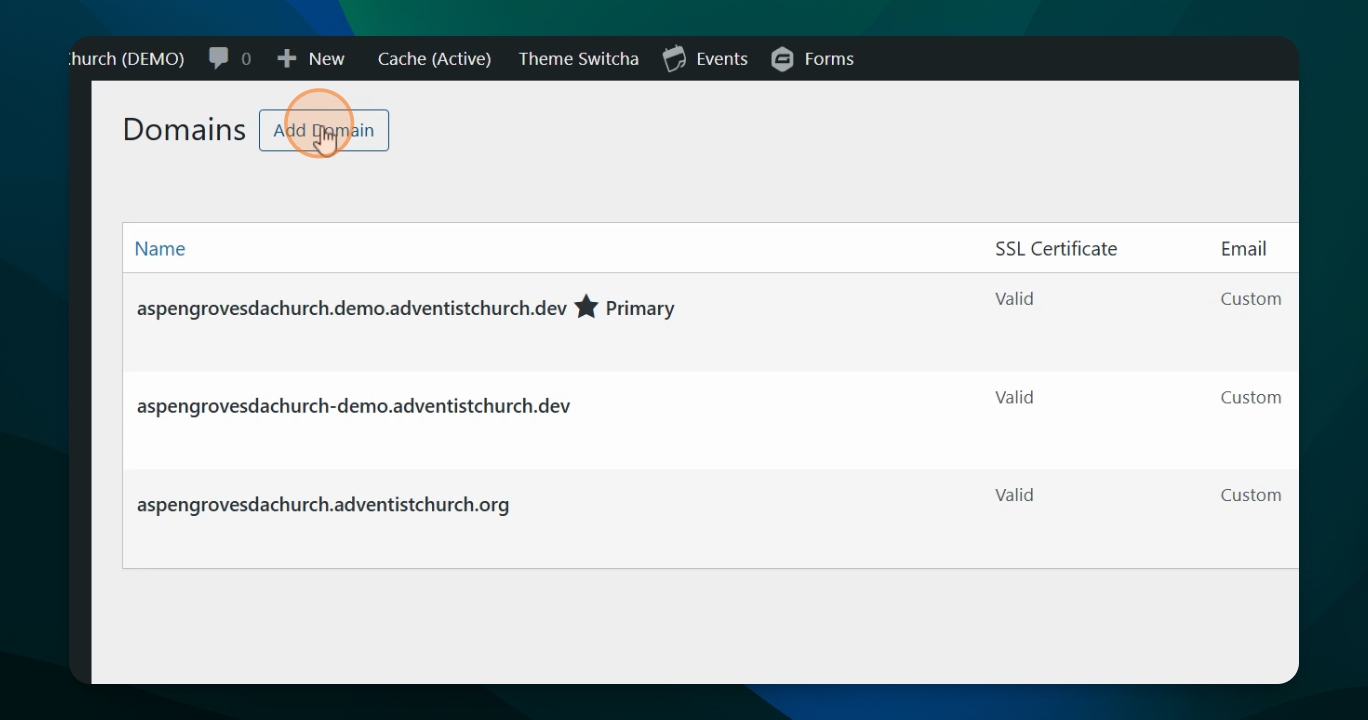
Step 2: Add New Domain
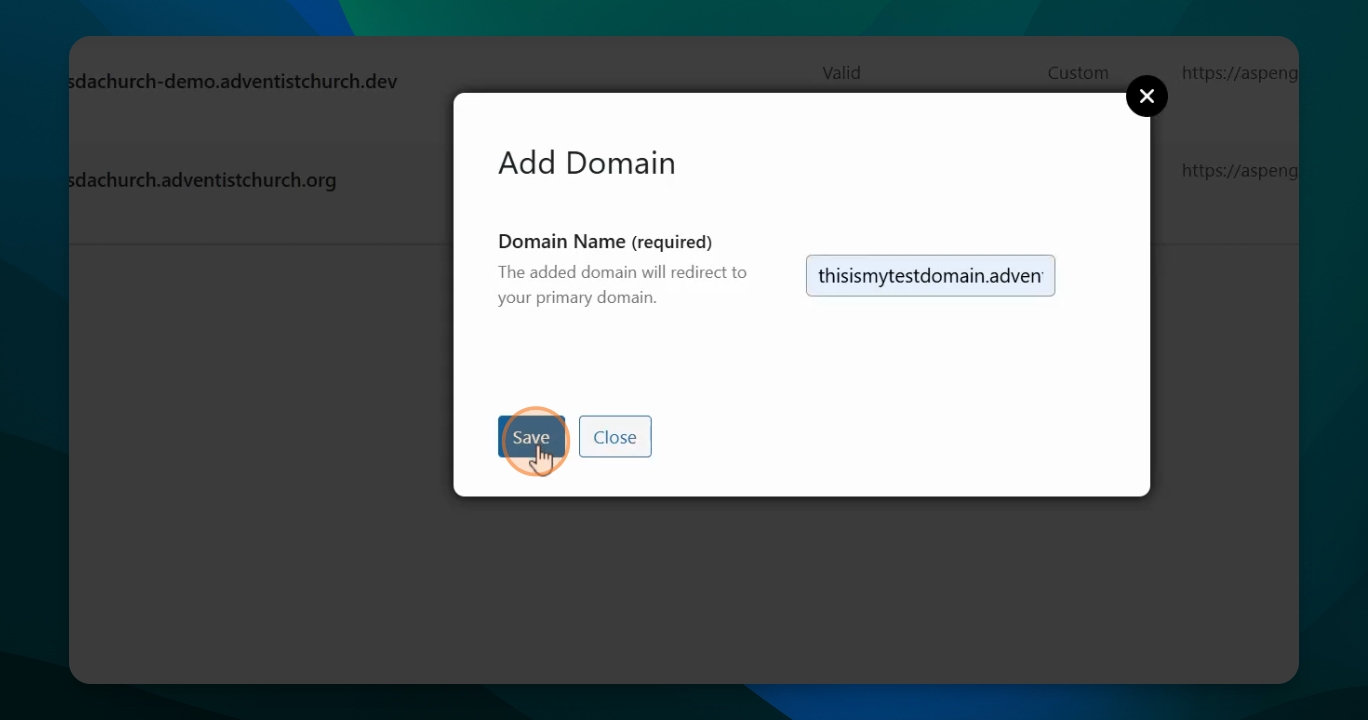
Begin by adding the new domain that you want to add to your site and hit save.
Step 3: Wait for Saving
This may take a few seconds to populate. Do not close this window while this is spinning.
Step 4: Change Destination
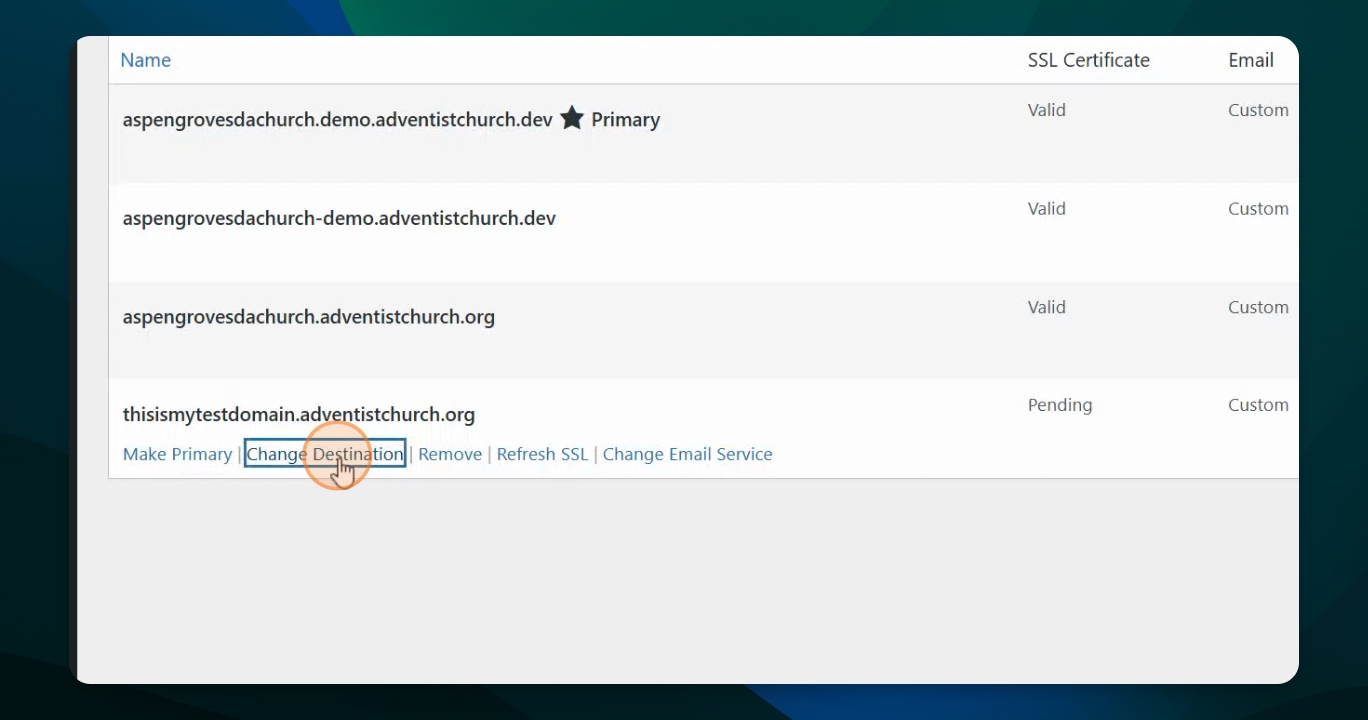
Change the destination by hovering over the name and clicking Change destination.
Make sure to type in the complete URL, this includes adding HTTPS:// in front of the domain address.
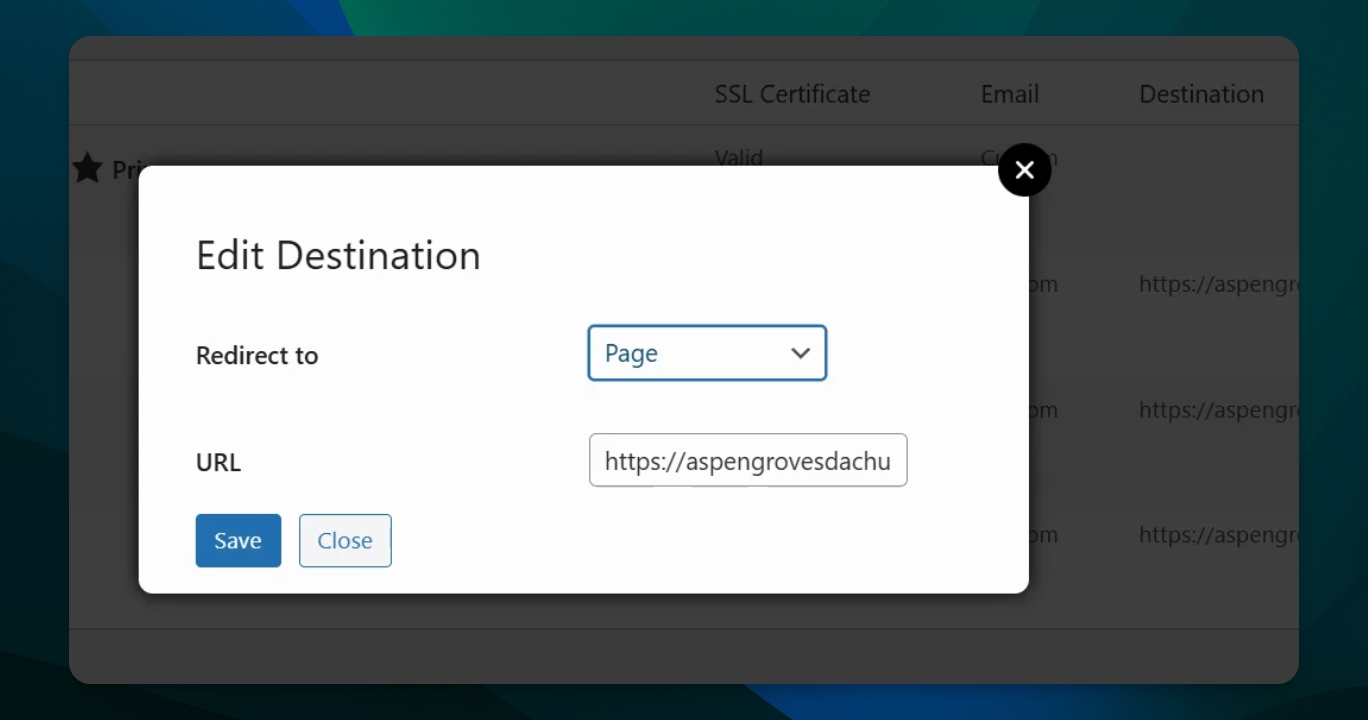
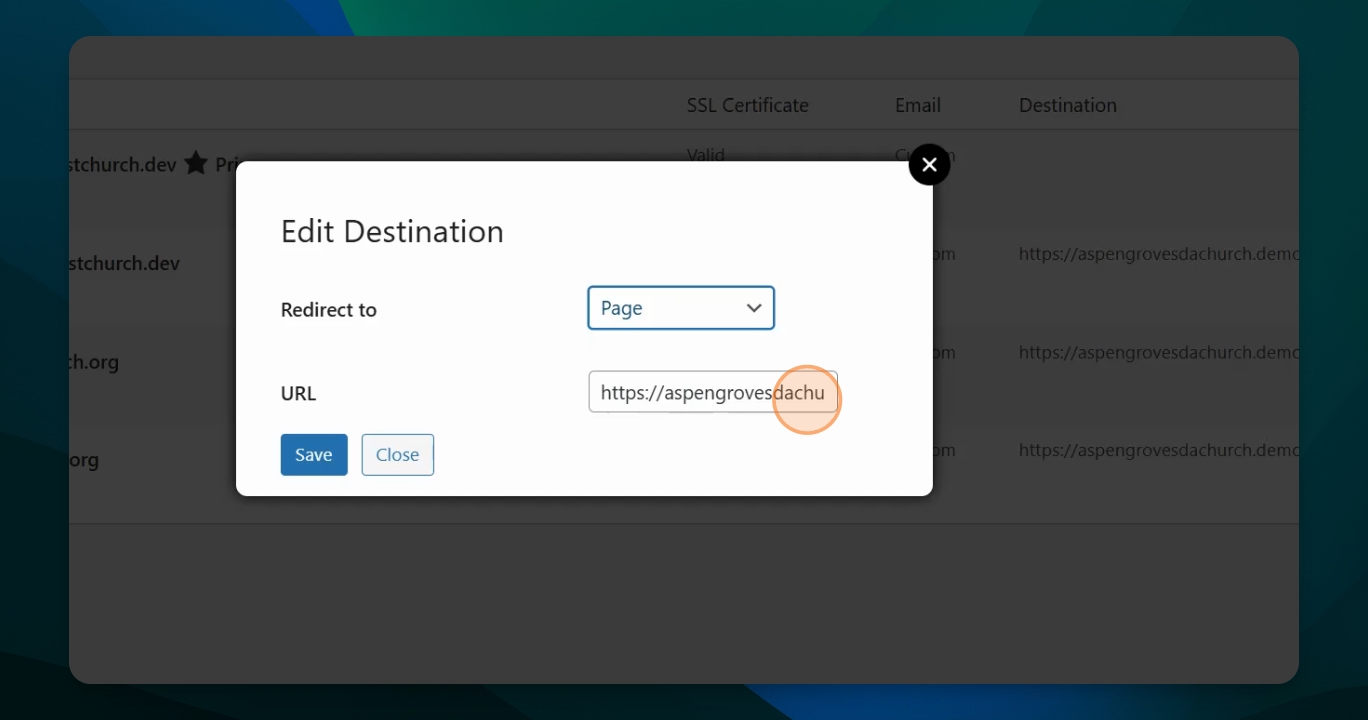
Step 5: Save Changes
Save the changes. Again, it may take a moment to save. Do not close this window while it is spinning.
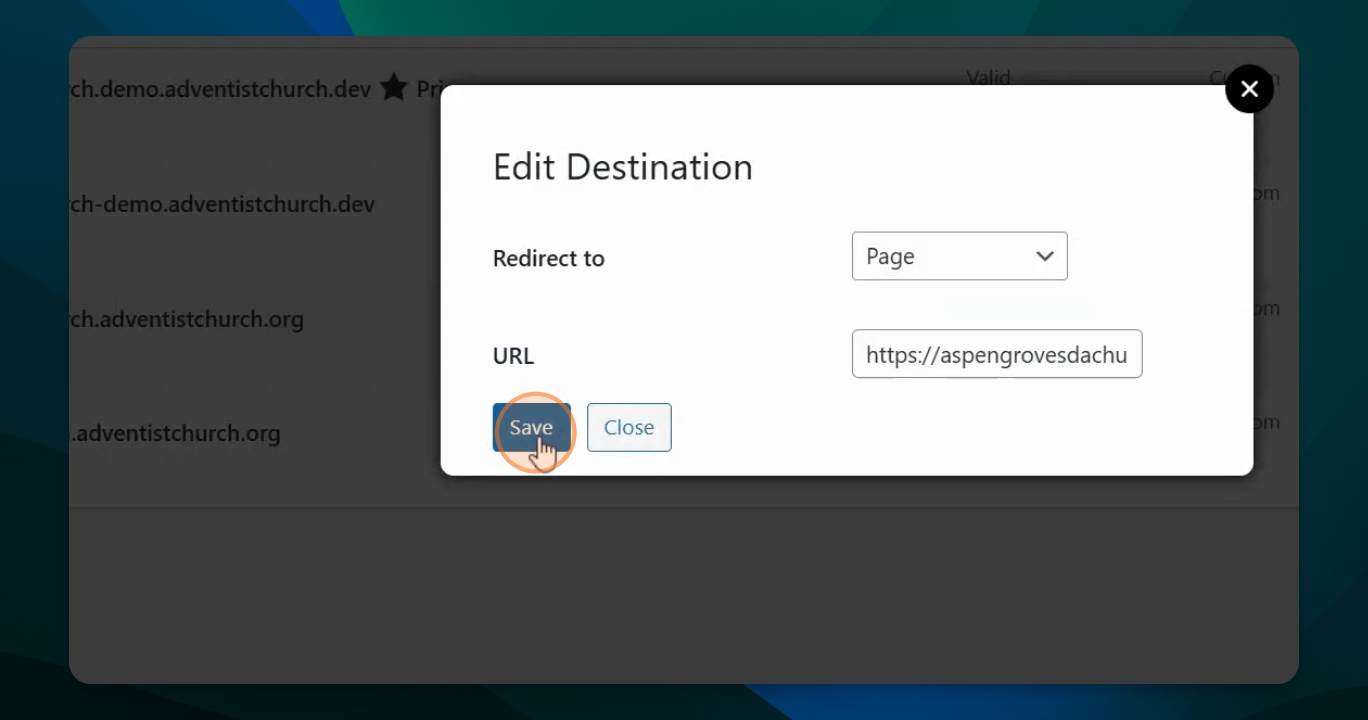
Step 6: Verify Destination
Once done, return to the list and check that the destination address has changed to the correct destination (e.g, in this example we had it go to the about page).
Step 7: Change Destination Again
If needed, you can change the destination again by following the same steps.
Step 9: Add More Domains
To add more domains, click the Add domain button and repeat.
To delete a domain, hit Remove and follow those steps.
This is how you add additional redirect domains to your website.
Specific Page Redirect Limits
Each site is currently limited to 20 specific page redirects. Our system limits the number of domains you can set to forward to a specific URL or page.
Note: There is no cap on standard "Domain aliases" (domains that point directly to the homepage of your site).
If you reach the limit of 20 specific page redirects and attempt to add another, the system will not save your configuration, and you may see a blank error message or an "Internal server error." If you require more than 20 specific page redirects, please contact our support team.
Domain Character Limit
Your custom domain name must be 64 characters or shorter.
Our platform automatically generates secure SSL certificates for all connected domains. The security provider enforces a strict 64-character limit for domain name. If you attempt to connect a domain that exceeds this limit, the system will reject it because it cannot generate a valid certificate.
If your organization uses an exceptionally long domain, you must register a shorter version to connect to your site. You can then configure your domain registrar to forward traffic from your long domain to your new, shorter domain.
Important Notes
When entering a URL for this action you have to type a whole or complete URL address, this means adding this includes HTTPS://
You can have 20 domains listed on your website.
Verify that each redirect is going to the correct place.
The custom domain name must be 64 character or shorter.