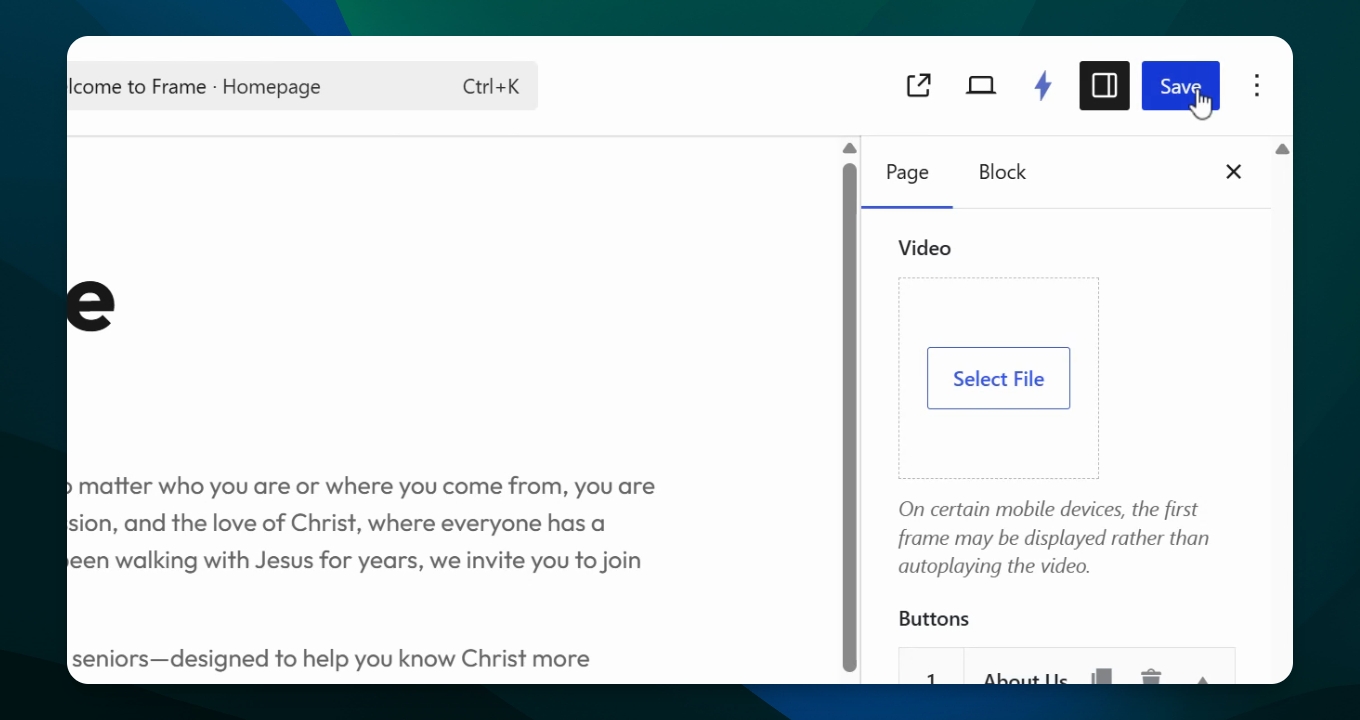
This guide explains how to add a call-to-action button to your welcome or home page. You can only add one button in this area. Let's look at the steps:
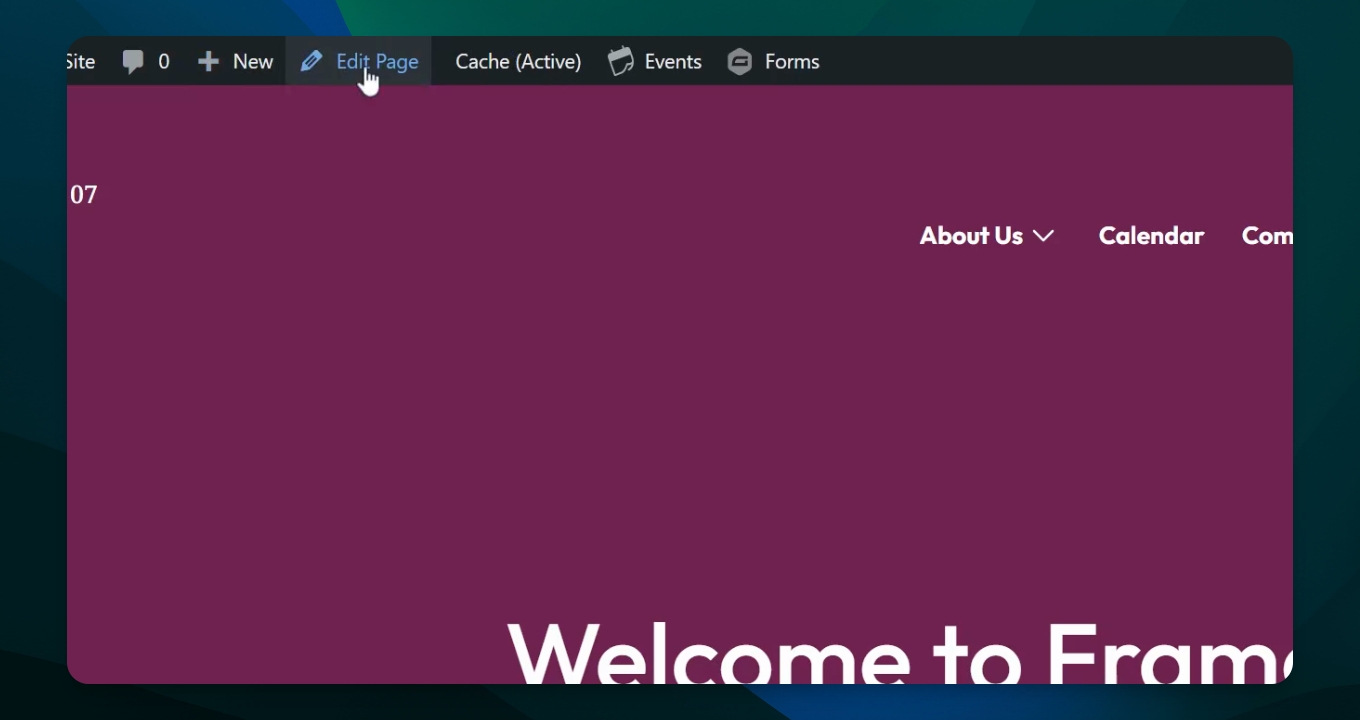
Step 1: Edit Your Page
Edit the page where you want to add the button.
Step 2: Open Settings Sidebar
Ensure the settings sidebar is open and set to the Page option.
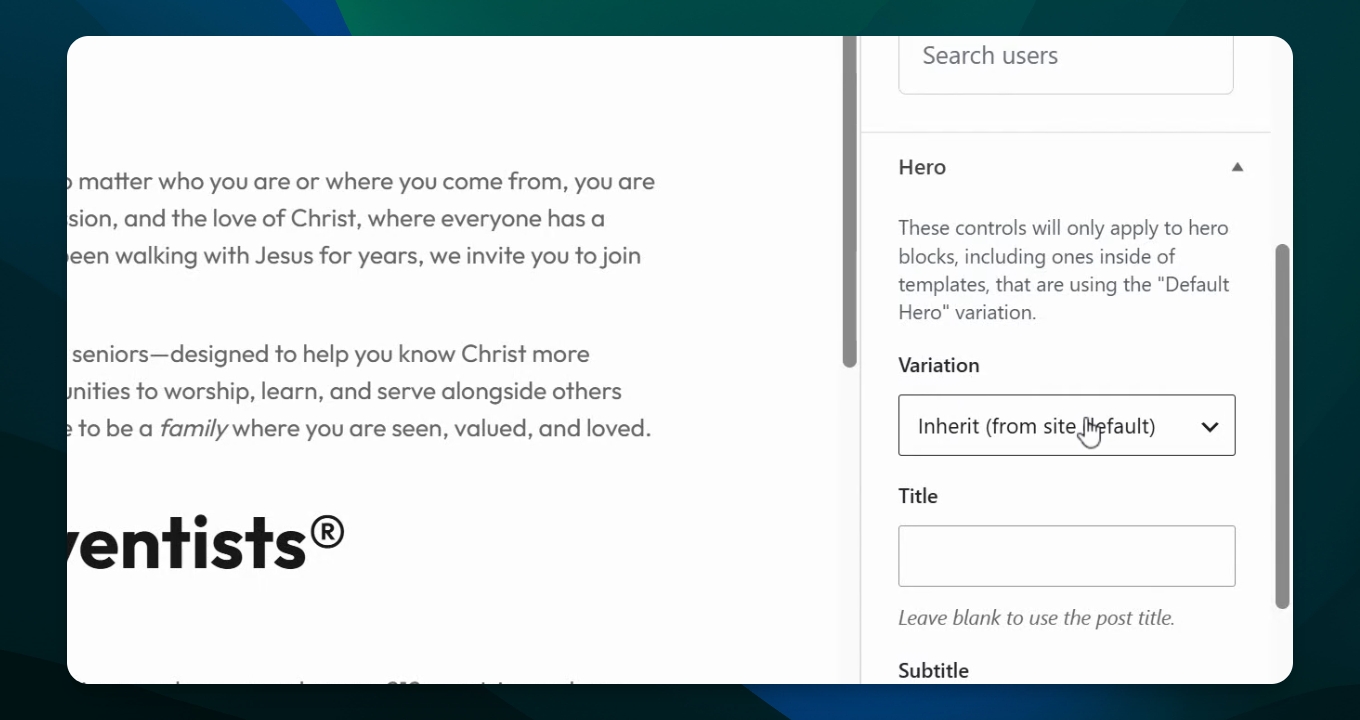
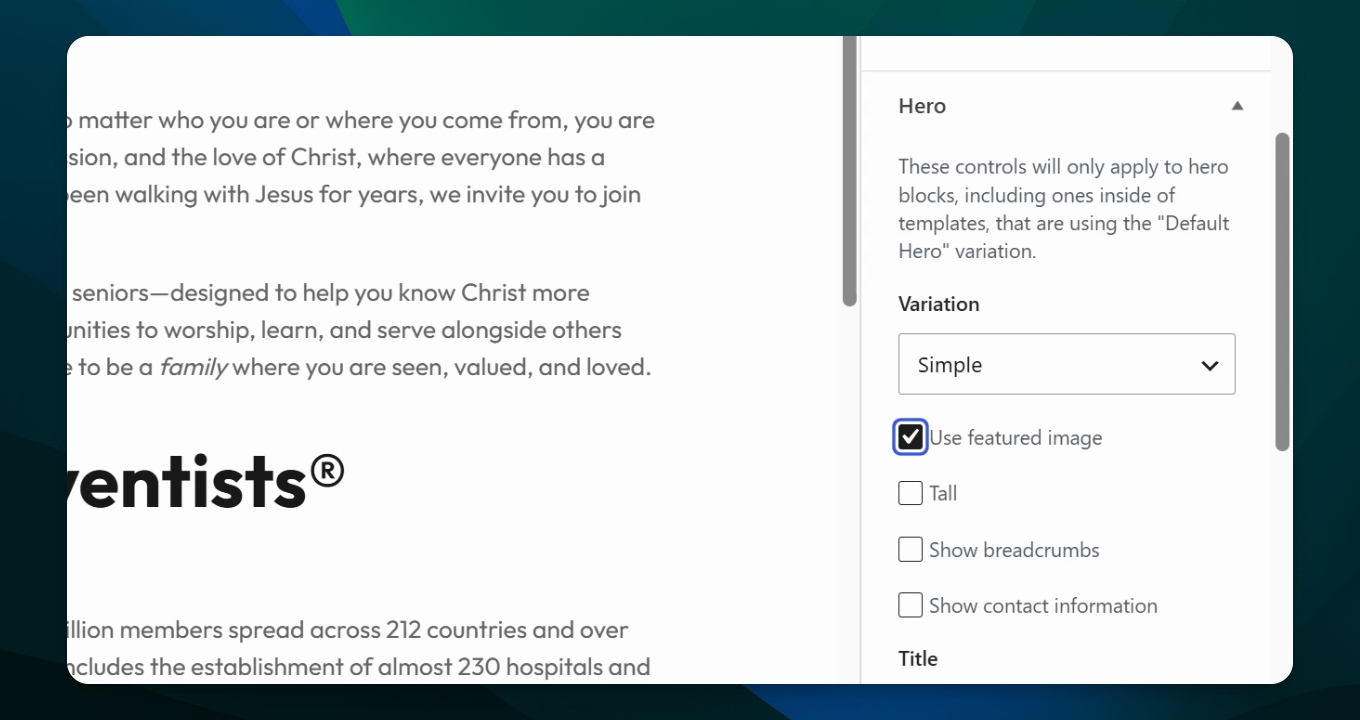
Step 3: Scroll to Hero Section
Scroll down to the Hero section of your page settings.
Step 4: Set Appearance to Simple
Make sure the appearance variation is set to Simple.
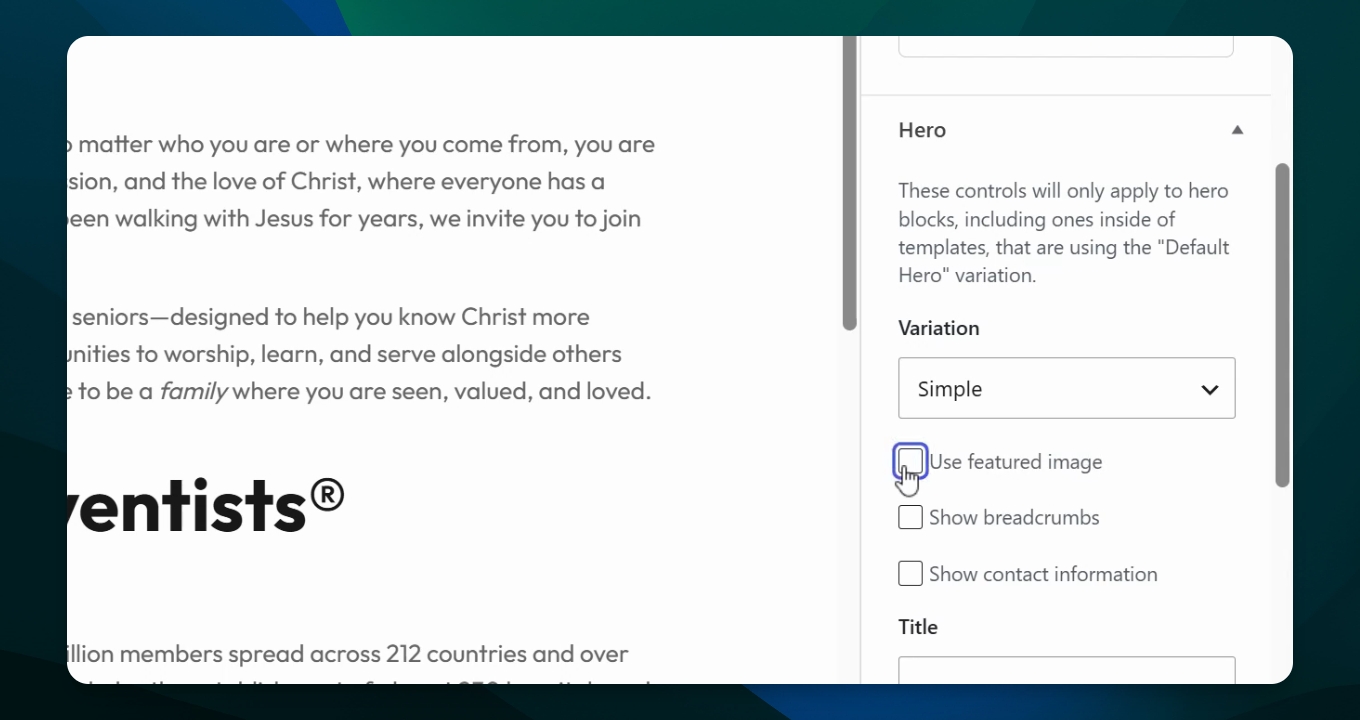
Step 5: Use Featured Image
Select the featured image for the top of the page. In this example, it's a solid color.
Step 6: Adjust Hero Height
Set the Hero section to Tall to ensure proper spacing for the button.
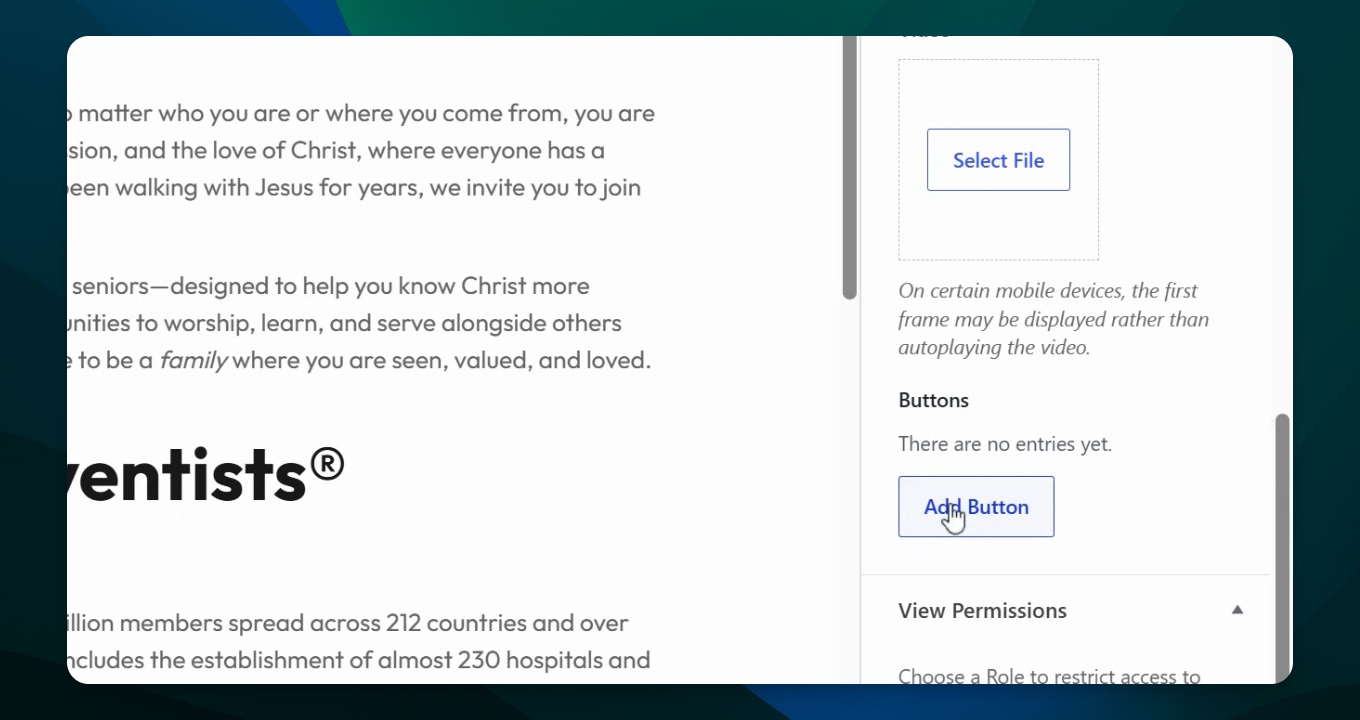
Step 7: Add a Button
Scroll down to the button section and add a button.
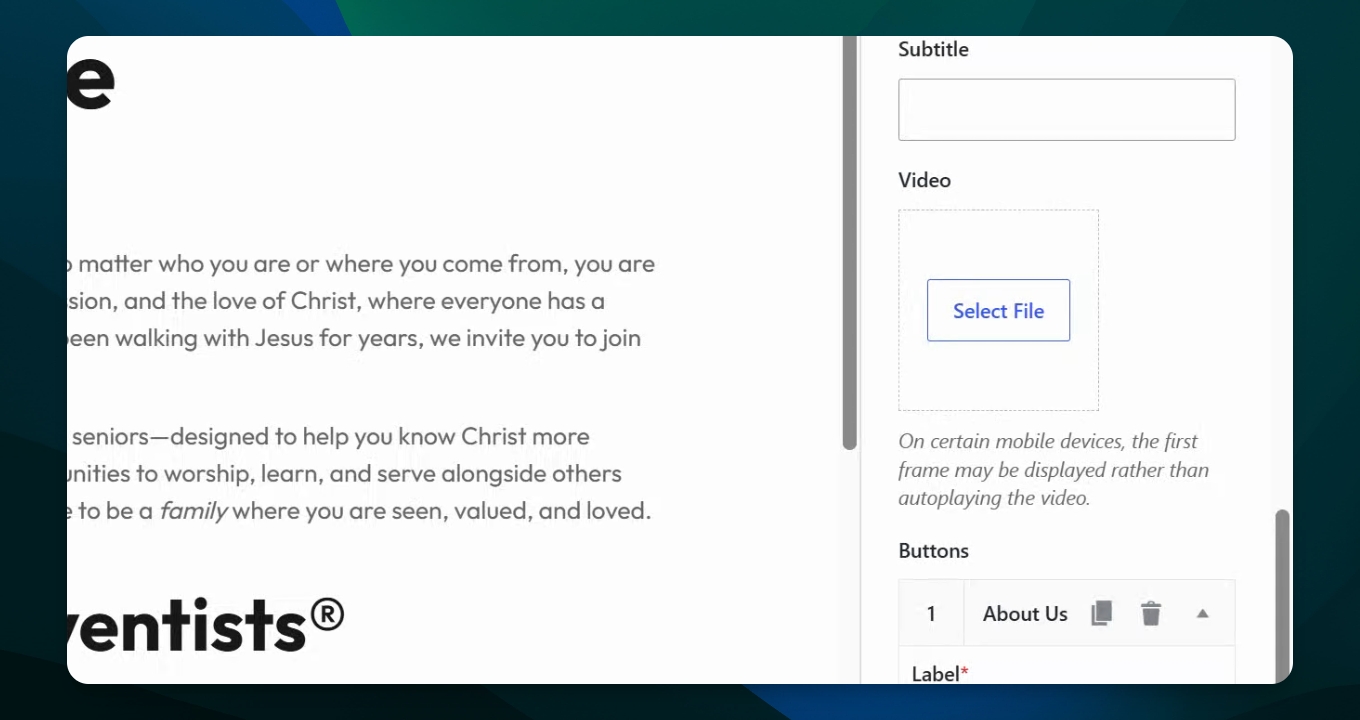
Step 8: Link to About Us Page
Type the button title and find the URL for your About Us page.
Step 9: Get About Us Page URL
Go to your About Us page, open the settings menu, and scroll down to find the slug. Click the label to open a flyout window and copy the permalink or shortcut for the page.
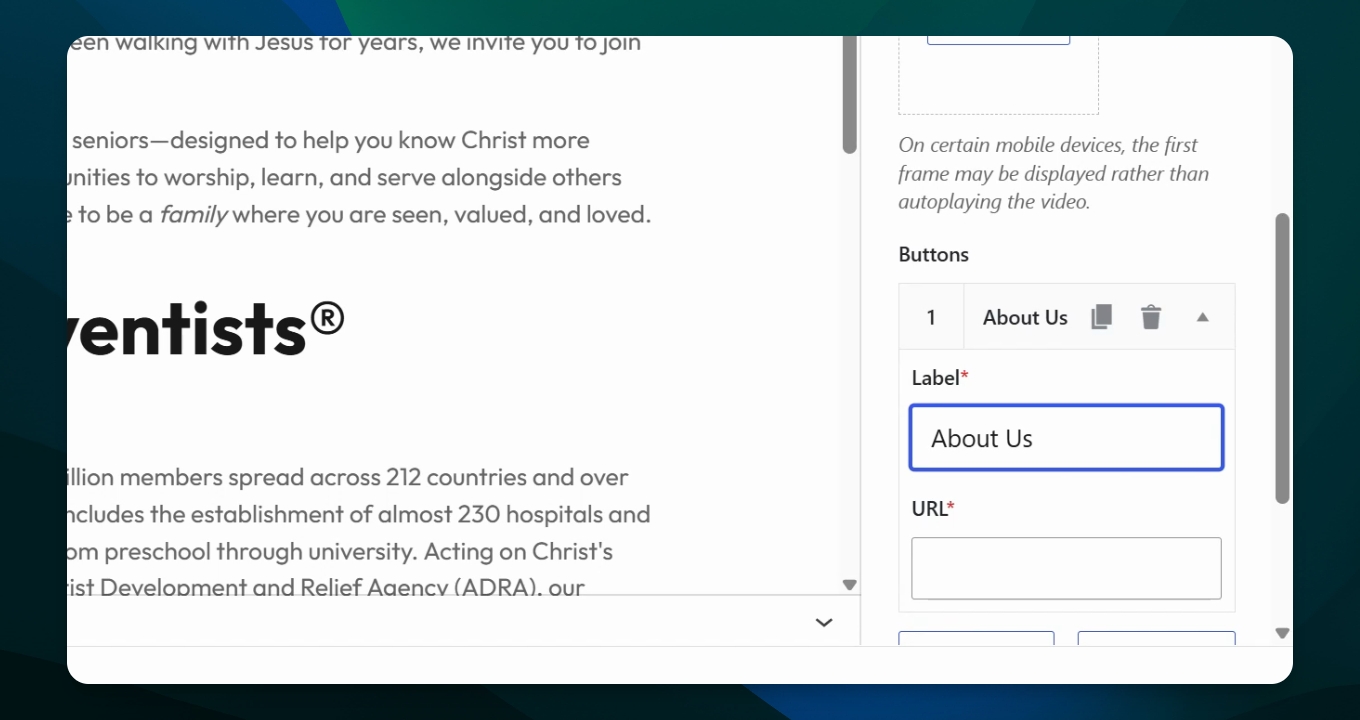
Step 10: Paste URL in Button Settings
Return to your welcome page and paste the copied URL into the button's URL field using Ctrl+V or Command+V depending on your computer.
Step 11: Save and View Page
Save the page, then view it to confirm the button appears and looks correct.