

To implement the News feature you will need to contact Adventist Connect Support, we can assist you in adding this feature for your website.
Email us at support@adventistconnect.org
This guide will show you the different design options available for the Hero section in News for each post on the Frame platform. Let's take a look at each option:
Access News Feature
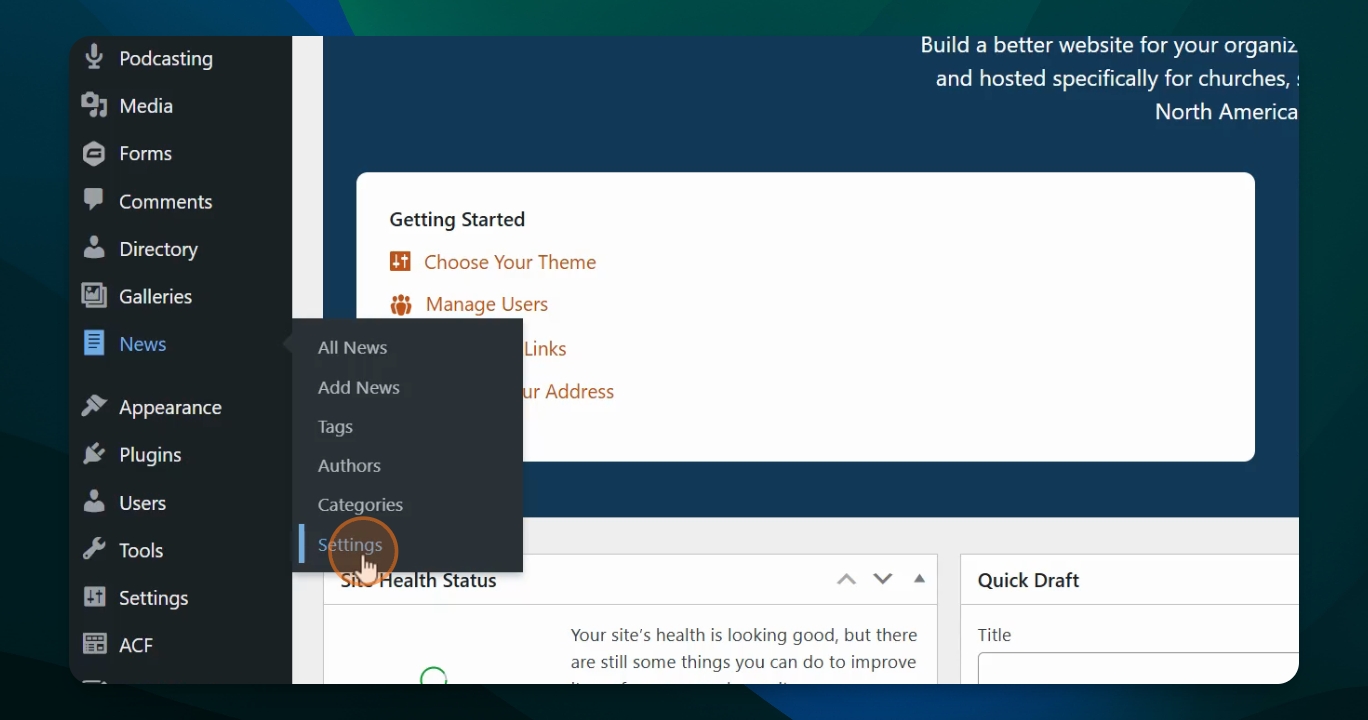
In the dashboard, scroll down and select the News feature, if you do not see this feature in your dashboard and you are wanting to have news posts for your website we are happy to help. See note below.
Open Settings
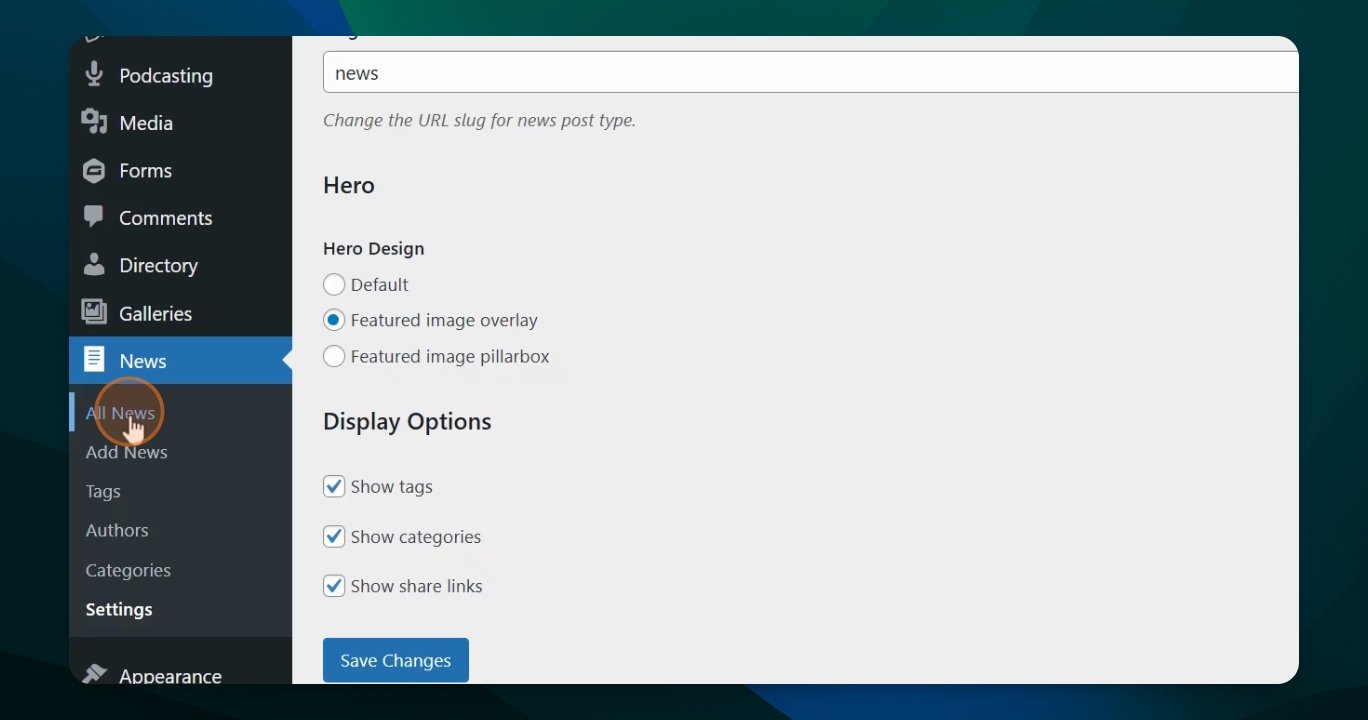
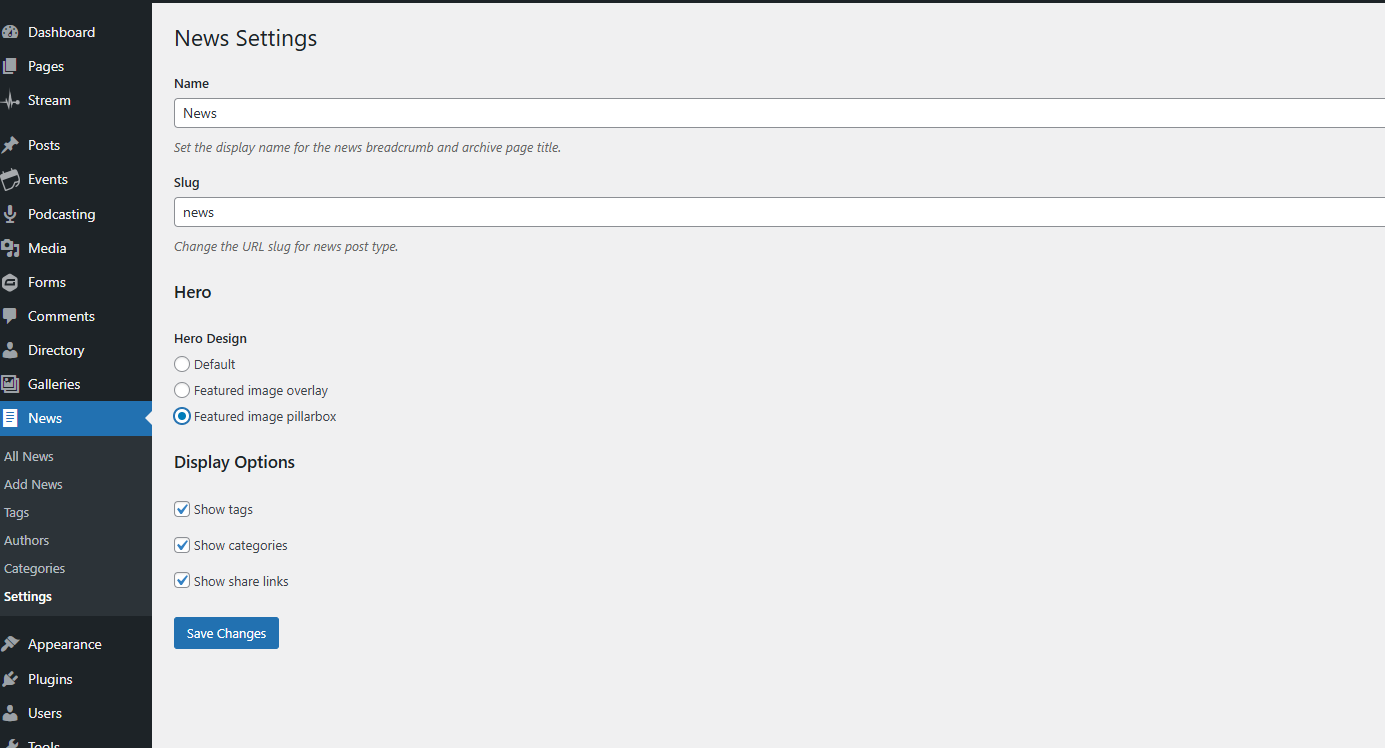
Scroll down and click on Settings. Here, you'll see the page name and slug under the Hero section, along with your Hero design options.
Review Hero Design Options
In the Hero Design section, you will see options such as Default, Featured Image Overlay, and Featured Image Pillar Box. By system default, Featured Image Overlay is selected. You can choose any of these options to customize the appearance of your News posts.
Review Featured Image Overlay
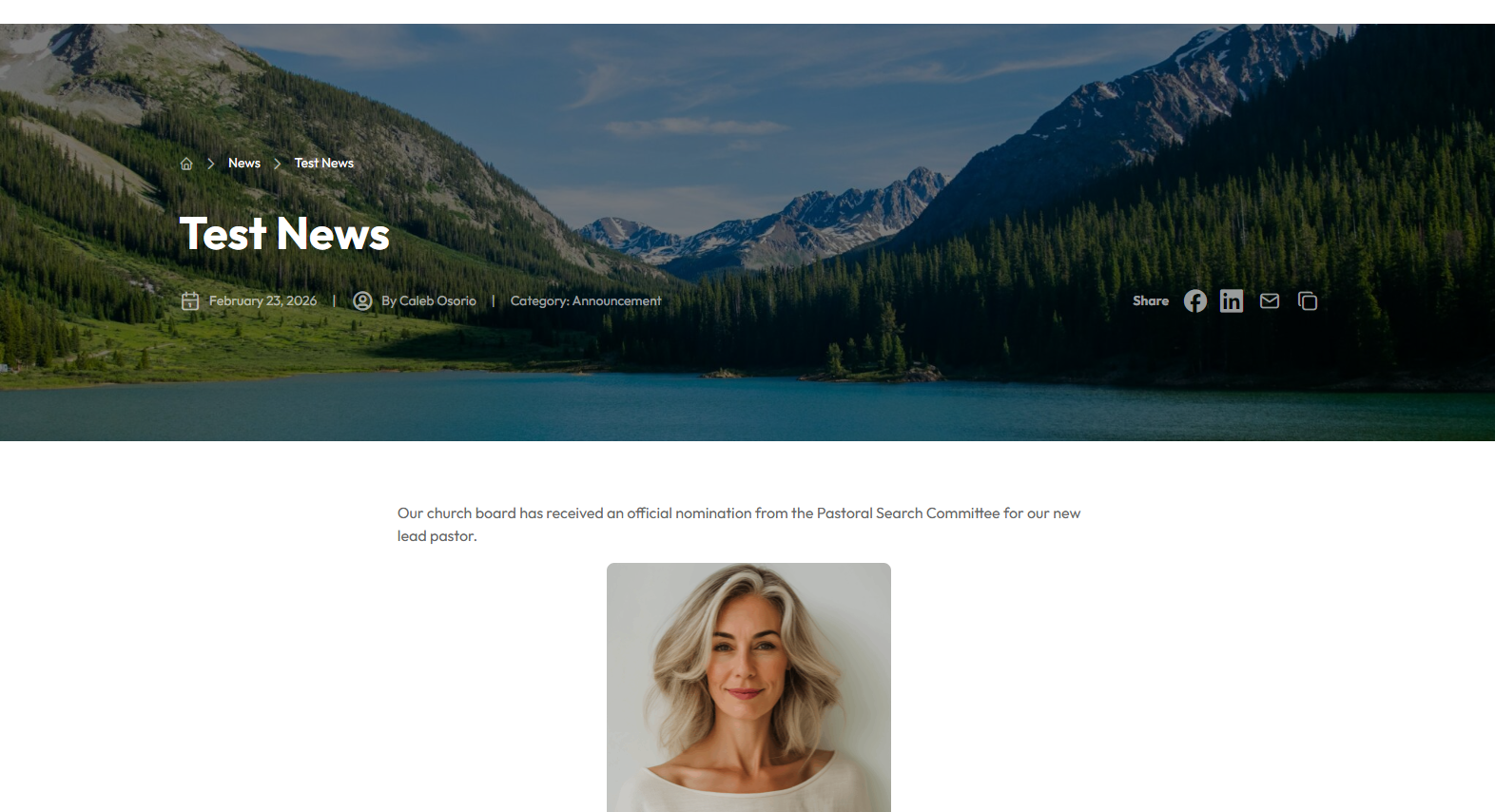
The Featured Image overlay is the default setting in Frame. To see how it appears, go to All News, select a news item, and view it. The photo appears in the background, with breadcrumbs, headline, date, author, and other details displayed above. The news post content is shown below the image.
Review the Default Option
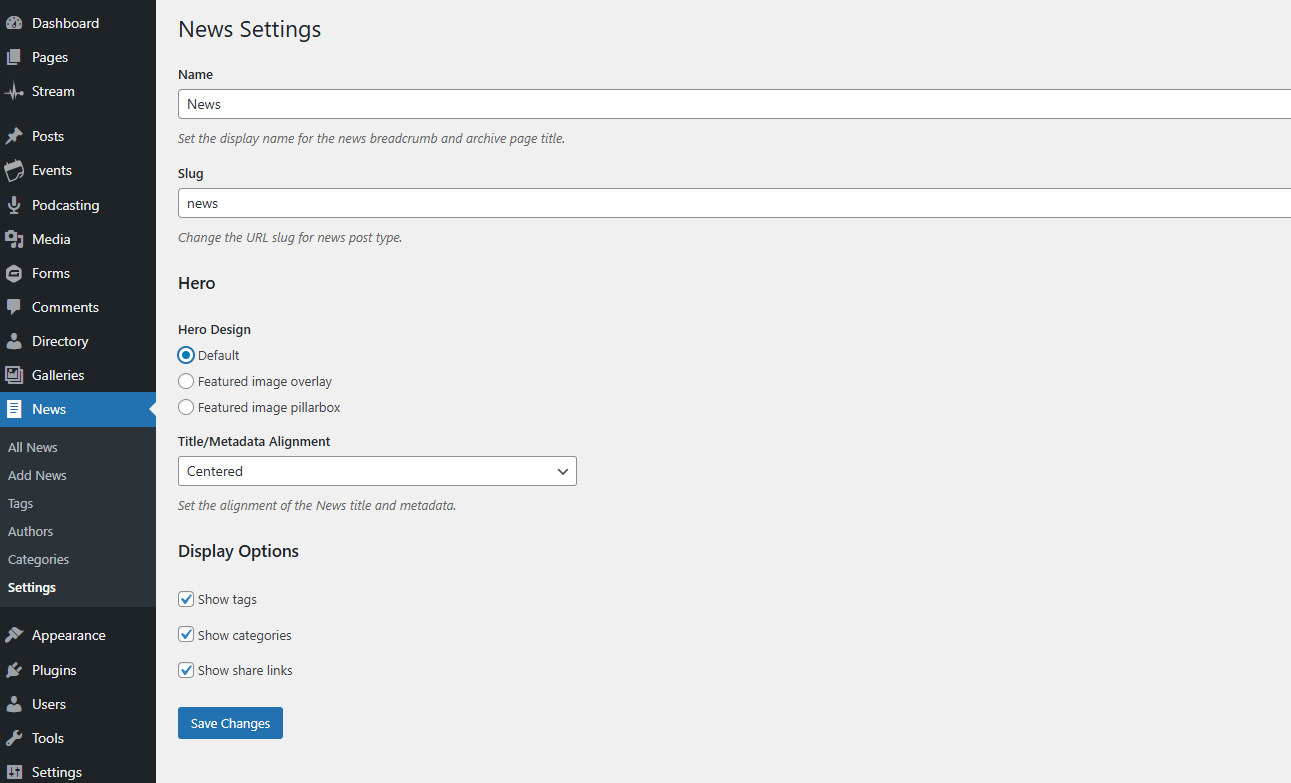
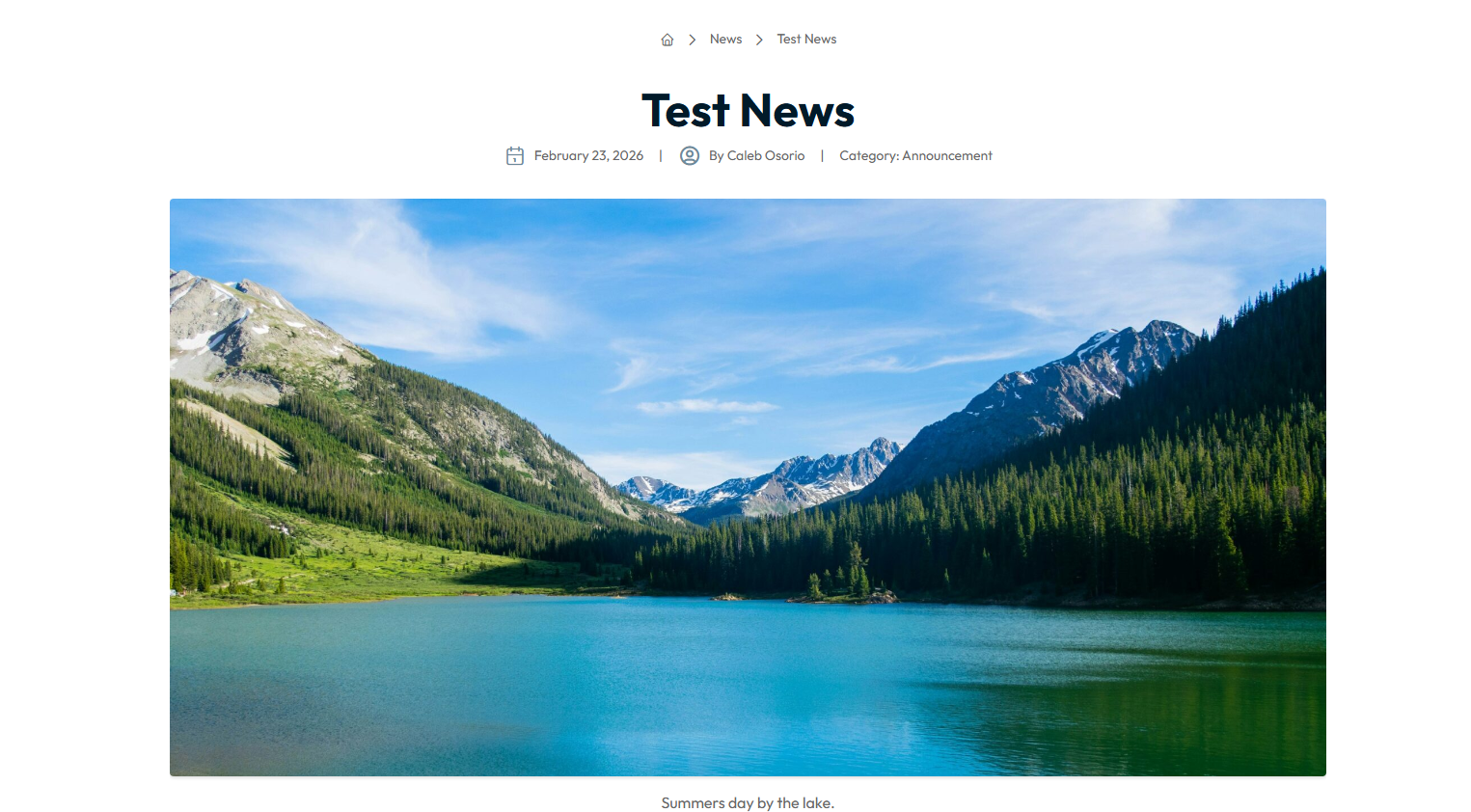
Return to the Settings block and select the Default option. Here, you can choose the title metadata alignment—either centered or left aligned. Make sure to Save Changes. Then, go back to your post to view this option. In this layout, the information (title, date, etc.) appears at the top, the featured image is below, and the news post content follows.
Featured Image Pillarbox
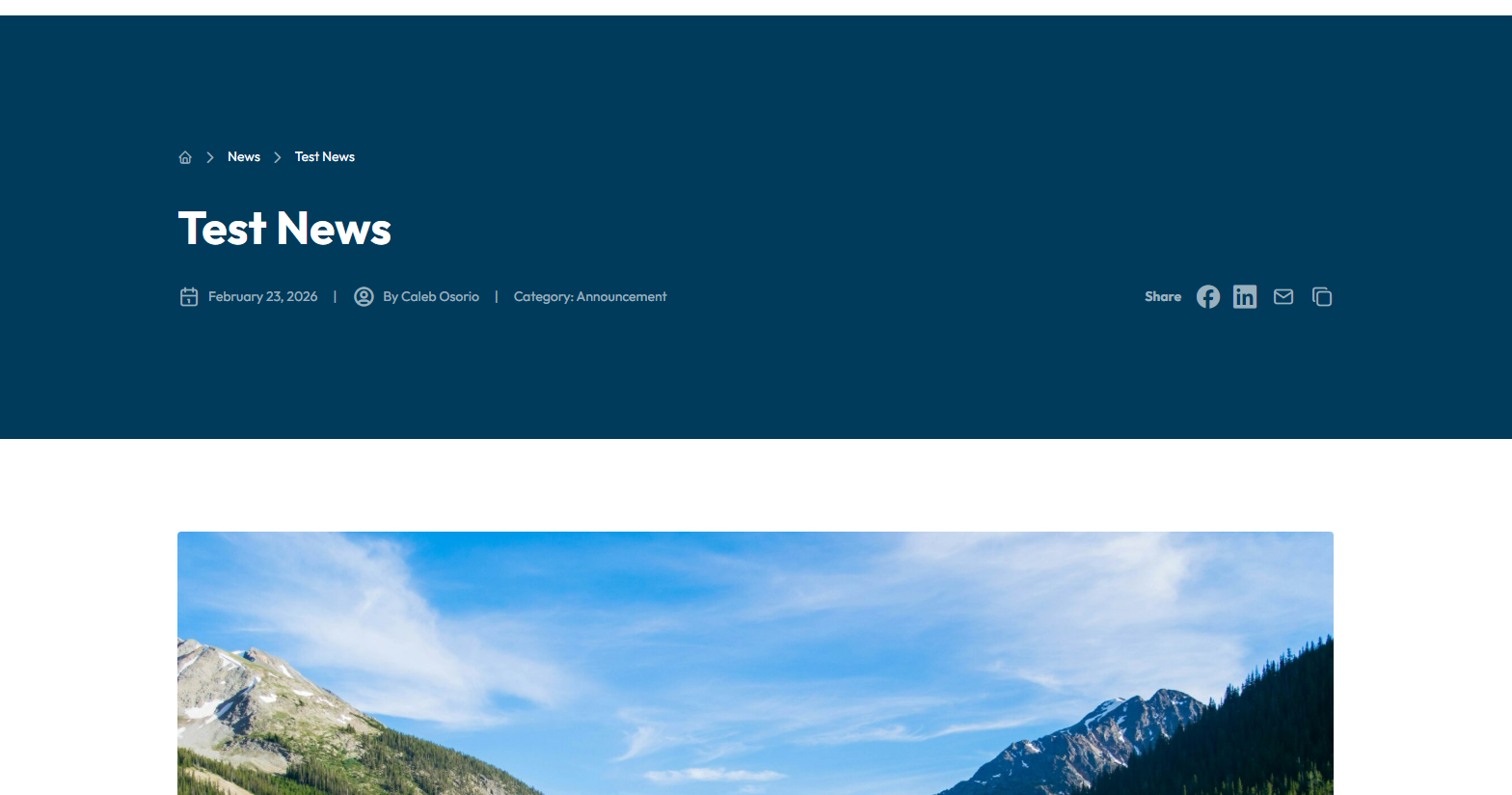
Go into Settings again and choose the Featured Image Pillar Box option. Save your changes, then return to your news post. This option displays a solid color box at the top with the news post title information, followed by the featured image and then the news release content.
Display Options
In the Settings menu for your News you also have three options that are visible by default that you can change as well. Each of these categories coordinate with the information added for reach post:
Show tags
Show categories
Show share links
With these three options in your setting menu you can customize News items to fit your needs for your church or school.
Takeaways
These Hero Design section settings apply to all posts in your database.
You can customize your News designs by editing the Posts template > deleting the posts pattern block and building your own. We do not recommend this unless you are an advanced Wordpress users.
If you have customized the hero section for your website News these options will not override what you have created unless the Posts template is reset.